> For the complete documentation index, see [llms.txt](https://docs.samita.io/llms.txt). Markdown versions of documentation pages are available by appending `.md` to page URLs; this page is available as [Markdown](https://docs.samita.io/sa-request-a-quote/getting-started/enable-app-in-theme.md).

# Enable the app in your theme

Use the first step of the dashboard Setup guide to switch the app embed on in your theme, so quote buttons and forms reach your customers.

Shopify keeps apps switched off inside your theme until you allow them. Until you do this, the app works in your admin but customers see nothing on your storefront.

{% hint style="warning" %}
This is the most common reason a quote button doesn't show up. If something isn't appearing on your storefront, check this page first.
{% endhint %}

The job has two halves, and merchants usually finish only the first. You start it in the app, but you finish it in **Shopify's theme editor** — and it is not done until you click **Save** there.

## Where you do this

When you open the app you land on its dashboard. The **Setup guide** there — "Complete these steps to activate quote requests on your storefront." — has three steps, and a badge counts how many are finished as *n / 3 completed*.

The first step is the theme one. It reads **App embed is disabled** until you turn it on, with the line "Enable app embed in your theme so quote buttons and request forms can appear on the storefront."

<figure><img src="https://2993310686-files.gitbook.io/~/files/v0/b/gitbook-x-prod.appspot.com/o/spaces%2FIvNtDAMNVIdy5nl9kiOU%2Fuploads%2FsNbpH0BeYX89swZ1ZVOZ%2Fimage.png?alt=media&amp;token=0ce39cd0-7a51-4ff2-bdd2-aced015a0e57" alt=""><figcaption></figcaption></figure>

## Turn the app on

{% stepper %}
{% step %}

### Open the app

In your Shopify admin, go to Apps and open **SA Request a Quote**. The dashboard opens first.
{% endstep %}

{% step %}

### Click Enable app embed

In the **Setup guide**, find the step reading **App embed is disabled** and click **Enable app embed**.
{% endstep %}

{% step %}

### Switch the embed on in your theme

Shopify takes you out of the app and into the **Theme Customize** page for your theme, with the app's embed ready.

1. In the left-hand panel, look for the **App embeds** section.
2. Find the app's row there and turn its toggle on.
3. Click **Save** in the top right corner of the page.

<figure><img src="https://2993310686-files.gitbook.io/~/files/v0/b/gitbook-x-prod.appspot.com/o/spaces%2FIvNtDAMNVIdy5nl9kiOU%2Fuploads%2FNJCT8f1XGPjxnZ32Gnwe%2Fimage.png?alt=media&amp;token=bd5be065-7bf6-4fb2-abc0-0f2df4fbff50" alt=""><figcaption></figcaption></figure>
{% endstep %}

{% step %}

### Check the step changed

Go back to the app. The step now reads **App embed is enabled**, and the badge at the top of the **Setup guide** counts one more step done.

Every step also has a round icon at its left. Clicking it ticks the step off — hover and the tooltip reads **Mark as done**, or **Mark as not done** on a step already ticked. There is no button with that label, so look for the icon rather than words. It only changes the **Setup guide**; it switches nothing on in your theme, so use it for housekeeping, not instead of the toggle.
{% endstep %}

{% step %}

### Look at your storefront

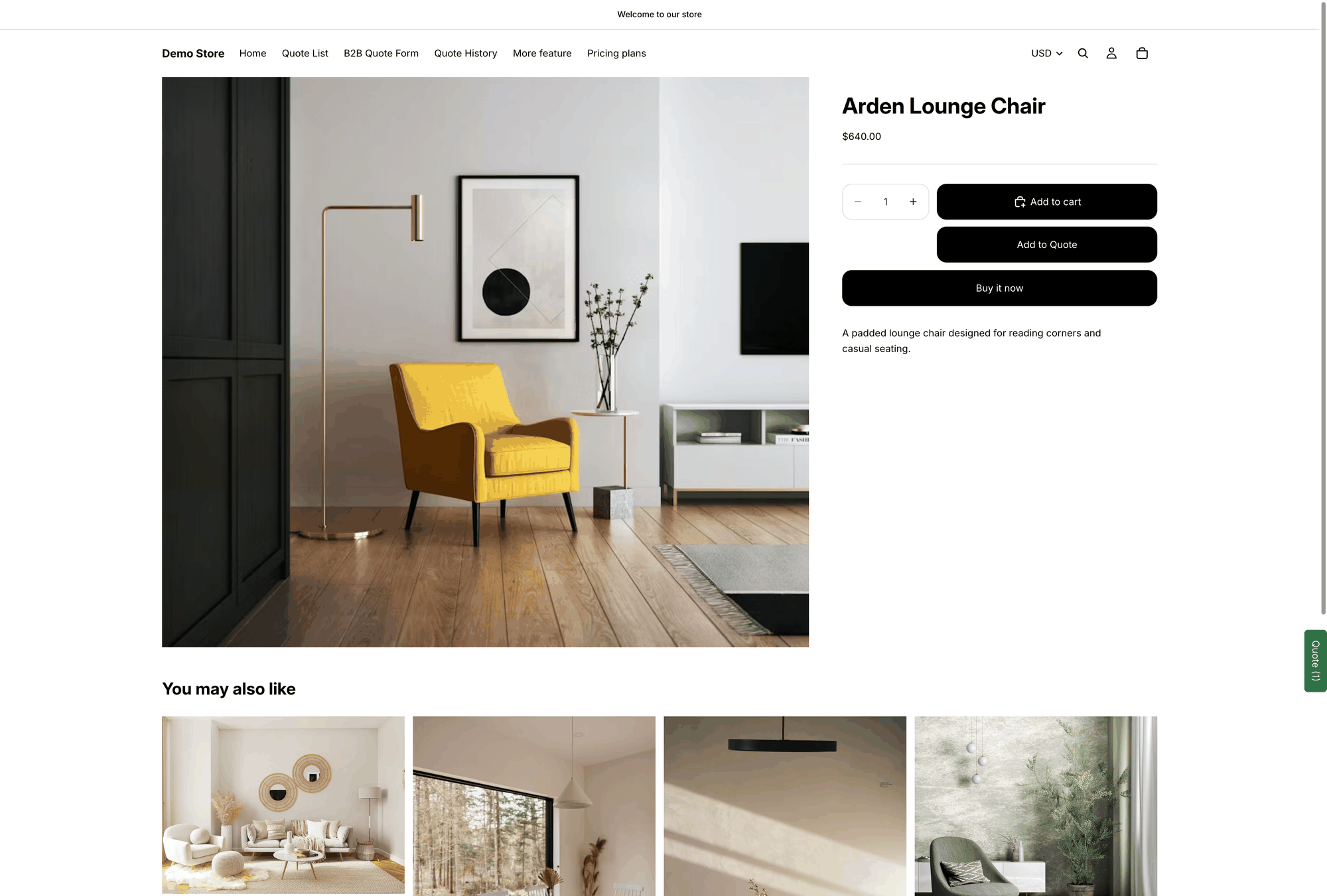
Open a product you've made quotable. Your quote button appears in the position you chose, using your **Button text** — **Add to Quote** unless you've changed it.
{% endstep %}
{% endstepper %}

<figure><img src="https://2993310686-files.gitbook.io/~/files/v0/b/gitbook-x-prod.appspot.com/o/spaces%2FIvNtDAMNVIdy5nl9kiOU%2Fuploads%2Fgit-blob-228d1efc6842b244a307ff0a232c0b697f21b848%2Fscreenshot-storefront-product-page.png?alt=media" alt="Storefront product page with the Add to Quote button shown beneath the usual buy buttons"><figcaption><p>With the embed on, the quote button renders on your product pages.</p></figcaption></figure>

{% hint style="danger" %}
Leaving the theme editor without clicking **Save** changes nothing. The toggle looks on while you are still on the page, but the theme is only updated once you save it.
{% endhint %}

{% hint style="info" %}
If you switched the embed on for a theme that isn't published, you won't see any change on your live store. Preview that theme instead to check your setup.
{% endhint %}

{% hint style="info" %}
The embed belongs to the theme you enabled it in, not to your store. If you publish a different theme later — or duplicate one and publish the copy — switch the embed on in that theme too.
{% endhint %}

## If it still isn't showing

<table><thead><tr><th width="320">What happened</th><th>What to do</th></tr></thead><tbody><tr><td>You turned the toggle on but nothing changed on the storefront</td><td>Go back to the <strong>Theme Customize</strong> page and check <strong>Save</strong> at the top right was clicked. An unsaved toggle does nothing.</td></tr><tr><td>The app still says <strong>App embed is disabled</strong></td><td>You may have saved the embed into a different theme. Open <strong>App embeds</strong> in the theme that is actually published and check the toggle there.</td></tr><tr><td>The embed is on, but the button is missing on one product</td><td>That product may not be in your quotable selection. See <a href="/sa-request-a-quote/collecting-quote-requests/choose-products.md">Choose quotable products</a>.</td></tr><tr><td>The button is missing on collection pages only</td><td>On many modern themes it is attached to the theme's quick-add control: it only appears when you hover a product card, and as a small icon rather than a labelled button.</td></tr></tbody></table>

## Turn the app off

If you want to stop the app appearing on your storefront without uninstalling it:

{% stepper %}
{% step %}

### Click Disable app embed

On the dashboard, in the **Setup guide**, the first step reads **App embed is enabled**. Click **Disable app embed**.

<figure><img src="https://2993310686-files.gitbook.io/~/files/v0/b/gitbook-x-prod.appspot.com/o/spaces%2FIvNtDAMNVIdy5nl9kiOU%2Fuploads%2FUsx8HfvUa2CUoDtHEV6z%2Fimage.png?alt=media&amp;token=6514ec48-bd57-470d-84c9-108d94ebee95" alt=""><figcaption></figcaption></figure>
{% endstep %}

{% step %}

### Switch the embed off in your theme

Shopify takes you to the **Theme Customize** page again. Open **App embeds** in the left-hand panel, turn the app's toggle off, and click **Save** in the top right corner.

<figure><img src="https://2993310686-files.gitbook.io/~/files/v0/b/gitbook-x-prod.appspot.com/o/spaces%2FIvNtDAMNVIdy5nl9kiOU%2Fuploads%2F6GAcU7bEVPCqViWkXYTd%2Fimage.png?alt=media&amp;token=0dd37da8-e8c4-48f3-b25d-dec67c6ddd11" alt=""><figcaption></figcaption></figure>
{% endstep %}

{% step %}

### Confirm

Back in the app, the step reads **App embed is disabled**. Your quote buttons and hide price rules no longer apply to your storefront.
{% endstep %}
{% endstepper %}

Your quotes and settings are kept — switching the embed off only stops the storefront side. Turn it back on whenever you like.

{% hint style="info" %}
Stuck on this step? The dashboard's **Need any help?** section has **Contact us** for email support and **Start chat** for live chat, or you can email <support@samita.io>. Say which theme you switched the embed on in — that alone answers most of these.
{% endhint %}

## Next steps

* [Quickstart](/sa-request-a-quote/getting-started/quickstart.md) — the rest of the **Setup guide**, end to end
* [Choose quotable products](/sa-request-a-quote/collecting-quote-requests/choose-products.md) — decide which products customers can quote
* [Troubleshooting](/sa-request-a-quote/help/troubleshooting.md) — if the button still doesn't appear


---

# Agent Instructions
This documentation is published with GitBook. GitBook is the documentation platform designed so that both humans and AI agents can read, navigate, and reason over technical content effectively. Learn more at gitbook.com.

## Querying This Documentation
If you need additional information that is not directly available in this page, you can query the documentation by asking a question.

Perform an HTTP GET request on the following URL with the `ask` and `goal` query parameters:

```
GET https://docs.samita.io/sa-request-a-quote/getting-started/enable-app-in-theme.md?ask=<question>&goal=<user_goal>
```

`ask` is the immediate question: it should be specific, self-contained, and written in natural language.
`goal` is what the user is ultimately trying to achieve, the reason they need the answer. Sharing it helps GitBook give you a better, more relevant answer. A goal is most helpful when it describes the outcome the user wants rather than restating the question. For example, with `ask=how do I create an API token`, a goal like `automate deployments from our CI pipeline` lets GitBook tailor the answer to that use case.

The response will contain a direct answer to the question and relevant excerpts and sources from the documentation.

Use this mechanism when the answer is not explicitly present in the current page, you need clarification or additional context, or you want to retrieve related documentation sections.
