> For the complete documentation index, see [llms.txt](https://docs.samita.io/llms.txt). Markdown versions of documentation pages are available by appending `.md` to page URLs; this page is available as [Markdown](https://docs.samita.io/sa-request-a-quote/help/troubleshooting.md).
# Troubleshooting
Fixes for the problems merchants hit most often — quote buttons not showing, prices still visible, blank quote pages and missing emails.
Find your symptom below. Each one starts with the most common cause, so work down the list in order.
## The quote button doesn't appear on my storefront
{% stepper %}
{% step %}
### Check the app embed is switched on
This is the cause most of the time. Until the app embed is on, the app works in your admin but customers see nothing.
Open the app and look at the **Setup guide** on the dashboard — "Complete these steps to activate quote requests on your storefront." If the first step reads **App embed is disabled**, click **Enable app embed** and switch it on in the theme editor Shopify opens.
The first step of the Setup guide tells you whether the app embed is on.
Full steps: [Enable the app in your theme](/sa-request-a-quote/getting-started/enable-app-in-theme.md)
{% endstep %}
{% step %}
### Check the product is one you allowed
The button only shows on products you have selected. Go to **Quote settings**, scroll to **Select quote products** — "Select products or collections that should show the Request a Quote button." — and check what your current selection covers. Click **Change** to widen it.
See [Choose quotable products](/sa-request-a-quote/collecting-quote-requests/choose-products.md).
{% endstep %}
{% step %}
### Check the position isn't set to hide it
Product pages, collection pages and the cart page are three separate settings, and each one has an option that turns the button off.
Go to **Quote settings**, click **Customize**, open the **Button & widget** tab and look at **Button position**:
Dropdown
The value that hides the button
Product page button position
Don't show on product pages
Collection page button position
Don't show on collection pages
Cart page button position
Don't show on cart page
If the button shows on product pages but not in your collection grid, this is almost always why.
{% endstep %}
{% step %}
### Check who is allowed to see it
Still on **Button & widget**, find **Customer visibility**. If **Who can see the RFQ button?** is set to **Logged-in customers** or **Logged-in customers with specific tags**, a signed-out visitor sees nothing. Set it to **All customers** to show it to everyone.
Also check **Exclude customer tags** — an account carrying one of those tags won't see the button either.
{% endstep %}
{% step %}
### Check the theme you edited is the live one
If you switched the app embed on for a theme that isn't published, your live store won't change. Preview that theme, or switch the embed on for your published theme instead.
{% endstep %}
{% endstepper %}
{% hint style="info" %}
Still nothing? Some themes place their buy buttons in unusual markup, which can stop the button landing where you expect. Email with your store URL and a link to the product so someone can look at your theme.
{% endhint %}
## The floating quote widget doesn't appear
The widget is a separate setting from the button, so it can be off while the button works perfectly.
* **Check it's turned on.** Go to **Quote settings** > **Customize**, open the **Quote cart page** tab and turn on **Enable Quote Cart Widget** — "Shows a floating button on your storefront so customers can open their quote cart from any page."
* **Check the app embed.** The widget needs the app embed just as the button does — see the first section above.
* **Check you're looking for the right thing.** On the storefront the widget is a small floating button labelled **Quote (n)** at the edge of the screen, where *n* is the number of items collected.
See [Floating quote widget](/sa-request-a-quote/collecting-quote-requests/quote-widget.md).
## Prices are still visible after I set up hiding
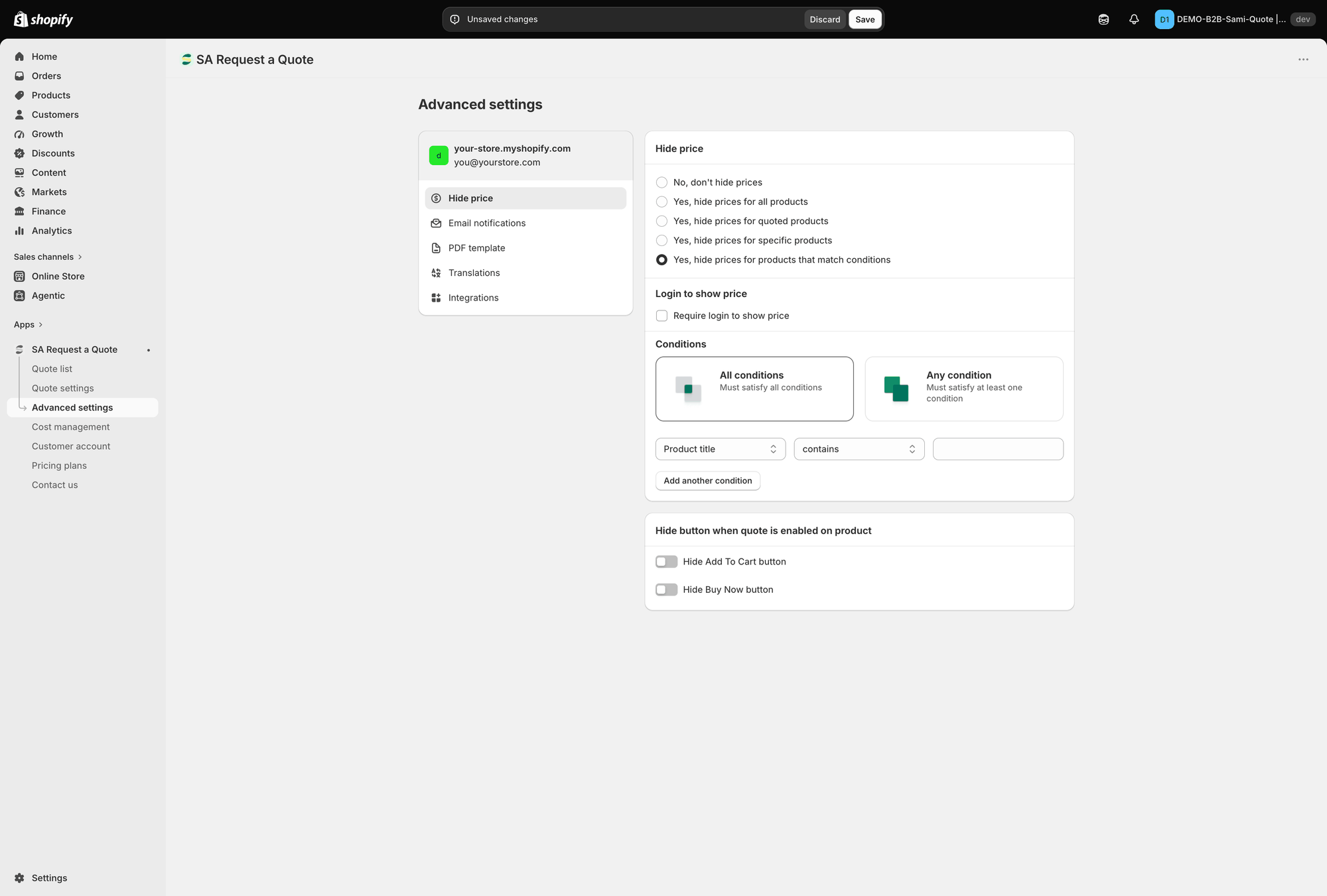
The conditions option opens Login to show price and Conditions.
* **Check the option covers that product.** Open **Advanced settings** > **Hide price** and look at which of the five options is selected. **Yes, hide prices for quoted products** only covers the products in your **Select quote products** list, and **Yes, hide prices for specific products** only covers the ones you picked by hand.
* **Check your conditions actually match.** With **Yes, hide prices for products that match conditions**, the match mode matters: **All conditions** means "Must satisfy all conditions", **Any condition** means "Must satisfy at least one condition". Check the field (**Product title**, **Product type**, **Product vendor**, **Product price**, **Product in stock**, **Product tag** or **Collection**) and the operator against a product you expect to be covered. The operator list changes with the field, so a rule that reads oddly is often a field swapped after the operator was chosen — **Product in stock** offers only **is**, and **Product tag** and **Collection** only **is equal to** and **is not equal to**.
* **Check you saved.** Look at the top of the window rather than the bottom of the tab: while there is anything unsaved, Shopify's bar reads **Unsaved changes** with **Discard** and **Save** beside it. Leaving without saving keeps the old behaviour.
* **Check your plan.** Below the five options, a line reading "🔐 This feature is available on …" means the radios are disabled for your plan, so nothing you set there takes effect. See [Pricing plans](/sa-request-a-quote/settings/pricing-plans.md).
* **Check the buy buttons separately.** Hiding a price does not remove **Add to cart**. That is the **Hide button when quote is enabled on product** section on the same tab, with **Hide Add To Cart button** and **Hide Buy Now button**.
* **Check your theme's price markup.** Themes show prices in several places — a product card, a quick view, a sticky bar. If the price is hidden on the product page but still shows in your collection grid, send support the page URL so the rest of your theme can be looked at.
See [Hiding prices overview](/sa-request-a-quote/hiding-prices/overview.md) for the settings themselves.
## Prices are hidden from my logged-in customers too
That's the **Require login to show price** checkbox, in the **Login to show price** section of the **Hide price** tab.
{% hint style="warning" %}
The checkbox is not on screen while **Hide price?** is left on **No, don't hide prices**, which is how it starts. Choose **any** of the four **Yes…** options and it appears. It is not tied to the conditions option in particular — older notes saying it only shows up with **Yes, hide prices for products that match conditions** are wrong.
{% endhint %}
* If prices should appear the moment someone signs in, tick **Require login to show price**, and make sure the **Yes…** option above it covers the products in question.
* If a signed-in customer still sees no price, check that option — and any conditions under it — first. They apply whether or not the visitor is logged in.
* If you cannot find the checkbox at all, look at the radios above it. Greyed-out radios with a padlock line reading "🔐 This feature is available on …" mean your plan does not include hide price, so the setting stays on **No, don't hide prices** and the checkbox never appears.
See [Require login to show price](/sa-request-a-quote/hiding-prices/login-to-show-price.md).
## A quote page is blank or shows raw code
{% hint style="warning" %}
This is a recovery step, not part of normal setup. Your two storefront quote pages already carry the app's content block, and you should never need to add it by hand. Only use the steps below if the block has been deleted from a page — typically after someone edited or re-created it in Shopify.
{% endhint %}
The two pages are:
Page
Path
What it shows
Request for quote
/pages/request-for-quote
The quote form and the customer's quote cart.
Quote history
/pages/quotes-history
A logged-in customer's past quotes.
There are two symptoms, and they are the same fault seen from either side:
* **The page is blank.** The app's content block has been removed from the page — usually because someone edited or re-created the page in Shopify and the block went with it.
* **The page prints `{rfq_content}` or `{rfq_history}` as visible text.** The page content still holds the old placeholder token. The token is not code the storefront runs; it has to be *replaced* by the app's block, so pasting the block in and leaving the token behind leaves the token printing on the page.
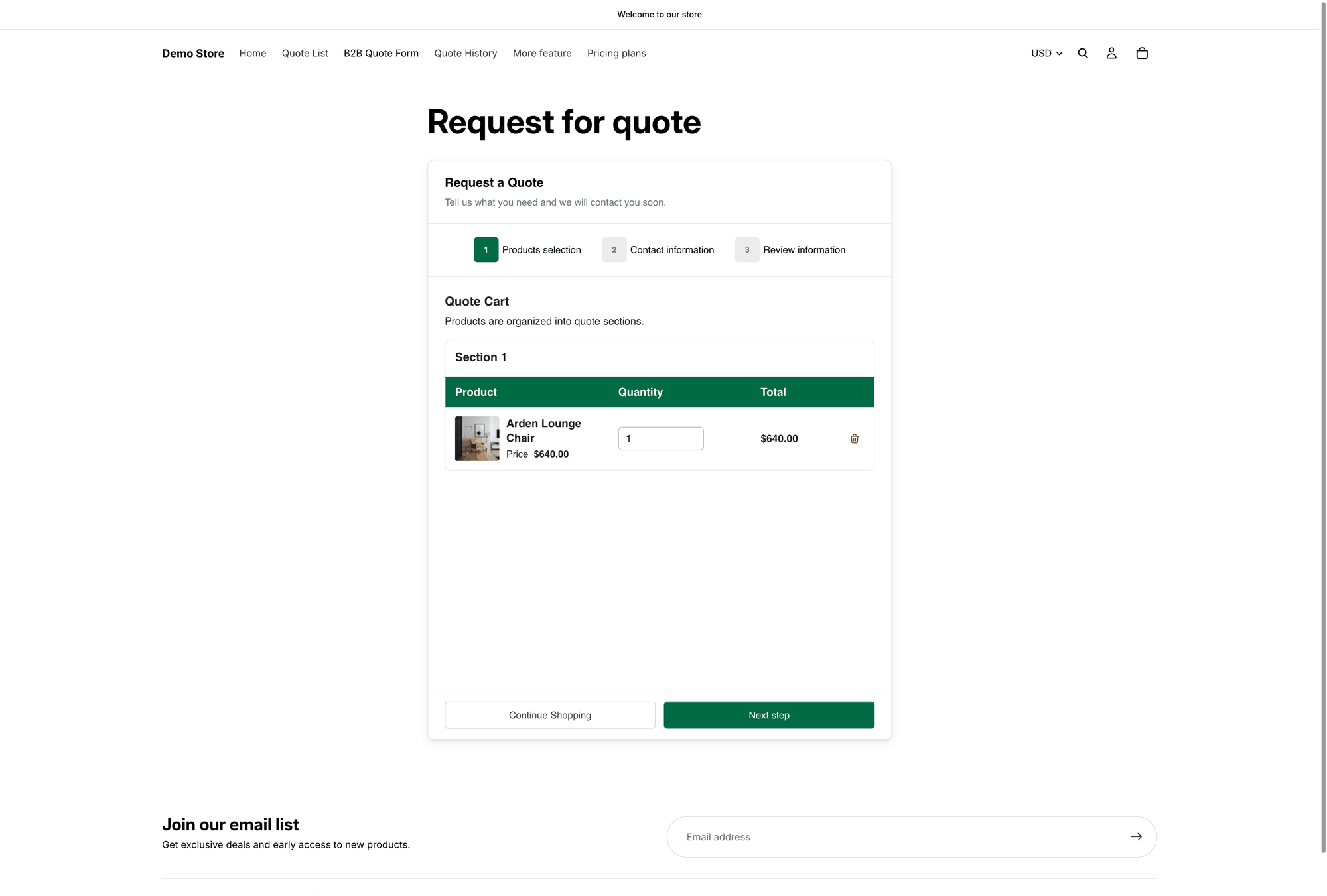
A working **Request for quote** page looks like this — if yours is empty, or shows a line of code as text, the block is missing.
What the Request for quote page should look like on your storefront.
### Putting the block back
{% stepper %}
{% step %}
### Open the page in Shopify
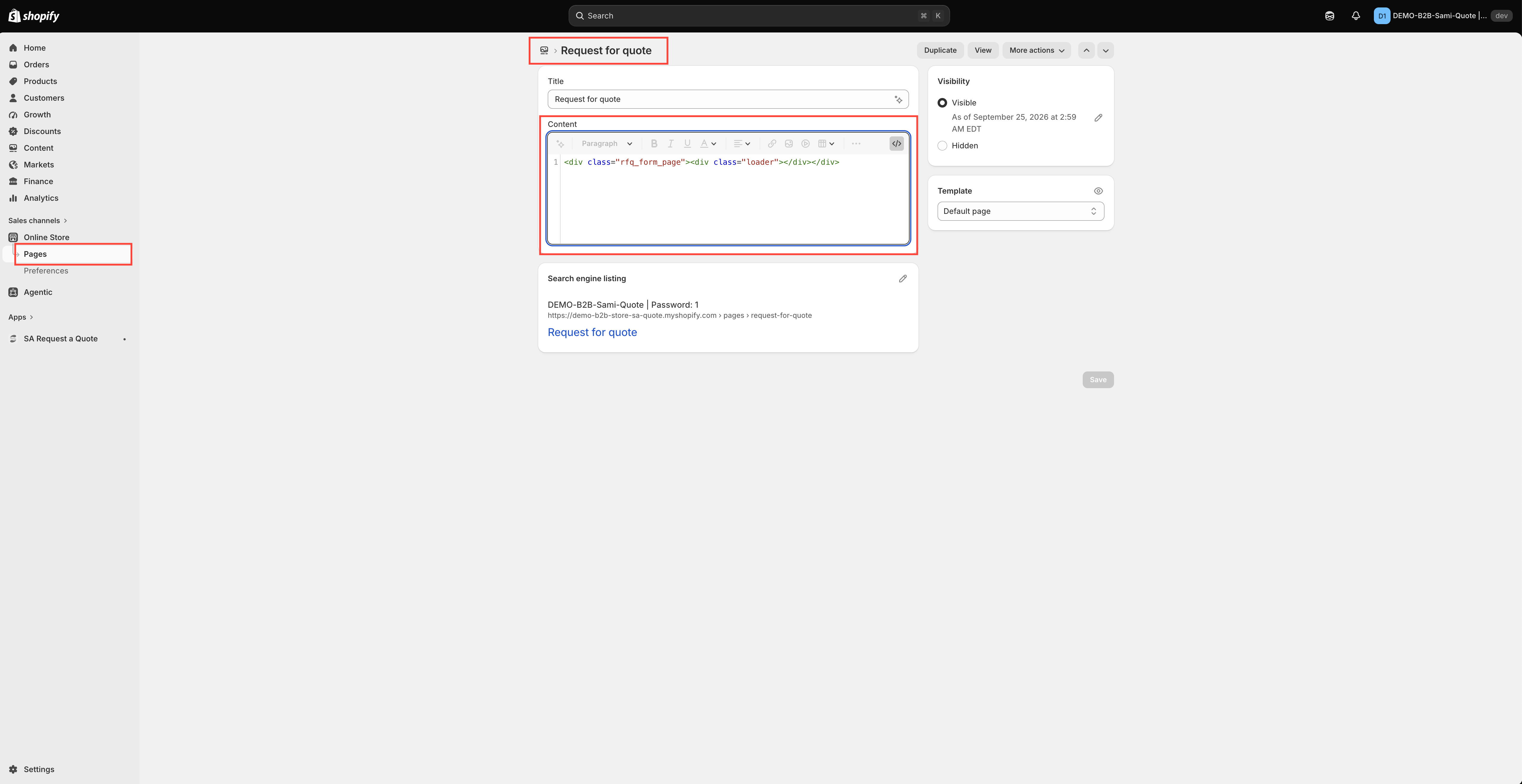
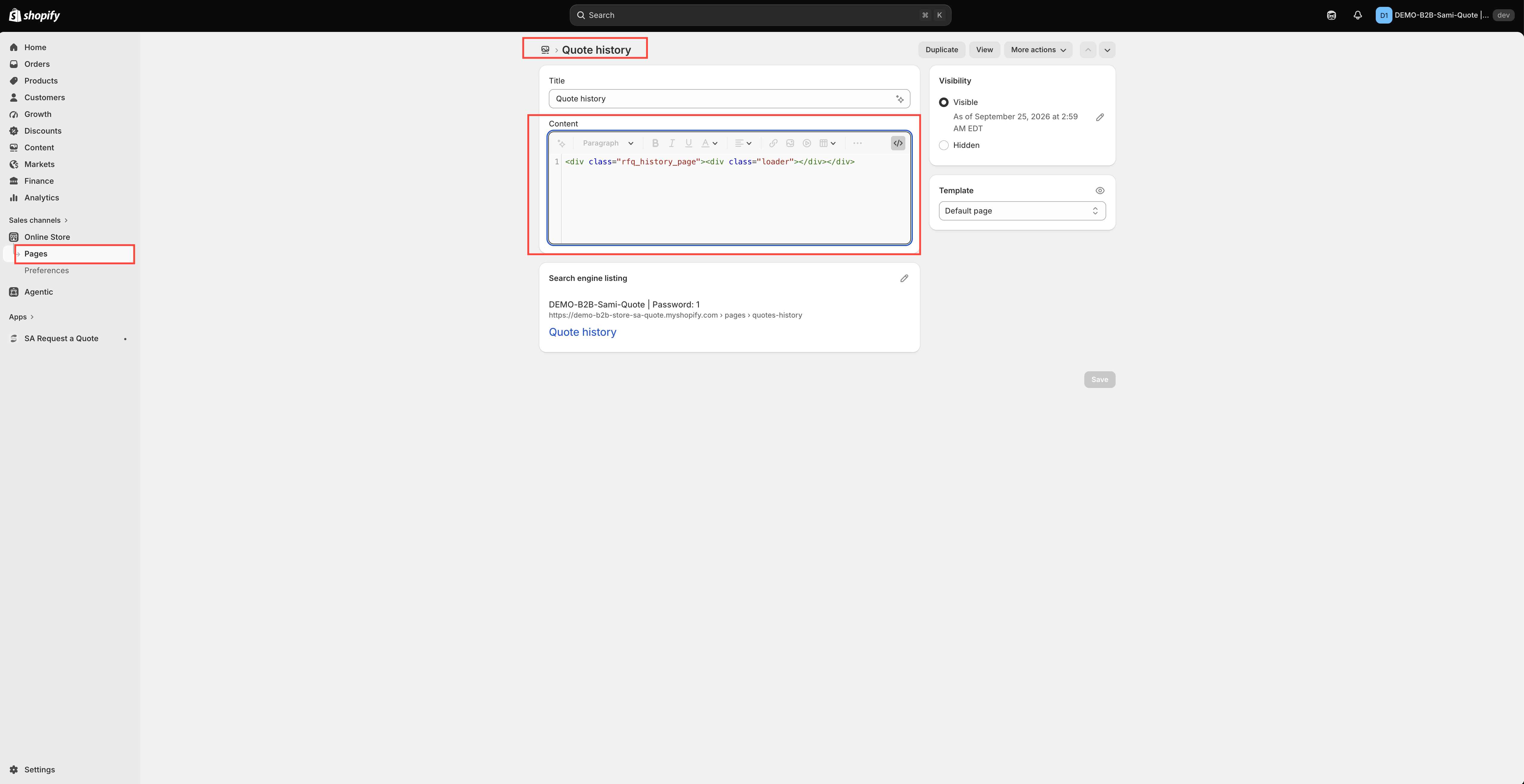
In your Shopify admin go to **Online Store** > **Pages**, then open the affected page.
{% endstep %}
{% step %}
### Switch to the HTML view
Click the **`<>`** icon in the page editor toolbar to show the HTML viewer.
The <> button shows the HTML behind the page.
Check the block survived your edit.
{% endstep %}
{% step %}
### Replace the token, or paste the block back in
Each page needs one line, and only one. If you can see the old token in the HTML viewer, delete it and put the matching block where it was. If the page content is empty, paste the block in on its own.
Page
Delete this token
Put this in its place
Request for quote
{rfq_content}
<div class="rfq_form_page"></div>
Quote history
{rfq_history}
<div class="rfq_history_page"></div>
Copy from here — for the **Request for quote** page:
```html
```
And for the **Quote history** page:
```html
```
{% endstep %}
{% step %}
line, so the "replace, do not just add" step has a picture">
{% endstep %}
{% step %}
**Screenshot needed.** The Shopify page editor for Request for quote with the <> HTML viewer open, showing a leftover {rfq\_content} token above the
{% endstep %}
{% step %}
line, so the "replace, do not just add" step has a picture.
{% endstep %}
{% endstepper %}
### Save
Click **Save**, then reload the page on your storefront.
{% hint style="danger" %}
Leaving the token in place is the whole reason a page prints `{rfq_content}` or `{rfq_history}` to your customers. Delete it — do not just add the `
` underneath it.
{% endhint %}
{% hint style="warning" %}
Paste it in the HTML viewer, not the rich text editor. Typed into the rich text editor it is saved as visible text, which is why some pages show the code instead of the quote form.
{% endhint %}
See [Request a Quote page](/sa-request-a-quote/storefront-quote-pages/request-a-quote-page.md).
## Products aren't loading into the quote form
Older instructions asked merchants to add a **search file** to the theme by hand: **Online Store** > **Themes** > **More actions** > **Edit code** > **Add a new template**, template type **search**, format **liquid**, file name **rfq** — then paste a long block of Liquid into it.
{% hint style="info" %}
You should not need to do that now. The app installs that template — `templates/search.rfq.liquid` — with the rest of its theme files, and when the template isn't in the theme the storefront falls back to the app's own product lookup instead.
{% endhint %}
So if the quote form or quote cart isn't finding your products:
* **Check the app embed first.** It is at the top of this page, and without it nothing of the app runs on your storefront.
* **Check you are looking at the published theme.** A file added to one theme is not in another.
* **Check whether the file is there before doing anything to it.** In **Online Store** > **Themes** > **More actions** > **Edit code**, look under **Templates** for `search.rfq.liquid`.
* **Don't paste an old copy in by hand.** An out-of-date copy of that file is harder to diagnose than a missing one. If the file is absent and products still aren't loading, email with your store URL and theme name and let support put the current version in.
## I'm not receiving quote notification emails
{% stepper %}
{% step %}
### Check your spam folder
Automated notifications land in spam more often than you'd expect.
{% endstep %}
{% step %}
### Allow the sender address
Quote notifications are sent from ****. If your mail server filters unknown senders, add that address to your allowed senders.
{% endstep %}
{% step %}
### Check the notification is switched on
Go to **Advanced settings** > **Email notifications** and check **Mail notifications** — "Automatically send an email notification to the store owner when a quote is submitted." If it's off, nothing is sent to you at all.
Mail notifications controls the email that comes to you.
{% endstep %}
{% step %}
### Check the address is one you monitor
Open the **Mail notifications** editor and check **Admin email**. Its help text reads: "You can add multiple email addresses, separated by commas. A maximum of 5 addresses is allowed." See [Change notification recipients](/sa-request-a-quote/emails/change-recipients.md).
{% endstep %}
{% step %}
### Still nothing — contact support
Email with your store URL and the exact address you tested — the admin one, the customer one, or both. Support can read the mail log for your store and tell you what happened to that message.
{% endstep %}
{% endstepper %}
## Customers say they didn't get their email
Everything above applies, plus:
* **Check the customer email is turned on.** The customer-facing email is **Auto response email** — "Automatically send an email notification to customers after they submit a quote." If it's off, only you are notified. See [Emails sent to customers](/sa-request-a-quote/emails/emails-to-customers.md).
* **Check the address on the quote.** Open the quote from **Quote list** and confirm the address the customer typed is valid.
* **Consider sending from your own domain.** Messages from your own address are less likely to be filtered than ones from a shared sender. Nine providers are available in the **SMTP** section — see [Send from your own address (SMTP)](/sa-request-a-quote/emails/smtp.md).
## My quote PDF has a watermark
That's expected until your store is verified. The **Quote PDF template** screen carries this notice: "Remove the watermark from your PDF. Please contact us to verify your store and receive this service for free."
Quote PDF template, where the watermark notice appears.
While you're there: if something is missing from the PDF, it's usually a toggle that's off. **Quote info**, **Quote products** and **Other information** each hold a list of them.
See [Customize the quote PDF](/sa-request-a-quote/pdf-templates/quote-pdf.md).
## Convert to Order isn't on my quote
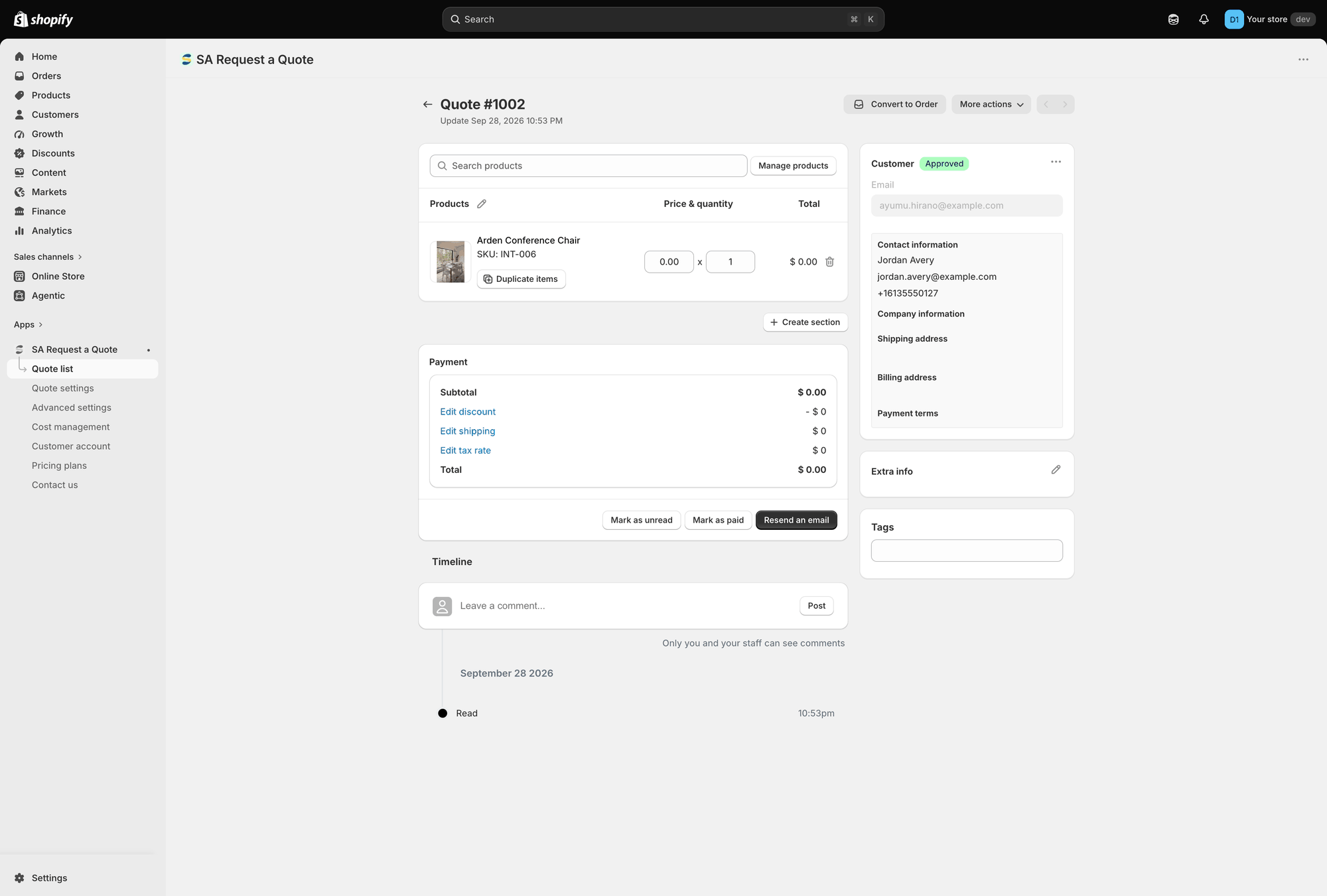
**Convert a quote to an order** is listed as a **PRO** feature, so on a lower plan the action isn't available to you.
On a quote that does have it, **Convert to Order** sits at the top of the page alongside **More actions**. If you can see **More actions** but not **Convert to Order**, check your plan on **Pricing plans**.
Both top actions on a quote: Convert to Order and More actions.
See [Convert to a draft order](/sa-request-a-quote/managing-quotes/convert-to-draft-order.md) and [Plan comparison](/sa-request-a-quote/reference/plan-comparison.md).
## A language is missing from Translations
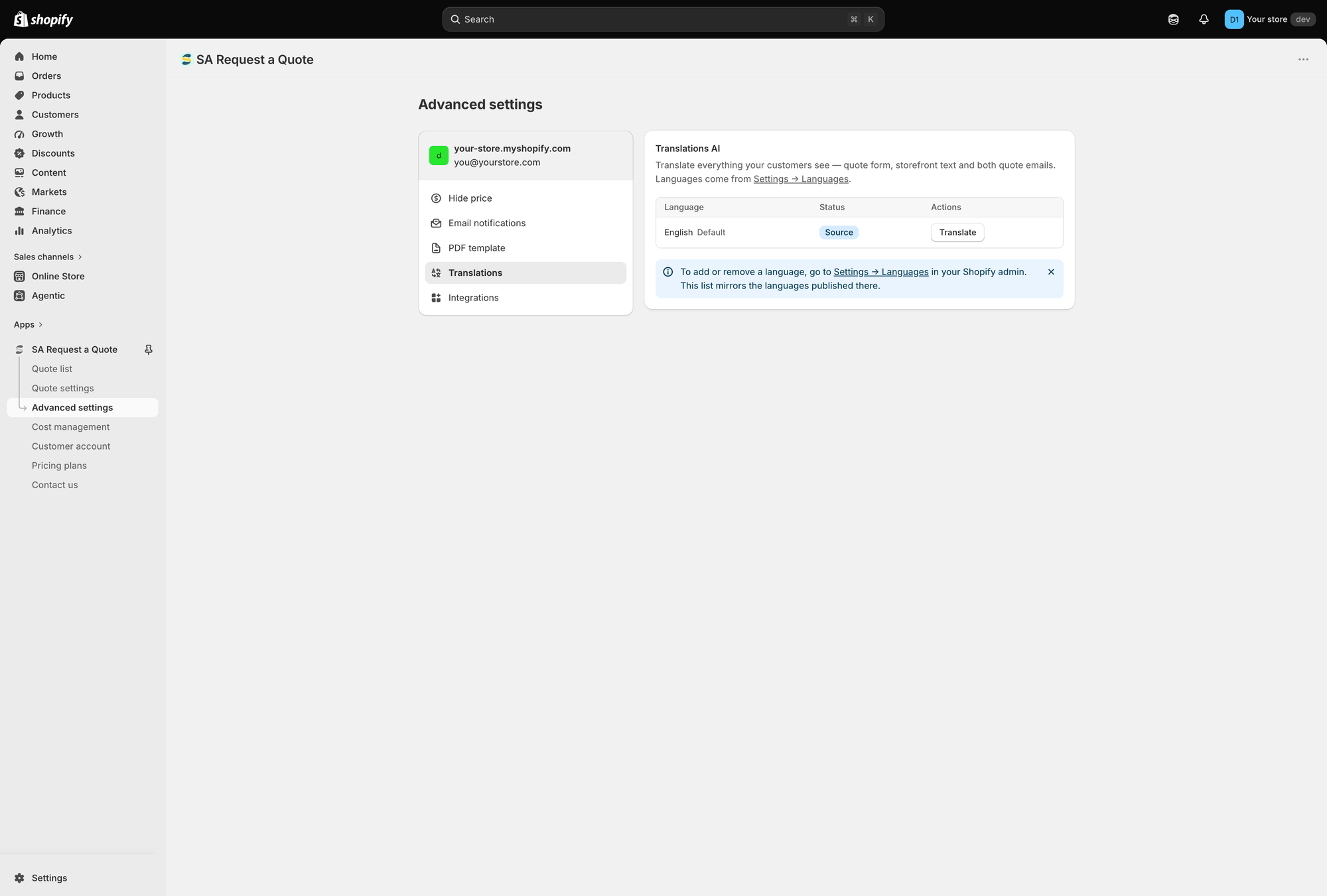
The **Translations** tab doesn't have its own list of languages to add. As the tab's own footnote puts it: "To add or remove a language, go to Settings → Languages in your Shopify admin. This list mirrors the languages published there."
So publish the language in Shopify first, then come back — it appears in the Language / Status / Actions table, with **Translate** in the Actions column. The default row is English, marked Default and Source.
The language list mirrors Settings → Languages in your Shopify admin.
See [Translate storefront text](/sa-request-a-quote/settings/translations.md).
## An integration isn't receiving my quotes
Every provider has its own page under **Advanced settings** > **Integrations**, and they don't all take the same settings.
A list-based provider: Enable, API key, a list selector and Merge fields.
* **Check it's enabled.** Open the provider's page and check the **Enable** control — a saved API key on its own isn't enough.
* **Check the list is selected.** On a list-based provider such as Mailchimp, **Select a Mailchimp list to integrate** has to be set. Left on "Please select a Mailchimp list", nothing has anywhere to go.
* **Check your key.** Saved keys are stored masked, so the field shows a placeholder rather than the key you pasted. If you're unsure it's right, paste a fresh one and save. Mailchimp's field has a **Find or generate your API key** link.
* **Zapier is different.** Its page has no API key and no list — just a single **Zapier Webhook URL** field and **Save**. Copy the URL from your Zap and paste it in.
* **Shopify is different too.** Switch it on and it maps three fields — **Email**, **First name** and **Last name** — and each one can take no value, a value read from the quote form, or a fixed value you type. Leave them unmapped and the customer record arrives without a name.
* **Check your plan.** **Klaviyo**, **Mailchimp** and **Shopify** are on the **FREE** plan; the rest are listed under **PRO**.
See [Integrations overview](/sa-request-a-quote/integrations/overview.md).
## Nothing here matches
Email . Sending your store URL, the page you're looking at, and a screenshot usually gets you a useful answer fastest — see [Contact support](/sa-request-a-quote/help/contact-support.md).
## Next steps
* [FAQ](/sa-request-a-quote/help/faq.md) — quick answers to common questions
* [Contact support](/sa-request-a-quote/help/contact-support.md) — what's worth including when you write
* [How it works](/sa-request-a-quote/reference/how-it-works.md) — understand the quote flow end to end
---
# Agent Instructions
This documentation is published with GitBook. GitBook is the documentation platform designed so that both humans and AI agents can read, navigate, and reason over technical content effectively. Learn more at gitbook.com.
## Querying This Documentation
If you need additional information that is not directly available in this page, you can query the documentation by asking a question.
Perform an HTTP GET request on the following URL with the `ask` and `goal` query parameters:
```
GET https://docs.samita.io/sa-request-a-quote/help/troubleshooting.md?ask=&goal=
```
`ask` is the immediate question: it should be specific, self-contained, and written in natural language.
`goal` is what the user is ultimately trying to achieve, the reason they need the answer. Sharing it helps GitBook give you a better, more relevant answer. A goal is most helpful when it describes the outcome the user wants rather than restating the question. For example, with `ask=how do I create an API token`, a goal like `automate deployments from our CI pipeline` lets GitBook tailor the answer to that use case.
The response will contain a direct answer to the question and relevant excerpts and sources from the documentation.
Use this mechanism when the answer is not explicitly present in the current page, you need clarification or additional context, or you want to retrieve related documentation sections.