> For the complete documentation index, see [llms.txt](https://docs.samita.io/llms.txt). Markdown versions of documentation pages are available by appending `.md` to page URLs; this page is available as [Markdown](https://docs.samita.io/sa-request-a-quote/hiding-prices/hide-by-tag.md).

# Hide prices by tag

Use the condition builder on the Hide price tab to cover products by tag, type, vendor, price, stock or collection.

Conditions are the lowest-maintenance way to hide prices. You describe which products qualify once, and any product that matches is covered — including ones you add next month.

{% hint style="info" %}
If the five options on the **Hide price** tab are greyed out with a padlock line next to them, that is your plan rather than a fault. **Hide price** is listed under the **PREMIUM** plan. See [Plan comparison](/sa-request-a-quote/reference/plan-comparison.md).
{% endhint %}

## Set it up

{% stepper %}
{% step %}

### Open the Hide price tab

In the app menu, open **Advanced settings** and select the **Hide price** tab.
{% endstep %}

{% step %}

### Choose the conditions option

Select **Yes, hide prices for products that match conditions**. A **Conditions** section appears.

The **Login to show price** section on the same tab is separate — this option does not bring it up. See [Require login to show price](/sa-request-a-quote/hiding-prices/login-to-show-price.md).
{% endstep %}

{% step %}

### Choose how the conditions combine

Pick a match mode:

* **All conditions** — "Must satisfy all conditions"
* **Any condition** — "Must satisfy at least one condition"

With one condition the two behave the same. The choice only matters once you add a second.
{% endstep %}

{% step %}

### Build the condition

Each condition is a field, an operator and a value. To hide prices on everything you tag for trade, choose **Product tag**, then **is equal to**, then type your tag.

<figure><img src="https://2993310686-files.gitbook.io/~/files/v0/b/gitbook-x-prod.appspot.com/o/spaces%2FIvNtDAMNVIdy5nl9kiOU%2Fuploads%2Fcq5vjEZKCfbwpresm1wy%2Fimage.png?alt=media&amp;token=2d084fad-6409-4588-a842-adbaaaf4aeb2" alt=""><figcaption><p>Conditions pick the products by rule instead of one by one.</p></figcaption></figure>
{% endstep %}

{% step %}

### Add more conditions if you need them

Select **Add another condition** and build the next one. Remember that **All conditions** narrows the set with every rule you add, while **Any condition** widens it.
{% endstep %}

{% step %}

### Save and check

Select **Save** — or **Discard changes** if you want to back out. Then tag one of your products in Shopify and confirm its price disappears on your storefront, in a private browser window.
{% endstep %}
{% endstepper %}

## What you can match on

<table><thead><tr><th width="230">Field</th><th>Use it for</th></tr></thead><tbody><tr><td><strong>Product tag</strong></td><td>The usual choice. You control it yourself, product by product, in Shopify.</td></tr><tr><td><strong>Product title</strong></td><td>Ranges with a shared word in the name.</td></tr><tr><td><strong>Product type</strong></td><td>A whole category, if your product types are tidy.</td></tr><tr><td><strong>Product vendor</strong></td><td>One supplier's range — handy when a brand forbids showing prices publicly.</td></tr><tr><td><strong>Product price</strong></td><td>Everything above or below a figure, such as high-value goods you would rather quote.</td></tr><tr><td><strong>Product in stock</strong></td><td>Stock-dependent pricing.</td></tr><tr><td><strong>Collection</strong></td><td>A collection you already maintain.</td></tr></tbody></table>

## The operators

**is equal to** · **is not equal to** · **starts with** · **ends with** · **contains** · **does not contain**

{% hint style="warning" %}
**contains** is looser than it looks. A condition of **Product tag** **contains** `trade` also catches `fairtrade`. Use **is equal to** when you want an exact tag.
{% endhint %}

## Two worked examples

**By tag.** Tag the products you sell on trade terms with `hideprice` in Shopify, then set the condition to **Product tag** — **is equal to** — `hideprice`. Every product carrying that tag loses its price; everything else is untouched. Tagging one more product later is all it takes to cover it.

**By collection.** If you already keep the range in a collection, set the condition to **Collection** — **is equal to** — the collection name. Every product in that collection shows no price, on its product page and in the collection listing alike.

## What your customers see

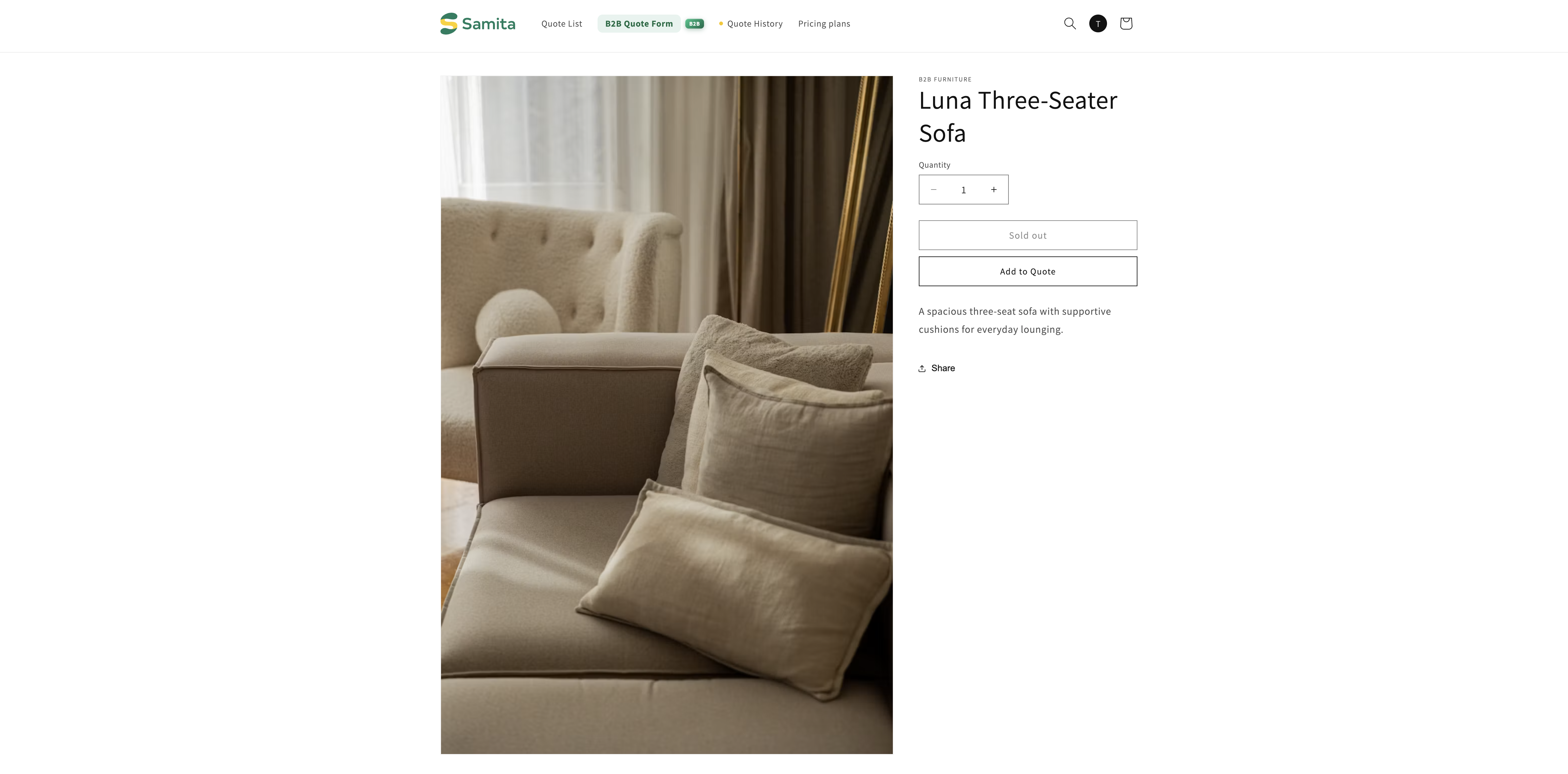
Matched products keep everything except the number: the title, the photos, the description and the variant choices all stay. Unmatched products carry on showing their price as normal, on the same page, side by side — which is exactly why conditions suit a store that sells to both trade and the public.

<figure><img src="https://2993310686-files.gitbook.io/~/files/v0/b/gitbook-x-prod.appspot.com/o/spaces%2FIvNtDAMNVIdy5nl9kiOU%2Fuploads%2Fgit-blob-c9f1994a37e2a0cf0c0edfb29c61c609bbe50a82%2FScreenshot%202026-09-30%20at%2023-11-14.png?alt=media" alt=""><figcaption></figcaption></figure>

## Tagging your products

The tag lives in Shopify, not in this app. Open a product in your Shopify admin, add the tag, and save — the product is covered the next time your storefront loads it.

{% hint style="warning" %}
Keep the spelling consistent. Use one tag, written the same way on every product, and copy it rather than retyping it. A near-miss spelling on one product is the usual reason a single price is still showing.
{% endhint %}

## Why this beats a hand-picked list

<table><thead><tr><th width="260">What happens</th><th>With a hand-picked list</th><th>With a condition</th></tr></thead><tbody><tr><td>You add a new trade product</td><td>Its price shows until somebody opens the app and adds it.</td><td>It is covered as soon as it matches.</td></tr><tr><td>A colleague creates products</td><td>They need access to the app.</td><td>They only need to tag the product in Shopify.</td></tr><tr><td>You stop quoting a product</td><td>Remove it from the list in the app.</td><td>Remove the tag in Shopify.</td></tr></tbody></table>

{% hint style="info" %}
If the products you want to hide prices on are the same products customers can quote, you don't need a condition at all. Choose **Yes, hide prices for quoted products** and the two settings stay in step by themselves. See [Hiding prices overview](/sa-request-a-quote/hiding-prices/overview.md).
{% endhint %}

## Next steps

* [Require login to show price](/sa-request-a-quote/hiding-prices/login-to-show-price.md) — show the price once a customer signs in
* [Hide Add to Cart and Buy now](/sa-request-a-quote/hiding-prices/hide-buy-buttons.md) — also take away **Add to cart** and **Buy it now**
* [Hide prices for selected products](/sa-request-a-quote/hiding-prices/hide-selected-products.md) — pick a fixed list by hand instead


---

# Agent Instructions
This documentation is published with GitBook. GitBook is the documentation platform designed so that both humans and AI agents can read, navigate, and reason over technical content effectively. Learn more at gitbook.com.

## Querying This Documentation
If you need additional information that is not directly available in this page, you can query the documentation by asking a question.

Perform an HTTP GET request on the following URL with the `ask` and `goal` query parameters:

```
GET https://docs.samita.io/sa-request-a-quote/hiding-prices/hide-by-tag.md?ask=<question>&goal=<user_goal>
```

`ask` is the immediate question: it should be specific, self-contained, and written in natural language.
`goal` is what the user is ultimately trying to achieve, the reason they need the answer. Sharing it helps GitBook give you a better, more relevant answer. A goal is most helpful when it describes the outcome the user wants rather than restating the question. For example, with `ask=how do I create an API token`, a goal like `automate deployments from our CI pipeline` lets GitBook tailor the answer to that use case.

The response will contain a direct answer to the question and relevant excerpts and sources from the documentation.

Use this mechanism when the answer is not explicitly present in the current page, you need clarification or additional context, or you want to retrieve related documentation sections.