> For the complete documentation index, see [llms.txt](https://docs.samita.io/llms.txt). Markdown versions of documentation pages are available by appending `.md` to page URLs; this page is available as [Markdown](https://docs.samita.io/sa-request-a-quote/hiding-prices/login-to-show-price.md).

# Require login to show price

Turn on Require login to show price so your prices only appear once a customer is signed in.

Most trade stores want the same thing: the public can browse the catalogue, but only account holders see a price. The **Hide price** tab does that with one checkbox — **Require login to show price**.

## Where the setting lives

Open **Advanced settings** from the app menu in your Shopify sidebar and select the **Hide price** tab.

The card at the top is headed **Hide price?** and holds five options. Below it is a **Login to show price** section, and the checkbox sits inside that.

{% hint style="warning" %}
**You have to choose a "Yes…" option before the checkbox appears.** While **Hide price?** is left on **No, don't hide prices** — which is how it starts — there is nothing to tick. Pick **any** of the four **Yes…** options and **Require login to show price** appears.

It is not tied to one option in particular. If you have read elsewhere that it only shows up with **Yes, hide prices for products that match conditions**, that is wrong: any of the four brings it up.
{% endhint %}

The two settings answer two different questions. The option you choose decides **which products** hide their price. **Require login to show price** decides **who** gets to see it again.

<figure><img src="https://2993310686-files.gitbook.io/~/files/v0/b/gitbook-x-prod.appspot.com/o/spaces%2FIvNtDAMNVIdy5nl9kiOU%2Fuploads%2FscOahGZxEVSanPmY25xL%2Fimage.png?alt=media&amp;token=12099364-82ea-49ec-93a5-77e07c653701" alt=""><figcaption><p>A separate setting from the hide-price options above it.</p></figcaption></figure>

{% hint style="info" %}
**If the five options look greyed out**, with a padlock line reading "🔐 This feature is available on …", that is your plan rather than a fault — **Hide price** is listed under the **PREMIUM** plan.

Because the radios are locked, the setting stays on **No, don't hide prices**, and so **Require login to show price** never appears either. Upgrading unlocks both together. See [Plan comparison](/sa-request-a-quote/reference/plan-comparison.md), or open **Pricing plans** in the app.
{% endhint %}

## Set it up

The order matters: choose the products first, then the login rule.

{% stepper %}
{% step %}

### Open the Hide price tab

In the app menu, open **Advanced settings** and select the **Hide price** tab.
{% endstep %}

{% step %}

### Choose which products hide a price

Pick one of the four **Yes…** options in the **Hide price?** card. This is what decides the products; the checkbox below only decides who gets the price back.

* **Yes, hide prices for all products** — the whole catalogue is behind the login. The app confirms this under the options: "Prices will be hidden on all products."
* **Yes, hide prices for quoted products** — only the products customers can quote, which keeps the two settings in step. See [Choose quotable products](/sa-request-a-quote/collecting-quote-requests/choose-products.md).
* **Yes, hide prices for specific products** — a list you pick by hand, with a **Search products** field and a **Browse products** button. See [Hide prices for selected products](/sa-request-a-quote/hiding-prices/hide-selected-products.md).
* **Yes, hide prices for products that match conditions** — a rule such as **Product tag** **is equal to** your trade tag. This option brings up the **Conditions** section; full details of the builder are in [Hide prices by tag](/sa-request-a-quote/hiding-prices/hide-by-tag.md).
  {% endstep %}

{% step %}

### Tick Require login to show price

The **Login to show price** section is now below the options. Tick **Require login to show price**.

<figure><img src="https://2993310686-files.gitbook.io/~/files/v0/b/gitbook-x-prod.appspot.com/o/spaces%2FIvNtDAMNVIdy5nl9kiOU%2Fuploads%2FbnzvKPvvtpmh9f4b4qc9%2Fimage.png?alt=media&amp;token=797e855c-b97b-4921-9505-5f14e5346a7b" alt=""><figcaption></figcaption></figure>
{% endstep %}

{% step %}

### Save

Shopify's bar at the top of the window reads **Unsaved changes**, with **Discard** and **Save** beside it. Click **Save** — the tab's **Discard changes** backs you out if you change your mind first.
{% endstep %}

{% step %}

### Check it both ways

Open one of those products in a private browser window, signed out. Then sign in as a test customer and open the same product. The two views should differ.

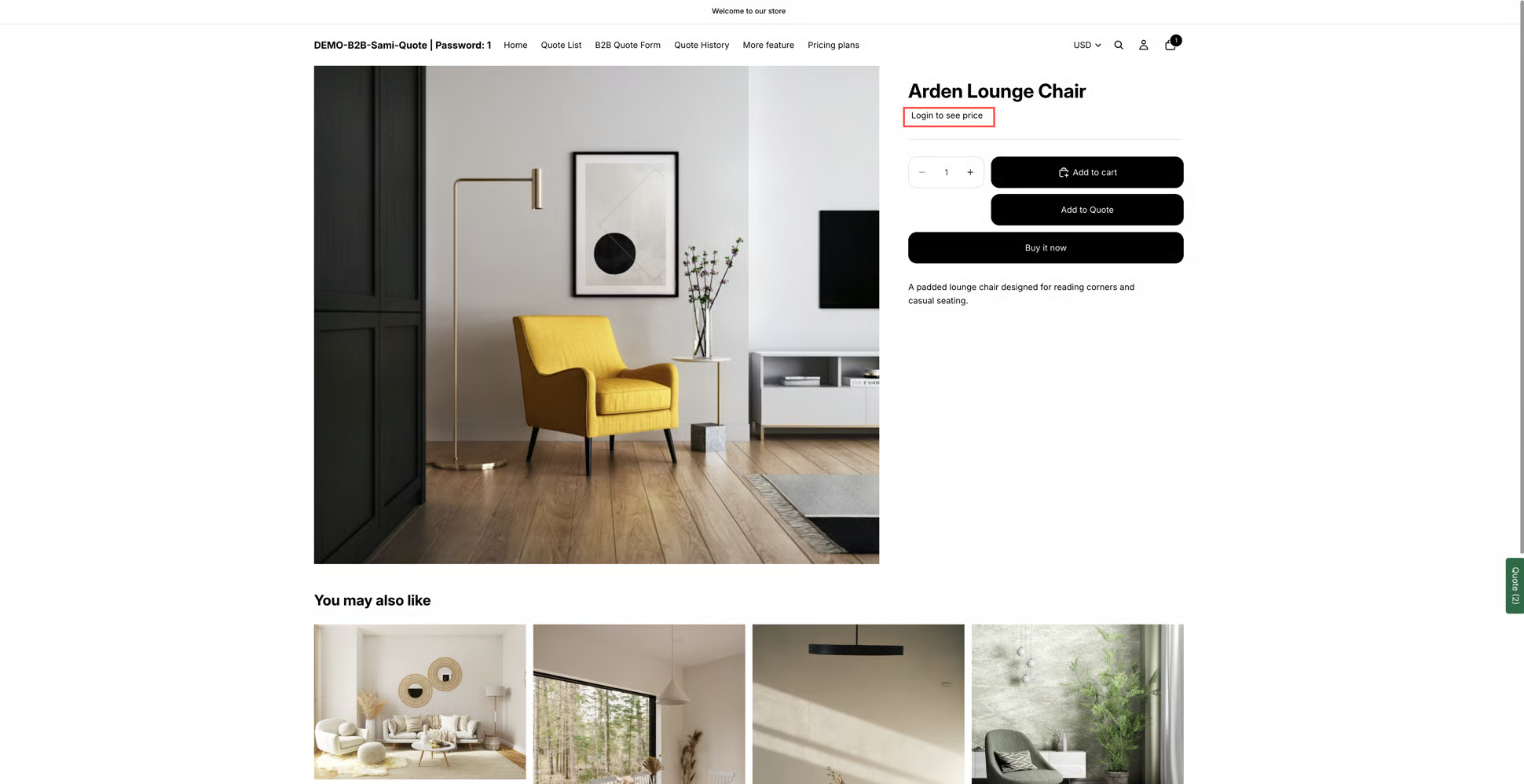
<figure><img src="https://2993310686-files.gitbook.io/~/files/v0/b/gitbook-x-prod.appspot.com/o/spaces%2FIvNtDAMNVIdy5nl9kiOU%2Fuploads%2Fgit-blob-65cda0271463bb91176eab38b59594e1721972a1%2FScreenshot%202026-09-29%20at%2016-29-19.png?alt=media" alt="A storefront product page showing a prompt to sign in where the price would normally be"><figcaption><p>What a signed-out visitor sees in place of the price.</p></figcaption></figure>
{% endstep %}
{% endstepper %}

## How it works for the customer

This is the part worth understanding before you switch it on, because it decides whether a visitor gets anywhere.

{% stepper %}
{% step %}

### A signed-out visitor opens the product

The product page still works — photos, title, description, variants. Where the price would be, they get a control reading **Login to see price**.

<figure><img src="https://2993310686-files.gitbook.io/~/files/v0/b/gitbook-x-prod.appspot.com/o/spaces%2FIvNtDAMNVIdy5nl9kiOU%2Fuploads%2Fgit-blob-0644b393e3c9a08d43050bbebc7aa60824f5ea9f%2Fimage.png?alt=media" alt="A storefront product page, signed out, showing a Login to see price control where the price would be"><figcaption><p>Signed-out visitors get a way in rather than a blank.</p></figcaption></figure>
{% endstep %}

{% step %}

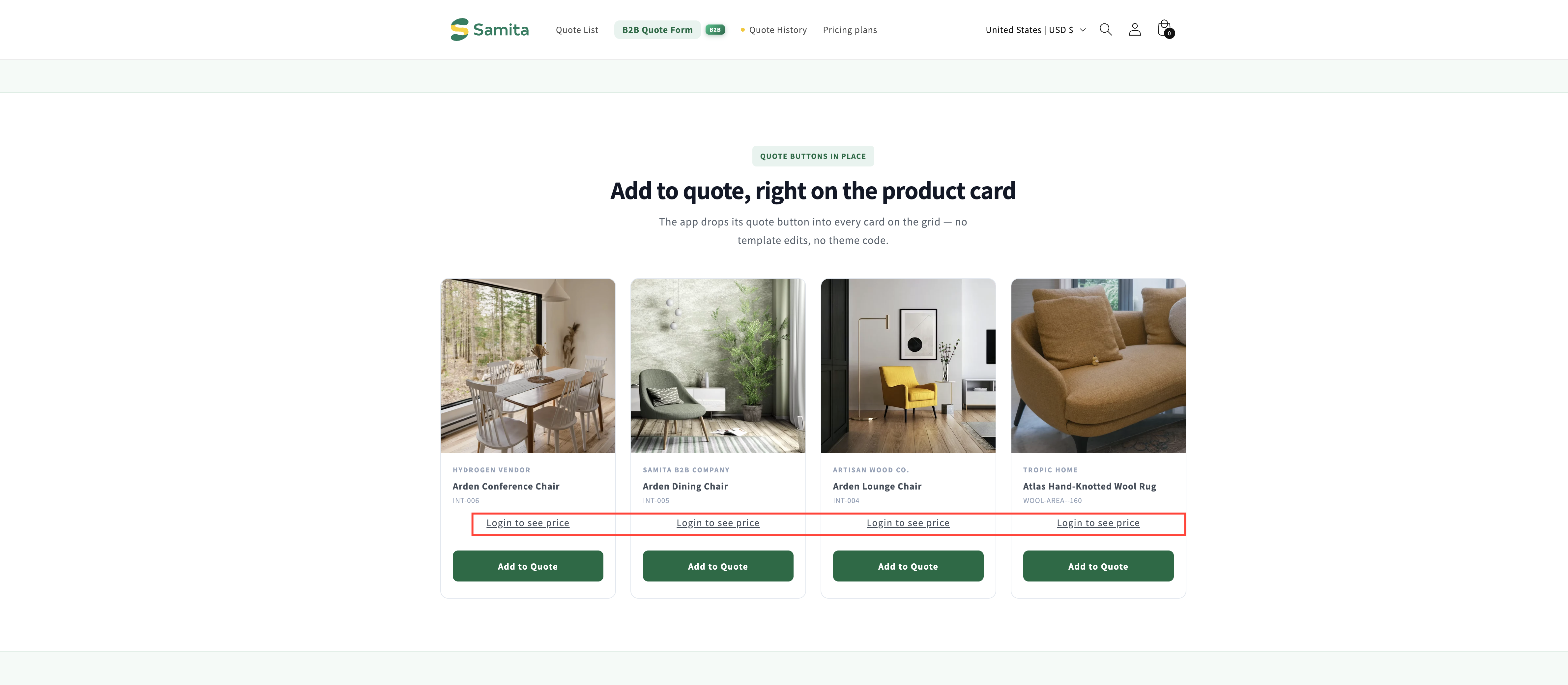
### They click Login to see price

**Login to see price** is not a label — it is a link, and it takes the customer straight to your store's customer login page. That is what turns a hidden price from a dead end into a route.

<figure><img src="https://2993310686-files.gitbook.io/~/files/v0/b/gitbook-x-prod.appspot.com/o/spaces%2FIvNtDAMNVIdy5nl9kiOU%2Fuploads%2Fgit-blob-a8e46fd3c2ad50c219b91bc4732f7ec9d381cf58%2FScreenshot%202026-09-30%20at%2023-17-55.png?alt=media" alt=""><figcaption></figcaption></figure>
{% endstep %}

{% step %}

### They sign in to your store

Signing in is what brings the price back, so the visitor needs an account on your store. Customers who already have one sign in as usual; new ones register first, if your store lets them.
{% endstep %}

{% step %}

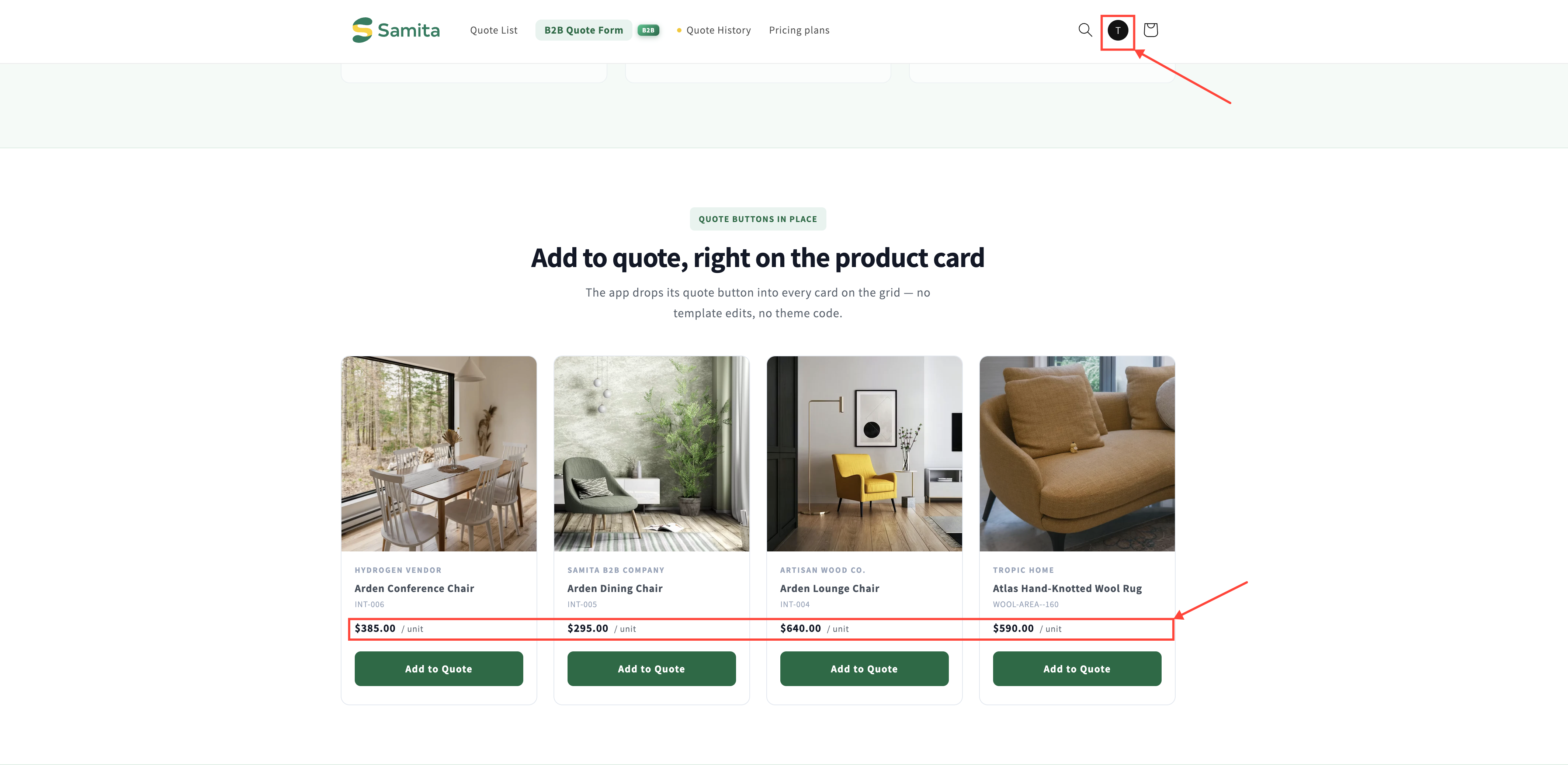
### They come back signed in

Once they are signed in, the price is there again, on that product and on every other product you covered.

<figure><img src="https://2993310686-files.gitbook.io/~/files/v0/b/gitbook-x-prod.appspot.com/o/spaces%2FIvNtDAMNVIdy5nl9kiOU%2Fuploads%2Fgit-blob-7cd33d8324e65e39093aae90f8c6472a5e328c80%2FScreenshot%202026-09-30%20at%2023-18-55.png?alt=media" alt=""><figcaption></figcaption></figure>
{% endstep %}
{% endstepper %}

{% hint style="info" %}
Everything hangs on customers being able to get an account. If accounts on your store are approval-only, a first-time buyer can't sign in, so the price stays hidden for them. Keep your quote button visible to signed-out visitors so they still have a way to ask.
{% endhint %}

{% hint style="warning" %}
Hiding the price does not stop the sale. On a signed-out product page **Add to cart** and **Buy it now** are still live, so a customer can check out at a price they were never shown. If that is not what you want, take the buttons away too — see [Hide Add to Cart and Buy now](/sa-request-a-quote/hiding-prices/hide-buy-buttons.md).
{% endhint %}

## Changing the "Login to see price" wording

The words on that control are the app's text, not your theme's, so you change them in the app rather than in your theme code.

They sit with the rest of the app's customer-facing text under **Advanced settings** > **Translations**. Open **Translate** on your source-language row and edit the field — as the editor's own banner puts it, "What you write here replaces the source text for shoppers browsing in English; leave a field empty to keep what your settings say."

See [Translate storefront text](/sa-request-a-quote/settings/translations.md).

## Pair it with the quote button

Hiding the price answers half the question. The other half is what a signed-out visitor can do about it. That lives in the **Customize** editor: open **Quote settings**, select **Customize**, then the **Button & widget** tab.

<table><thead><tr><th width="300">Setting</th><th>What it does</th></tr></thead><tbody><tr><td><strong>Who can see the RFQ button?</strong>, under <strong>Customer visibility</strong></td><td>Choose <strong>All customers</strong>, <strong>Logged-in customers</strong>, <strong>Guest (non-logged) customers</strong> or <strong>Logged-in customers with specific tags</strong>.</td></tr><tr><td><strong>Exclude customer tags</strong></td><td>Takes the button away from accounts carrying the tags you list.</td></tr><tr><td><strong>Require login before adding to quote</strong>, under <strong>Add to quote</strong></td><td>A visitor has to sign in before a product can be added to their quote.</td></tr></tbody></table>

The dropdown below is **Who can see the RFQ button?** in that editor — the control that decides whether a signed-out visitor keeps the quote button once the price is gone.

<figure><img src="https://2993310686-files.gitbook.io/~/files/v0/b/gitbook-x-prod.appspot.com/o/spaces%2FIvNtDAMNVIdy5nl9kiOU%2Fuploads%2FFjZsFugkkSRl2GaQhptQ%2Fimage.png?alt=media&amp;token=1e20acf8-bfd8-46f4-9b88-3fcde02f905e" alt=""><figcaption></figcaption></figure>

<figure><img src="https://2993310686-files.gitbook.io/~/files/v0/b/gitbook-x-prod.appspot.com/o/spaces%2FIvNtDAMNVIdy5nl9kiOU%2Fuploads%2FsB5OSHIIfd0VDauWDlMs%2Fimage.png?alt=media&amp;token=c5839205-6a66-485a-8ab0-03150a8423a5" alt=""><figcaption></figcaption></figure>

## What each visitor sees

<table><thead><tr><th width="250">Visitor</th><th>Price</th><th>Quote button</th></tr></thead><tbody><tr><td>Not signed in</td><td>Hidden, with <strong>Login to see price</strong> in its place, because <strong>Require login to show price</strong> is on.</td><td>Shown, unless you have set <strong>Who can see the RFQ button?</strong> to <strong>Logged-in customers</strong>.</td></tr><tr><td>Signed in</td><td>Shown.</td><td>Shown.</td></tr></tbody></table>

## Think it through first

{% hint style="warning" %}
Requiring login to see a price *and* hiding the quote button from signed-out visitors leaves a new buyer with no price and no way to ask. If you want leads from people who have never bought from you, leave **Who can see the RFQ button?** on **All customers** and let the price be the only thing behind the login.
{% endhint %}

One more thing worth thinking about: search results. A price that only appears after login is invisible to shoppers arriving from a search engine and comparing on price. For a trade range that is usually the point. For a mixed store, don't reach for **Yes, hide prices for all products** — narrow it to your trade range with **Yes, hide prices for quoted products**, a hand-picked list or a condition, so the rest of your catalogue still competes on price.

{% hint style="warning" %}
Always check in a private browser window. Your own staff session and cached pages can still show a price, which makes it look as though the setting did nothing.
{% endhint %}

## If it isn't behaving

<table><thead><tr><th width="330">What you see</th><th>What to check</th></tr></thead><tbody><tr><td>You cannot find <strong>Require login to show price</strong> anywhere</td><td><strong>Hide price?</strong> is still on <strong>No, don't hide prices</strong>. Choose a <strong>Yes…</strong> option and the checkbox appears. If the options themselves are greyed out, it is your plan.</td></tr><tr><td>Signed-in customers see no price either</td><td>That is the option above, not this checkbox. A product covered by your <strong>Yes…</strong> choice hides its price from everyone until they sign in — check the option, and any conditions under it, against that product.</td></tr><tr><td>Signed-out visitors still see the price</td><td>You are probably looking at a cached page or your own staff session. Retry in a private window. Also confirm the top bar is no longer reading <strong>Unsaved changes</strong>.</td></tr><tr><td>The price is hidden but <strong>Login to see price</strong> is missing</td><td>Check the app embed is on in the published theme — see <a href="/sa-request-a-quote/getting-started/enable-app-in-theme.md">Enable the app in your theme</a>.</td></tr></tbody></table>

## Next steps

* [Hiding prices overview](/sa-request-a-quote/hiding-prices/overview.md) — the five **Hide price** options, one of which decides the products this covers
* [Hide prices by tag](/sa-request-a-quote/hiding-prices/hide-by-tag.md) — cover your trade range with a condition instead of a list
* [Require login to quote](/sa-request-a-quote/collecting-quote-requests/require-login.md) — more on requiring an account before quoting


---

# Agent Instructions
This documentation is published with GitBook. GitBook is the documentation platform designed so that both humans and AI agents can read, navigate, and reason over technical content effectively. Learn more at gitbook.com.

## Querying This Documentation
If you need additional information that is not directly available in this page, you can query the documentation by asking a question.

Perform an HTTP GET request on the following URL with the `ask` and `goal` query parameters:

```
GET https://docs.samita.io/sa-request-a-quote/hiding-prices/login-to-show-price.md?ask=<question>&goal=<user_goal>
```

`ask` is the immediate question: it should be specific, self-contained, and written in natural language.
`goal` is what the user is ultimately trying to achieve, the reason they need the answer. Sharing it helps GitBook give you a better, more relevant answer. A goal is most helpful when it describes the outcome the user wants rather than restating the question. For example, with `ask=how do I create an API token`, a goal like `automate deployments from our CI pipeline` lets GitBook tailor the answer to that use case.

The response will contain a direct answer to the question and relevant excerpts and sources from the documentation.

Use this mechanism when the answer is not explicitly present in the current page, you need clarification or additional context, or you want to retrieve related documentation sections.