For the complete documentation index, see llms.txt. This page is also available as Markdown.

Hiding prices overview

Hide prices and buy buttons so customers have to ask you for a price, and choose which products it applies to.

Hiding prices turns browsing into enquiring. Instead of seeing a number and deciding alone, the customer has to contact you — which is exactly what you want for trade pricing, made-to-order goods, or anything where the price depends on quantity.

Where the settings live

Everything on this page is on one tab: Advanced settings > Hide price.

Advanced settings sits in the app menu in your Shopify sidebar, below Quote settings. It has five tabs — Hide price, Email notifications, PDF template, Translations and Integrations — and Hide price is the first of them.

Price hiding is not on Quote settings. If you are looking at the quote button, the quote form or the quote cart page, you are on the wrong screen — those are in the Customize editor on Quote settings.

Choose how much to hide

The Hide price tab gives you five choices.

Option
What happens

No, don't hide prices

Prices stay visible everywhere. The feature is off.

Yes, hide prices for all products

Every product in your store, whether it can be quoted or not.

Yes, hide prices for quoted products

Only the products you have chosen under Select quote products.

Yes, hide prices for specific products

Only products you pick by hand.

Yes, hide prices for products that match conditions

Only products matching rules you set, so new products are covered as soon as they qualify.

The Hide price tab of Advanced settings with the hide-price options outlined in red
All the ways to hide a price sit in one list.
Pick your option, then select Save. Discard changes backs the tab out if you change your mind before saving.

Yes, hide prices for products that match conditions adds a Conditions section, where you describe the products using a field, an operator and a value. See Hide prices by tag.

What your customers see

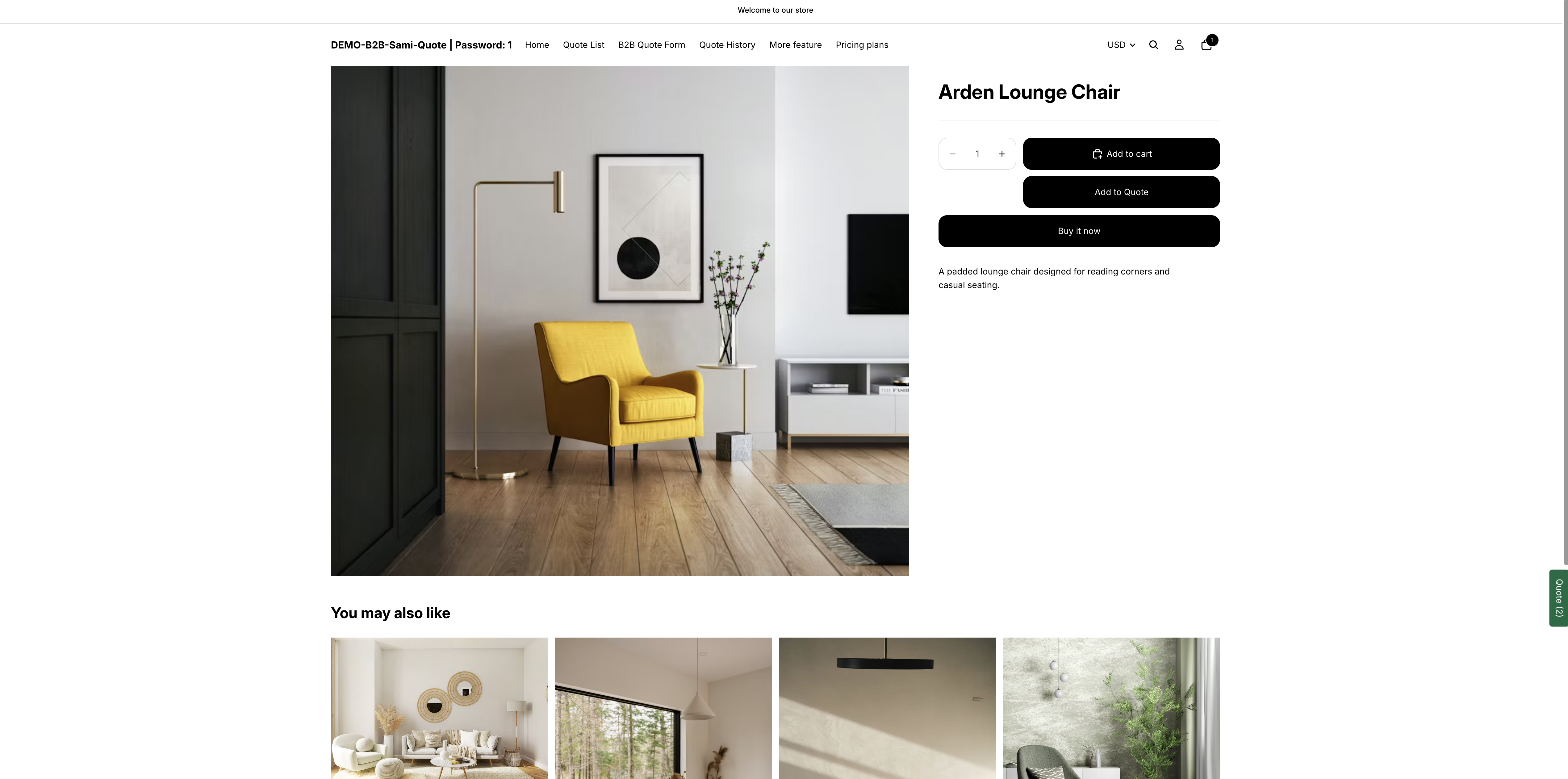
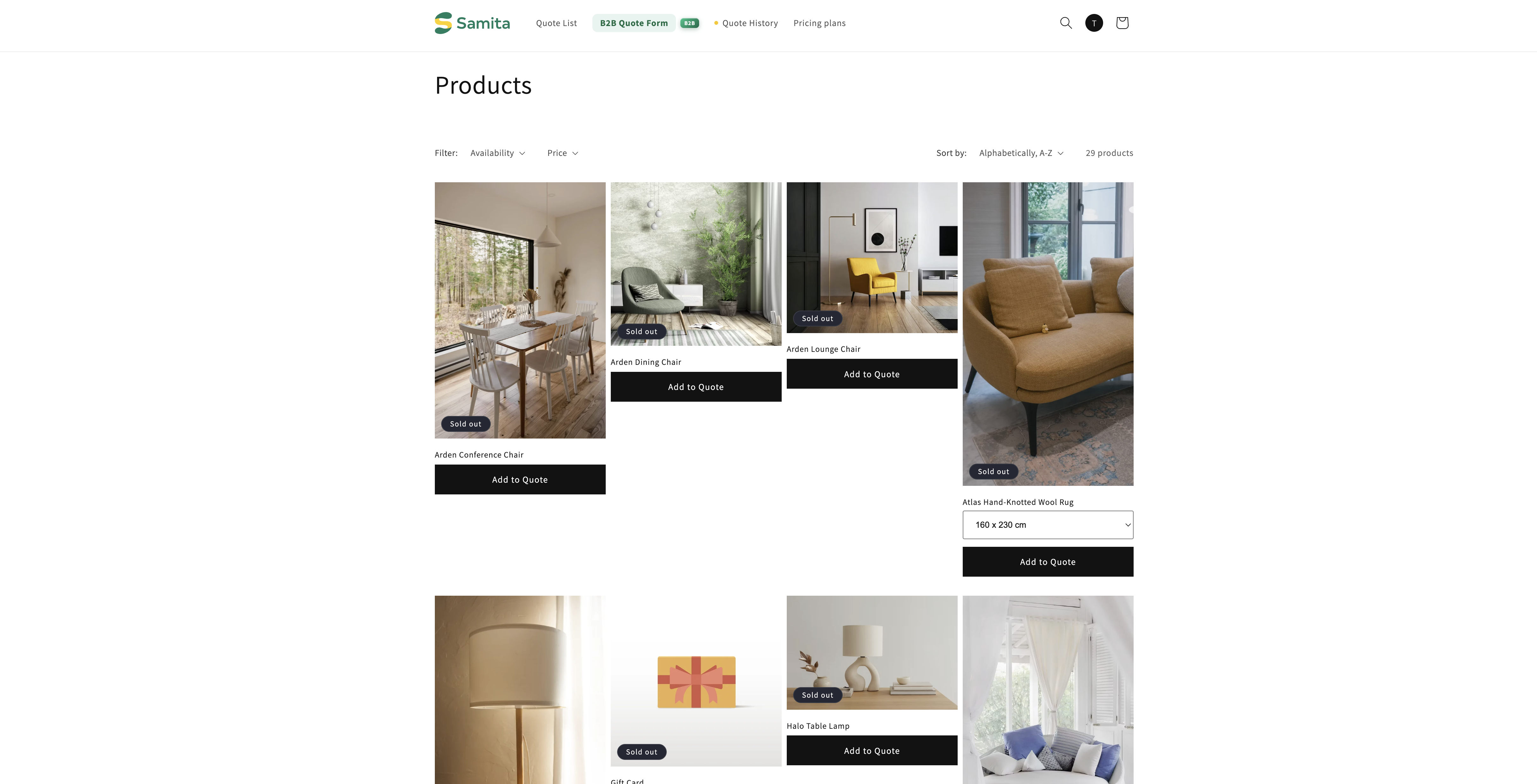
The price disappears everywhere your theme prints it — the product page, collection pages and any other product list. The product itself stays in the catalogue: customers can still find it, read the description and look at the photos. They just can't see a number.

What a customer can do instead depends on the rest of your setup. Add your quote button and they have somewhere to go — see Quote button on product pages. Turn on Require login to show price and the price comes back once they sign in, which is covered below.

Require login to show price is a separate setting

The Hide price tab has its own Login to show price section, holding one checkbox: Require login to show price. Tick it and your prices come back as soon as a customer signs in.

Pairing the two is what most wholesale stores are after: a catalogue the public can browse, with prices reserved for account holders. Full details are in Require login to show price.

Then decide the details

Hiding the price isn't always enough

A hidden price with a working Add to cart button still lets a customer buy at a price they never saw. The same tab has a section called Hide button when quote is enabled on product, with Hide Add To Cart button and Hide Buy Now button. Turn those on if a product should only ever be quoted — see Hide Add to Cart and Buy now.

A storefront product page with its price hidden
The product stays browsable; only the price goes.

Always check while logged out

Check a product page, a collection page and your storefront on a phone, because themes show prices in more places than the product page.

Which plan you need

Hide price and Hide "Add to cart" button are listed under the PREMIUM plan, and PRO includes everything in PREMIUM. Open Pricing plans in the app to see your current plan and what it includes. See Plan comparison.

Greyed out isn't broken. If your plan doesn't include hiding prices, the five options are disabled and the app shows a padlock line telling you which plan the feature is on, with a link to it. That is the plan, not a fault — nothing is wrong with your store or your theme.

The Hide price tab of Advanced settings with the options outlined in red
Every way of hiding a price sits in this one list.

One thing stays yours either way: Require login to show price remains available and editable even when the hide-price options above it are locked by your plan.

Next steps

Last updated

Was this helpful?