> For the complete documentation index, see [llms.txt](https://docs.samita.io/llms.txt). Markdown versions of documentation pages are available by appending `.md` to page URLs; this page is available as [Markdown](https://docs.samita.io/sa-request-a-quote/integrations/campaign-monitor.md).
# Campaign Monitor
Add quote requesters to a Campaign Monitor list for email campaigns.
Connecting Campaign Monitor means every quote request also becomes a contact you can follow up with, without anyone copying details by hand.
{% hint style="warning" %}
**Campaign Monitor needs two values, not one:** a **Client ID** and a **Campaign Monitor API key**. Collect both in Step 1 — with only the key, the app cannot load your subscriber lists and the connection never completes.
{% endhint %}
{% hint style="info" %}
Campaign Monitor is listed under the **PRO** plan. Klaviyo, Mailchimp and Shopify are the integrations listed under **FREE**. See [Plan comparison](/sa-request-a-quote/reference/plan-comparison.md).
If your plan does not include it, the **Third-party integration** list shows a disabled **Upgrade** button instead of the settings icon, with a padlock beside it. Selecting the padlock explains which plan the feature needs and links to **Pricing plans** in the app. That is your plan, not a fault.
{% endhint %}
## Step 1 — Get your Client ID and API key
Campaign Monitor issues both from your own account: the **Client ID** identifies which client account the contacts belong to, and the **API key** authorises the app to write to it. Campaign Monitor's own guide walks through the API side: [Getting started with the API](https://www.campaignmonitor.com/api/v3-3/getting-started/).
Copy both and keep them somewhere safe while you finish the setup. The app has a field for each.
{% hint style="info" %}
Campaign Monitor keeps API keys per client account. If you manage several clients, make sure the **Client ID** and the **API key** you copy come from the same one — a valid key paired with another client's ID quietly fills the wrong list.
{% endhint %}
{% hint style="warning" %}
Create the subscriber list you want quote leads to join before you start — the app can only offer lists that already exist. Campaign Monitor's guide: [Create a subscriber list](https://help.campaignmonitor.com/create-a-subscriber-list).
{% endhint %}
## Step 2 — Connect it in the app
{% stepper %}
{% step %}
### Open the Integrations tab
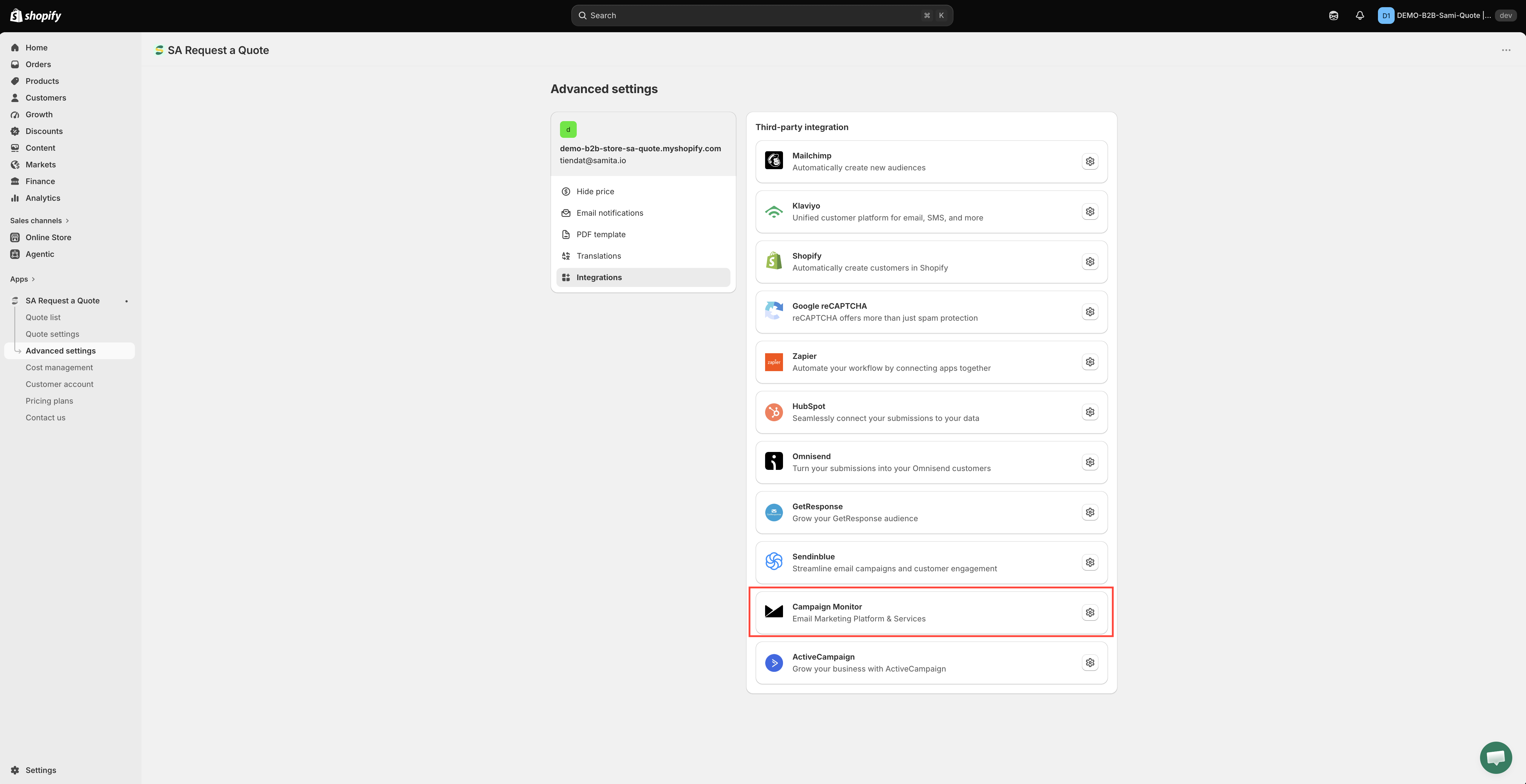
In your Shopify admin, open **SA Request a Quote**, select **Advanced settings**, then open the **Integrations** tab.
{% endstep %}
{% step %}
### Select Campaign Monitor
Under **Third-party integration**, select **Campaign Monitor** — described in the app as "Email Marketing Platform & Services".
The Campaign Monitor page opens, with a **Third-party** breadcrumb to take you back to the list.
Pick the service, then open its settings.
{% endstep %}
{% step %}
### Turn on Enable
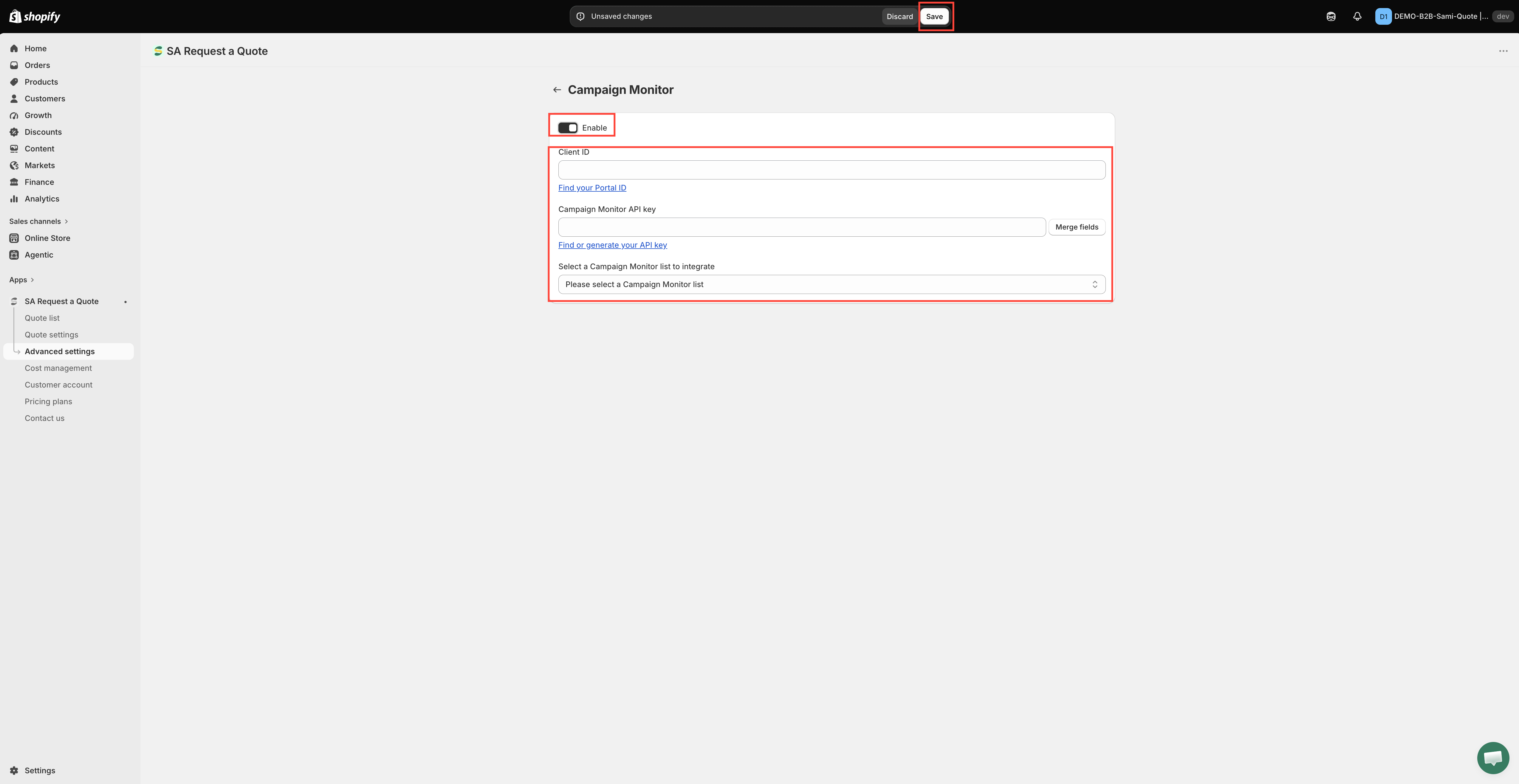
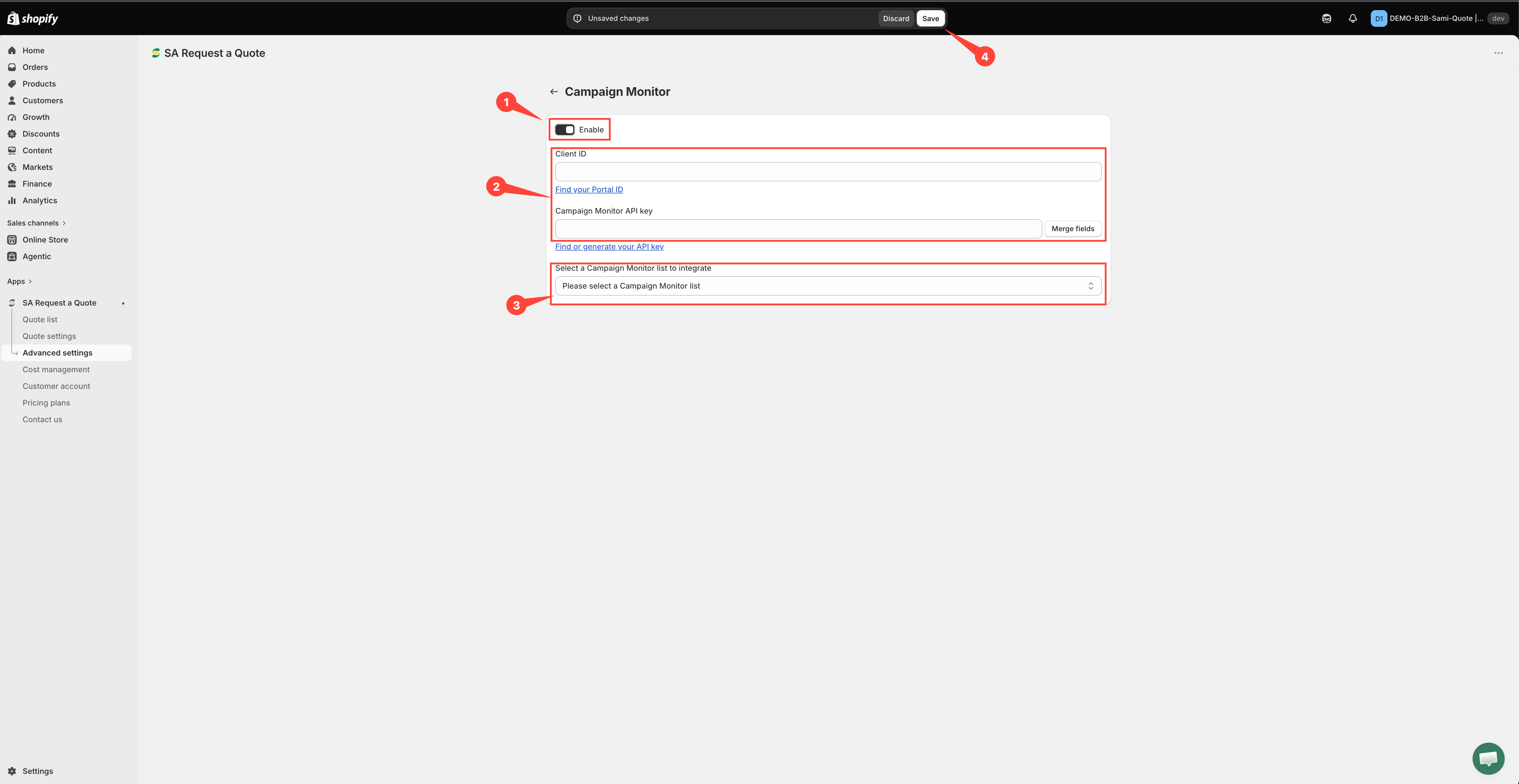
Switch on **Enable**, the first control on the page. Nothing is sent to Campaign Monitor until you do.
{% endstep %}
{% step %}
### Paste both credentials
The two fields sit directly under **Enable**, in this order:
1. **Client ID** — paste the client ID from Step 1.
2. **Campaign Monitor API key** — paste the key from Step 1. Its help text, **Find or generate your API key**, links straight back to Campaign Monitor if you still need it.
Fill in both. The app only fetches your subscriber lists once it has the pair, so a page with just the key stays stuck with nothing to choose from. If the list dropdown does not appear after you type, select **Merge fields** beside the API key field to make the app fetch again.
Campaign Monitor needs two values, not one.
{% endstep %}
{% step %}
### Choose the Campaign Monitor list
Open **Select a Campaign Monitor list to integrate** and pick the list new contacts should join. Until you choose, it reads "Please select a Campaign Monitor list".
If the app says "It looks like you don't have any Campaign Monitor lists", either the list does not exist yet or one of the two credentials is wrong. Fix that before going on — the field mapping stays hidden until a list is selected.
{% endstep %}
{% step %}
### Match your form fields
The mapping rows appear only once the **Client ID**, the **Campaign Monitor API key** and the list are all set. Read each row left to right:
* **On the left** — the Campaign Monitor field, greyed out because you cannot rename it: **Email**, **Name**, **Mobile number**, **Consent to track**, **Resubscribe** and **Restart subscription-based autoresponders**, followed by any custom fields that exist on your Campaign Monitor list.
* **In the middle** — how the value is supplied: **has no value**, **is dynamic value by** (take it from the quote form) or **is fixed value by** (send the same text on every quote).
* **On the right** — the quote form field you are sending, or the fixed text you typed.
So you pick the quote form value on the right to fill the Campaign Monitor field named on the left, never the other way round.
**Email** is the row you cannot skip — without it there is no contact to create. Its dropdown only offers email fields from your form, so if it is empty, add an email field to the quote form first.
Campaign Monitor stores a single **Name**, not separate first and last names. If your quote form collects **First name** and **Last name** separately, pick whichever one you want Campaign Monitor to show; there is no second row to put the other in.
If a field is marked required in Campaign Monitor and you leave it unmatched, the app flags the row and refuses to save.
{% endstep %}
{% step %}
### Save
Select **Save**. Nothing is stored until you do, and an unsaved page sends nothing.
While you have unsaved changes the app shows a save bar with **Save** and **Discard changes** — **Discard changes** throws away everything you have typed on the page. A **Changes saved** message confirms the save.
{% endstep %}
{% endstepper %}
{% hint style="info" %}
The help text under **Client ID** reads "Find your Portal ID". That is a wording slip in the app — Portal ID is a HubSpot term. The field wants your Campaign Monitor client ID, and the link goes to Campaign Monitor.
{% endhint %}
{% hint style="info" %}
[Mailchimp](/sa-request-a-quote/integrations/mailchimp.md) shows the same field-mapping table in close-up. Follow it for the mapping only — Mailchimp needs a single API key, while Campaign Monitor needs the **Client ID** as well.
{% endhint %}
## Step 3 — Test it
Submit a real quote request from your storefront, then check Campaign Monitor for the new contact. Confirm the fields you matched actually arrived — not just the email address.
{% hint style="warning" %}
Do not skip the test. A connection can look active and still deliver nothing useful if the fields are matched wrongly, and you will not notice until you try to use the data.
{% endhint %}
## Is this the right tool?
Suits stores already sending branded campaigns through Campaign Monitor.
If you do not already use Campaign Monitor, do not adopt it just for this — [Zapier](/sa-request-a-quote/integrations/zapier.md) connects quote data to almost anything, and [Create a Shopify customer after submit](/sa-request-a-quote/integrations/create-shopify-customer.md) keeps everything inside Shopify on the **FREE** plan.
## If contacts are not arriving
* **Check Enable is still on.** Nothing is sent while it is off.
* **Check the Client ID as well as the key.** A correct key with a missing or mistyped **Client ID** leaves the connection half-made — the app cannot load your lists, so nothing is sent.
* **Check the key is still valid.** Regenerating a key in Campaign Monitor breaks the connection until you paste the new one in. Saved keys are shown masked, so paste a fresh one if in doubt.
* **Check you took both values from the right client account.** A valid key for the wrong account quietly fills the wrong list.
* **Check the email row is matched.** Without it there is no contact to create.
Still stuck? Email .
## Next steps
* [Integrations overview](/sa-request-a-quote/integrations/overview.md) — the other tools you can connect
* [Build a standard form](/sa-request-a-quote/quote-form/build-standard-form.md) — make sure your form collects what you are matching
* [Plan comparison](/sa-request-a-quote/reference/plan-comparison.md) — what the PRO plan includes
---
# Agent Instructions
This documentation is published with GitBook. GitBook is the documentation platform designed so that both humans and AI agents can read, navigate, and reason over technical content effectively. Learn more at gitbook.com.
## Querying This Documentation
If you need additional information that is not directly available in this page, you can query the documentation by asking a question.
Perform an HTTP GET request on the following URL with the `ask` and `goal` query parameters:
```
GET https://docs.samita.io/sa-request-a-quote/integrations/campaign-monitor.md?ask=&goal=
```
`ask` is the immediate question: it should be specific, self-contained, and written in natural language.
`goal` is what the user is ultimately trying to achieve, the reason they need the answer. Sharing it helps GitBook give you a better, more relevant answer. A goal is most helpful when it describes the outcome the user wants rather than restating the question. For example, with `ask=how do I create an API token`, a goal like `automate deployments from our CI pipeline` lets GitBook tailor the answer to that use case.
The response will contain a direct answer to the question and relevant excerpts and sources from the documentation.
Use this mechanism when the answer is not explicitly present in the current page, you need clarification or additional context, or you want to retrieve related documentation sections.