> For the complete documentation index, see [llms.txt](https://docs.samita.io/llms.txt). Markdown versions of documentation pages are available by appending `.md` to page URLs; this page is available as [Markdown](https://docs.samita.io/sa-request-a-quote/integrations/create-shopify-customer.md).

# Create a Shopify customer after submit

Turn on the Shopify integration so quote requests automatically create customers in your own store.

This turns quote requests into customer records in your own Shopify store — no third-party tool involved. In the app it is simply called **Shopify**, described as "Automatically create customers in Shopify".

Once it is on, submitting a quote creates the person automatically under **Customers** in your Shopify admin.

It is the integration most stores should turn on first: the data stays in Shopify, it is listed under the **FREE** plan, and there is no API key to fetch and no list to create.

{% hint style="warning" %}
There is one thing to set, though: after you switch it on, a short mapping table appears underneath. **First name** and **Last name** start on **has no value**, so if you save without touching them, every customer is created with an email address and no name. Do Step 4 below.
{% endhint %}

## Turn it on

{% stepper %}
{% step %}

### Open the Integrations tab

In your Shopify admin, open **SA Request a Quote**, select **Advanced settings**, then open the **Integrations** tab.
{% endstep %}

{% step %}

### Select Shopify

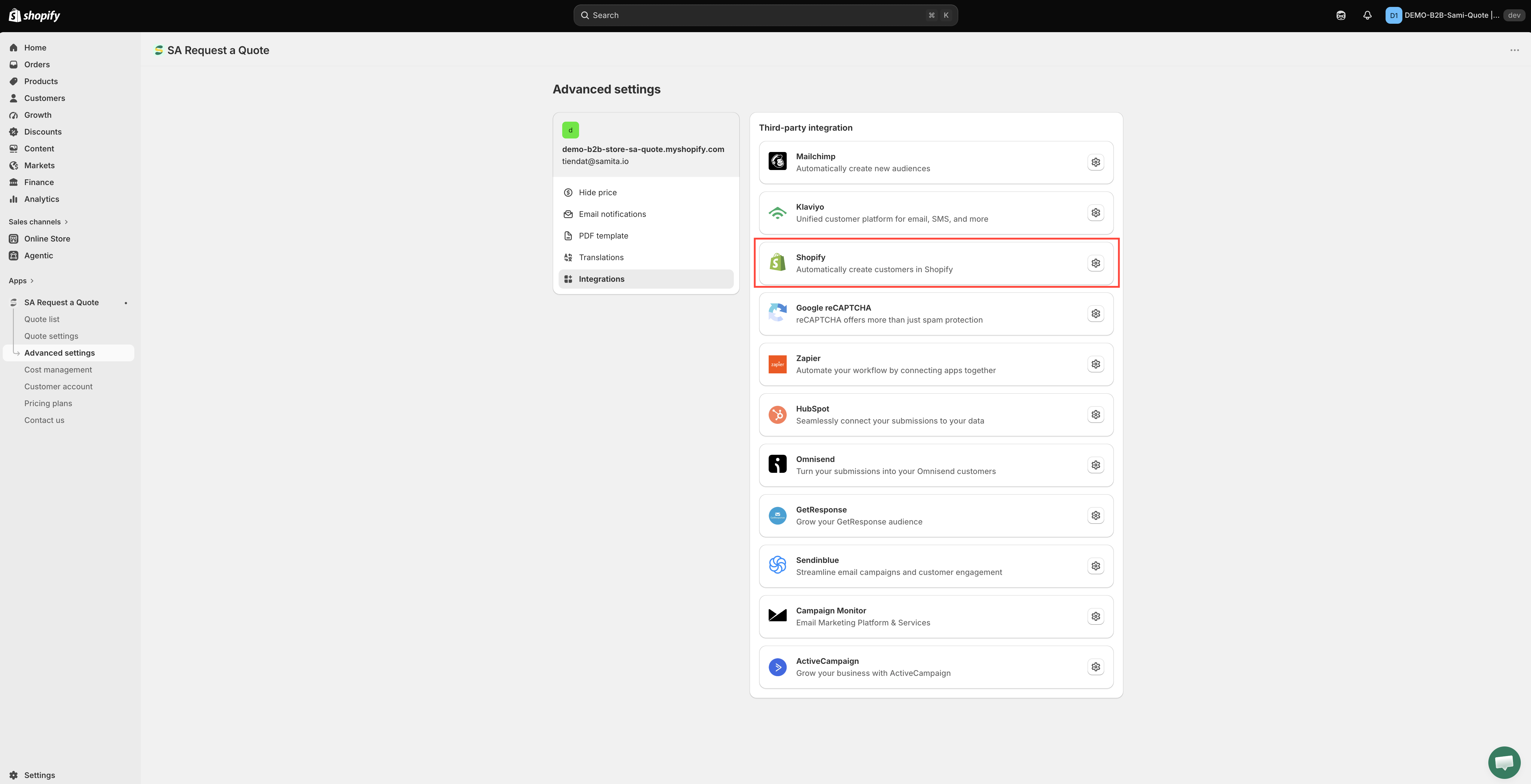
Under **Third-party integration**, select **Shopify**. It opens on its own page, with a **Third-party** breadcrumb to take you back to the list.

<figure><img src="https://2993310686-files.gitbook.io/~/files/v0/b/gitbook-x-prod.appspot.com/o/spaces%2FIvNtDAMNVIdy5nl9kiOU%2Fuploads%2Fgit-blob-2822d32e83385fc1e0aa5918ded120e804aa03f9%2FScreenshot%202026-09-30%20at%2000-32-59.png?alt=media" alt="The Integrations tab of Advanced settings with Shopify outlined in red"><figcaption><p>This integration creates a Shopify customer from a quote request.</p></figcaption></figure>
{% endstep %}

{% step %}

### Switch on Create customer account after submit

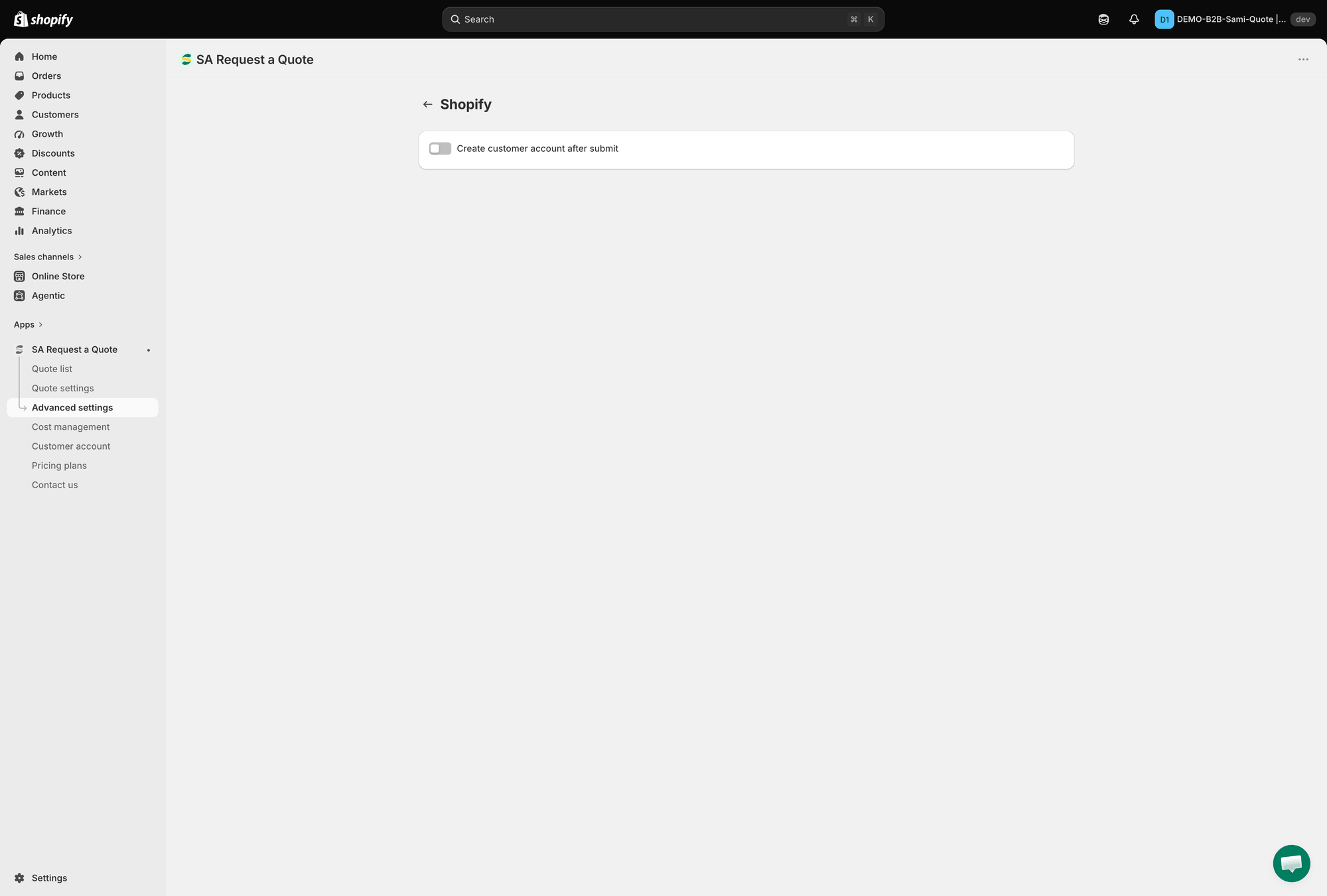
**Create customer account after submit** is the switch at the top of the page. Switch it on.

<figure><img src="https://2993310686-files.gitbook.io/~/files/v0/b/gitbook-x-prod.appspot.com/o/spaces%2FIvNtDAMNVIdy5nl9kiOU%2Fuploads%2Fgit-blob-44f86445ca2386566297fdf4704f6d157ebdb614%2Fscreenshot-integrations-shopify-create-customer.png?alt=media" alt="The Shopify integration page showing its single setting, Create customer account after submit"><figcaption><p>One switch: Create customer account after submit.</p></figcaption></figure>
{% endstep %}

{% step %}

### Match the customer fields

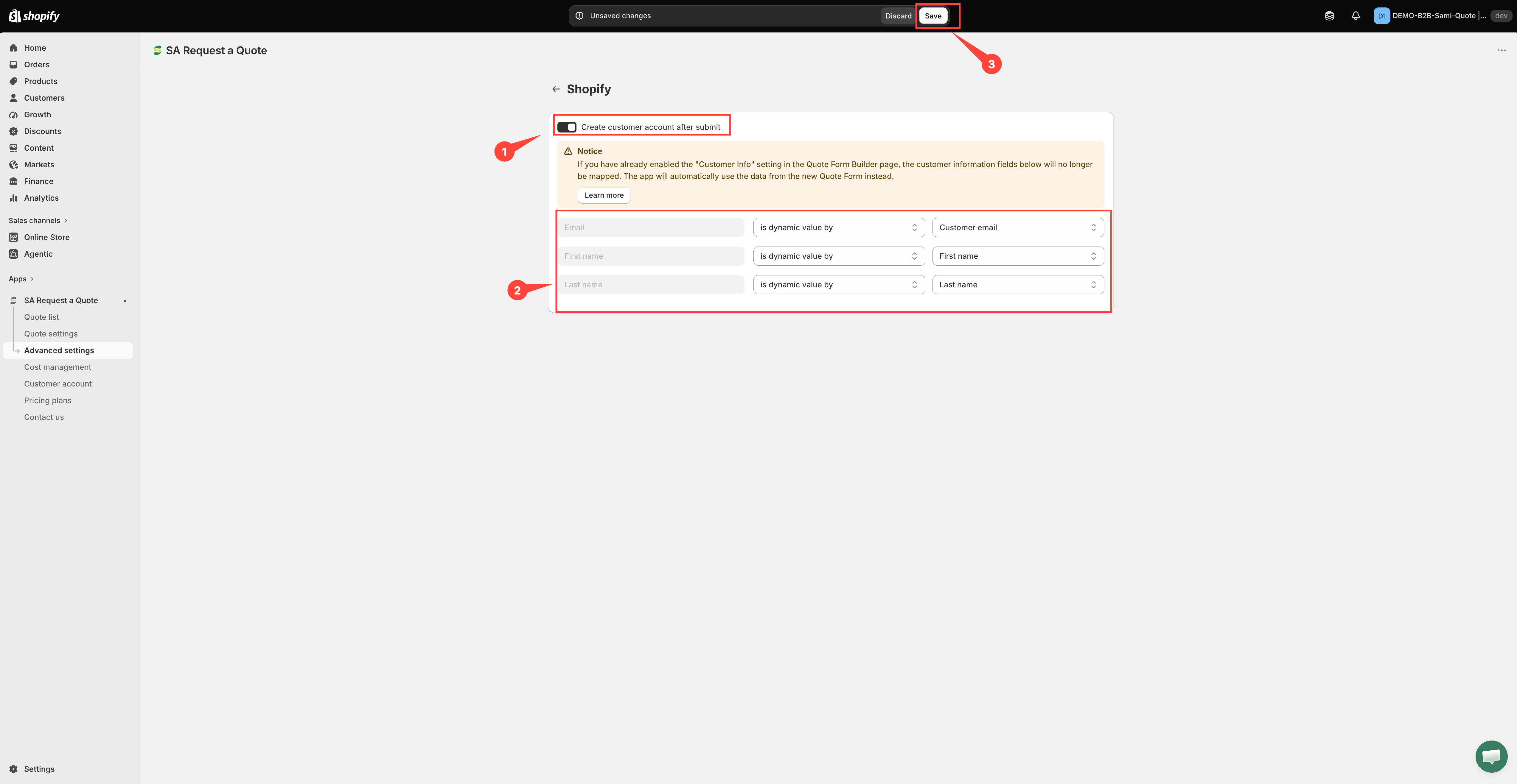
Switching it on reveals a **Notice** banner and three mapping rows. Read each row left to right:

* **On the left** — the Shopify customer field, greyed out because you cannot rename it: **Email**, **First name** and **Last name**.
* **In the middle** — how the value is supplied: **has no value**, **is dynamic value by** (take it from the quote form) or **is fixed value by** (write the same text on every customer).
* **On the right** — the quote form field you are sending, or the fixed text you typed.

So you pick the quote form value on the right to fill the Shopify field named on the left, never the other way round.

What to set:

* **Email** is already set, and **is dynamic value by** is the only option its dropdown offers — a customer record cannot be created without an email address. Its value list only offers email fields from your form, so change it only if the form has more than one.
* **First name** and **Last name** arrive on **has no value**. Switch each to **is dynamic value by** and choose the matching field from your quote form — otherwise the customer record is created with no name on it.

<figure><img src="https://2993310686-files.gitbook.io/~/files/v0/b/gitbook-x-prod.appspot.com/o/spaces%2FIvNtDAMNVIdy5nl9kiOU%2Fuploads%2Fgit-blob-5f8f75f76443304ac45f9c654a47882009e03c42%2FScreenshot%202026-10-01%20at%2000-26-05.png?alt=media" alt=""><figcaption></figcaption></figure>
{% endstep %}

{% step %}

### Save

Select **Save**. The switch and the mapping are not stored until you do.

While you have unsaved changes the app shows a save bar with **Save** and **Discard changes** — **Discard changes** throws away everything you have just set. A **Changes saved** message confirms the save.
{% endstep %}

{% step %}

### Test it

Submit a test quote from your storefront, then open **Customers** in your Shopify admin and look for the new record. Check it has a name on it, not just an email address.
{% endstep %}
{% endstepper %}

{% hint style="info" %}
The **Notice** banner that appears with the switch warns that if your quote form already collects customer information through the form builder, the app takes the details from the quote form itself and these mapping rows stop applying. The form builder is at **Quote settings** > **Customize** > **Quote form** — see [Customer information fields](/sa-request-a-quote/quote-form/customer-info-fields.md).
{% endhint %}

{% hint style="info" %}
This page is shorter than the marketing integrations for a reason: there is no API key to paste and no list to pick, because the destination is your own store. The mapping is the only thing to set. See [Integrations overview](/sa-request-a-quote/integrations/overview.md) for how the others differ.
{% endhint %}

## Why this is worth doing

<table><thead><tr><th width="270">Benefit</th><th>What it means</th></tr></thead><tbody><tr><td>Faster repeat quotes</td><td>Returning customers who log in get their contact and company information filled in for them — the quote form offers "Already have an account? Log in to auto-fill your contact and company information."</td></tr><tr><td>Converting is cleaner</td><td>When you use <strong>Convert to Order</strong> on a quote, the customer already exists in your store.</td></tr><tr><td>Everything in one place</td><td>Quote requesters sit alongside buyers in your Shopify customer list, rather than only inside the app.</td></tr></tbody></table>

{% hint style="success" %}
Pair this with the quote history page so returning buyers can see their past requests — see [Quote history page](/sa-request-a-quote/storefront-quote-pages/quote-history-page.md).
{% endhint %}

## Things to be aware of

{% hint style="warning" %}
Creating a customer record is not the same as someone agreeing to marketing. Only email people who opted in, and follow the rules that apply where you trade.
{% endhint %}

Also worth knowing:

* **Requiring an account is separate.** This setting creates a record after someone submits. If you would rather people signed in before quoting at all, that is the **Require login before adding to quote** checkbox under **Add to quote** — see [Require login to quote](/sa-request-a-quote/collecting-quote-requests/require-login.md).
* **Check what arrives.** Your customer record is built from what the form collected, so make sure the form asks for it — see [Customer information fields](/sa-request-a-quote/quote-form/customer-info-fields.md). A field the form never collects cannot be mapped in Step 4.

## Next steps

* [Integrations overview](/sa-request-a-quote/integrations/overview.md) — the other tools you can connect
* [Require login to quote](/sa-request-a-quote/collecting-quote-requests/require-login.md) — require an account before quoting
* [Quotes in customer accounts](/sa-request-a-quote/storefront-quote-pages/customer-account-quotes.md) — show quotes in customer accounts


---

# Agent Instructions
This documentation is published with GitBook. GitBook is the documentation platform designed so that both humans and AI agents can read, navigate, and reason over technical content effectively. Learn more at gitbook.com.

## Querying This Documentation
If you need additional information that is not directly available in this page, you can query the documentation by asking a question.

Perform an HTTP GET request on the following URL with the `ask` and `goal` query parameters:

```
GET https://docs.samita.io/sa-request-a-quote/integrations/create-shopify-customer.md?ask=<question>&goal=<user_goal>
```

`ask` is the immediate question: it should be specific, self-contained, and written in natural language.
`goal` is what the user is ultimately trying to achieve, the reason they need the answer. Sharing it helps GitBook give you a better, more relevant answer. A goal is most helpful when it describes the outcome the user wants rather than restating the question. For example, with `ask=how do I create an API token`, a goal like `automate deployments from our CI pipeline` lets GitBook tailor the answer to that use case.

The response will contain a direct answer to the question and relevant excerpts and sources from the documentation.

Use this mechanism when the answer is not explicitly present in the current page, you need clarification or additional context, or you want to retrieve related documentation sections.