HubSpot
Create HubSpot contacts from quote requests so your sales team can work them as leads.
Connecting HubSpot means every quote request also becomes a contact you can follow up with, without anyone copying details by hand.
Step 1 — Get your Portal ID and access token from HubSpot
HubSpot no longer issues classic API keys. You create a private app inside your HubSpot account instead, and it gives you an access token. The Portal ID is separate — it identifies your HubSpot account itself.
Find your Portal ID
Your Portal ID (also called the account ID or hub ID) identifies which HubSpot account the app writes to. HubSpot's own guide: Check your current account.
The same link is repeated in the app as the Find your Portal ID help text under the field.
Create a private app with the right scopes
Create the private app inside your HubSpot account. HubSpot's own guide walks through it: Private apps.
Before you finish creating it, tick at least these three scopes:
formscrm.objects.contacts.writecrm.schemas.contacts.write
The app lists the same three under the token field, so you can check them against your private app later.

Step 2 — Connect it in the app
Paste both credentials
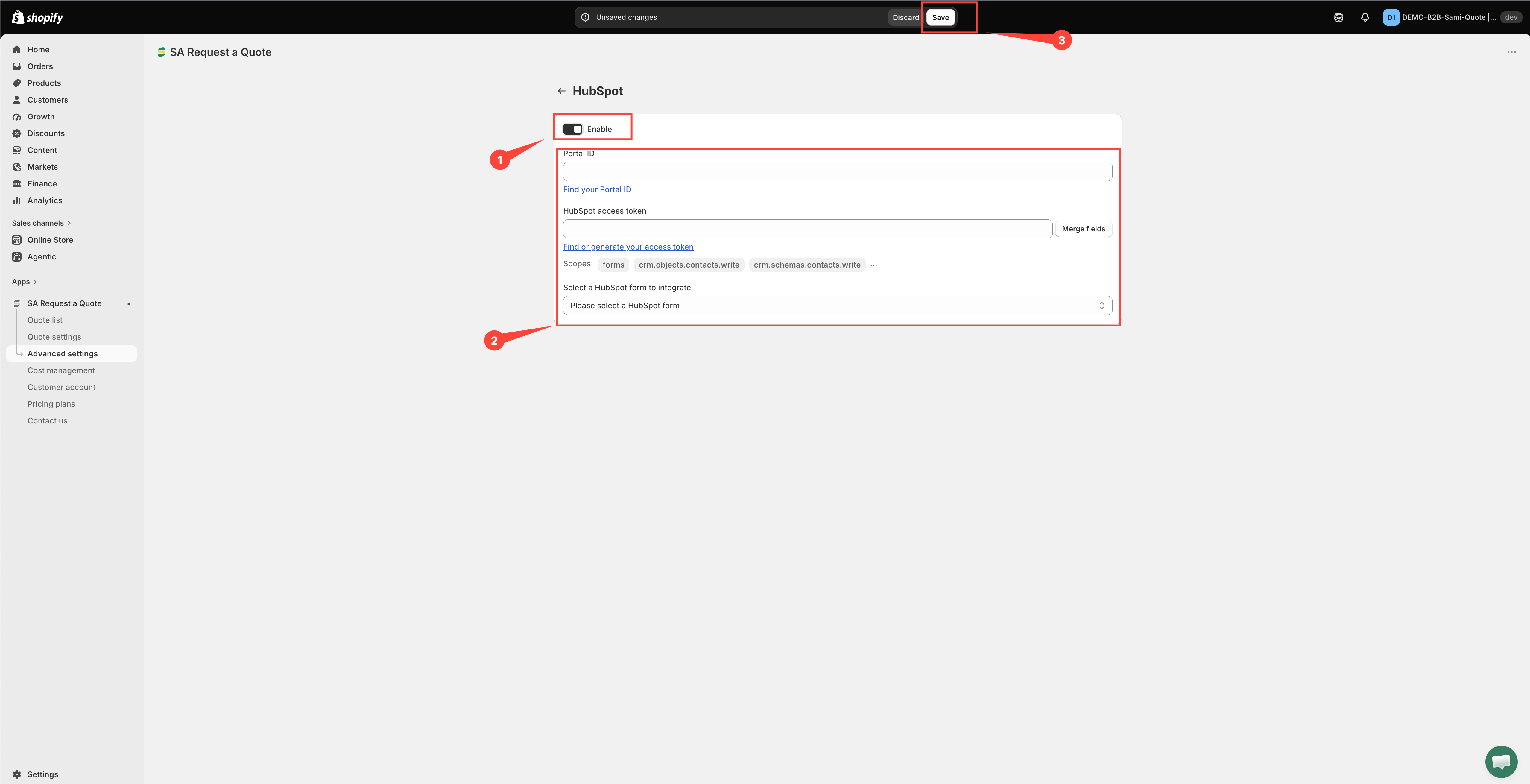
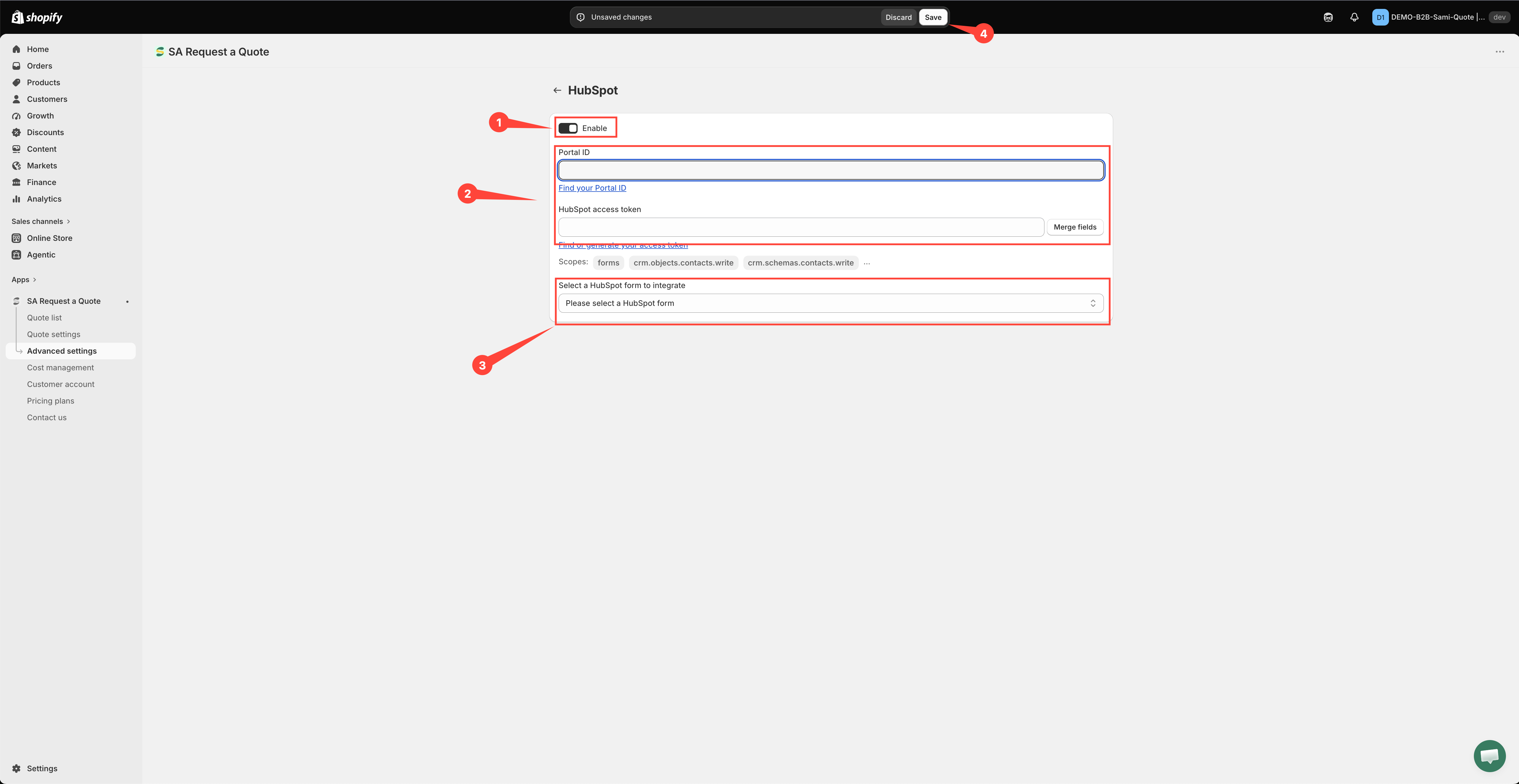
The two fields sit directly under Enable, in this order:
Portal ID — paste the account ID from Step 1. Its help text is Find your Portal ID.
HubSpot access token — paste the private app token from Step 1. Its help text is Find or generate your access token, and under it the app prints the scopes the token needs: forms, crm.objects.contacts.write and crm.schemas.contacts.write.
The field is called HubSpot access token, not "API key" — the token is what a private app issues.
Fill in both. The app only fetches your HubSpot forms once it has the pair, so a page with just the token stays stuck with nothing to choose from. If the dropdown does not appear after you type, select Merge fields beside the token field to make the app fetch again.

Choose the HubSpot form
Open Select a HubSpot form to integrate and pick the form quote requests should feed. Until you choose, it reads "Please select a HubSpot form".
If the app says "It looks like you don't have any HubSpot forms", either the form does not exist yet, one of the two credentials is wrong, or the token is missing the forms scope. Fix that before going on — the field mapping stays hidden until a form is selected.
Match your form fields
The mapping rows appear only once the Portal ID, the HubSpot access token and the form are all set. The rows come from the HubSpot form you just picked, so they are that form's own fields rather than a fixed list — pick the form first and the rows follow.
Read each row left to right:
On the left — the HubSpot field, greyed out because you cannot rename it.
In the middle — how the value is supplied: has no value, is dynamic value by (take it from the quote form) or is fixed value by (send the same text on every quote).
On the right — the quote form field you are sending, or the fixed text you typed.
So you pick the quote form value on the right to fill the HubSpot field named on the left, never the other way round.
The email row is the one you cannot skip: without it there is no contact to create. If your form collects Company information, match the company name too, so sales can see who is asking. If a field is marked required on the HubSpot form and you leave it unmatched, the app flags the row and refuses to save.

Step 3 — Test it
Submit a real quote request from your storefront, then check HubSpot for the new contact. Confirm the fields you matched actually arrived — not just the email address.
Is this the right tool?
The right choice if quotes are handled by a sales team rather than by marketing.
If you do not already use HubSpot, do not adopt it just for this — Zapier connects quote data to almost anything, and Create a Shopify customer after submit keeps everything inside Shopify on the FREE plan.
If contacts are not arriving
Check the scopes on your private app.
forms,crm.objects.contacts.writeandcrm.schemas.contacts.writeall have to be granted. A token without them saves cleanly and delivers nothing. This is the most common cause.Check Enable is still on. Nothing is sent while it is off.
Check the Portal ID as well as the token. A correct token with a missing or mistyped Portal ID leaves the connection half-made — the app cannot load your forms, so nothing is sent.
Check the token is still valid. Rotating a token in HubSpot breaks the connection until you paste the new one in. Saved tokens are shown masked, so paste a fresh one if in doubt.
Check you picked the right form. Contacts may be arriving somewhere you are not looking.
Check the email row is matched. Without it there is no contact to create.
Still stuck? Email support@samita.io.
Next steps
Integrations overview — the other tools you can connect
Build a B2B form — collect company details worth sending to a CRM
Plan comparison — what the PRO plan includes
Last updated
Was this helpful?