> For the complete documentation index, see [llms.txt](https://docs.samita.io/llms.txt). Markdown versions of documentation pages are available by appending `.md` to page URLs; this page is available as [Markdown](https://docs.samita.io/sa-request-a-quote/integrations/zapier.md).

# Zapier

Send quote form data to thousands of other apps through Zapier, without writing any code.

Zapier connects apps that do not otherwise talk to each other. If the tool you want is not on the **Third-party integration** list, Zapier is almost certainly the answer — a spreadsheet, a Slack channel, your CRM, an accounting system.

{% hint style="info" %}
Zapier is listed under the **PRO** plan. Klaviyo, Mailchimp and Shopify are the integrations listed under **FREE**. See [Plan comparison](/sa-request-a-quote/reference/plan-comparison.md).

If the controls here are greyed out and a padlock line reads "🔐 This feature is available on …", that is your plan and not a fault. Follow the link in that line, or open **Pricing plans** in the app.
{% endhint %}

Zapier is the simplest page in the app. There is one field — **Zapier Webhook URL** — and a **Save** button. No API key, no list to pick, no field mapping. All the real work happens on the Zapier side.

## Step 1 — Build the trigger in Zapier

Everything in this step happens in your [Zapier](https://zapier.com/apps/webhook/integrations) account. You are building the half of the Zap that listens, so that it has an address the app can send to.

{% stepper %}
{% step %}

### Create a new Zap

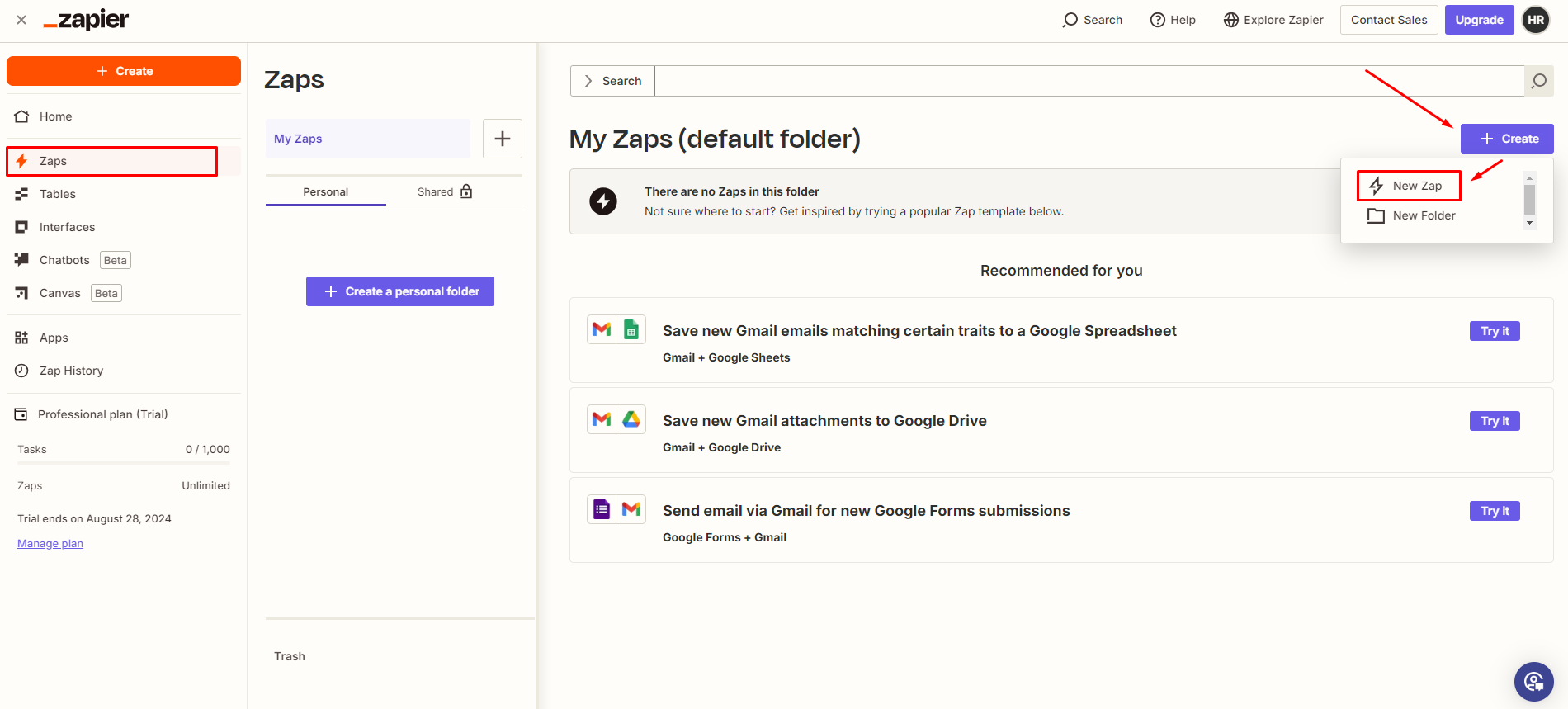
In Zapier, select **Create**, then **New Zap**.

<figure><img src="https://2993310686-files.gitbook.io/~/files/v0/b/gitbook-x-prod.appspot.com/o/spaces%2FIvNtDAMNVIdy5nl9kiOU%2Fuploads%2Fgit-blob-2e53176a587dbf3f532fbb1b375640187b24e701%2Fscreenshot-integrations-zapier-new-zap.png?alt=media" alt="Zapier&#x27;s My Zaps page with the Create menu open and New Zap highlighted"><figcaption><p>In Zapier, open <strong>Create</strong> and choose <strong>New Zap</strong>.</p></figcaption></figure>
{% endstep %}

{% step %}

### Choose Webhooks by Zapier as the trigger

Open the trigger and choose **Webhooks by Zapier**. This is the app that gives you an address to send to.

<figure><img src="https://2993310686-files.gitbook.io/~/files/v0/b/gitbook-x-prod.appspot.com/o/spaces%2FIvNtDAMNVIdy5nl9kiOU%2Fuploads%2Fgit-blob-b70594096db27a44906a85de2c417aee1c483ca2%2Fscreenshot-integrations-zapier-webhooks-trigger.png?alt=media" alt="Zapier&#x27;s app picker for the trigger, with Webhooks by Zapier highlighted in the built-in tools column"><figcaption><p>Pick <strong>Webhooks by Zapier</strong> as the trigger app.</p></figcaption></figure>
{% endstep %}

{% step %}

### Choose the Catch Hook event

Under **App and Event**, choose the event **Catch Hook**, then select **Continue**. Catch Hook simply receives whatever is sent to it.

<figure><img src="https://2993310686-files.gitbook.io/~/files/v0/b/gitbook-x-prod.appspot.com/o/spaces%2FIvNtDAMNVIdy5nl9kiOU%2Fuploads%2Fgit-blob-a51abdaf2d188b0bb8edbef58ac4a8faed90fb54%2Fscreenshot-integrations-zapier-catch-hook.png?alt=media" alt="Zapier&#x27;s App and event panel with the event list open and Catch Hook highlighted"><figcaption><p>Choose the <strong>Catch Hook</strong> event.</p></figcaption></figure>
{% endstep %}

{% step %}

### Enter a Child key

Zapier then asks for a **Child key**. Any word will do — it does not have to match anything in the app. Type one and select **Continue**.

<figure><img src="https://2993310686-files.gitbook.io/~/files/v0/b/gitbook-x-prod.appspot.com/o/spaces%2FIvNtDAMNVIdy5nl9kiOU%2Fuploads%2Fgit-blob-a278f4e30384c86461b8d38fae3aff10d6c0fb1e%2Fscreenshot-integrations-zapier-child-key.png?alt=media" alt="Zapier&#x27;s Trigger tab with a word typed into the Pick off a Child Key field and Continue below it"><figcaption><p>Any word works as the <strong>Child key</strong>.</p></figcaption></figure>
{% endstep %}

{% step %}

### Copy the webhook address

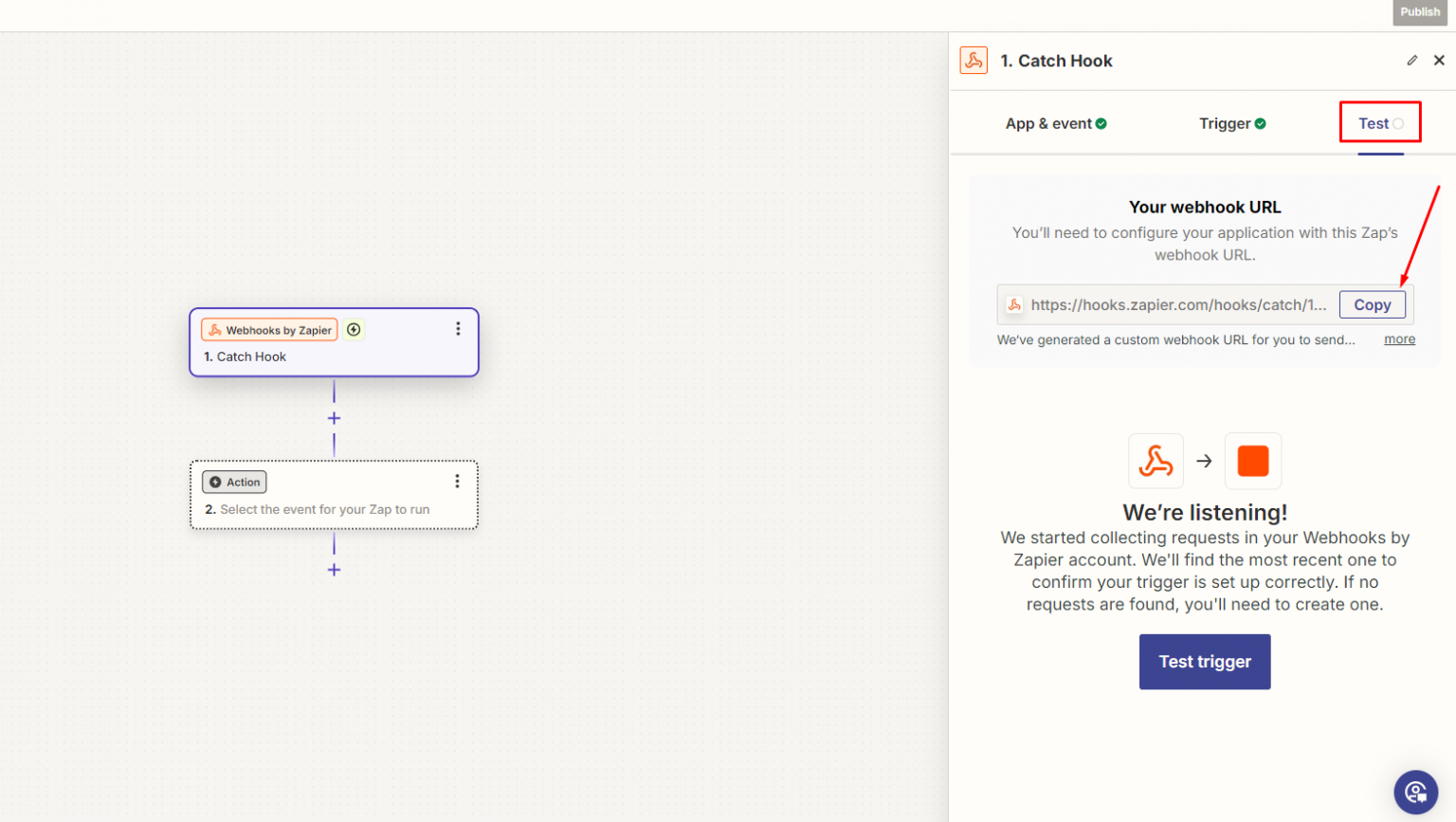
On the test screen Zapier shows a webhook address. Copy it — you paste it into the app next.

<figure><img src="https://2993310686-files.gitbook.io/~/files/v0/b/gitbook-x-prod.appspot.com/o/spaces%2FIvNtDAMNVIdy5nl9kiOU%2Fuploads%2Fgit-blob-508534e640aee2999386dccf00964d74d702bb22%2Fscreenshot-integrations-zapier-webhook-url.png?alt=media" alt="Zapier&#x27;s Test tab showing Your webhook URL with a Copy button beside the address"><figcaption><p>Copy the address under <strong>Your webhook URL</strong> — the app needs it next.</p></figcaption></figure>
{% endstep %}
{% endstepper %}

{% hint style="info" %}
You only need the address Zapier produces. Everything after that happens back in your Shopify admin, and then once more in Zapier to finish the Zap.
{% endhint %}

## Step 2 — Paste the address into the app

{% stepper %}
{% step %}

### Open the Integrations tab

In your Shopify admin, open **SA Request a Quote**, select **Advanced settings**, then open the **Integrations** tab.
{% endstep %}

{% step %}

### Select Zapier

Under **Third-party integration**, select **Zapier** — described in the app as "Automate your workflow by connecting apps together".

<figure><img src="https://2993310686-files.gitbook.io/~/files/v0/b/gitbook-x-prod.appspot.com/o/spaces%2FIvNtDAMNVIdy5nl9kiOU%2Fuploads%2Fgit-blob-40660528f9708d9932902cb38c2a1bd4500b9a8f%2FScreenshot%202026-09-30%20at%2000-31-57.png?alt=media" alt="The Integrations tab of Advanced settings with Zapier outlined in red"><figcaption><p>Zapier is how you reach a service the app does not list.</p></figcaption></figure>
{% endstep %}

{% step %}

### Paste it into Zapier Webhook URL

Paste the address you copied into the **Zapier Webhook URL** field. It is the only field on the page.

<figure><img src="https://2993310686-files.gitbook.io/~/files/v0/b/gitbook-x-prod.appspot.com/o/spaces%2FIvNtDAMNVIdy5nl9kiOU%2Fuploads%2Fgit-blob-96ea040a67a295349a73807b0609482b9cead4b8%2Fscreenshot-integrations-zapier-webhook.png?alt=media" alt="The Zapier integration page showing its single Zapier Webhook URL field filled in, with the Save button"><figcaption><p>One field, one button: paste the address and select Save.</p></figcaption></figure>
{% endstep %}

{% step %}

### Save

Select **Save**. Quote submissions now go to that address.
{% endstep %}
{% endstepper %}

{% hint style="warning" %}
Treat the webhook address like a password. Anyone who has it can push data into your Zap.
{% endhint %}

## Step 3 — Send Zapier some test data

{% stepper %}
{% step %}

### Submit a quote

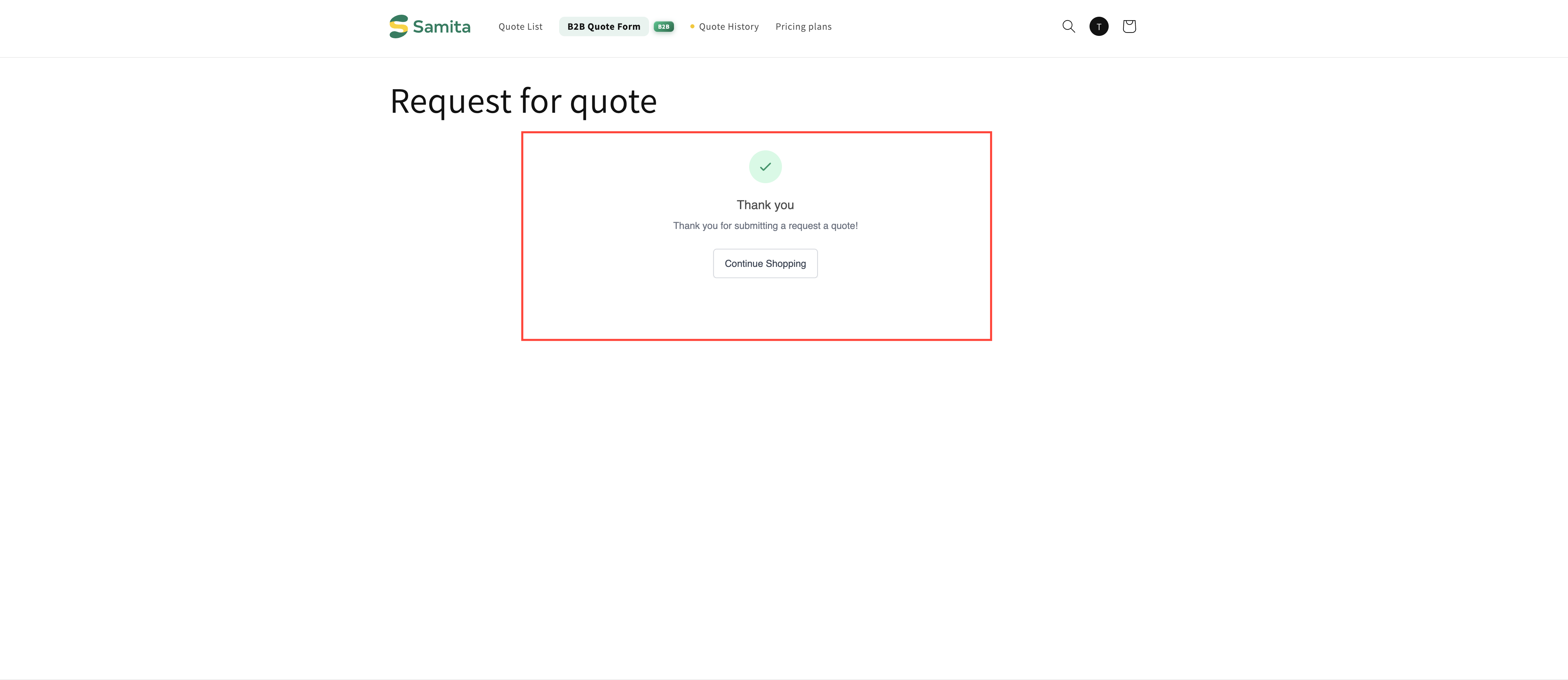
Go to your storefront and submit a quote request as a customer would.

<figure><img src="https://2993310686-files.gitbook.io/~/files/v0/b/gitbook-x-prod.appspot.com/o/spaces%2FIvNtDAMNVIdy5nl9kiOU%2Fuploads%2Fgit-blob-9b32e7caef4a0f0a8cca00fa385d92948ab7fbf2%2FScreenshot%202026-10-01%20at%2000-24-14.png?alt=media" alt=""><figcaption></figcaption></figure>

<figure><img src="https://2993310686-files.gitbook.io/~/files/v0/b/gitbook-x-prod.appspot.com/o/spaces%2FIvNtDAMNVIdy5nl9kiOU%2Fuploads%2Fgit-blob-48ea38ced9e3cb3139e7f67e8ea095120a7291af%2FScreenshot%202026-10-01%20at%2000-24-53.png?alt=media" alt=""><figcaption></figcaption></figure>
{% endstep %}

{% step %}

### Test the trigger in Zapier

<figure><img src="https://2993310686-files.gitbook.io/~/files/v0/b/gitbook-x-prod.appspot.com/o/spaces%2FIvNtDAMNVIdy5nl9kiOU%2Fuploads%2Fgit-blob-508534e640aee2999386dccf00964d74d702bb22%2Fscreenshot-integrations-zapier-webhook-url.png?alt=media" alt="Zapier&#x27;s Test tab with the webhook address shown and the Test trigger button beneath it"><figcaption><p><strong>Test trigger</strong> asks Zapier to look for your submission.</p></figcaption></figure>

Back in Zapier, select **Test Trigger**. Your quote data appears, and Zapier now knows the shape of it.
{% endstep %}

{% step %}

### Continue with the record Zapier found

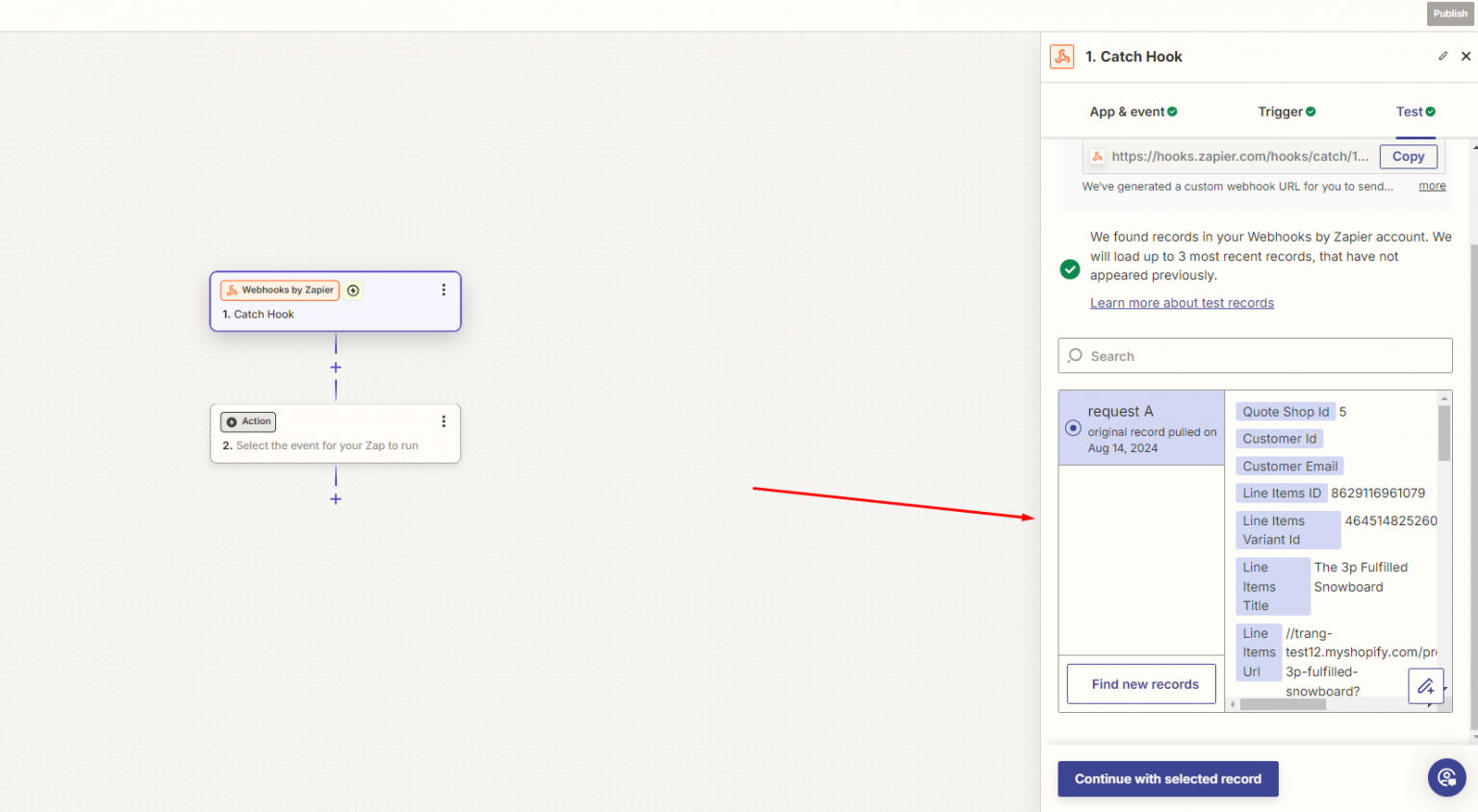
Select **Continue with selected record**. Zapier keeps that submission as the example it matches your fields against for the rest of the Zap.

<figure><img src="https://2993310686-files.gitbook.io/~/files/v0/b/gitbook-x-prod.appspot.com/o/spaces%2FIvNtDAMNVIdy5nl9kiOU%2Fuploads%2Fgit-blob-557b1ba579c02a538ad72aa233f33400b797ad39%2Fscreenshot-integrations-zapier-continue-record.png?alt=media" alt="Zapier&#x27;s test result listing the captured quote record, with the Continue with selected record button below it"><figcaption><p>Select <strong>Continue with selected record</strong> to lock in the example.</p></figcaption></figure>
{% endstep %}
{% endstepper %}

{% hint style="warning" %}
Submit your test quote with every field filled in. Zapier learns your data structure from this one example, so fields you leave empty may not be available to match later.
{% endhint %}

## Step 4 — Choose where the data goes

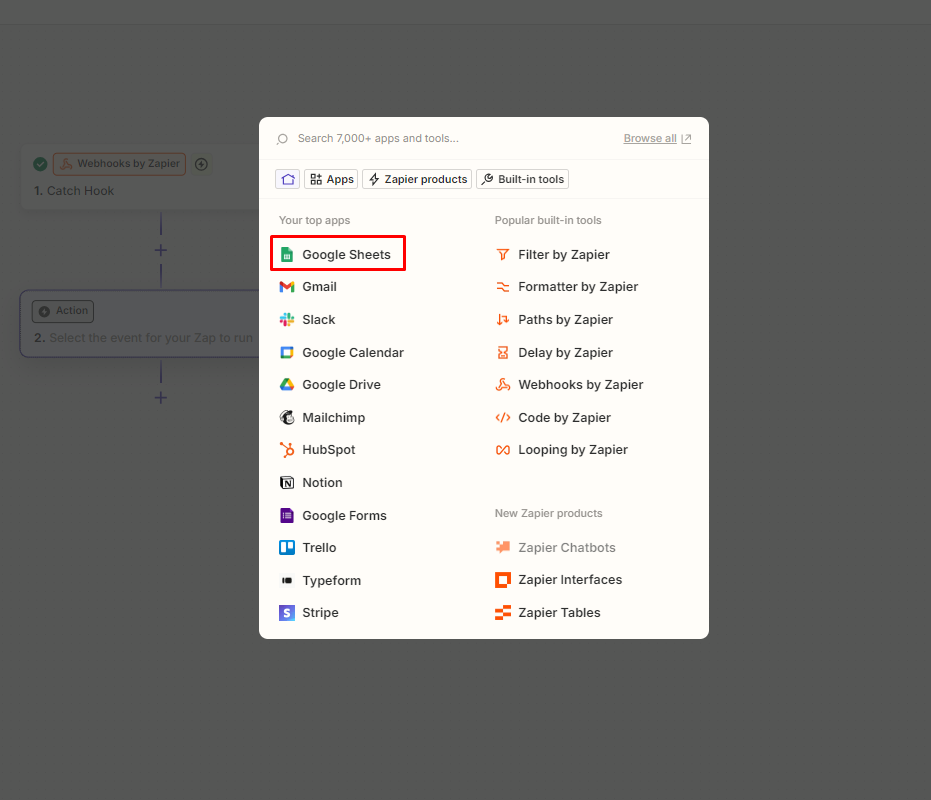
Now pick the app that receives it. Zapier supports thousands; a spreadsheet is a common first choice because it is easy to check.

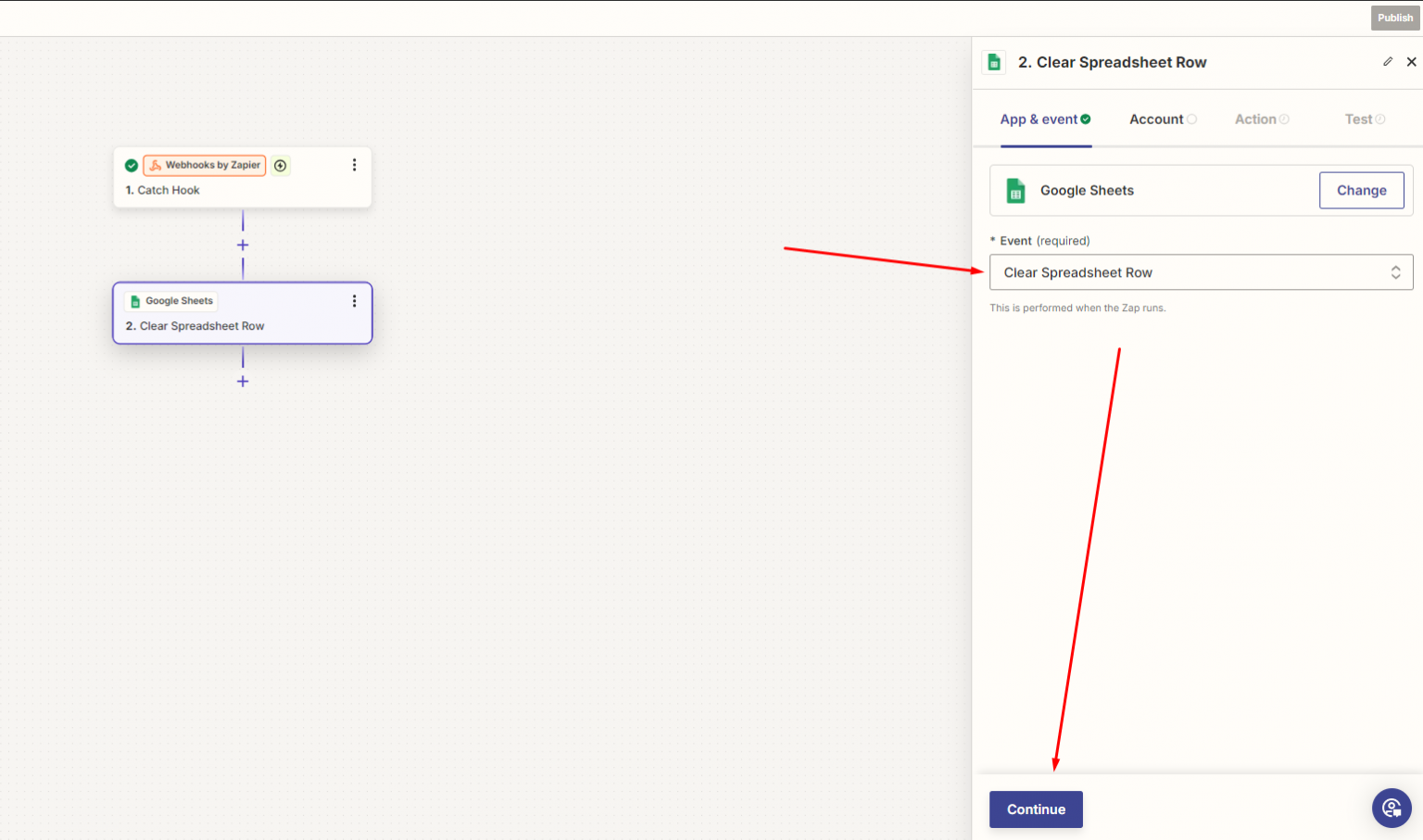
Inside Zapier, select your app and the action you want, sign in to that app when Zapier asks, complete the steps on the **Action** tab so the quote fields line up with that app's fields, and turn the Zap on. This matching is a Zapier step — there is nothing to map back in the Shopify admin.

<figure><img src="https://2993310686-files.gitbook.io/~/files/v0/b/gitbook-x-prod.appspot.com/o/spaces%2FIvNtDAMNVIdy5nl9kiOU%2Fuploads%2Fgit-blob-b6ad7e62b6bb8f62eaf08acd682e880c8f7109d7%2Fscreenshot-integrations-zapier-pick-sheets.png?alt=media" alt="Zapier&#x27;s app picker for the action step, with Google Sheets highlighted"><figcaption><p>Google Sheets, as the worked example.</p></figcaption></figure>

<figure><img src="https://2993310686-files.gitbook.io/~/files/v0/b/gitbook-x-prod.appspot.com/o/spaces%2FIvNtDAMNVIdy5nl9kiOU%2Fuploads%2Fgit-blob-917266b6a181cd17c954c4dd9176bdc98f4eeefb%2Fscreenshot-integrations-zapier-action-setup.png?alt=media" alt="Zapier&#x27;s action step connected to Google Sheets, with the spreadsheet fields being chosen"><figcaption><p>Point the action at your spreadsheet.</p></figcaption></figure>

<figure><img src="https://2993310686-files.gitbook.io/~/files/v0/b/gitbook-x-prod.appspot.com/o/spaces%2FIvNtDAMNVIdy5nl9kiOU%2Fuploads%2Fgit-blob-4ce4484bf3a1d89abed08c8d0ed3e5ddd0773da8%2Fscreenshot-integrations-zapier-map-fields.png?alt=media" alt="Zapier&#x27;s field mapping for the Google Sheets action, with quote fields lined up against spreadsheet columns"><figcaption><p>Each quote field lands in its own column — this mapping happens in Zapier, not in the app.</p></figcaption></figure>

## What people use this for

<table><thead><tr><th width="270">Destination</th><th>Why</th></tr></thead><tbody><tr><td>Google Sheets</td><td>A running log of every request, easy to filter and share.</td></tr><tr><td>Slack or Teams</td><td>The team sees new quotes immediately without watching an inbox.</td></tr><tr><td>Your CRM</td><td>Quote leads land in the same pipeline as everything else.</td></tr><tr><td>Accounting software</td><td>A head start on invoicing for quotes you expect to win.</td></tr></tbody></table>

{% hint style="success" %}
A Slack notification is the quickest win. Quotes are time-sensitive, and a channel message gets acted on faster than an email.
{% endhint %}

## If nothing reaches Zapier

* **Check you selected Save.** The address is not live until you do.
* **Check the address is complete.** A truncated paste fails silently.
* **Check the Zap is turned on in Zapier.** A Zap left in draft receives test data but does nothing with real submissions.

## Next steps

* [Integrations overview](/sa-request-a-quote/integrations/overview.md) — the providers you can connect directly, no Zapier needed
* [Emails sent to admin](/sa-request-a-quote/emails/emails-to-you.md) — get told about new quotes without a third-party tool
* [Plan comparison](/sa-request-a-quote/reference/plan-comparison.md) — what the PRO plan includes


---

# Agent Instructions
This documentation is published with GitBook. GitBook is the documentation platform designed so that both humans and AI agents can read, navigate, and reason over technical content effectively. Learn more at gitbook.com.

## Querying This Documentation
If you need additional information that is not directly available in this page, you can query the documentation by asking a question.

Perform an HTTP GET request on the following URL with the `ask` and `goal` query parameters:

```
GET https://docs.samita.io/sa-request-a-quote/integrations/zapier.md?ask=<question>&goal=<user_goal>
```

`ask` is the immediate question: it should be specific, self-contained, and written in natural language.
`goal` is what the user is ultimately trying to achieve, the reason they need the answer. Sharing it helps GitBook give you a better, more relevant answer. A goal is most helpful when it describes the outcome the user wants rather than restating the question. For example, with `ask=how do I create an API token`, a goal like `automate deployments from our CI pipeline` lets GitBook tailor the answer to that use case.

The response will contain a direct answer to the question and relevant excerpts and sources from the documentation.

Use this mechanism when the answer is not explicitly present in the current page, you need clarification or additional context, or you want to retrieve related documentation sections.