> For the complete documentation index, see [llms.txt](https://docs.samita.io/llms.txt). Markdown versions of documentation pages are available by appending `.md` to page URLs; this page is available as [Markdown](https://docs.samita.io/sa-request-a-quote/managing-quotes/convert-to-draft-order.md).

# Convert to a draft order

Use Convert to Order on an accepted quote so you can invoice the customer and take payment in Shopify.

This is where a quote stops being a conversation and becomes a sale. **Convert to Order**, at the top right of the quote detail page, hands the agreed prices over to Shopify as a draft order, so you can invoice it like any other order.

You do this from inside the quote. There is no convert action on the **Quotes** list — the four row actions there are **Download PDF**, **Resend email**, **Duplicate quote** and **Delete**, so the first move is always to open the request.

{% hint style="info" %}
**Convert a quote to an order** is a PRO plan feature. See [Plan comparison](/sa-request-a-quote/reference/plan-comparison.md), or open **Pricing plans** in the app navigation.
{% endhint %}

## Convert a quote

{% stepper %}
{% step %}

### Open the quote

Go to **Quote list** in the app navigation, then click the quote's row on the **Quotes** page. Clicking anywhere on the row opens it — there is no separate **Edit** button to hover for.

The detail page opens, headed **Quote #** and its number, with an **Update** line underneath showing when it last changed.
{% endstep %}

{% step %}

### Check the lines

Work down the line-item table — **Products**, **Price & quantity** and **Total**. Every price and quantity has to be the one you actually agreed, because that is what the draft order will carry. Each line shows its **SKU**, so you can be sure it is the right variant.

Anything still missing goes on now. The field above the table reads **Search products** — type into it to find one — and **Manage products** beside it opens the picker so you can tick several at once. **Duplicate items** on a line copies it rather than making you retype it, and **Create section** groups the lines on a long quote.

{% hint style="info" %}
There is no control for adding an off-catalogue line here. Everything on a quote has to be a product that exists in your Shopify catalogue, so a delivery charge or a setup fee is handled with **shipping** and **discount** in the **Payment** panel rather than as a made-up line.
{% endhint %}
{% endstep %}

{% step %}

### Check the Payment panel

Underneath the products, check **Subtotal**, then the three money links — they read **Add discount**, **Add shipping** and **Add tax rate** until something is set, and **Edit discount**, **Edit shipping** and **Edit tax rate** afterwards — then **Total**.

That **Total** is what the customer accepted, so it is the number that has to be right.

{% hint style="warning" %}
If you set a tax rate here, the app shows the banner "This tax won't appear in the draft order created from this quote." Tax on the draft order comes from your Shopify tax settings, so set it up under **Cost management** > **Tax** rather than only on the quote.
{% endhint %}
{% endstep %}

{% step %}

### Click Convert to Order

**Convert to Order** sits at the top right, next to **More actions**.

<figure><img src="https://2993310686-files.gitbook.io/~/files/v0/b/gitbook-x-prod.appspot.com/o/spaces%2FIvNtDAMNVIdy5nl9kiOU%2Fuploads%2FNR8FiTUQX9gNIGqilHmG%2Fimage.png?alt=media&amp;token=c53aca85-40a5-477c-a266-97b79d3091e1" alt=""><figcaption></figcaption></figure>
{% endstep %}

{% step %}

### Confirm in the popup

Clicking the button does not convert anything yet. A popup opens, headed **Convert to draft order**, asking "Are you sure you want to convert this quote to a draft order?"

Click **Convert** to go ahead, or **Cancel** to back out with nothing changed.

<figure><img src="https://2993310686-files.gitbook.io/~/files/v0/b/gitbook-x-prod.appspot.com/o/spaces%2FIvNtDAMNVIdy5nl9kiOU%2Fuploads%2FADhMUJ3CZK0LpICPKl4z%2Fimage.png?alt=media&amp;token=51cc9412-968e-4b23-b4d6-39e2586ad874" alt=""><figcaption></figcaption></figure>
{% endstep %}

{% step %}

### Open the draft order it created

Once it has run, a **Shopify draft order** card appears in the right-hand column of the quote. That card is your way back to the order you just made:

* the draft order's number — **#D26**, for example — as a link straight to it in your Shopify admin
* a status badge beside the number, which reads **INVOICE\_SENT** once you have invoiced it
* an **Order details** line with the order number and its payment status, once the draft order has become a real order
* a **Send email invoice** button

**Convert to Order** itself disappears from the top of the page at this point, because the quote has already been converted. In its place, **Export invoice PDF** becomes the button at the top right.&#x20;

<figure><img src="https://2993310686-files.gitbook.io/~/files/v0/b/gitbook-x-prod.appspot.com/o/spaces%2FIvNtDAMNVIdy5nl9kiOU%2Fuploads%2F7jfjNUHq4z6p2CN91RrF%2Fimage.png?alt=media&amp;token=f17dad13-437a-4324-9642-76b6f9e7e3cf" alt=""><figcaption></figcaption></figure>
{% endstep %}

{% step %}

### Invoice the customer

There are two ways in, and they end in the same place.

**From the quote.** Click **Send email invoice** on the **Shopify draft order** card. A popup opens with **To** (the customer), **From** — which "must belong to a staff or store owner account" — and **Custom message for this customer**. Fill them in and click **Send email invoice**, or **Back** to abandon it.

**From Shopify.** Click the draft order number on the same card, then invoice it and take payment in your Shopify admin exactly as you would with any other draft order.

<figure><img src="https://2993310686-files.gitbook.io/~/files/v0/b/gitbook-x-prod.appspot.com/o/spaces%2FIvNtDAMNVIdy5nl9kiOU%2Fuploads%2FOiLrZrcRkZyUxcOzWCKY%2Fimage.png?alt=media&amp;token=d1ee3f36-cd2f-4f03-baca-41dc79d0429c" alt=""><figcaption></figcaption></figure>

<figure><img src="https://2993310686-files.gitbook.io/~/files/v0/b/gitbook-x-prod.appspot.com/o/spaces%2FIvNtDAMNVIdy5nl9kiOU%2Fuploads%2FTSneUaUwMa1Zl5pWiGEC%2Fimage.png?alt=media&amp;token=2f93f15d-6f17-4519-939d-1c8deeca270c" alt=""><figcaption></figcaption></figure>
{% endstep %}

{% step %}

### Watch the status

The quote moves to the **Order created** tab on the **Quotes** page, and to **Purchased** once the customer has paid. **Mark as paid**, at the bottom of the **Payment** panel beside **Mark as unread** and **Resend an email**, records payment by hand when you took it some other way.

<figure><img src="https://2993310686-files.gitbook.io/~/files/v0/b/gitbook-x-prod.appspot.com/o/spaces%2FIvNtDAMNVIdy5nl9kiOU%2Fuploads%2F2dp4OuV69flxSQfDMQTz%2Fimage.png?alt=media&amp;token=aaab56b8-8ffc-4342-892c-95de7b6927e2" alt=""><figcaption></figcaption></figure>
{% endstep %}
{% endstepper %}

{% hint style="warning" %}
Check the quote before converting. The draft order takes whatever the quote says, and correcting it afterwards means editing the order in Shopify instead.
{% endhint %}

## If Convert to Order is greyed out

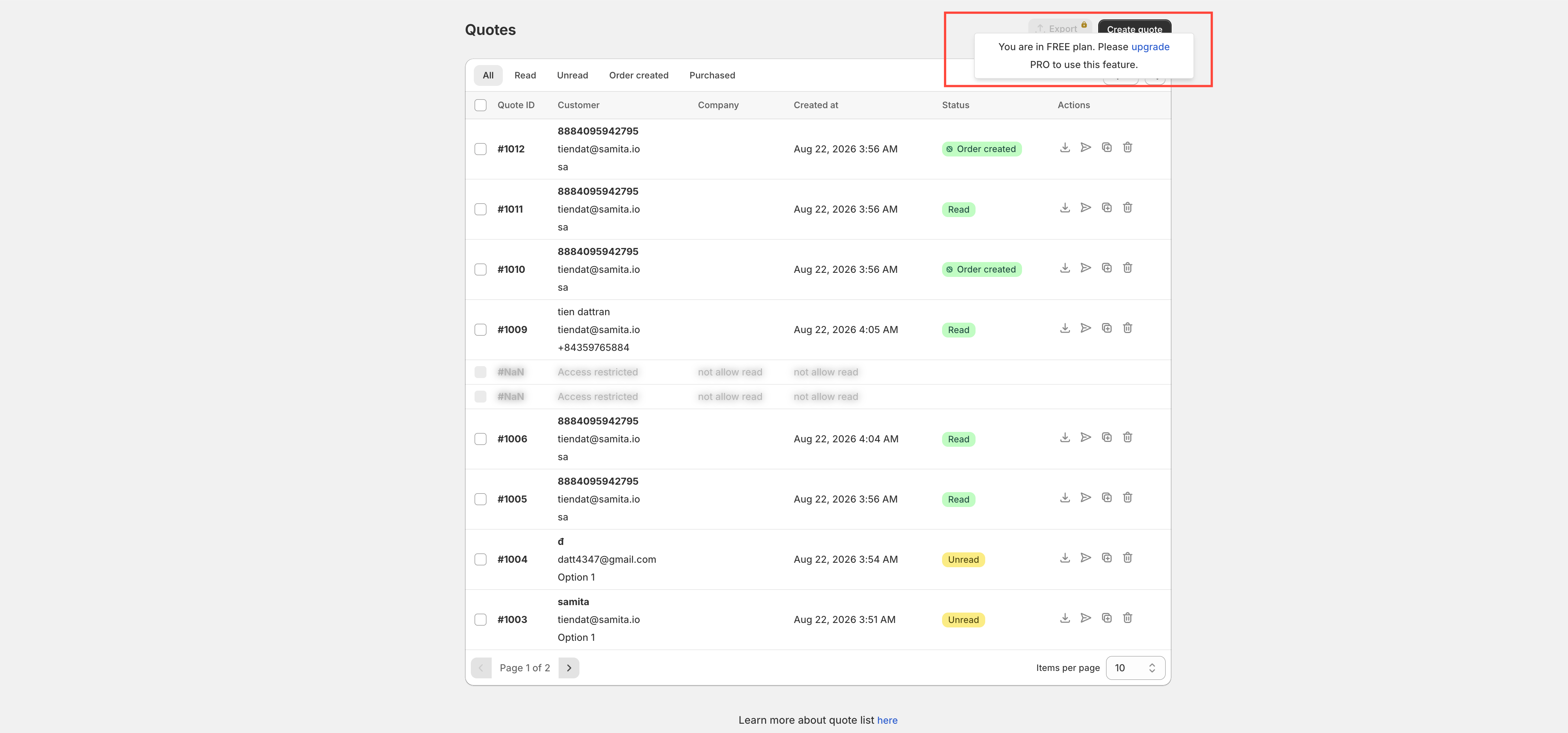
That is your plan, not a fault. When a feature is not on your plan the app disables the control and shows a padlock line — "🔐 This feature is available on …" — with a link through to the plan that includes it. Nothing is wrong with the quote or the store.

<figure><img src="https://2993310686-files.gitbook.io/~/files/v0/b/gitbook-x-prod.appspot.com/o/spaces%2FIvNtDAMNVIdy5nl9kiOU%2Fuploads%2Fgit-blob-ba550b76d39a5a1a7ec17a6bd26a294c945b068c%2FScreenshot%202026-09-30%20at%2000-57-25.png?alt=media" alt="The Quotes list with a plan notice outlined in red above the table"><figcaption><p>A quote cannot be converted on a plan that does not include it.</p></figcaption></figure>

## Make sure they have actually agreed first

Converting does not email anybody. It is a bookkeeping step, so the customer should already have seen the price you are about to charge them.

The order of work is: price the quote, send it with **Resend an email**, wait for the answer, then convert. If they asked for a change, edit the lines and send again before you convert — see [Send a quotation](/sa-request-a-quote/managing-quotes/send-quotation.md).

Note what was agreed in the **Timeline** comment box while it is fresh. "Only you and your staff can see comments", so the discount you allowed or the person who signed it off can be recorded there safely with **Post**.

## What happens at conversion

<table><thead><tr><th width="250">What</th><th>Result</th></tr></thead><tbody><tr><td>A draft order is created in Shopify</td><td>With the products, quantities and prices you agreed — not your list prices.</td></tr><tr><td>A <strong>Shopify draft order</strong> card appears on the quote</td><td>Carrying the draft order number as a link, its status badge, and <strong>Send email invoice</strong>.</td></tr><tr><td>The top of the quote changes</td><td><strong>Convert to Order</strong> is replaced by <strong>Export invoice PDF</strong>.</td></tr><tr><td>The quote changes status</td><td>It appears under <strong>Order created</strong>, then <strong>Purchased</strong> once paid.</td></tr></tbody></table>

The badge in the **Status** column of the **Quotes** list follows the same story: **Converting** while the conversion is running, then **Order created**, **Invoice sent**, **Paid** and **Fulfilled** as the sale progresses.

## Discounts, shipping and tax

Anything that changes the money on a quote is set under **Cost management** in the app navigation, which has three tabs.

<table><thead><tr><th width="180">Tab</th><th>What you set there</th></tr></thead><tbody><tr><td><strong>Discount</strong></td><td>"Add discount codes and automatic discounts that apply to quotes" — use <strong>Create discount</strong>.</td></tr><tr><td><strong>Shipping</strong></td><td><strong>Select options</strong>: <strong>Do not apply this setting</strong>, <strong>Use Shopify shipping rates</strong>, or <strong>Custom shipping rates based on quote price</strong>. There is also a <strong>Shipping label</strong>.</td></tr><tr><td><strong>Tax</strong></td><td><strong>Use Shopify tax rates</strong> — "Displays tax on the quote form based on your Shopify tax settings".</td></tr></tbody></table>

Setting these up before you convert saves adjusting the order by hand afterwards. On an individual quote, the **discount**, **shipping** and **tax rate** links in the **Payment** panel are where the same three numbers land.

{% hint style="info" %}
**Tax, Discount, Shipping settings** are PRO plan features, like conversion itself. See [Plan comparison](/sa-request-a-quote/reference/plan-comparison.md).
{% endhint %}

## Invoicing

The **Invoice PDF** template under **Advanced settings** > **PDF template** is the one "used to convert a draft order to a PDF file". It is what **Export invoice PDF** produces at the top of a converted quote, so it is worth setting up before your first conversion — see [Customize the invoice PDF](/sa-request-a-quote/pdf-templates/invoice-pdf.md).

## Keeping track afterwards

The dashboard's **Analytics overview** shows **Completed orders**, **Total draft orders** and **Order value** over a date range you choose, so you can see how much of your quoting is actually turning into revenue.

## Next steps

* [Customize the invoice PDF](/sa-request-a-quote/pdf-templates/invoice-pdf.md) — set up the invoice document
* [Export quotes to CSV](/sa-request-a-quote/managing-quotes/export-csv.md) — report on your quotes
* [Plan comparison](/sa-request-a-quote/reference/plan-comparison.md) — what each plan includes


---

# Agent Instructions
This documentation is published with GitBook. GitBook is the documentation platform designed so that both humans and AI agents can read, navigate, and reason over technical content effectively. Learn more at gitbook.com.

## Querying This Documentation
If you need additional information that is not directly available in this page, you can query the documentation by asking a question.

Perform an HTTP GET request on the following URL with the `ask` and `goal` query parameters:

```
GET https://docs.samita.io/sa-request-a-quote/managing-quotes/convert-to-draft-order.md?ask=<question>&goal=<user_goal>
```

`ask` is the immediate question: it should be specific, self-contained, and written in natural language.
`goal` is what the user is ultimately trying to achieve, the reason they need the answer. Sharing it helps GitBook give you a better, more relevant answer. A goal is most helpful when it describes the outcome the user wants rather than restating the question. For example, with `ask=how do I create an API token`, a goal like `automate deployments from our CI pipeline` lets GitBook tailor the answer to that use case.

The response will contain a direct answer to the question and relevant excerpts and sources from the documentation.

Use this mechanism when the answer is not explicitly present in the current page, you need clarification or additional context, or you want to retrieve related documentation sections.
