> For the complete documentation index, see [llms.txt](https://docs.samita.io/llms.txt). Markdown versions of documentation pages are available by appending `.md` to page URLs; this page is available as [Markdown](https://docs.samita.io/sa-request-a-quote/pdf-templates/invoice-pdf.md).

# Customize the invoice PDF

Set up the Invoice PDF template in Advanced settings so the document that goes with a draft order shows the right details.

Once a customer accepts your quote and you turn it into a draft order, the document they pay against is a different thing from the quote. In the app it comes from **Invoice PDF**: the "Template used to convert a draft order to a PDF file".

A quote can be approximate and persuasive. An invoice has to be exact, because someone in an accounts department will check it.

## Where to find it

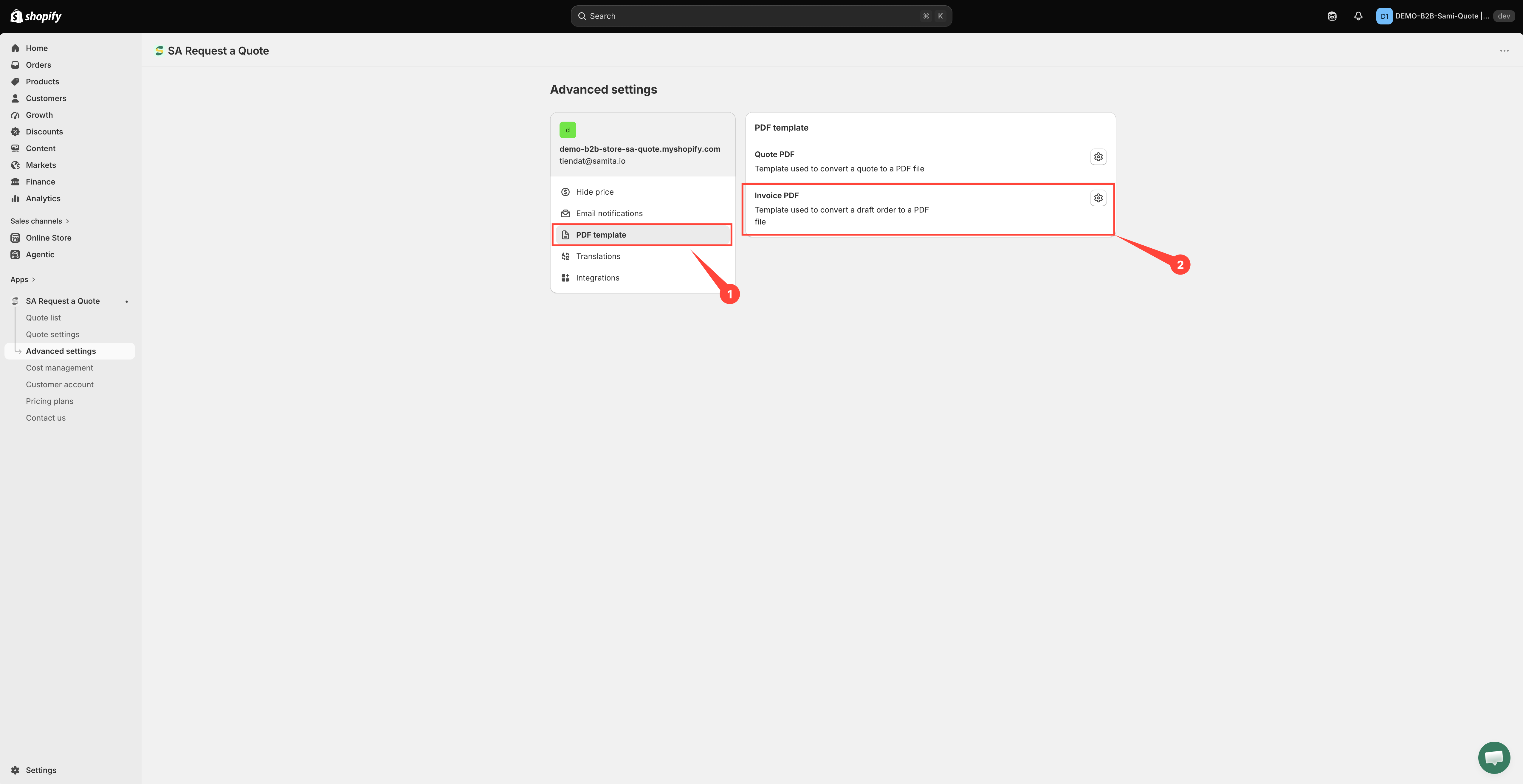
In the app sidebar, click **Advanced settings**, then choose the **PDF template** tab. **Invoice PDF** is the second of the two templates there.

<figure><img src="https://2993310686-files.gitbook.io/~/files/v0/b/gitbook-x-prod.appspot.com/o/spaces%2FIvNtDAMNVIdy5nl9kiOU%2Fuploads%2Fgit-blob-d94962107a9ddf41cecbb39933d10d664f2f259e%2FScreenshot%202026-09-30%20at%2000-21-29.png?alt=media" alt="The PDF template tab of Advanced settings with the Invoice PDF row outlined in red"><figcaption><p><strong>Invoice PDF</strong> is the second of the two templates.</p></figcaption></figure>

## Set the template up

{% stepper %}
{% step %}

### Open Advanced settings

In the app sidebar, click **Advanced settings**.
{% endstep %}

{% step %}

### Go to the PDF template tab

Choose **PDF template** from the list of tabs.
{% endstep %}

{% step %}

### Open Invoice PDF

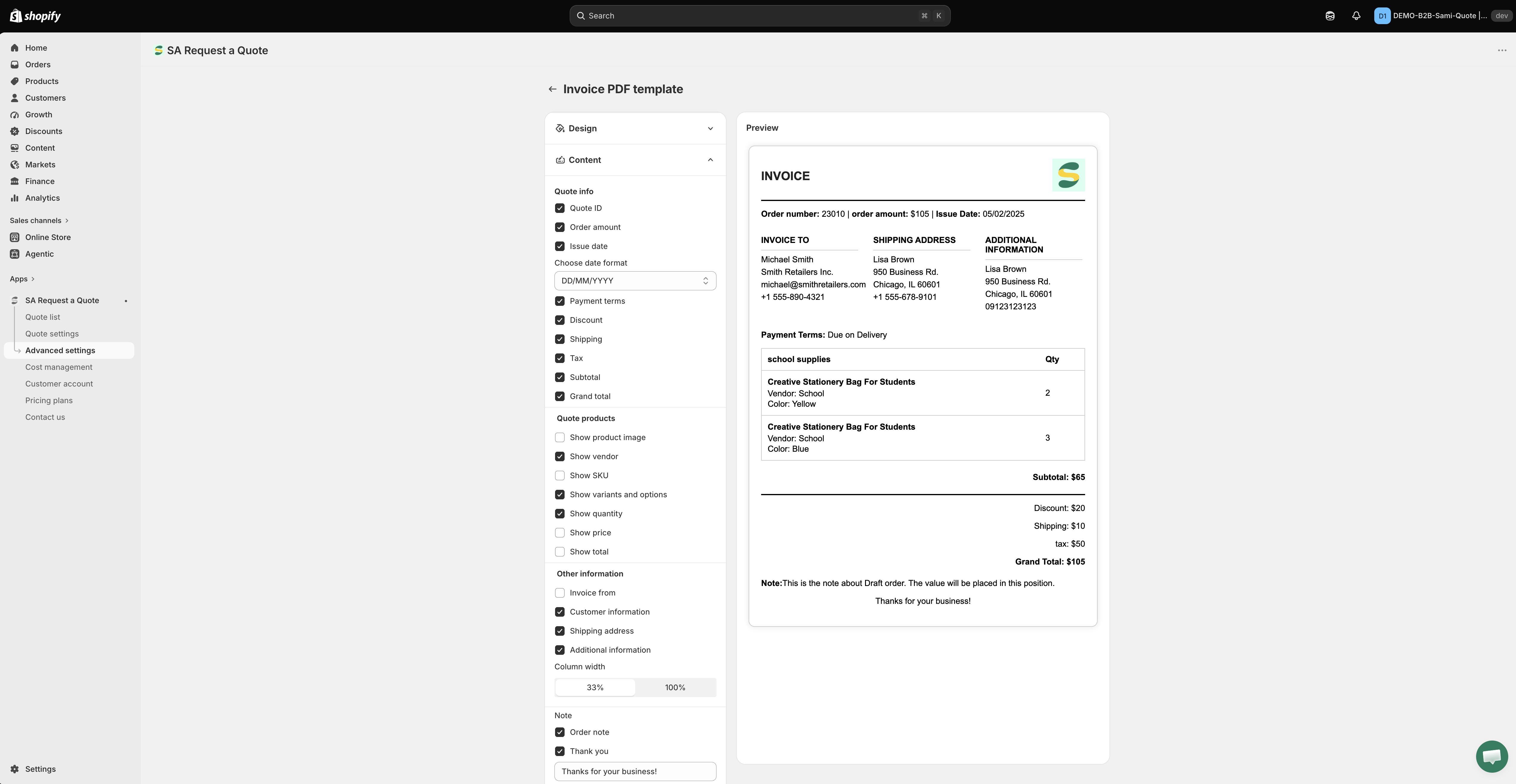
Open **Invoice PDF**. The editor is headed **Invoice PDF template**. It is a separate template from **Quote PDF**, so set this document up on its own screen rather than assuming it inherited anything from the quote template.

The left-hand column holds three sections you expand one at a time — **Design**, **Content** and **Translations** — and the **Preview** on the right redraws as you change them.

<figure><img src="https://2993310686-files.gitbook.io/~/files/v0/b/gitbook-x-prod.appspot.com/o/spaces%2FIvNtDAMNVIdy5nl9kiOU%2Fuploads%2Fgit-blob-ed8ff13ea153fb071b6cd0397ff9c3892c2a9b21%2FScreenshot%202026-09-29%20at%2016-56-04.png?alt=media" alt="The Invoice PDF template editor with its settings on the left and the invoice Preview on the right"><figcaption><p>The invoice template is set up on its own screen, separately from the quote PDF.</p></figcaption></figure>
{% endstep %}

{% step %}

### Put your branding on it in Design

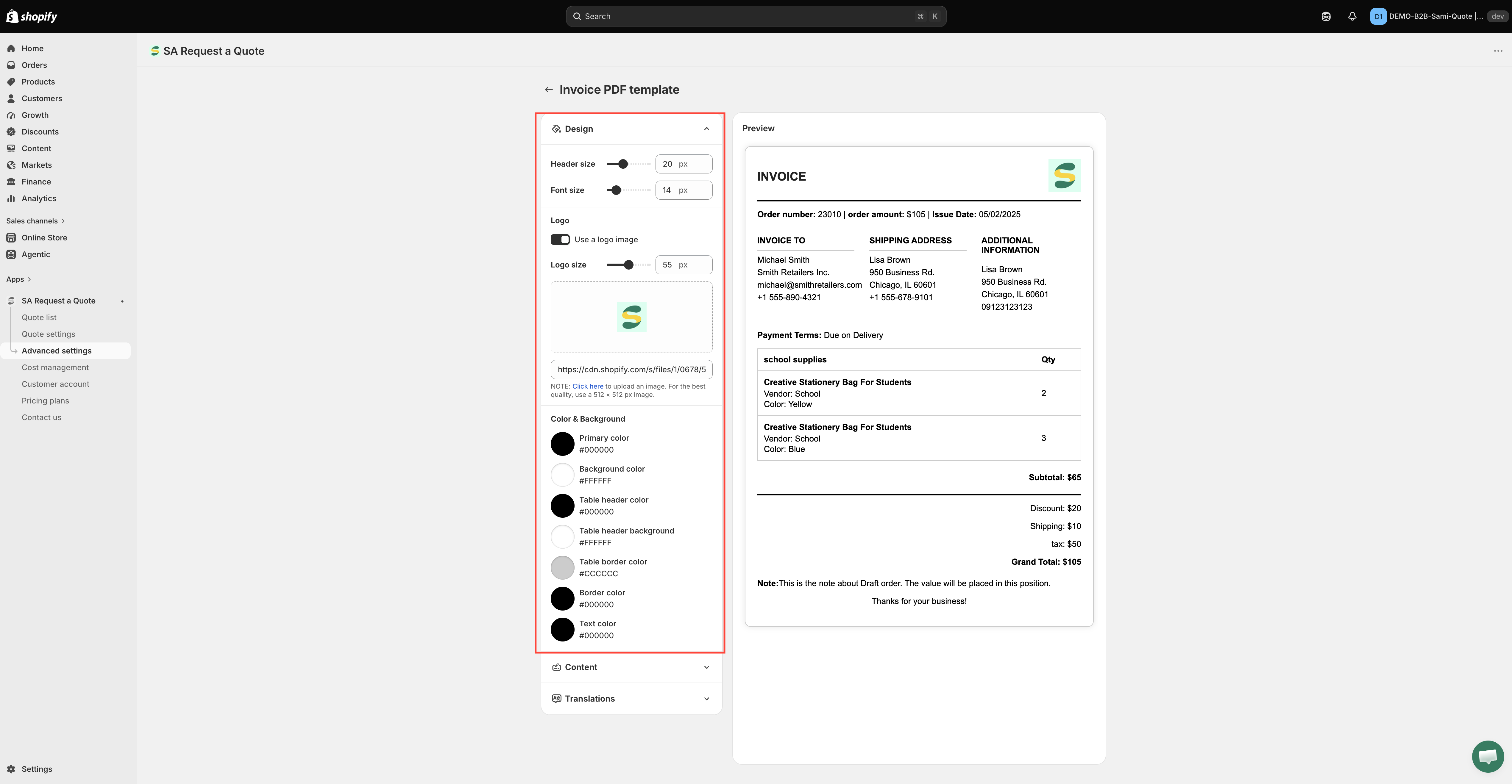
Expand **Design** and work down it:

* **Header size** and **Font size**, both in px.
* **Logo** — tick **Use a logo image**, set **Logo size** in px, then click the upload area to add the file. The app's own note reads: "Click here to upload an image. For the best quality, use a 512 × 512 px image." The field underneath takes an image URL instead, and is labelled **Enter an image URL to change it**.
* **Color & Background** — seven swatches: **Primary color**, **Background color**, **Table header color**, **Table header background**, **Table border color**, **Border color** and **Text color**.

<figure><img src="https://2993310686-files.gitbook.io/~/files/v0/b/gitbook-x-prod.appspot.com/o/spaces%2FIvNtDAMNVIdy5nl9kiOU%2Fuploads%2Fgit-blob-d89c495d6dc69d65906afe896feed13c717c47f7%2FScreenshot%202026-10-01%20at%2000-16-01.png?alt=media" alt=""><figcaption></figcaption></figure>
{% endstep %}

{% step %}

### Choose what the invoice shows on Content

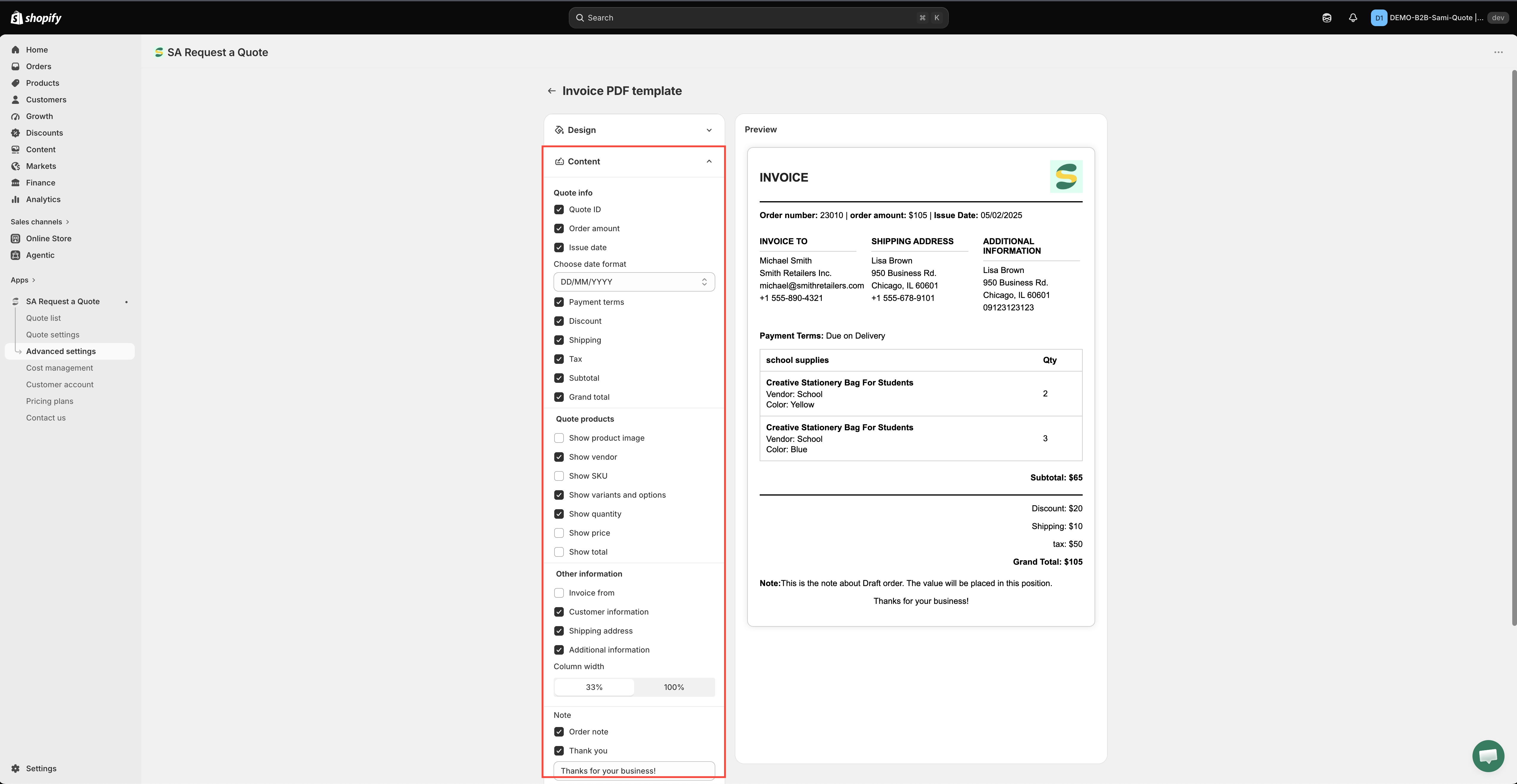
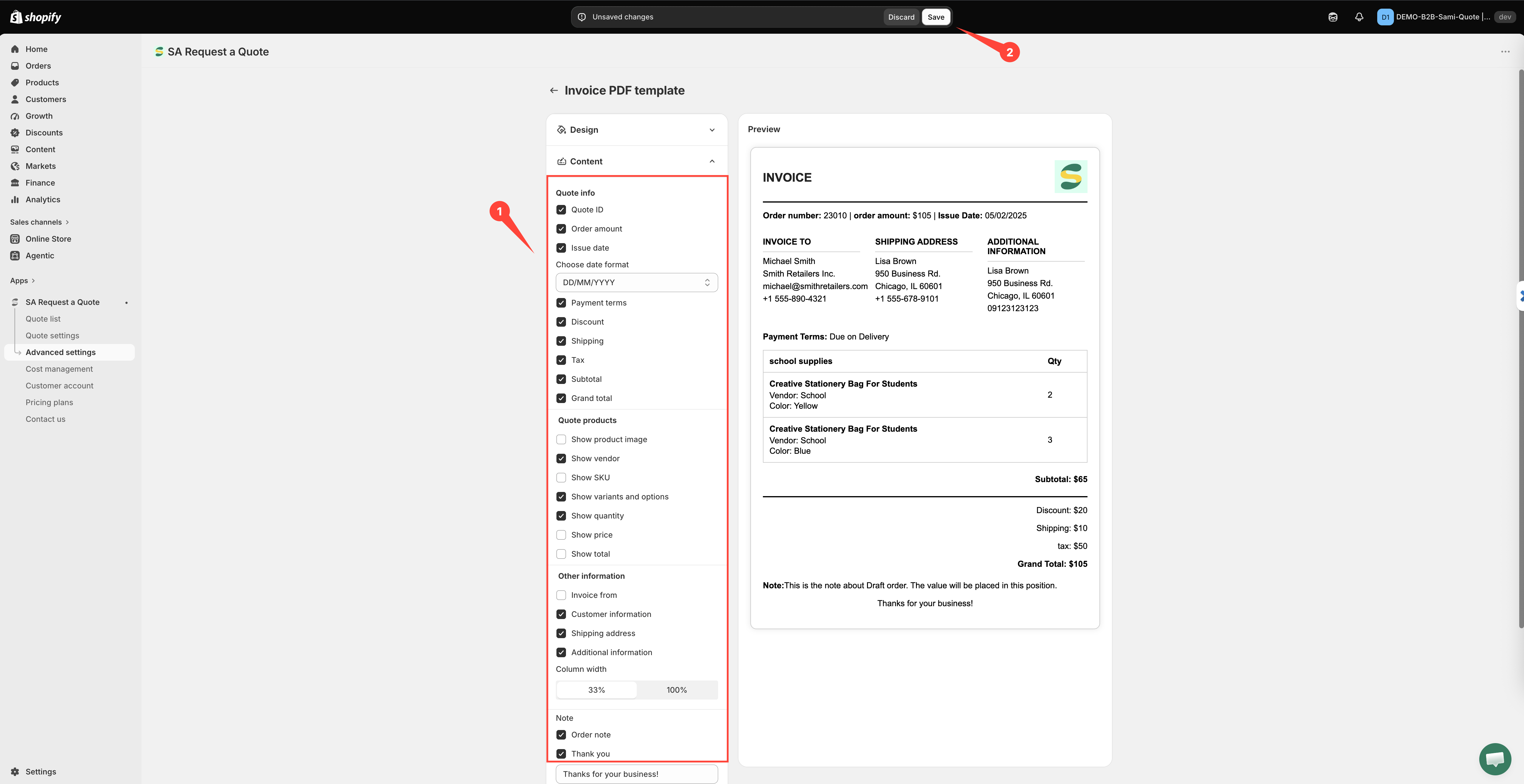
Open **Content** and work down the groups, switching on what an invoice has to carry. The invoice template is not the quote template with a different title — it offers rows the quote does not. Every group and every row is listed in [What Content offers](#what-content-offers) further down this page.

<figure><img src="https://2993310686-files.gitbook.io/~/files/v0/b/gitbook-x-prod.appspot.com/o/spaces%2FIvNtDAMNVIdy5nl9kiOU%2Fuploads%2Fgit-blob-2b3202cde8b12435f13900afebefed07ec9e35d7%2FScreenshot%202026-10-01%20at%2000-16-29.png?alt=media" alt=""><figcaption></figcaption></figure>
{% endstep %}

{% step %}

### Translate the labels in Translations

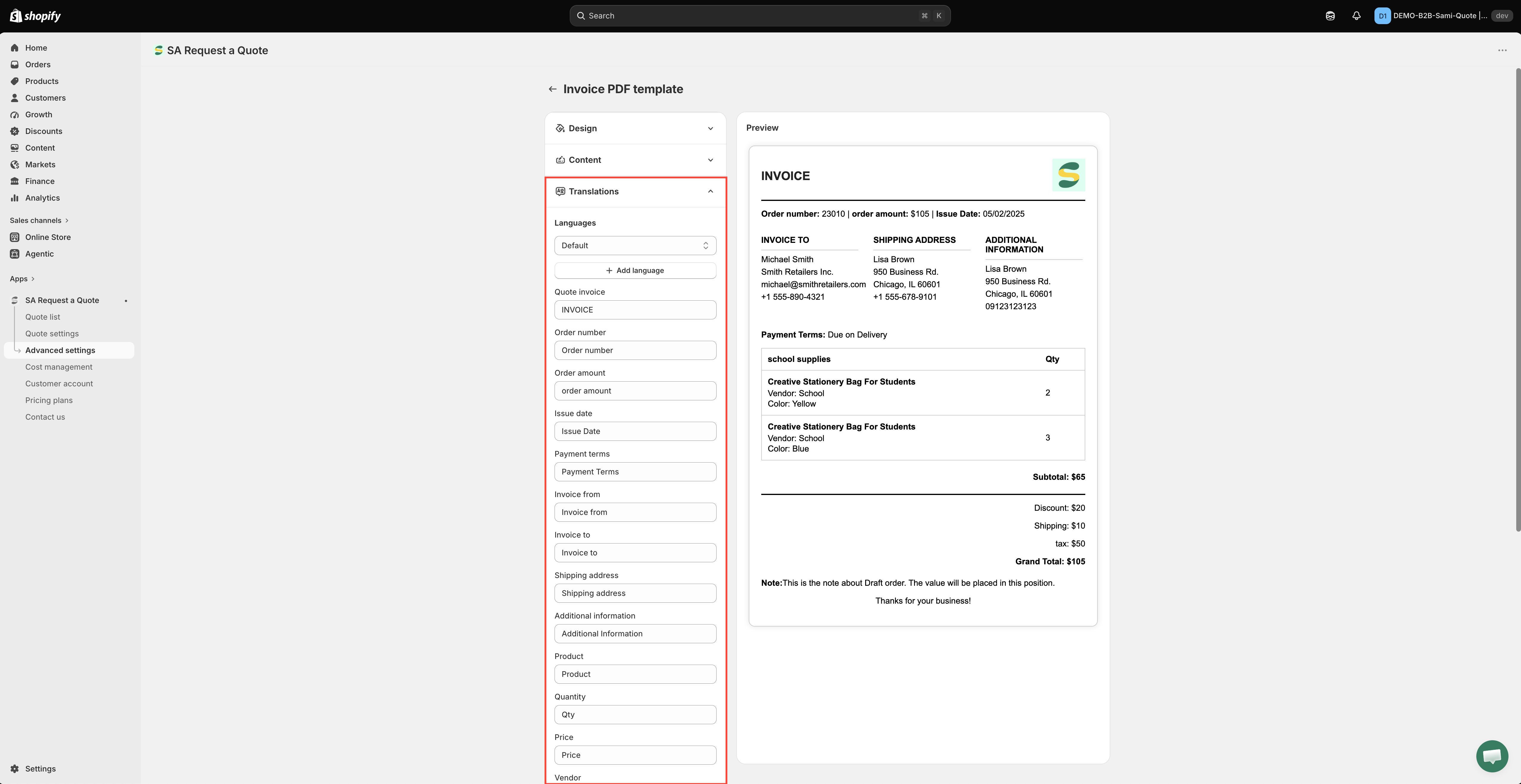
Expand **Translations**. **Languages** picks the language you are editing; **Add language** adds another; the bin icon beside a language removes it (the default language cannot be removed).

Underneath is one text box per label printed on the document — among them **Quote invoice**, **Quote ID**, **Order amount**, **Issue date**, **Payment terms**, **Invoice from**, **Invoice to**, **Shipping**, **Product**, **Quantity**, **Price**, **Vendor**, **Total**, **Subtotal**, **Discount**, **Tax**, **Grand total** and **Note**. Type over any of them: this is also how you change a label in English, not only how you translate it.

<figure><img src="https://2993310686-files.gitbook.io/~/files/v0/b/gitbook-x-prod.appspot.com/o/spaces%2FIvNtDAMNVIdy5nl9kiOU%2Fuploads%2Fgit-blob-febf25cf044b28ded79c53b76360bf000356f958%2FScreenshot%202026-10-01%20at%2000-16-50.png?alt=media" alt=""><figcaption></figcaption></figure>
{% endstep %}

{% step %}

### Save

Changing anything brings up Shopify's save bar at the top of the admin. Click **Save** to keep the template, or **Discard changes** to drop it. Nothing you changed reaches a real invoice until you have saved.

<figure><img src="https://2993310686-files.gitbook.io/~/files/v0/b/gitbook-x-prod.appspot.com/o/spaces%2FIvNtDAMNVIdy5nl9kiOU%2Fuploads%2Fgit-blob-08c9abbcfdeb0e680e97915166764bd10c1b40bd%2FScreenshot%202026-10-01%20at%2000-17-22.png?alt=media" alt=""><figcaption></figcaption></figure>
{% endstep %}

{% step %}

### Check it against a real draft order

The **Preview** beside the settings is drawn from sample data. Before you rely on the template, turn one of your own test quotes into a draft order and produce the PDF from it, so you can see the finished document with real figures in it. See [Convert to a draft order](/sa-request-a-quote/managing-quotes/convert-to-draft-order.md).
{% endstep %}
{% endstepper %}

## What the document should show

An invoice carries obligations a quote does not, so the money lines matter more here than they do on an offer. Before you send one, read the finished document and check it carries:

* Payment terms, so the customer knows when payment is due.
* Discount, tax and shipping, each on its own line, so the total can be checked rather than taken on trust.
* A subtotal and a grand total — an invoice without a stated total will come straight back to you.
* Per-line prices and totals, because an accounts department reconciles line by line.
* SKUs, so the buyer can match your lines to their purchase order.
* Who the document is addressed to.

{% hint style="warning" %}
Invoice requirements are set by law where you trade, and they vary. Check with your own accountant which of these details you are obliged to show — this page cannot tell you what that is.
{% endhint %}

## Where the figures come from

The amounts on the invoice come from the quote you converted. Discounts, shipping and tax are set in **Cost management**, which has three tabs: **Discount**, **Shipping** and **Tax**. Get those right before you convert a quote, and the document will add up without hand-editing.

## Quote PDF or Invoice PDF?

<table><thead><tr><th width="250">Document</th><th>Purpose</th></tr></thead><tbody><tr><td><strong>Quote PDF</strong></td><td>An offer. Nothing is owed yet. Its job is to help the customer decide.</td></tr><tr><td><strong>Invoice PDF</strong></td><td>A request for payment on an agreed draft order. Its job is to get you paid.</td></tr></tbody></table>

## The watermark

PDFs carry a watermark until your store is verified. The app puts it this way: "Remove the watermark from your PDF. Please contact us to verify your store and receive this service for free."

{% hint style="info" %}
An invoice is the last document you want going out watermarked. Verification is free — write to <support@samita.io>, and see [Contact support](/sa-request-a-quote/help/contact-support.md).
{% endhint %}

{% hint style="info" %}
**Convert a quote to an order** is listed on the **PRO** plan, along with **Customizable PDF**. **PDF: quote & invoice** itself is on the **FREE** plan — see [Plan comparison](/sa-request-a-quote/reference/plan-comparison.md).
{% endhint %}

## What Content offers

<table><thead><tr><th width="210">Group</th><th>Rows</th></tr></thead><tbody><tr><td><strong>Quote info</strong></td><td>Quote ID · <strong>Order amount</strong> · Issue date · <em>Choose date format</em> · Payment terms · Discount · Shipping · Tax · Subtotal · Grand total</td></tr><tr><td><strong>Quote products</strong></td><td>Show product image · Show vendor · Show SKU · Show variants and options · Show quantity · Show price · Show total</td></tr><tr><td><strong>Other information</strong></td><td><strong>Invoice from</strong> — which opens out into <strong>Store name</strong>, <strong>Email</strong>, <strong>Address</strong> and <strong>Phone number</strong>, so you choose which of your own details appear · Customer information · Shipping address · Additional information</td></tr><tr><td><strong>Column width</strong></td><td><strong>33%</strong> or <strong>100%</strong></td></tr><tr><td><strong>Note</strong></td><td><strong>Order note</strong> · <strong>Thank you</strong>, with a free-text field beneath them</td></tr></tbody></table>

Three of these exist only on the invoice: **Order amount**, **Invoice from**, and the whole **Note** group. If you have set up the quote PDF already, those are the ones to look at.

The finished document is headed **INVOICE** and carries an **Order number** and an **INVOICE TO** column — which is why the labels you edit in **Translations** are worth a look before you send the first one.

{% hint style="info" %}
**Thank you** carries its own line of text, which starts as "Thanks for your business!". It is the last thing a buyer reads on a document they are about to pay, so it is worth making it yours.
{% endhint %}

## Next steps

* [Convert to a draft order](/sa-request-a-quote/managing-quotes/convert-to-draft-order.md) — create the draft order an invoice belongs to
* [Customize the quote PDF](/sa-request-a-quote/pdf-templates/quote-pdf.md) — the quote document, with every switch listed
* [Attach a PDF to quote emails](/sa-request-a-quote/emails/attach-pdf.md) — get the document to your customer


---

# Agent Instructions
This documentation is published with GitBook. GitBook is the documentation platform designed so that both humans and AI agents can read, navigate, and reason over technical content effectively. Learn more at gitbook.com.

## Querying This Documentation
If you need additional information that is not directly available in this page, you can query the documentation by asking a question.

Perform an HTTP GET request on the following URL with the `ask` and `goal` query parameters:

```
GET https://docs.samita.io/sa-request-a-quote/pdf-templates/invoice-pdf.md?ask=<question>&goal=<user_goal>
```

`ask` is the immediate question: it should be specific, self-contained, and written in natural language.
`goal` is what the user is ultimately trying to achieve, the reason they need the answer. Sharing it helps GitBook give you a better, more relevant answer. A goal is most helpful when it describes the outcome the user wants rather than restating the question. For example, with `ask=how do I create an API token`, a goal like `automate deployments from our CI pipeline` lets GitBook tailor the answer to that use case.

The response will contain a direct answer to the question and relevant excerpts and sources from the documentation.

Use this mechanism when the answer is not explicitly present in the current page, you need clarification or additional context, or you want to retrieve related documentation sections.