For the complete documentation index, see llms.txt. This page is also available as Markdown.

Build a standard form

Build your quote form from a template — the questions you ask, where the form appears, and how it looks.

This walks through the whole form, in the order the editor presents it.

1

Open the Customize editor

Go to Quote settings. On the Request a Quote page, find the Customize card and click Customize. The editor opens full screen.

2

Open the Quote form tab

The editor has four tabs — Button & widget, Quote form, Quote cart page and Success message. Open Quote form.

3

Start from a template

Form template shows the template your form is built on, with a short description of who it suits.

Click Change. A picker opens, headed Choose a form template, with the note "Select a starting point. The form fields will change only after you confirm." There are three:

Template
How the app describes it
Tagged

Simple quote form

"Best for most stores. Includes login autofill, contact details, company, quantity, request message, and file upload."

Fast setup · 7 fields

Detailed quote form

"For custom orders, delivery, installation, or project-based quotes. Includes login autofill guidance."

More details · 14 fields

B2B customer form

"For wholesale or business buyers who need company, shipping, billing, and payment term information"

B2B

Pick the one whose description matches the work you quote for, then click Use this template to confirm. Cancel leaves your current form alone. Do this now, before you start editing fields.

The Quote form tab of the Customize editor with the form template picker open over the editor
Start from a template rather than an empty form.
The Quote form tab of the Customize editor with the chosen template highlighted in the picker
Pick the template that matches how you sell.
4

Decide whether the form shows on product pages

Under Product page form display — "Show the quote form directly on product pages" — tick Enable product page form display if you want customers to fill the form in without leaving the product.

Ticking it reveals Form position on product page, a dropdown with three choices:

Position
Where the form lands

Below Add to Cart button

High on the page, right under the buy buttons — the most visible option.

Below product description

After the sales copy, for a buyer who has read it.

Below product information

At the end of the product information block.

Leave the checkbox off if you would rather customers build a quote cart first.

5

Work through the Form builder

The Form builder — "Manage sections, rows, fields, and validation with the visual form builder" — holds your questions, grouped into sections. Which sections are there depends on the template you just chose:

Template
Sections in the builder

Simple quote form

Contact information · Extra info

Detailed quote form

Contact information · Shipping address · Extra info

B2B customer form

Contact information · Company information · Shipping address · Billing address · Payment terms · Extra info

Three things you can do to a section:

  • Switch it on or off. Open the section's settings and tick or untick Enable. A disabled section is not shown to the customer, however many fields it holds.

  • Rename it. The same settings panel has a Label — change it to whatever your buyers would call it.

  • Move it. Drag the section by its handle to reorder the form.

Expand a section with its chevron to see the fields inside it, and use Add element to add another field to that section.

Contact and address fields are covered in Customer information fields; company, billing and payment terms in Build a B2B form.

Greyed-out builder controls with a padlock line reading "🔐 This feature is available on …" mean the feature sits on a higher plan. Nothing is broken — open Pricing plans in the app to see what yours includes.

6

Edit a field

Click any field in the builder and its own settings open, headed with the field's name and "Customize how this field appears on the form."

Setting
What it does

Label

The wording the customer reads. This is the setting merchants change most.

Hide label

Keeps the field but drops the label above it.

Placeholder

The grey example text inside the empty box. Use it for the format you want — "e.g. 500 units" beats a blank box.

Help text

A line under the field, for anything too long for a placeholder.

Type

What kind of field it is, and what the customer can type into it.

Required

The form will not submit without it. Ask for as few required fields as you can live with.

Options / Add option

The choices on a select, radio group or checkbox group.

Choose default value

What the field starts with when the form loads.

Limit characters

Turns on Min characters and Max characters.

Column width

How much of the row the field takes, so two short fields can sit side by side.

Custom HTML class

A class name for your own CSS — see custom-css.md.

Remove

Deletes the field. It is on your own fields only: the built-in contact and address fields are protected and have no Remove.

Finish with Save changes in the field panel, or Cancel to drop the edit.

7

Put the fields in the order you want them

Fields are reordered by dragging. Grab a field by the drag handle at the left-hand end of its row and drop it where you want it. Sections carry their own drag handle and move the same way.

Order matters more than it looks: a form that asks for a delivery postcode before it asks for a name reads like a database, not a conversation.

8

Add your own questions

Extra info starts with whatever your template puts there, and that differs by template. The Simple quote form arrives with Quantity and Upload files; the Detailed quote form with Project detail and Delivery service; the B2B customer form with Message.

Use Add element to add anything else you need — lead time, delivery date, project reference.

If a group of questions belongs together and doesn't fit an existing section, use Add section to create a new one.

The Quote form tab of the Customize editor with the element menu open and outlined in red
Sections and fields are added from this menu.
The Quote form tab of the Customize editor with the finished form shown in Preview
Read the form back in Preview before you save.
9

Style the form

Style shows the preset your form is using, with a Change button that opens the rest of them. The presets are Material filled, Classic, Flat, Flat round, Classic round, Line, Line round and Material outlined — each shown as a small picture of the input, so pick by eye rather than by name.

Beside it is Match theme styling if possible. Tick it and the form borrows your theme's own fonts and inputs instead, which is usually the shortest route to a form that does not look bolted on. The app notes that "Theme styling applies on your storefront and is not shown in this preview", so judge that one on the storefront, not here.

Customize text sets the Font style, the Title bar font size and the Title bar font weight. Customize form color sets the individual colours — Title bar color, Title bar background, Color, Background color, Border color, Button color, Button background color, Button border and Quote popup primary color.

Full detail: Match your theme style.

10

Read the form back in Preview

The Preview panel sits beside the editor and redraws as you work. Two controls on its toolbar are worth using before you save:

  • The customer-state button, which switches the preview between Guest and Logged-in — they see different forms.

  • The desktop / mobile toggle, because a long form is a different thing on a phone.

11

Save and test it yourself

Change anything and Shopify's save bar appears with Save and Discard changes. Click Save. If a field still has a validation error the editor refuses and says "Please resolve validation errors before saving." — fix the field it names and save again.

Then go to your storefront and submit a real test request. Check it arrives in Quote list with everything you expected.

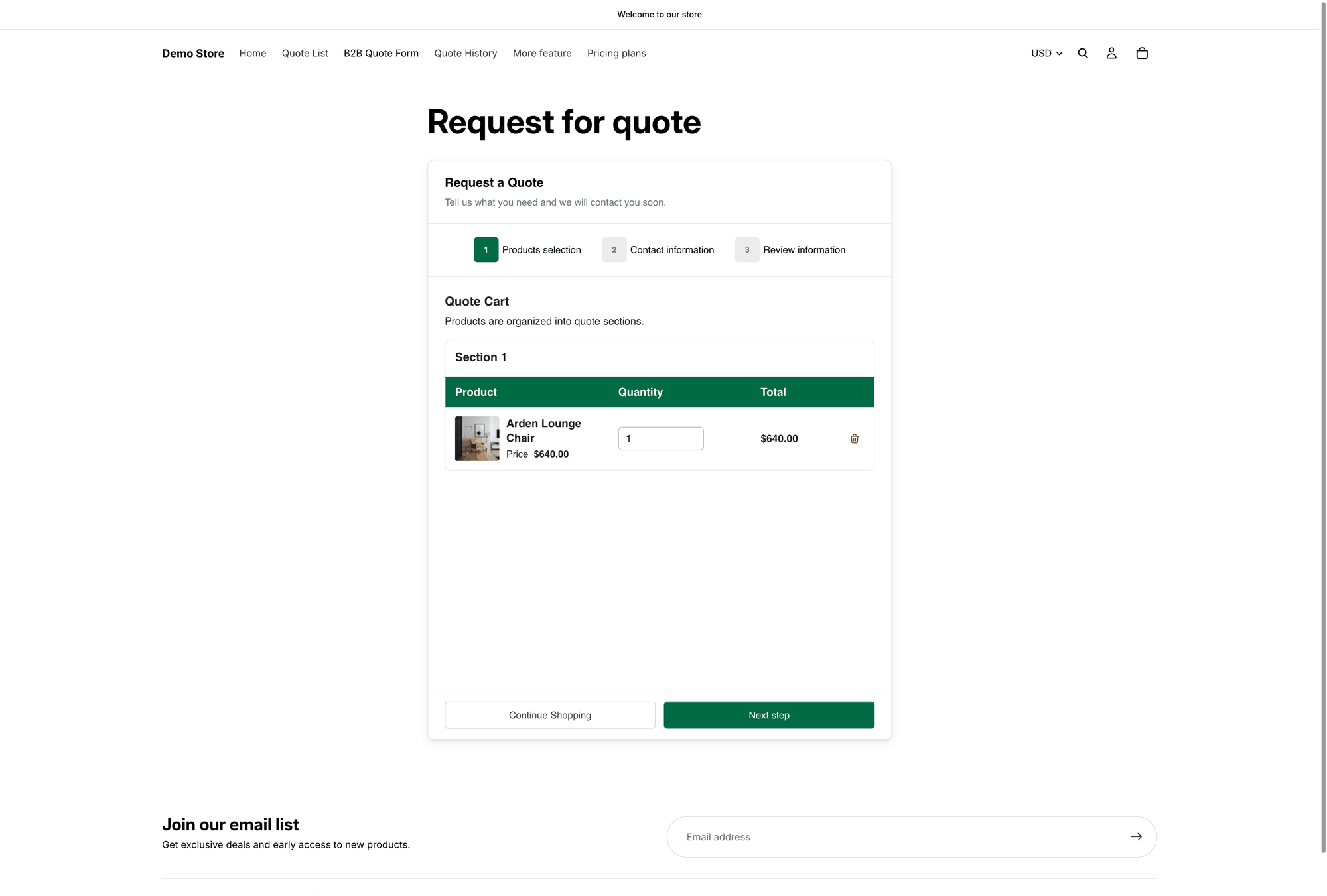
Storefront Request a Quote page with the Products selection, Contact information and Review information steps above the Quote Cart
The form on the storefront, with Quote form appearance set to Multiple step.

The template sets your starting point, not your ceiling. Anything the template brings in can be edited or removed, and anything it leaves out can be added with Add element or Add section. Just remember that switching template later is a restart rather than an edit — it replaces the field list you have built.

Where the rest of the settings live

The Quote form tab is only the questions. Several things merchants come looking for here are on the other tabs of the same editor:

What you want
Tab
What you will find

The form as one page or as steps

Quote cart page

Quote form appearance — "Controls how the quote form looks on the quote cart page" — set to Multiple step or Single page.

What the product rows show

Quote cart page

Product list columns — "The product details shown as columns in the customer's quote cart" — see product-group.md.

Letting customers group products

Quote cart page

Enable Quote Sections — "Lets customers group the products in their quote cart into named sections" — see product-group.md.

The button's wording and placement

Button & widget

Button text, click action, button position and who can see it.

What happens after submitting

Success message

The thank-you wording and Redirect to custom URL.

The editor warns you about this itself if you try to move between tabs mid-edit: "Save your changes before switching tabs to avoid losing them."

Next steps

Last updated

Was this helpful?