> For the complete documentation index, see [llms.txt](https://docs.samita.io/llms.txt). Markdown versions of documentation pages are available by appending `.md` to page URLs; this page is available as [Markdown](https://docs.samita.io/sa-request-a-quote/quote-form/match-theme-style.md).

# Match your theme style

Make the quote form pick up your theme's styling automatically, or set the fonts and colours yourself.

A quote form that looks bolted on undermines trust at exactly the wrong moment. The app can pick up your theme's styling instead.

## Themes the app matches

Theme matching is built against a named set of themes. Samita publishes the list as **Dawn**, **Refresh**, **Trade**, **Origin**, **Ride**, **Studio**, **Colorblock**, **Taste**, **Publisher**, **Crave**, **Spotlight**, **Craft**, **Sense** and **Debut**.

If your store runs one of those, tick the box and expect a close match. Two caveats worth knowing before you spend time on it:

* **The list keeps growing.** Samita marks it "updating", so a theme that isn't named here may already be covered — try the setting before you assume it won't work.
* **A listed theme is not a guarantee.** Themes get customised, and a heavily modified Dawn is not stock Dawn. The storefront check below is what settles it, whatever your theme is called.

If you're not sure which theme you're on, look in **Online Store** > **Themes** in your Shopify admin: the live theme is named at the top.

## Turn on theme matching

{% stepper %}
{% step %}

### Open the Quote form tab

Go to **Quote settings**, click **Customize**, then open the **Quote form** tab.
{% endstep %}

{% step %}

### Pick a style preset

Scroll to **Style**. It shows the preset the form currently uses — for example **Classic** — with a **Change** button if you want a different one.
{% endstep %}

{% step %}

### Tick Match theme styling if possible

Tick **Match theme styling if possible**.

<figure><img src="https://2993310686-files.gitbook.io/~/files/v0/b/gitbook-x-prod.appspot.com/o/spaces%2FIvNtDAMNVIdy5nl9kiOU%2Fuploads%2FKbZUr83fFFj8HaoG7NmW%2Fimage.png?alt=media&amp;token=d216428e-c0c3-48ca-bab7-bc28ba18721e" alt=""><figcaption><p>Match the form to your theme so it does not look bolted on.</p></figcaption></figure>
{% endstep %}

{% step %}

### Check it on your storefront, not in the editor

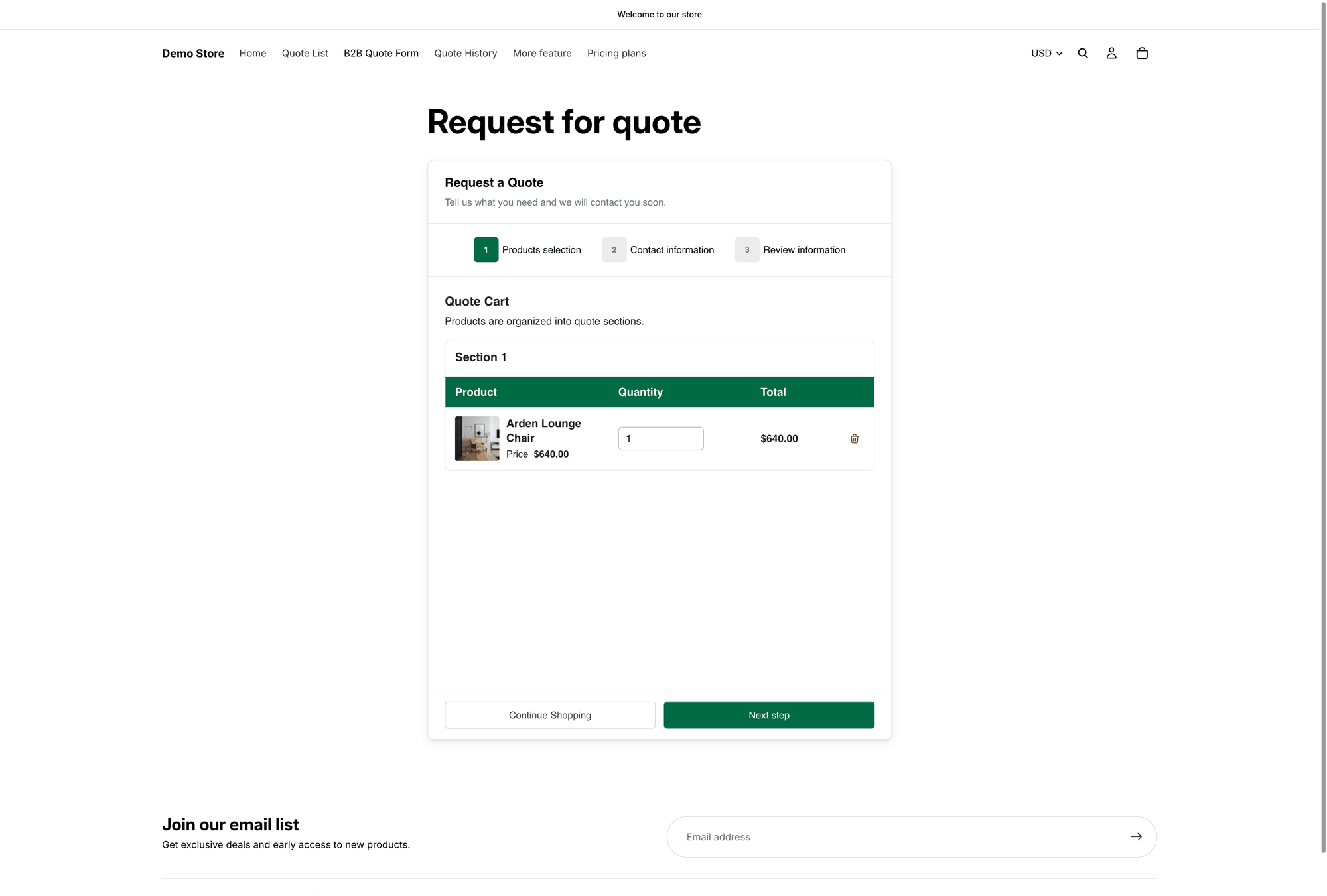
The app says it plainly: "Theme styling applies on your storefront and is not shown in this preview."

Save your changes, open the form on your storefront, and compare it with a normal page.

<figure><img src="https://2993310686-files.gitbook.io/~/files/v0/b/gitbook-x-prod.appspot.com/o/spaces%2FIvNtDAMNVIdy5nl9kiOU%2Fuploads%2Fgit-blob-ef137568cadb4c0f6bc373a3c56cc21055ebee52%2Fscreenshot-storefront-quote-cart-page.png?alt=media" alt="Storefront Request a Quote page showing the quote form and Quote Cart as a customer sees them"><figcaption><p>Theme matching only shows up here, on your storefront — never in the editor preview.</p></figcaption></figure>
{% endstep %}
{% endstepper %}

{% hint style="info" %}
"If possible" is doing real work in that label. How closely the form matches depends on the theme you use, so the storefront check is not optional. If your theme isn't in the list above and the match comes out poor, email <support@samita.io> or use **Contact us** in the app to ask whether it's covered — the list is still being added to. Meanwhile, fall back on the colour settings below.
{% endhint %}

## Setting the styling yourself

Theme matching is all-or-nothing: one checkbox, no per-element control. When it gets you most of the way but a heading or a button still looks wrong, set that piece by hand. Two sections below **Style** give you direct control.

<table><thead><tr><th width="230">Section</th><th>What you can set</th></tr></thead><tbody><tr><td><strong>Customize text</strong></td><td><strong>Font style</strong></td></tr><tr><td><strong>Customize form color</strong></td><td>Title bar color, Title bar background, Color, Background color, Border color, Quote popup primary color</td></tr></tbody></table>

<figure><img src="https://2993310686-files.gitbook.io/~/files/v0/b/gitbook-x-prod.appspot.com/o/spaces%2FIvNtDAMNVIdy5nl9kiOU%2Fuploads%2FoeZ0i4MFqwbSIUZP6QLb%2Fimage.png?alt=media&amp;token=eb7eccb5-1da0-4fd2-8139-9eb195f6ea5d" alt=""><figcaption></figcaption></figure>

Use them when theme matching leaves something behind, or when you want the form to stand out deliberately rather than blend in.

## What to check

* **Fonts** — headings and body text should match the rest of your store
* **Buttons** — the submit button should look like your other buttons
* **Spacing** — a cramped form on mobile is the most common problem
* **Contrast** — make sure labels are readable, especially on a dark theme

{% hint style="warning" %}
Check the form on a phone. Forms are where theme mismatches show up worst, and most quote requests are sent from mobile.
{% endhint %}

## Next steps

* [Build a standard form](/sa-request-a-quote/quote-form/build-standard-form.md) — the rest of the form
* [Change button text and colors](/sa-request-a-quote/collecting-quote-requests/change-button-style.md) — style the quote button to match


---

# Agent Instructions
This documentation is published with GitBook. GitBook is the documentation platform designed so that both humans and AI agents can read, navigate, and reason over technical content effectively. Learn more at gitbook.com.

## Querying This Documentation
If you need additional information that is not directly available in this page, you can query the documentation by asking a question.

Perform an HTTP GET request on the following URL with the `ask` and `goal` query parameters:

```
GET https://docs.samita.io/sa-request-a-quote/quote-form/match-theme-style.md?ask=<question>&goal=<user_goal>
```

`ask` is the immediate question: it should be specific, self-contained, and written in natural language.
`goal` is what the user is ultimately trying to achieve, the reason they need the answer. Sharing it helps GitBook give you a better, more relevant answer. A goal is most helpful when it describes the outcome the user wants rather than restating the question. For example, with `ask=how do I create an API token`, a goal like `automate deployments from our CI pipeline` lets GitBook tailor the answer to that use case.

The response will contain a direct answer to the question and relevant excerpts and sources from the documentation.

Use this mechanism when the answer is not explicitly present in the current page, you need clarification or additional context, or you want to retrieve related documentation sections.