> For the complete documentation index, see [llms.txt](https://docs.samita.io/llms.txt). Markdown versions of documentation pages are available by appending `.md` to page URLs; this page is available as [Markdown](https://docs.samita.io/sa-request-a-quote/reference/how-it-works.md).

# How it works

What happens at each stage of a quote — from the moment a customer clicks your quote button to the order you get paid for.

Most settings in this app make more sense once you know where they sit in the journey. This page walks the whole path once, and points to the page that controls each stage.

## The journey

{% stepper %}
{% step %}

### The customer finds a quote button

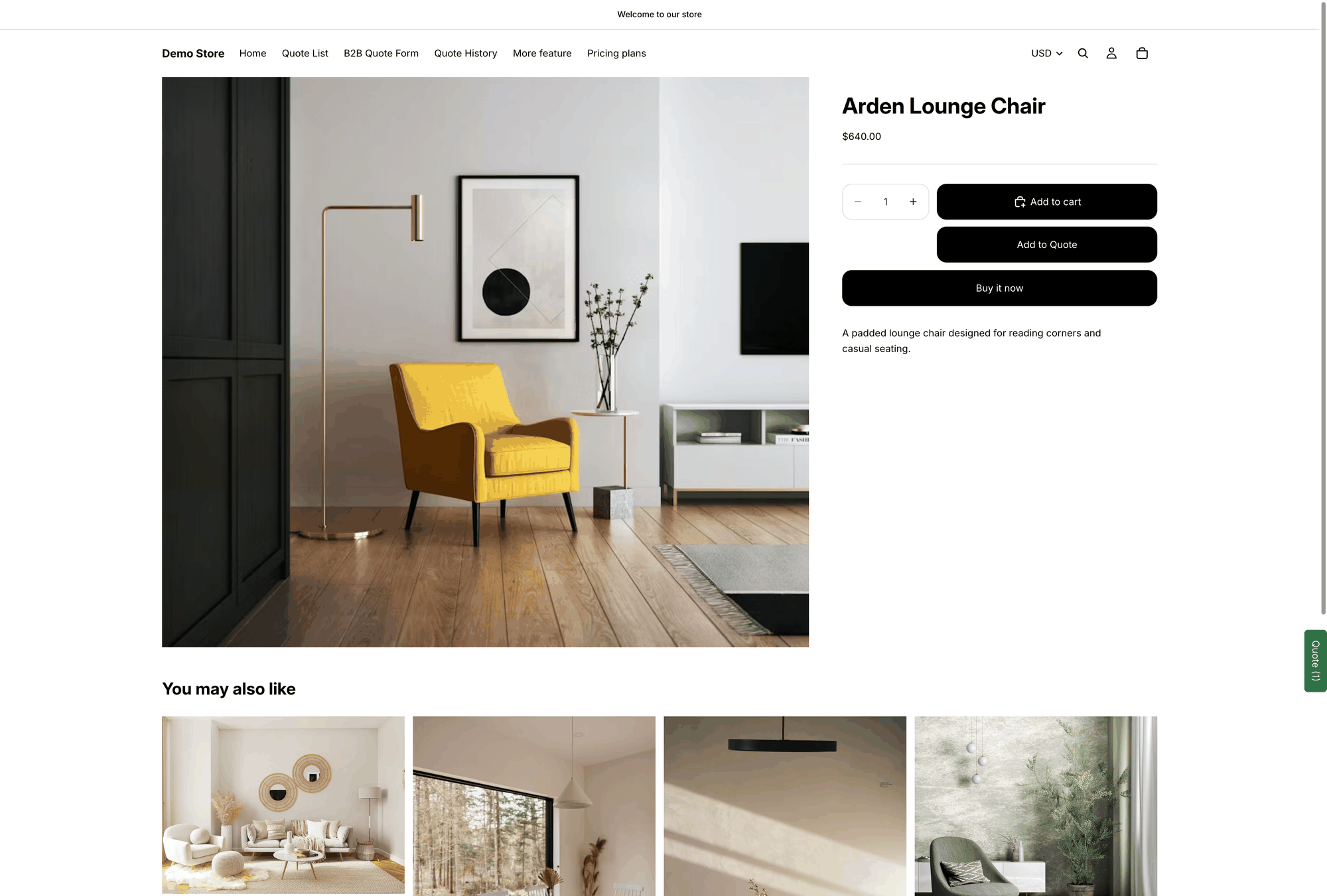
The app adds a quote button to your storefront, labelled with your **Button text** — **Add to Quote** unless you change it. Three dropdowns decide where it appears: **Product page button position**, **Collection page button position** and **Cart page button position**.

**Select quote products** decides which products show it, and **Who can see the RFQ button?** decides which shoppers do — **All customers**, **Logged-in customers**, **Guest (non-logged) customers** or **Logged-in customers with specific tags**.

If you hide prices, the price no longer shows, and you can also **Hide Add To Cart button** and **Hide Buy Now button**, so asking for a quote is the only way forward.

<figure><img src="https://2993310686-files.gitbook.io/~/files/v0/b/gitbook-x-prod.appspot.com/o/spaces%2FIvNtDAMNVIdy5nl9kiOU%2Fuploads%2Fgit-blob-228d1efc6842b244a307ff0a232c0b697f21b848%2Fscreenshot-storefront-product-page.png?alt=media" alt="Storefront product page with the Add to Quote button below the Add to cart button"><figcaption><p>The quote button on a product page, in the position you choose.</p></figcaption></figure>

Controls this: [Collecting quote requests overview](/sa-request-a-quote/collecting-quote-requests/overview.md) and [Hiding prices overview](/sa-request-a-quote/hiding-prices/overview.md)
{% endstep %}

{% step %}

### They click it, and you choose what happens next

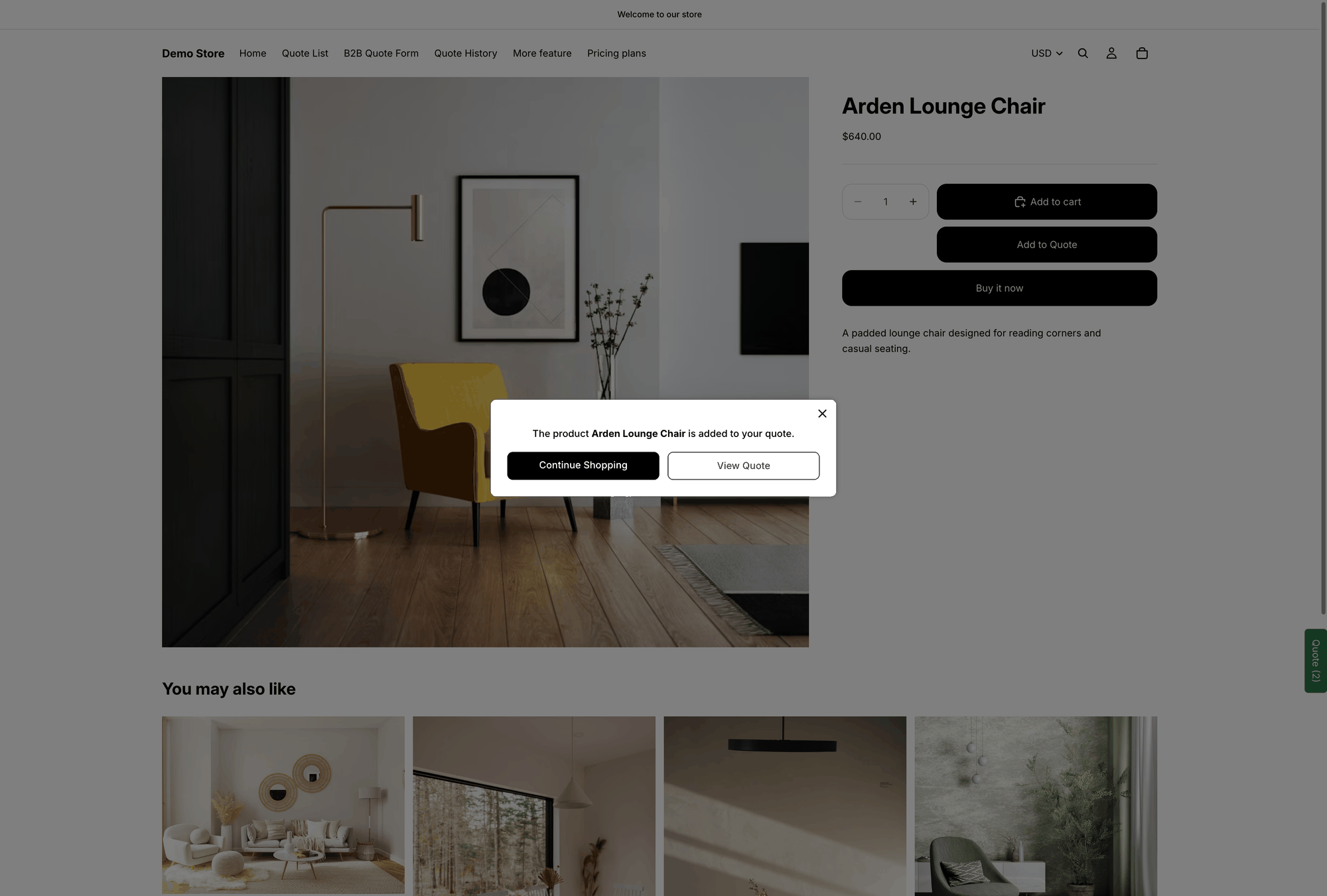
**Click action** decides the moment after the click: **Open quote form popup**, **Add product to quote cart** or **Redirect to quote page**.

If you turn on **Show popup message after adding product**, the customer sees your **Message** with two buttons — **View Quote** to go straight to their quote, and **Continue Shopping** to carry on browsing.

<figure><img src="https://2993310686-files.gitbook.io/~/files/v0/b/gitbook-x-prod.appspot.com/o/spaces%2FIvNtDAMNVIdy5nl9kiOU%2Fuploads%2Fgit-blob-5240086bb6e4bb097b3d87e5caaf04c6e3c57412%2Fscreenshot-storefront-add-to-quote-popup.png?alt=media" alt="Storefront popup reading The product is added to your quote, with Continue Shopping and View Quote buttons"><figcaption><p>The popup after a product is added, with your own message and both buttons.</p></figcaption></figure>

Controls this: [Set the after-click behavior](/sa-request-a-quote/collecting-quote-requests/after-click-behavior.md)
{% endstep %}

{% step %}

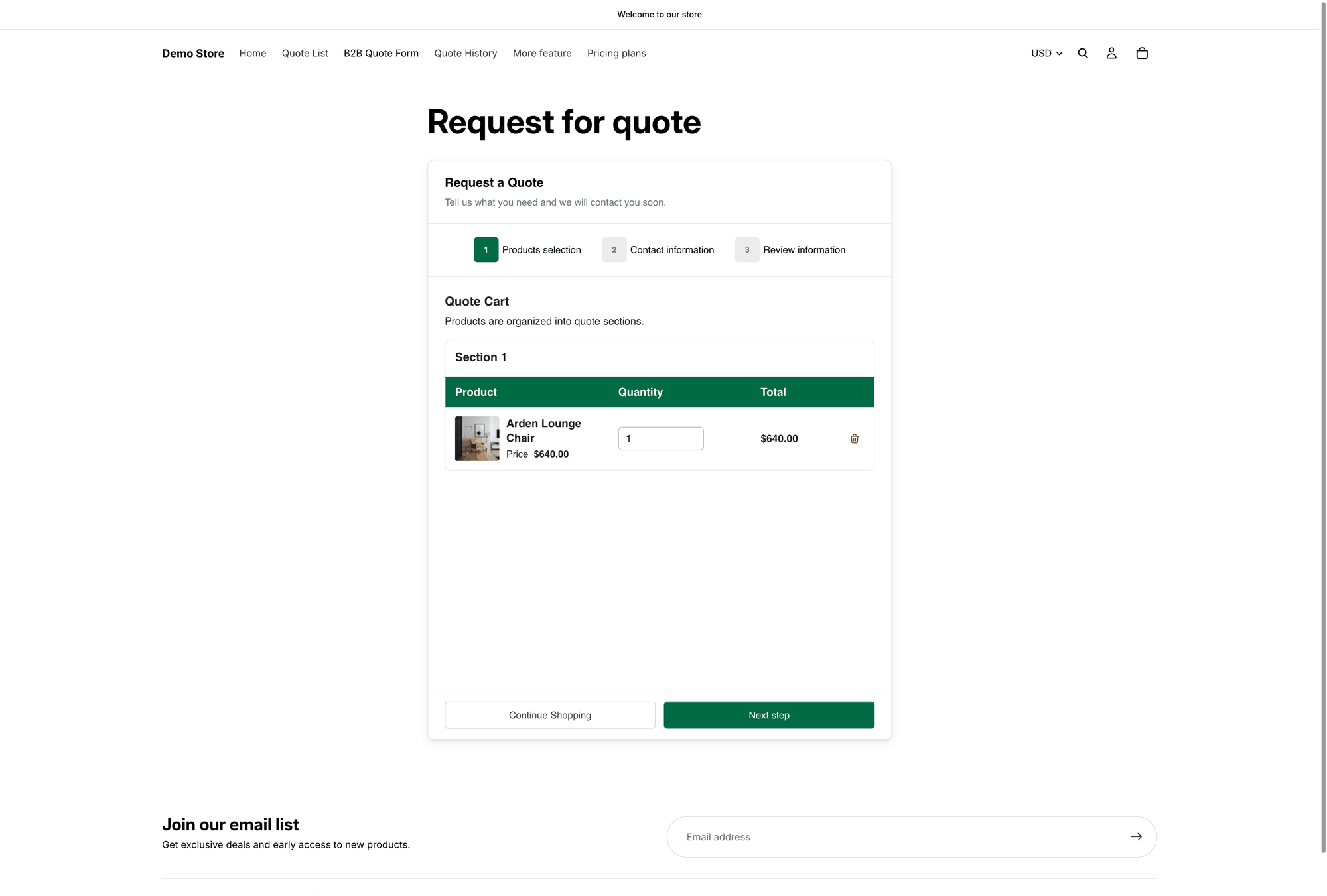
### Products collect in their quote cart

The quote cart works like a shopping cart: customers keep browsing and keep adding before they send anything. It lives on the **Quote cart page**, titled **Request for quote**, at `/pages/request-for-quote` — "Shows the quote form and the customer's quote cart."

If you turn on **Enable Quote Cart Widget**, a floating **Quote (n)** button follows them around the store so they can reopen the quote from any page.

<figure><img src="https://2993310686-files.gitbook.io/~/files/v0/b/gitbook-x-prod.appspot.com/o/spaces%2FIvNtDAMNVIdy5nl9kiOU%2Fuploads%2Fgit-blob-ef137568cadb4c0f6bc373a3c56cc21055ebee52%2Fscreenshot-storefront-quote-cart-page.png?alt=media" alt="Storefront quote cart page headed Request a Quote, showing the Quote Cart with Product, Quantity, Price and Total columns"><figcaption><p>The quote cart at <code>/pages/request-for-quote</code>.</p></figcaption></figure>

Controls this: [Request a Quote page](/sa-request-a-quote/storefront-quote-pages/request-a-quote-page.md) and [Floating quote widget](/sa-request-a-quote/collecting-quote-requests/quote-widget.md)
{% endstep %}

{% step %}

### They fill in your form

When they're ready, they complete the quote form. Your **Form template** and the **Form builder** decide what it asks for, section by section. Templates don't all ask for the same things: the **B2B customer form** has **Contact information**, **Company information**, **Shipping address**, **Billing address**, **Payment terms** and **Extra info**, while the **Detailed quote form** has **Contact information**, **Shipping address** and **Extra info**. Changing the template replaces the current field list.

**Quote form appearance** decides whether they work through it as **Multiple step** or **Single page**.

Signed-out customers see "Already have an account? Log in to auto-fill your contact and company information." on the form, so returning buyers don't retype everything.

<figure><img src="https://2993310686-files.gitbook.io/~/files/v0/b/gitbook-x-prod.appspot.com/o/spaces%2FIvNtDAMNVIdy5nl9kiOU%2Fuploads%2Fgit-blob-2976b596c3f61b6cabff854b0722778b7ee7e706%2Fscreenshot-storefront-quote-form-contact.png?alt=media" alt="Contact information step of the storefront quote form, with the log in to auto-fill prompt above the fields"><figcaption><p>The contact step of the form, as a signed-out customer sees it.</p></figcaption></figure>

Controls this: [Quote form overview](/sa-request-a-quote/quote-form/overview.md)
{% endstep %}

{% step %}

### The quote reaches you

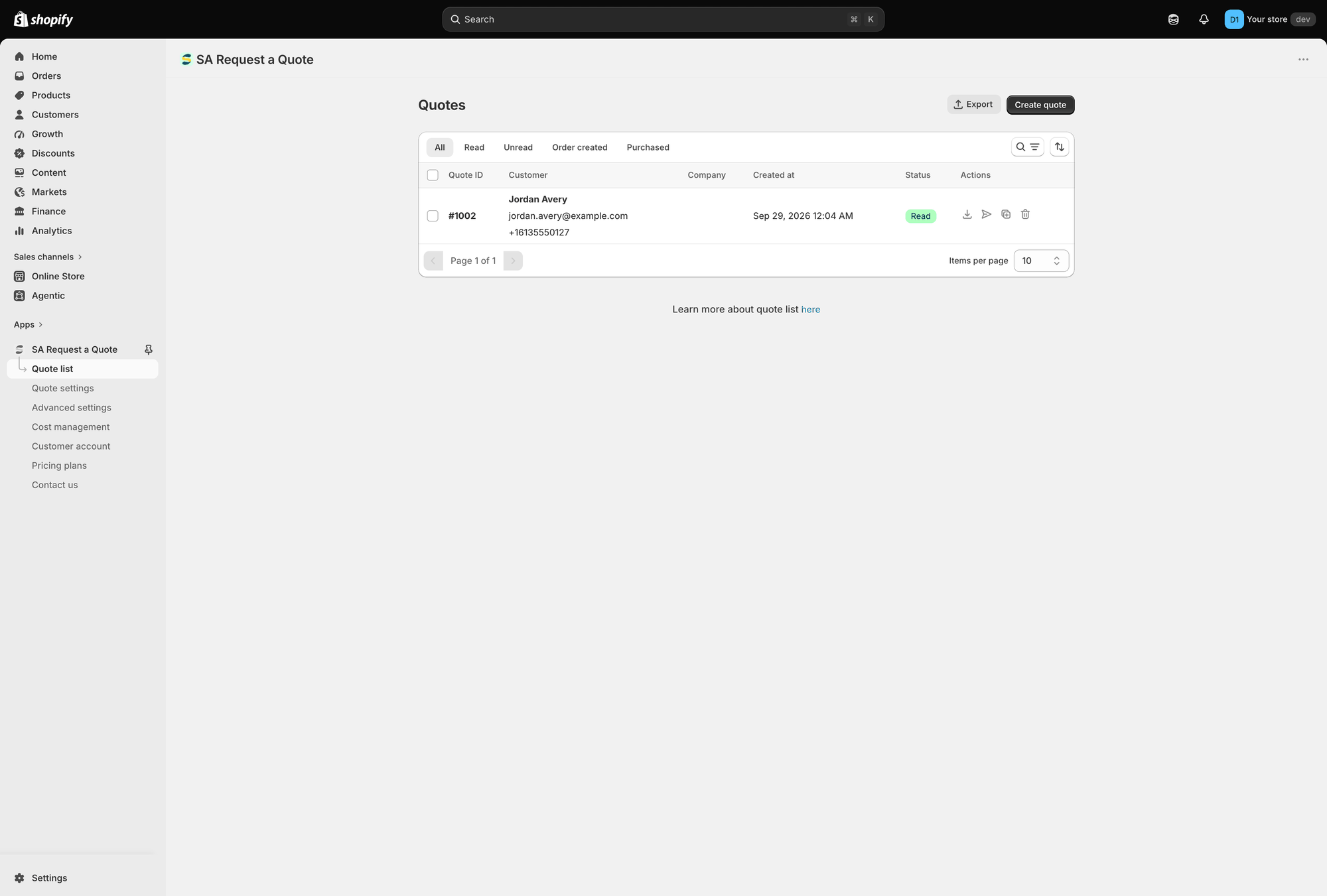
The request appears in **Quote list**, on the page headed **Quotes**. Nothing is charged and no order exists yet — this is a request, not a sale.

If **Mail notifications** is on, the app emails you about it. If **Auto response email** is on, the customer gets a confirmation at the same time.

<figure><img src="https://2993310686-files.gitbook.io/~/files/v0/b/gitbook-x-prod.appspot.com/o/spaces%2FIvNtDAMNVIdy5nl9kiOU%2Fuploads%2Fgit-blob-fb9bce0ea0ff8ed1f68fb6c4bcf565d93ebb07f1%2Fscreenshot-quote-list-overview.png?alt=media" alt="Quote list page headed Quotes, with the status tabs above the table of requests"><figcaption><p>Every request lands in <strong>Quote list</strong>.</p></figcaption></figure>

Controls this: [Emails sent to admin](/sa-request-a-quote/emails/emails-to-you.md)
{% endstep %}

{% step %}

### You price it and reply

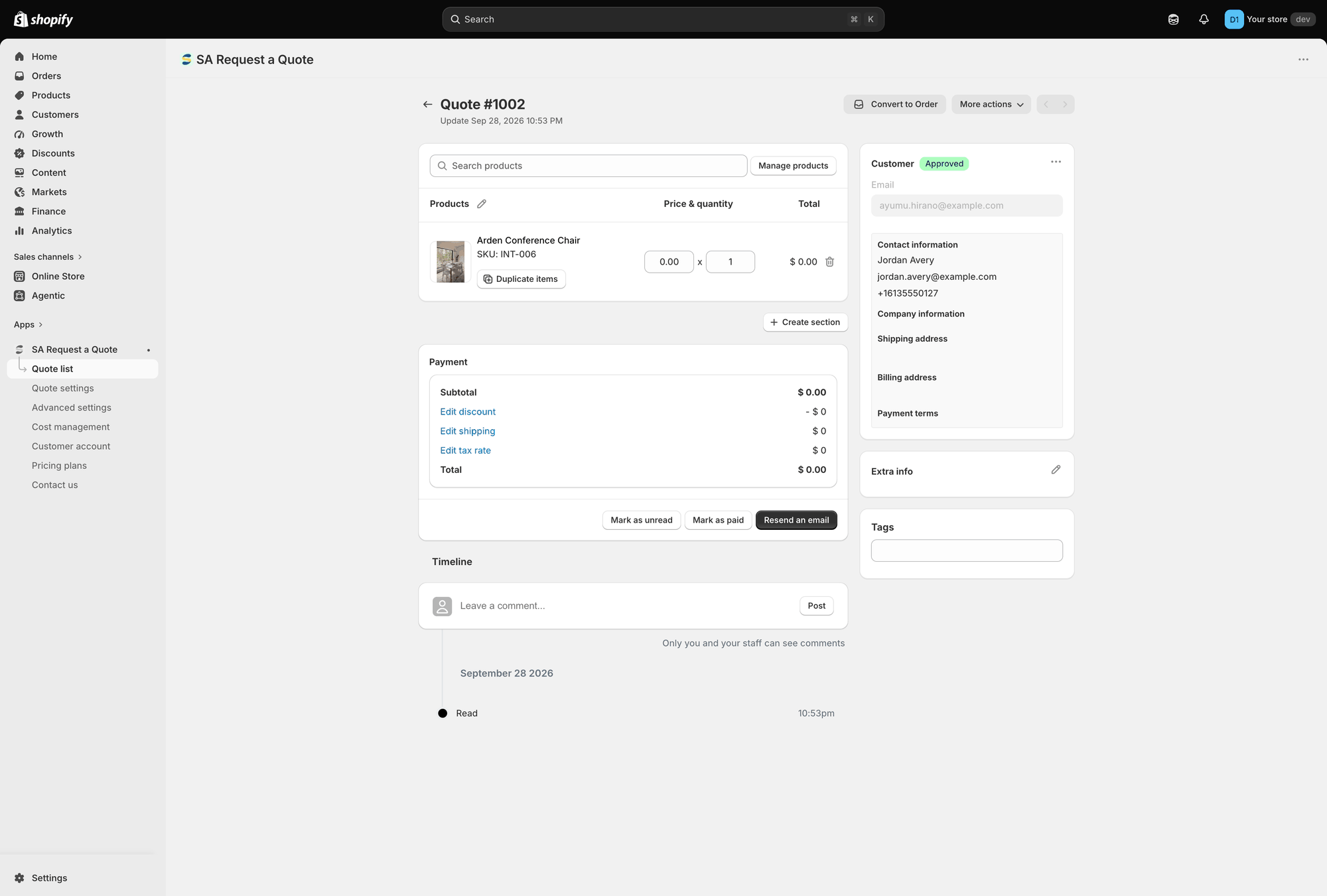
Opening a request gives you its own page, headed **Quote #** followed by its number, with an **Update** line showing when it last changed.

The line-item table has three columns — **Products**, **Price & quantity** and **Total**. Each line shows the product and its **SKU**, and both the price and the quantity can be edited, so what you send is your offer rather than your list price. Each line also carries **Duplicate items** and a delete control.

To change what's on the quote, use **Search products** or the **Browse products** button beside it, **Manage products**, and **Create section** to group a long quote.

The **Payment** panel adds it all up: **Subtotal**, then **Edit discount**, **Edit shipping** and **Edit tax rate**, then **Total**. Those three links work from **Cost management**, which has the **Discount**, **Shipping** and **Tax** tabs.

Everything the customer sent sits down the right-hand column: **Customer**, **Email**, **Contact information**, **Company information**, **Shipping address**, **Billing address**, **Payment terms**, **Extra info** and **Tags**.

At the bottom, **Timeline** takes a comment and a **Post** — "Only you and your staff can see comments" — which is where notes on the negotiation belong. **Mark as unread**, **Mark as paid** and **Resend an email** sit alongside it.

<figure><img src="https://2993310686-files.gitbook.io/~/files/v0/b/gitbook-x-prod.appspot.com/o/spaces%2FIvNtDAMNVIdy5nl9kiOU%2Fuploads%2Fgit-blob-d8d4435e29a9ea9b015d8c6f9b955aeebe63a9ab%2Fscreenshot-quote-detail-overview.png?alt=media" alt="Quote detail page with Convert to Order and More actions at the top, the Products, Price and quantity and Total columns, the Payment panel and the customer details column"><figcaption><p>A quote opened from the list, with prices and quantities ready to edit.</p></figcaption></figure>

Back in **Quote list**, each row also has four quick actions in the **Actions** column: download the quote as a PDF, send an email, duplicate it and delete it.

Controls this: [View and edit a quote](/sa-request-a-quote/managing-quotes/view-and-edit.md) and [Send a quotation](/sa-request-a-quote/managing-quotes/send-quotation.md)
{% endstep %}

{% step %}

### The quote becomes an order

**Convert to Order** sits at the top of the quote, next to **More actions**. It turns the quote into a Shopify draft order, and from there it behaves like any Shopify order — you send the invoice, they pay, and it appears in your normal Shopify **Orders**.

Controls this: [Convert to a draft order](/sa-request-a-quote/managing-quotes/convert-to-draft-order.md)
{% endstep %}

{% step %}

### The customer can look back at it

Logged-in customers can review what they've sent on the **Quote history page**, titled **Quote history**, at `/pages/quotes-history`. If your store uses Shopify's new customer accounts, quotes can appear there too.

Controls this: [Storefront quote pages overview](/sa-request-a-quote/storefront-quote-pages/overview.md)
{% endstep %}
{% endstepper %}

## Where quotes live

Quotes are kept in the app, not in your Shopify **Orders**, until you convert one. That's deliberate — a quote is a negotiation, and you don't want unsold requests polluting your sales reporting.

Five status tabs sit above the **Quote list** table and narrow it as the list grows: **All**, **Read**, **Unread**, **Order created** and **Purchased**.

Alongside them there's a search and filter, a sort control, and **Items per page** at the bottom — 10, 20, 30 or 50. The **Export** and **Create quote** buttons sit at the top of the page. The table itself shows **Quote ID**, **Customer**, **Company**, **Created at**, **Status** and **Actions**.

{% hint style="info" %}
A quote only affects your inventory and revenue once it becomes a draft order and is paid. Before that, nothing is reserved.
{% endhint %}

## Keeping an eye on the whole thing

The dashboard summarises the same journey. **Recent activity** shows **Total quotes** for the last 7 days and **Pending quotes** that need review, with **View all** to jump into the list. **Analytics overview** — "Track quote performance and conversion." — has a date range picker and four figures: **Quote number**, **Completed orders**, **Total draft orders** and **Order value**.

<figure><img src="https://2993310686-files.gitbook.io/~/files/v0/b/gitbook-x-prod.appspot.com/o/spaces%2FIvNtDAMNVIdy5nl9kiOU%2Fuploads%2Fgit-blob-7217adaee7417a2c1a4b60d846fb3de5a2dd5e13%2Fscreenshot-dashboard-overview.png?alt=media" alt="App dashboard showing the Setup guide, Recent activity, Pricing plan details and Analytics overview sections"><figcaption><p>The dashboard is the app's landing page.</p></figcaption></figure>

The **Setup guide** at the top of the same page is the short version of everything above — enable the app embed in your theme, configure quote settings, set up email notifications.

## What each plan can do

Some stages need a paid plan — converting a quote to an order and exporting to CSV are on **PRO**, for example. See [Plan comparison](/sa-request-a-quote/reference/plan-comparison.md) for the full breakdown, or open **Pricing plans** in the app.

You'll know when you meet one. The app leaves the control on the page, greys it out and shows a padlock line reading "🔐 This feature is available on …", with a link to the plan that includes it. A disabled control is your plan, not a fault in the app or your theme.

## Next steps

* [Quickstart](/sa-request-a-quote/getting-started/quickstart.md) — set this up on your own store
* [Plan comparison](/sa-request-a-quote/reference/plan-comparison.md) — which stages your plan covers
* [Permissions and data](/sa-request-a-quote/reference/permissions-and-data.md) — what the app accesses and stores


---

# Agent Instructions
This documentation is published with GitBook. GitBook is the documentation platform designed so that both humans and AI agents can read, navigate, and reason over technical content effectively. Learn more at gitbook.com.

## Querying This Documentation
If you need additional information that is not directly available in this page, you can query the documentation by asking a question.

Perform an HTTP GET request on the following URL with the `ask` and `goal` query parameters:

```
GET https://docs.samita.io/sa-request-a-quote/reference/how-it-works.md?ask=<question>&goal=<user_goal>
```

`ask` is the immediate question: it should be specific, self-contained, and written in natural language.
`goal` is what the user is ultimately trying to achieve, the reason they need the answer. Sharing it helps GitBook give you a better, more relevant answer. A goal is most helpful when it describes the outcome the user wants rather than restating the question. For example, with `ask=how do I create an API token`, a goal like `automate deployments from our CI pipeline` lets GitBook tailor the answer to that use case.

The response will contain a direct answer to the question and relevant excerpts and sources from the documentation.

Use this mechanism when the answer is not explicitly present in the current page, you need clarification or additional context, or you want to retrieve related documentation sections.