> For the complete documentation index, see [llms.txt](https://docs.samita.io/llms.txt). Markdown versions of documentation pages are available by appending `.md` to page URLs; this page is available as [Markdown](https://docs.samita.io/sa-request-a-quote/settings/translations.md).

# Translate storefront text

Use Translations AI in Advanced settings to translate everything your customers see, in the languages you publish in Shopify.

If you sell in more than one language, the quote experience should follow. You don't translate it piece by piece — **Translations AI** covers the whole of it at once.

The setting is on the **Translations** tab of **Advanced settings**. The app describes it as: "Translate everything your customers see — quote form, storefront text and both quote emails. Languages come from Settings → Languages."

<figure><img src="https://2993310686-files.gitbook.io/~/files/v0/b/gitbook-x-prod.appspot.com/o/spaces%2FIvNtDAMNVIdy5nl9kiOU%2Fuploads%2Fgit-blob-10bce93eeb95ac8256b06acf7260fe9385d41077%2FScreenshot%202026-09-30%20at%2000-36-42.png?alt=media" alt="The Translations tab of Advanced settings with the language table outlined in red"><figcaption><p>Languages come from Shopify; this table is where you translate them.</p></figcaption></figure>

{% hint style="info" %}
**Text translations** and **Multi-language (PDF & email)** are both listed on the **FREE** plan, so translation is available whatever you are paying. See [Pricing plans](/sa-request-a-quote/settings/pricing-plans.md).
{% endhint %}

## Languages come from Shopify

The app keeps no language list of its own. It mirrors the languages your store publishes, so there is nothing to add here.

{% hint style="warning" %}
"To add or remove a language, go to Settings → Languages in your Shopify admin. This list mirrors the languages published there."
{% endhint %}

That means the order of work runs one way: publish the language in Shopify first, then translate it in the app. A language you haven't published won't appear in the table.

{% hint style="info" %}
If you are following older instructions, stop looking for an **Add language** button. There is no manual **Add language** flow in the app any more — the table mirrors Shopify, so the way to add a language here is to publish it there.

Two other things older guides send you looking for are also gone from this tab: there is no **General translate** section, and there are no separate rows for **Mail notification** and **Auto response email**. The tab holds one card, **Translations AI**, with one row per published language.
{% endhint %}

{% hint style="success" %}
**If your store's default language is not English, you may not need to translate at all.** The default row is the **Source**, and you edit source text where it is written — the button wording in **Quote settings**, the email wording in **Email notifications**. A store selling only in Danish writes Danish in those places and is done. Translation is for the *second* language onward.
{% endhint %}

## Get your source text right first

The table has three columns — **Language**, **Status** and **Actions**. The row marked **Default** carries the status **Source**: that is the text every other language is translated from. On a store whose default language is English, that row reads **English** — **Default** — **Source**.

Because everything is made from the source, wording you fix afterwards has to be translated again. Settle your default-language text before you translate anything:

<table><thead><tr><th width="300">Source text</th><th>Where you write it</th></tr></thead><tbody><tr><td><strong>Button text</strong>, and the <strong>Message</strong> shown after a product is added</td><td><strong>Quote settings</strong> > <strong>Customize</strong> > <strong>Button &#x26; widget</strong></td></tr><tr><td>The quote form's fields and sections</td><td><strong>Quote settings</strong> > <strong>Customize</strong> > <strong>Quote form</strong></td></tr><tr><td>The two quote emails</td><td><strong>Advanced settings</strong> > <strong>Email notifications</strong></td></tr></tbody></table>

## Translate a language

{% stepper %}
{% step %}

### Publish the language in Shopify

In your Shopify admin, go to **Settings** > **Languages** and publish the language you sell in.
{% endstep %}

{% step %}

### Open the Translations tab

In the app, go to **Advanced settings** and open the **Translations** tab.
{% endstep %}

{% step %}

### Find the language in the table

Look for it in the **Language** column. Your store's default language sits there too, marked **Default** with the status **Source**, so get that wording right before you translate.
{% endstep %}

{% step %}

### Use Translate on that row

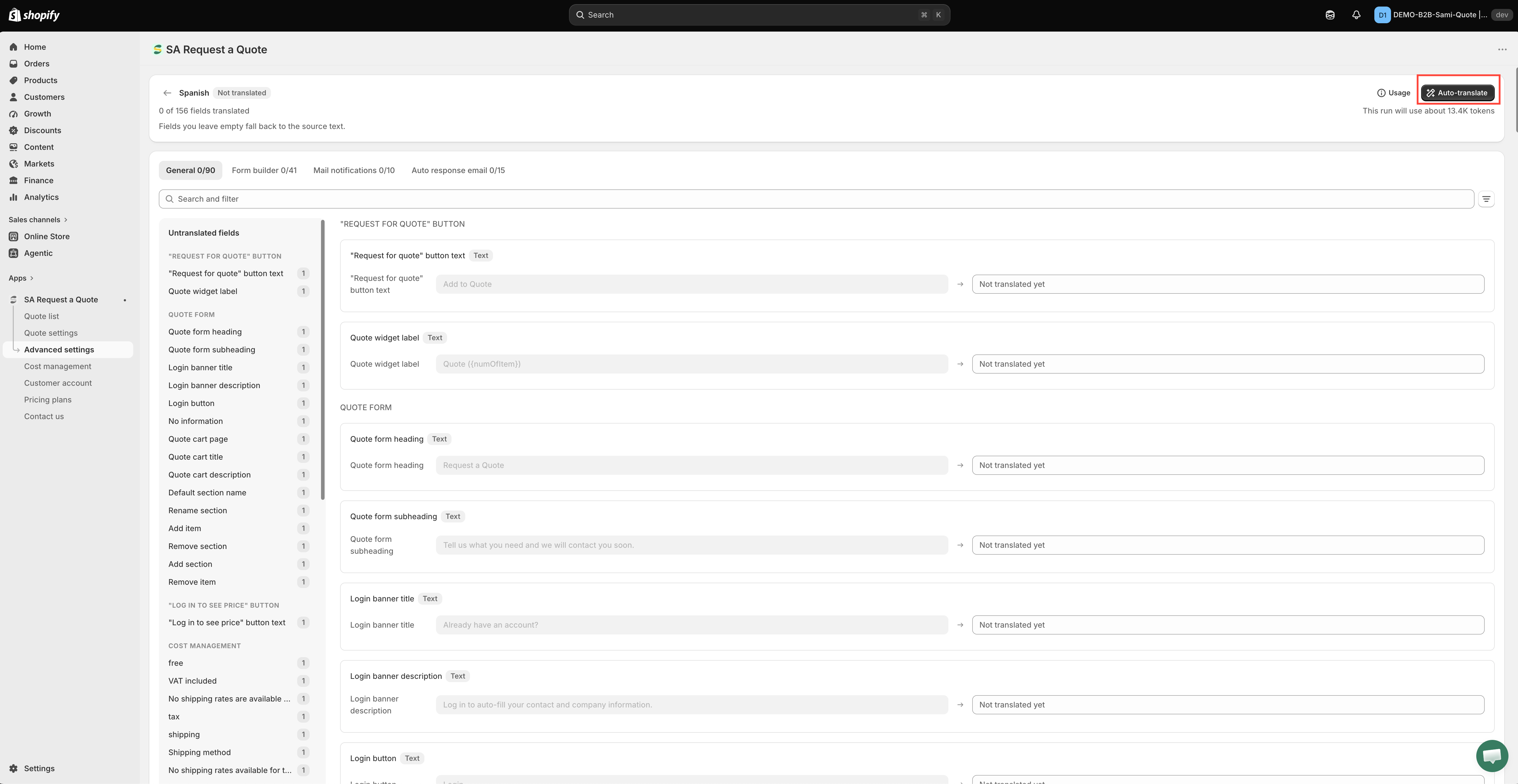
Click **Translate** in the **Actions** column. One click covers the quote form, your storefront text and both quote emails together — there is no separate entry point for the emails or for individual sections on this tab, so one pass does the lot.

<figure><img src="https://2993310686-files.gitbook.io/~/files/v0/b/gitbook-x-prod.appspot.com/o/spaces%2FIvNtDAMNVIdy5nl9kiOU%2Fuploads%2Fgit-blob-70a5236bfa7c3dc9da3a3cb859d78092717ca026%2FScreenshot%202026-09-30%20at%2000-36-21.png?alt=media" alt="The translation editor, listing every piece of storefront text with a field for its translation"><figcaption><p><strong>Translate</strong> opens a field for every string customers read.</p></figcaption></figure>
{% endstep %}

{% step %}

### Read the result before you save it

Machine translation is a first draft, not a finished one. Read what came back with the same eye you would give your own English wording — the button text and the email subject line especially, because those are the two strings a customer meets first.

Then save your work before you leave the screen. An unsaved translation looks exactly like a translation that didn't work, and you will go hunting for a bug that isn't there.
{% endstep %}

{% step %}

### Read it back on your storefront

Switch your storefront to that language and walk through a quote request as a customer would, from the button to the confirmation email. Send yourself one real test request — the emails are part of what you just translated, and they are the part you cannot see from the admin.
{% endstep %}
{% endstepper %}

{% hint style="warning" %}
Have a native speaker read the result before a customer does. A quote is a commercial document, and awkward wording costs you credibility at exactly the moment someone is deciding whether to trust you with an enquiry.
{% endhint %}

## A worked example: an English store adding Danish

Say your quote button currently reads **Request a Quote** and you have just started selling into Denmark. In order:

1. **Fix the English first.** **Quote settings** > **Customize** > **Button & widget** > **Button text**. Whatever this says is what Danish gets made from, so settle it now — change it later and the Danish has to be redone.
2. **Publish Danish in Shopify.** **Settings** > **Languages** in your Shopify admin. Until you do, Danish will not be in the app's table at all.
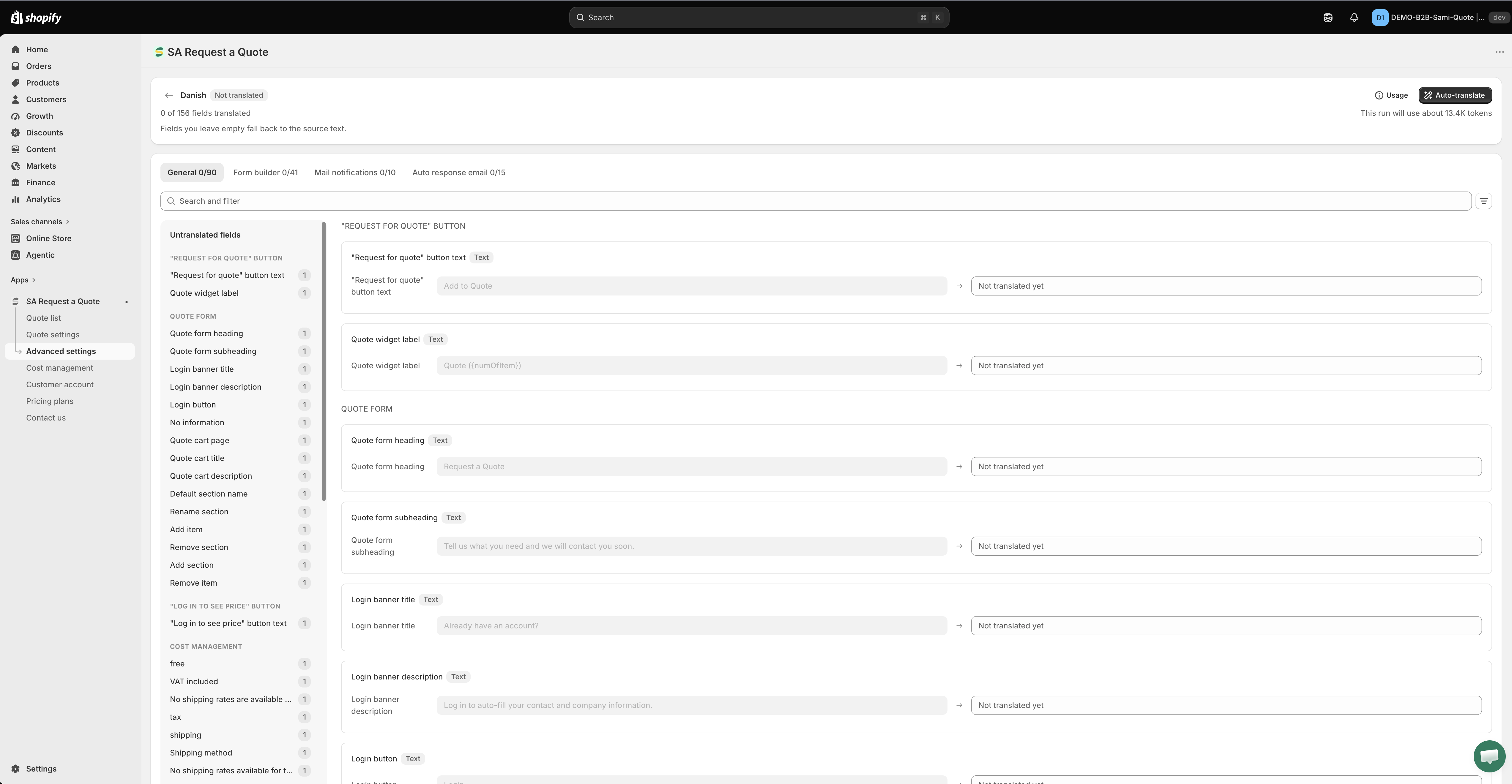
3. **Translate the Danish row.** **Advanced settings** > **Translations** > **Translate** on the Danish row. Read it back, correct anything that reads oddly, save.
4. **Compare the two storefronts.** Open a product page on the English storefront and the same page on the Danish one. The button should read **Request a Quote** on one and its Danish equivalent on the other, in the same place, at the same size.
5. **Send a test request from the Danish storefront.** The confirmation email that arrives should be Danish too — that is how you know the email half of the translation landed.

<figure><img src="https://2993310686-files.gitbook.io/~/files/v0/b/gitbook-x-prod.appspot.com/o/spaces%2FIvNtDAMNVIdy5nl9kiOU%2Fuploads%2Fgit-blob-589e8f8b6c40ac33dfc6f65981d54c200828efa4%2FScreenshot%202026-10-01%20at%2000-27-44.png?alt=media" alt=""><figcaption></figcaption></figure>

## What it covers

<table><thead><tr><th width="290">What customers see</th><th>Covered by</th></tr></thead><tbody><tr><td>The quote form</td><td><strong>Translations AI</strong>, on this tab</td></tr><tr><td>Storefront text, including your quote button wording</td><td><strong>Translations AI</strong>, on this tab</td></tr><tr><td>Both quote emails — <strong>Mail notifications</strong> and <strong>Auto response email</strong></td><td><strong>Translations AI</strong>, on this tab</td></tr><tr><td>The Quote List section in new customer accounts</td><td><strong>Translation</strong>, on the <strong>Customer account</strong> page</td></tr><tr><td>The quote PDF</td><td>The <strong>Translations</strong> tab inside the <strong>Quote PDF template</strong> editor</td></tr></tbody></table>

## Your quote emails are translated here too

Both quote emails are covered by the same **Translate** action on the language row — you don't translate them separately:

* **Mail notifications** — "Automatically send an email notification to the store owner when a quote is submitted." The alert you receive. See [Emails sent to admin](/sa-request-a-quote/emails/emails-to-you.md).
* **Auto response email** — "Automatically send an email notification to customers after they submit a quote." The confirmation your customer receives. See [Emails sent to customers](/sa-request-a-quote/emails/emails-to-customers.md).

{% hint style="info" %}
Write both templates fully before you translate. They are part of the **Source** text, so a sentence you rewrite next week needs translating again. More detail in [Translate quote emails](/sa-request-a-quote/emails/translate-emails.md).
{% endhint %}

## The quote list in customer accounts

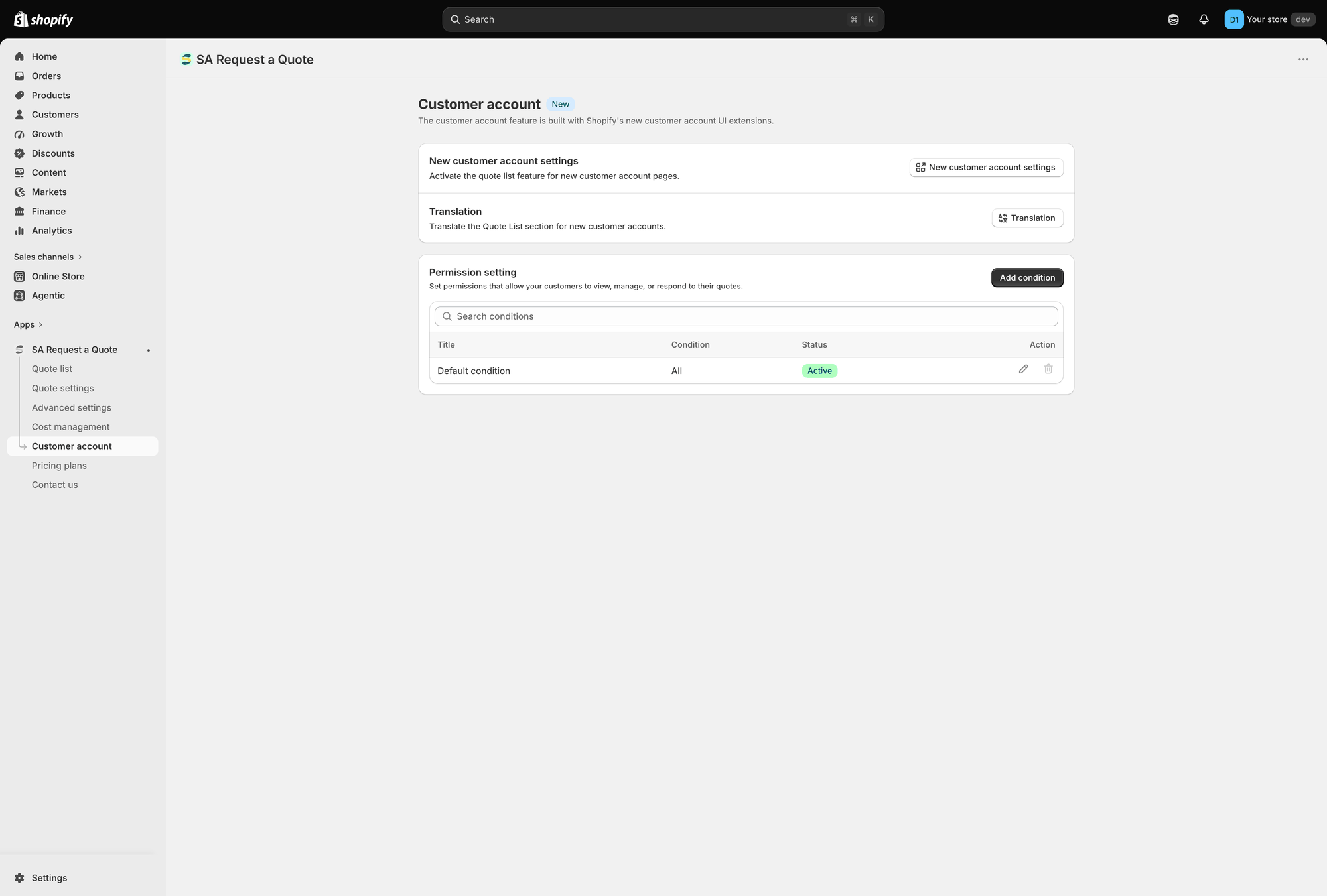
One piece sits outside **Translations AI**. If you show quotes inside Shopify's new customer accounts, the app has a separate **Translation** setting for it, described as: "Translate the Quote List section for new customer accounts."

<figure><img src="https://2993310686-files.gitbook.io/~/files/v0/b/gitbook-x-prod.appspot.com/o/spaces%2FIvNtDAMNVIdy5nl9kiOU%2Fuploads%2Fgit-blob-94ce7e2ff5162cb1b27ceaa77a2d09c5739684fe%2Fscreenshot-customer-account-overview.png?alt=media" alt="The Customer account page showing New customer account settings, Translation and Permission setting"><figcaption><p><strong>Translation</strong> sits on the <strong>Customer account</strong> page, below <strong>New customer account settings</strong>.</p></figcaption></figure>

You'll find it in the app under **Customer account**, between **New customer account settings** and **Permission setting**.

{% stepper %}
{% step %}

### Open the Translation section

In the app, go to **Customer account** and find the **Translation** section. Click its **Translation** button.
{% endstep %}

{% step %}

### Fill in the text fields

The **Translate quote list new customer accounts** page opens. It is a set of text input fields, one per label — click into each one and type the wording you want customers to see.

This section sits outside **Translations AI**, so translating a language on the **Translations** tab does not fill these in for you. Whatever you type here is what customers read.

<figure><img src="https://2993310686-files.gitbook.io/~/files/v0/b/gitbook-x-prod.appspot.com/o/spaces%2FIvNtDAMNVIdy5nl9kiOU%2Fuploads%2Fgit-blob-fb8ec0f0b2f182ddc114ee2f0c1cd45c840a1ec8%2FScreenshot%202026-10-01%20at%2000-28-41.png?alt=media" alt=""><figcaption></figcaption></figure>

<figure><img src="https://2993310686-files.gitbook.io/~/files/v0/b/gitbook-x-prod.appspot.com/o/spaces%2FIvNtDAMNVIdy5nl9kiOU%2Fuploads%2Fgit-blob-42c5a2e1efb4386937d6d49ca3397305653293cd%2FScreenshot%202026-10-01%20at%2000-28-24.png?alt=media" alt=""><figcaption></figcaption></figure>
{% endstep %}

{% step %}

### Save, then check it from a customer account

Save your changes, then open the quote list in customer accounts on your storefront and read it back.
{% endstep %}
{% endstepper %}

{% hint style="info" %}
Customer account pages only render for a signed-in customer, so check the result from a test account rather than from the admin.
{% endhint %}

{% hint style="warning" %}
**Customer Account UI** is listed on the **PRO** plan. If these controls are greyed out and carry a padlock line reading "🔐 This feature is available on …", that is your plan talking, not a fault — follow the link in that line or open [Pricing plans](/sa-request-a-quote/settings/pricing-plans.md).
{% endhint %}

More on that area: [Quotes in customer accounts](/sa-request-a-quote/storefront-quote-pages/customer-account-quotes.md).

## The quote PDF

The PDF has its own wording too. The **Quote PDF template** editor, under **Advanced settings** > **PDF template** > **Quote PDF**, has three tabs — **Design**, **Content** and **Translations** — and it is that **Translations** tab, not this one, that covers the document. See [Customize the quote PDF](/sa-request-a-quote/pdf-templates/quote-pdf.md).

## Cover the whole journey

Translating the button but not the form leaves customers switching languages mid-task. Because **Translations AI** handles the quote form, storefront text and both emails together, doing a language once keeps those consistent — the two pieces to remember separately are the customer account section and the quote PDF above.

## Next steps

* [Translate quote emails](/sa-request-a-quote/emails/translate-emails.md) — the same setting, seen from your quote emails
* [Customize the quote PDF](/sa-request-a-quote/pdf-templates/quote-pdf.md) — the PDF's own Translations tab
* [Change button text and colors](/sa-request-a-quote/collecting-quote-requests/change-button-style.md) — where your quote button wording is set
* [General settings](/sa-request-a-quote/settings/general-settings.md) — where each setting lives in the app


---

# Agent Instructions
This documentation is published with GitBook. GitBook is the documentation platform designed so that both humans and AI agents can read, navigate, and reason over technical content effectively. Learn more at gitbook.com.

## Querying This Documentation
If you need additional information that is not directly available in this page, you can query the documentation by asking a question.

Perform an HTTP GET request on the following URL with the `ask` and `goal` query parameters:

```
GET https://docs.samita.io/sa-request-a-quote/settings/translations.md?ask=<question>&goal=<user_goal>
```

`ask` is the immediate question: it should be specific, self-contained, and written in natural language.
`goal` is what the user is ultimately trying to achieve, the reason they need the answer. Sharing it helps GitBook give you a better, more relevant answer. A goal is most helpful when it describes the outcome the user wants rather than restating the question. For example, with `ask=how do I create an API token`, a goal like `automate deployments from our CI pipeline` lets GitBook tailor the answer to that use case.

The response will contain a direct answer to the question and relevant excerpts and sources from the documentation.

Use this mechanism when the answer is not explicitly present in the current page, you need clarification or additional context, or you want to retrieve related documentation sections.