> For the complete documentation index, see [llms.txt](https://docs.samita.io/llms.txt). Markdown versions of documentation pages are available by appending `.md` to page URLs; this page is available as [Markdown](https://docs.samita.io/sa-request-a-quote/storefront-quote-pages/add-menu-links.md).

# Add quote links to your menu

Add the quote cart page and the quote history page to your store navigation so customers can always find them.

The app's two storefront pages are **Request for quote** and **Quote history**. They are ordinary Shopify pages that the app created for you — you'll find them under **Online Store** > **Pages** like any other — which is why they turn up in Shopify's page picker with no extra work. Adding either of them to your store navigation is a Shopify setting, not an app one.

<table><thead><tr><th width="230">Page to link</th><th>Its path on your storefront</th></tr></thead><tbody><tr><td>"Request for quote"</td><td><code>/pages/request-for-quote</code></td></tr><tr><td>"Quote history"</td><td><code>/pages/quotes-history</code></td></tr></tbody></table>

## Add a menu item

{% stepper %}
{% step %}

### Open the menu in your Shopify admin

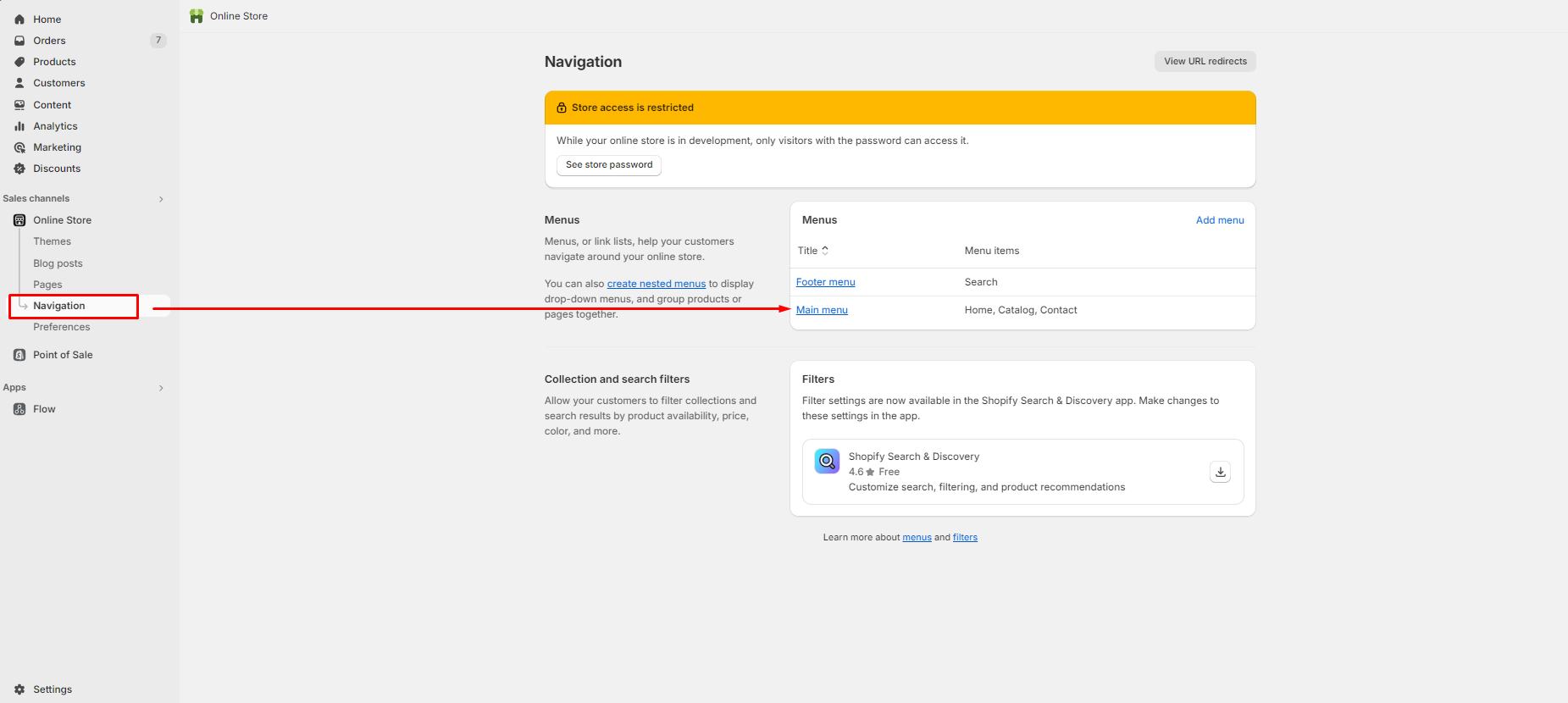
<figure><img src="https://2993310686-files.gitbook.io/~/files/v0/b/gitbook-x-prod.appspot.com/o/spaces%2FIvNtDAMNVIdy5nl9kiOU%2Fuploads%2Fgit-blob-a2c2d5e408e03f62721e403d18f1829dc930905e%2Fscreenshot-shopify-navigation-menus.png?alt=media" alt="The Navigation page in the Shopify admin, with the menu list and the main menu outlined in red"><figcaption><p>Menus live in Shopify, not in the app.</p></figcaption></figure>

Go to **Content** > **Menus** in your Shopify admin, then open the menu the link belongs in. **Main menu** is the one most themes use for the header; footer links usually sit in a separate footer menu.

Older guides send you to **Online Store** > **Navigation** for this. In the current Shopify admin the menus live under **Content** > **Menus**.
{% endstep %}

{% step %}

### Click Add menu item

<figure><img src="https://2993310686-files.gitbook.io/~/files/v0/b/gitbook-x-prod.appspot.com/o/spaces%2FIvNtDAMNVIdy5nl9kiOU%2Fuploads%2Fgit-blob-48136d8847696c18a358a0bbdab6c1ca17f4b2a5%2Fscreenshot-shopify-navigation-add-item.png?alt=media" alt="The Add menu item panel open over the main menu, with the Label and Link fields and red arrows marking the flow"><figcaption><p>One panel: a label customers read, a link that does the work.</p></figcaption></figure>

At the bottom of the **Menu items** card, click **Add menu item**. A new row appears with two fields, **Label** and **Link**.
{% endstep %}

{% step %}

### Type the Label

**Label** is the wording customers see in your menu. Write something they would recognise — "Request a quote" or "My quotes".
{% endstep %}

{% step %}

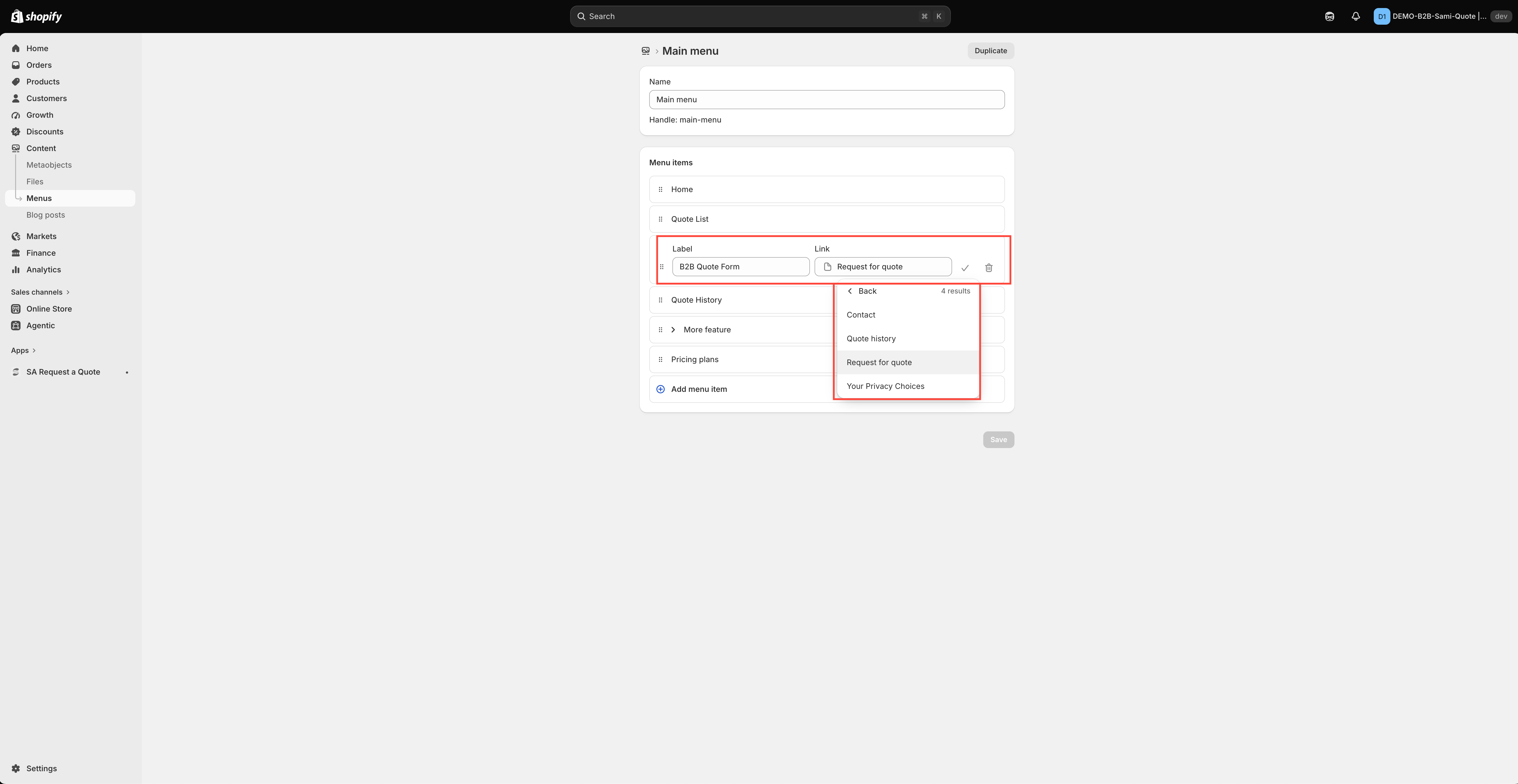
### Choose the page in the Link field

Click the **Link** field and pick the page from the list that drops down. The two you want are named exactly:

* **Request for quote** — the quote cart page
* **Quote history** — a customer's past quotes

Watch the wording here. The pages are **Request for quote** and **Quote history**, not "Request a quote" or "Quote List" — if you type the wrong phrase into the picker's search, nothing comes back and it looks as though the page doesn't exist.

<figure><img src="https://2993310686-files.gitbook.io/~/files/v0/b/gitbook-x-prod.appspot.com/o/spaces%2FIvNtDAMNVIdy5nl9kiOU%2Fuploads%2Fgit-blob-85bbb778b17a36b26a13d9010b92130c63f24cff%2FScreenshot%202026-09-29%20at%2016-47-42.png?alt=media" alt="The Shopify admin Navigation editor with a new menu item outlined in red"><figcaption><p>The link is added in Shopify, not in the app.</p></figcaption></figure>
{% endstep %}

{% step %}

### Confirm the item, then save the menu

These are two separate clicks, and skipping the second is the usual way people lose the work:

1. Confirm the row with the tick (✓) at the end of it. That commits the item to the list.
2. Click **Save** to save the menu itself.

A tick without a save leaves you with a menu that looks right in the admin and unchanged on the storefront.
{% endstep %}

{% step %}

### Check it on your storefront

Open your storefront, find the new item and click it. You should land on the page you picked, at the path in the table above.

<figure><img src="https://2993310686-files.gitbook.io/~/files/v0/b/gitbook-x-prod.appspot.com/o/spaces%2FIvNtDAMNVIdy5nl9kiOU%2Fuploads%2Fgit-blob-02490952410b3e883a05ff9828721286e562a120%2Fscreenshot-storefront-header-quote-link.png?alt=media" alt="A storefront header with the quote history link in the menu, marked by a red arrow"><figcaption><p>The finished link, where every customer can reach it.</p></figcaption></figure>
{% endstep %}
{% endstepper %}

Repeat the whole sequence for the second page if you want both. They are separate menu items, and they usually belong in different menus — see below.

## Where to put each one

<table><thead><tr><th width="250">Page</th><th>Where it works best</th></tr></thead><tbody><tr><td>"Request for quote"</td><td>Your main menu or header. Customers need to reach it mid-shop, so make it prominent.</td></tr><tr><td>"Quote history"</td><td>Your footer or account menu. It is only useful to logged-in customers who have already sent something.</td></tr></tbody></table>

{% hint style="info" %}
If your header is already crowded, turn on **Enable Quote Cart Widget** instead. It "Shows a floating button on your storefront so customers can open their quote cart from any page" and takes no menu space at all. See [Floating quote widget](/sa-request-a-quote/collecting-quote-requests/quote-widget.md).
{% endhint %}

{% hint style="info" %}
On stores using Shopify's new customer accounts, past quotes can sit in the account area instead, where signed-in customers already look for their orders — one less menu item to find room for. See [Quotes in customer accounts](/sa-request-a-quote/storefront-quote-pages/customer-account-quotes.md).
{% endhint %}

## Naming the link

Use words your customers use. "Request a quote" is clear. "RFQ" is jargon that only trade buyers recognise, and not all of them.

If you have changed **Button text** on the **Button & widget** tab — its default is `Add to Quote` — match the wording here so the whole journey reads consistently.

## Next steps

* [Edit quote page text](/sa-request-a-quote/storefront-quote-pages/edit-page-text.md) — add your own wording to the pages
* [Request a Quote page](/sa-request-a-quote/storefront-quote-pages/request-a-quote-page.md) — set up the quote cart page itself
* [Floating quote widget](/sa-request-a-quote/collecting-quote-requests/quote-widget.md) — an alternative that needs no menu space


---

# Agent Instructions
This documentation is published with GitBook. GitBook is the documentation platform designed so that both humans and AI agents can read, navigate, and reason over technical content effectively. Learn more at gitbook.com.

## Querying This Documentation
If you need additional information that is not directly available in this page, you can query the documentation by asking a question.

Perform an HTTP GET request on the following URL with the `ask` and `goal` query parameters:

```
GET https://docs.samita.io/sa-request-a-quote/storefront-quote-pages/add-menu-links.md?ask=<question>&goal=<user_goal>
```

`ask` is the immediate question: it should be specific, self-contained, and written in natural language.
`goal` is what the user is ultimately trying to achieve, the reason they need the answer. Sharing it helps GitBook give you a better, more relevant answer. A goal is most helpful when it describes the outcome the user wants rather than restating the question. For example, with `ask=how do I create an API token`, a goal like `automate deployments from our CI pipeline` lets GitBook tailor the answer to that use case.

The response will contain a direct answer to the question and relevant excerpts and sources from the documentation.

Use this mechanism when the answer is not explicitly present in the current page, you need clarification or additional context, or you want to retrieve related documentation sections.