> For the complete documentation index, see [llms.txt](https://docs.samita.io/llms.txt). Markdown versions of documentation pages are available by appending `.md` to page URLs; this page is available as [Markdown](https://docs.samita.io/sa-request-a-quote/storefront-quote-pages/customer-account-quotes.md).

# Quotes in customer accounts

Show quotes inside Shopify's new customer accounts, translate the section, and set what signed-in customers may do with their quotes.

Quotes can appear inside the account area customers already use to check their orders, instead of only on a separate storefront page. Everything for this sits under the **Customer account** item in the app navigation.

{% hint style="warning" %}
The app states: "The customer account feature is built with Shopify's new customer account UI extensions." Your store needs Shopify's **new customer accounts** — the older documentation calls the same thing the **new login type of Shopify**, so look for either name in your Shopify settings. The feature does not appear on classic customer accounts.
{% endhint %}

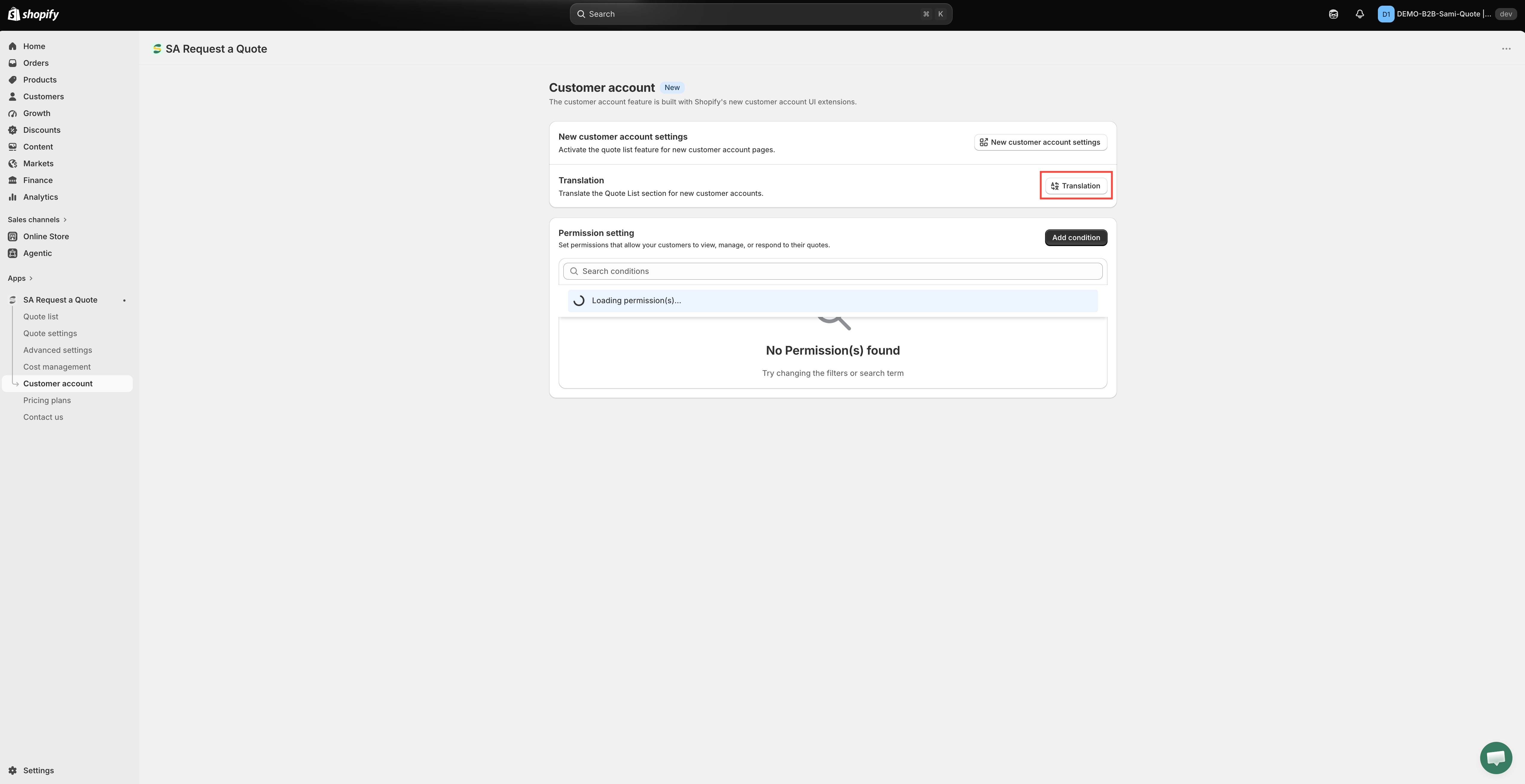
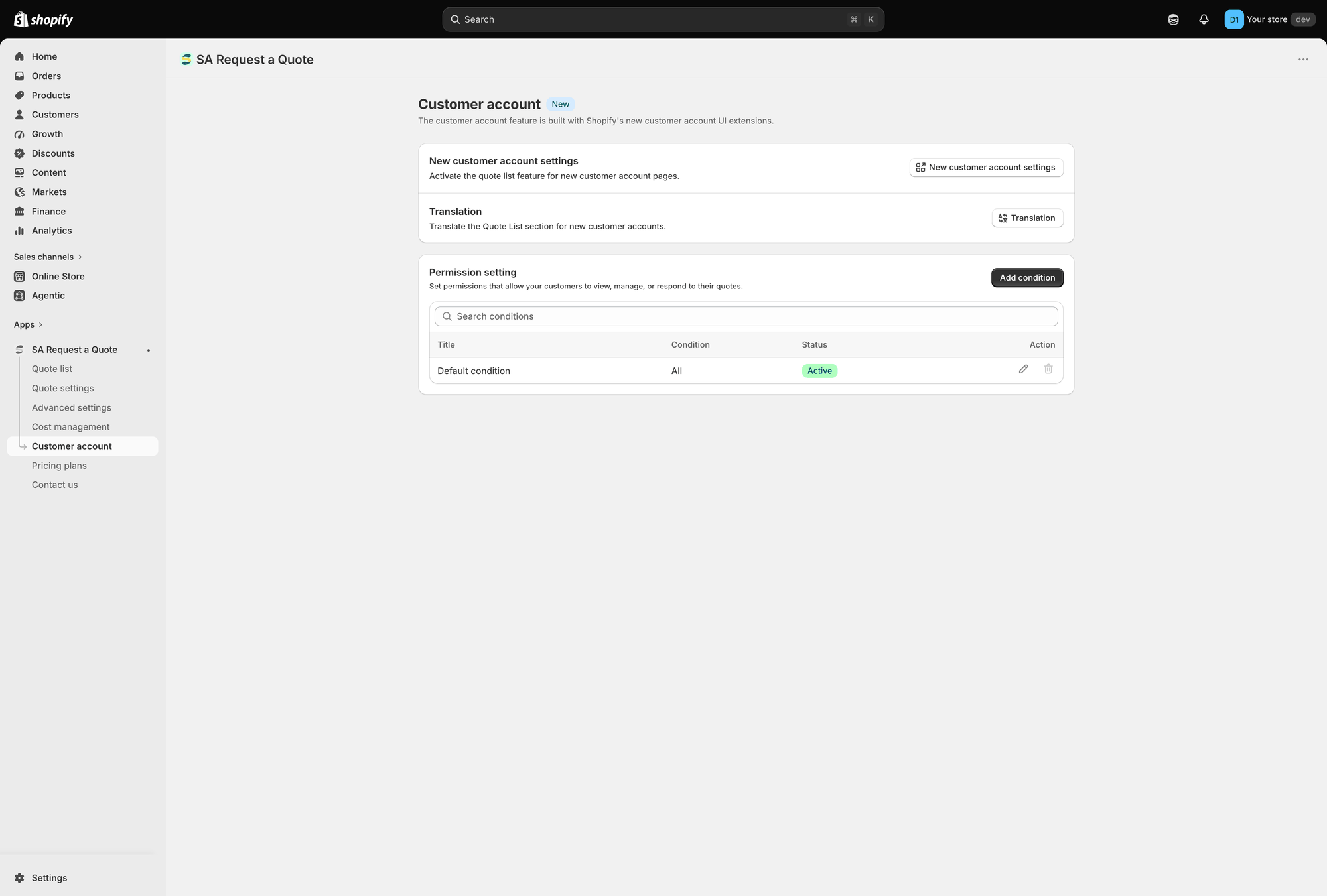
<figure><img src="https://2993310686-files.gitbook.io/~/files/v0/b/gitbook-x-prod.appspot.com/o/spaces%2FIvNtDAMNVIdy5nl9kiOU%2Fuploads%2Fgit-blob-94ce7e2ff5162cb1b27ceaa77a2d09c5739684fe%2Fscreenshot-customer-account-overview.png?alt=media" alt="The Customer account page in the app, showing New customer account settings, Translation and Permission setting"><figcaption><p>The <strong>Customer account</strong> page holds all three settings.</p></figcaption></figure>

## What is on the page

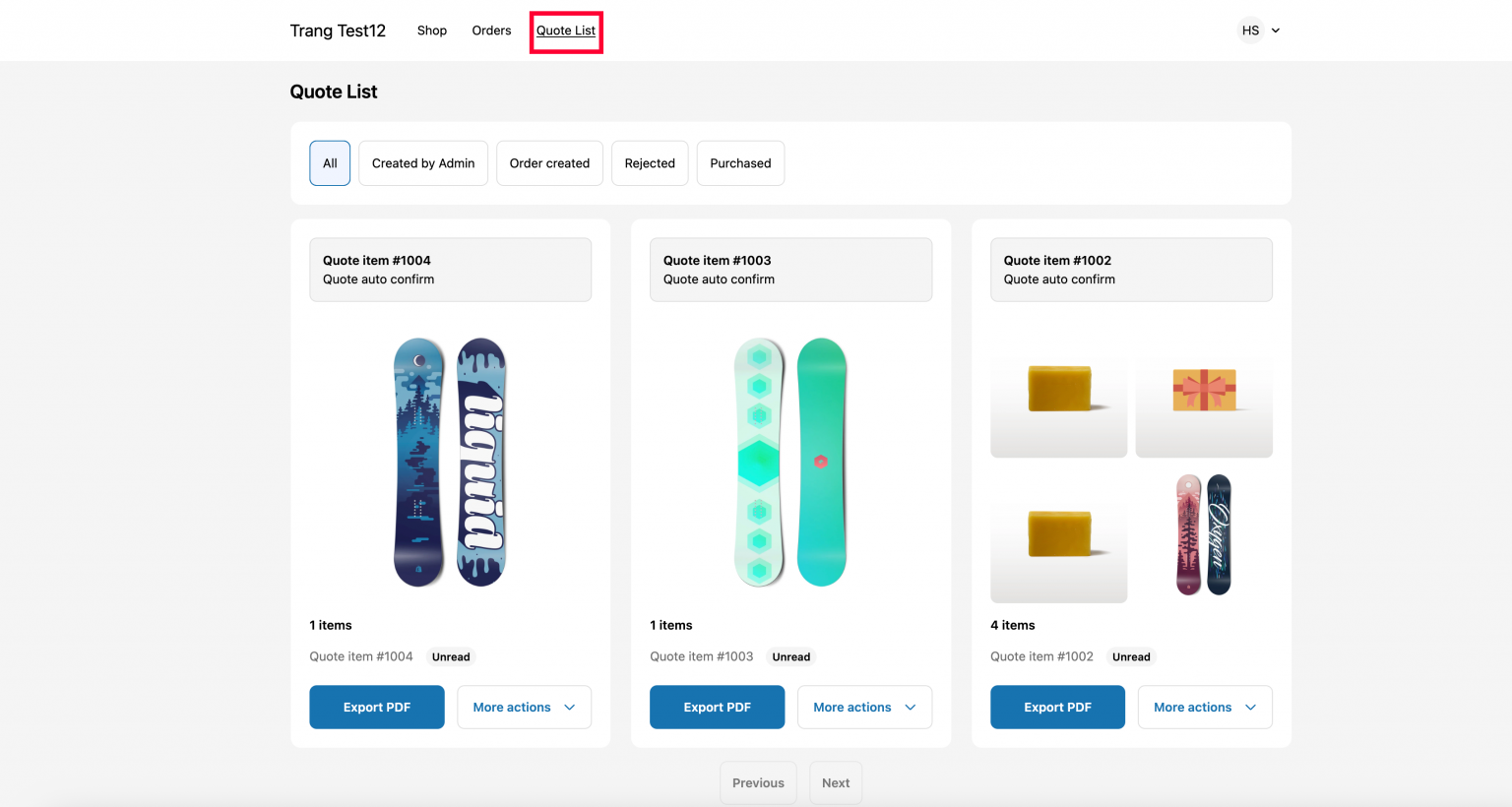
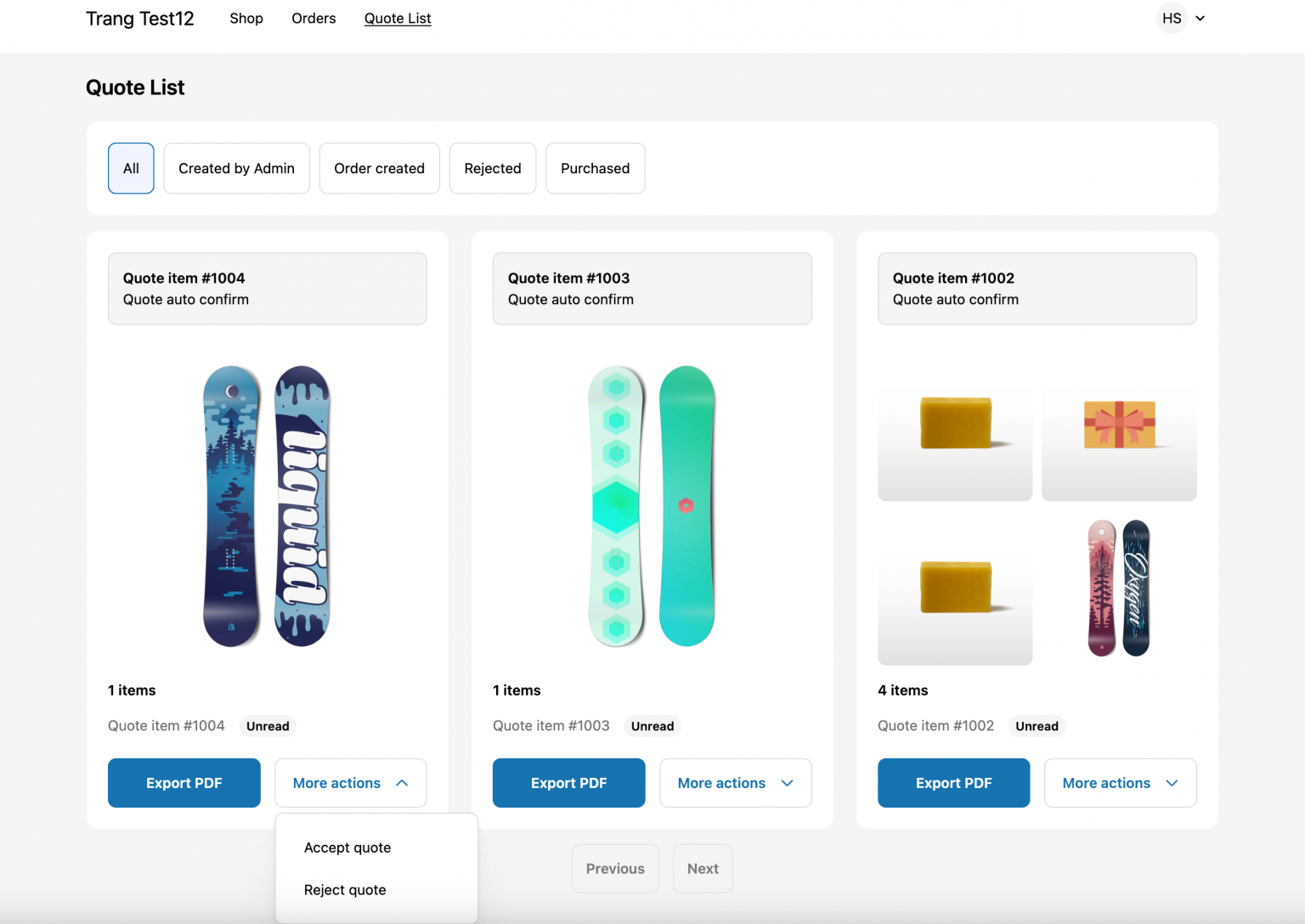
<figure><img src="https://2993310686-files.gitbook.io/~/files/v0/b/gitbook-x-prod.appspot.com/o/spaces%2FIvNtDAMNVIdy5nl9kiOU%2Fuploads%2Fgit-blob-5e86d920ae9cc105fa1212fe594681d3b14c0266%2Fscreenshot-storefront-quote-list-cards.png?alt=media" alt="The storefront Quote List page showing quote cards, each with Export PDF and More actions"><figcaption><p>What a signed-in customer finds: their quotes, each with its own actions.</p></figcaption></figure>

<table><thead><tr><th width="300">Setting</th><th>What it does</th></tr></thead><tbody><tr><td><strong>New customer account settings</strong></td><td>"Activate the quote list feature for new customer account pages."</td></tr><tr><td><strong>Translation</strong></td><td>"Translate the Quote List section for new customer accounts."</td></tr><tr><td><strong>Permission setting</strong></td><td>"Set permissions that allow your customers to view, manage, or respond to their quotes."</td></tr></tbody></table>

{% hint style="warning" %}
**Customers have to be signed in.** The account area belongs to the customer, so quotes only appear there once they have logged in to their account on your store. A logged-out visitor sees nothing, and no setting on this page changes that. Test it signed in, or you will think the feature is broken.
{% endhint %}

## Step 1 — Activate the quote list

**New customer account settings** is not a switch you flip inside the app. The button hands you over to Shopify: it opens your store's **Checkout and customer accounts** editor in a new browser tab, on the customer profile page, with the app blocks available. The app stays open in the tab behind it, so you can come back without losing your place.

The app adds **two** blocks in that editor, and they do different jobs. Add one, the other, or both.

<table><thead><tr><th width="230">Block</th><th>Where it appears</th><th>What the customer does with it</th></tr></thead><tbody><tr><td><strong>View Quote Profile</strong></td><td>On the profile page, as a block</td><td>Shows a banner reading "View and manage your quote list" with a <strong>View quote</strong> button that opens the quote list page. You can style it from the profile page.</td></tr><tr><td><strong>Quote List</strong></td><td>In the account header menu, as a menu item</td><td>Gives them a permanent link at the top of the account, so quotes are one click away from anywhere in the account.</td></tr></tbody></table>

{% stepper %}
{% step %}

### Open Customer account

In the app navigation, click **Customer account**.
{% endstep %}

{% step %}

### Click New customer account settings

On the first card, click the **New customer account settings** button. Shopify's **Checkout and customer accounts** editor opens in a new tab.

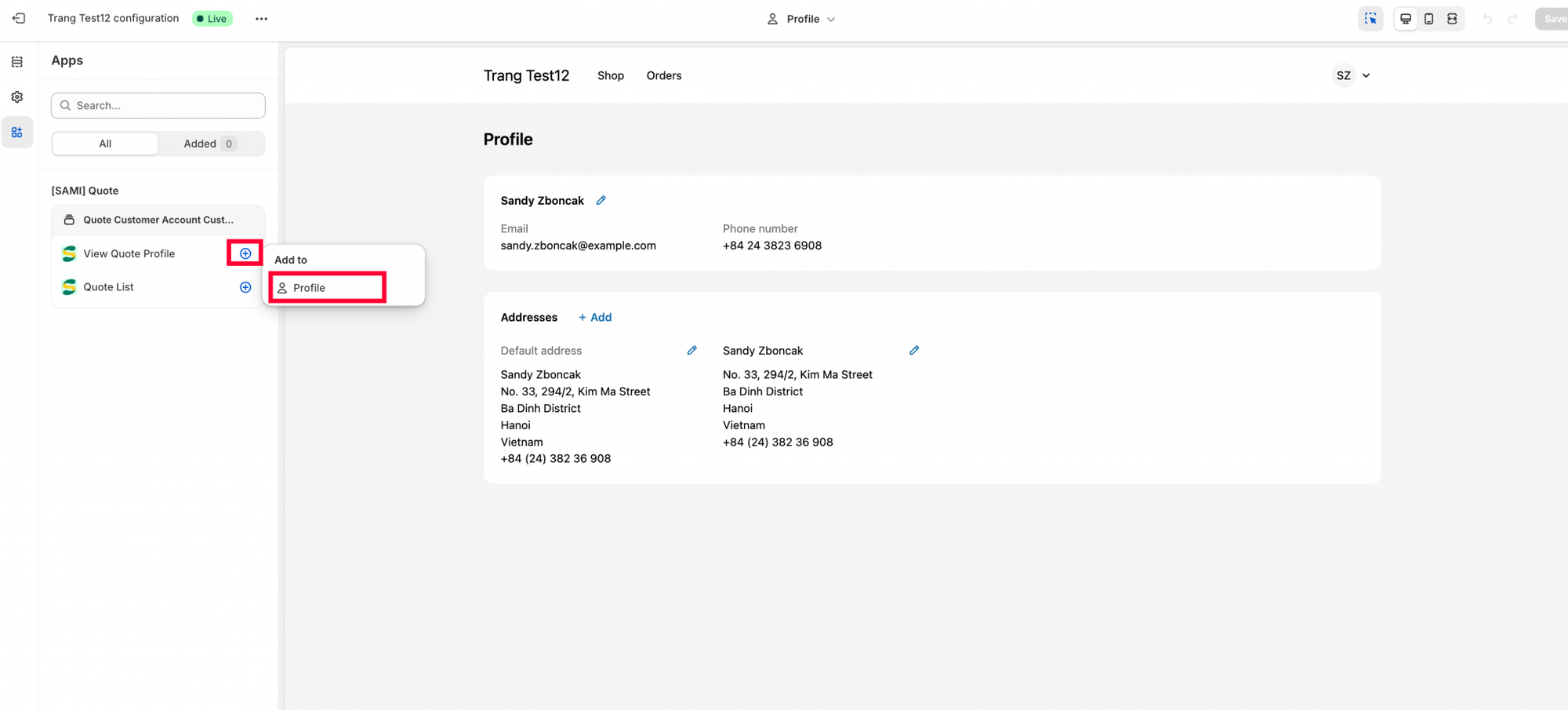
<figure><img src="https://2993310686-files.gitbook.io/~/files/v0/b/gitbook-x-prod.appspot.com/o/spaces%2FIvNtDAMNVIdy5nl9kiOU%2Fuploads%2Fgit-blob-4855496ebfc663573e6f85f3335c42ffb0c86d24%2Fscreenshot-shopify-customer-account-add-block.png?alt=media" alt="A customer account profile page in the Shopify editor, with the app&#x27;s blocks listed in the add-block picker"><figcaption><p>The app's blocks appear in the editor's picker once the hand-off lands.</p></figcaption></figure>
{% endstep %}

{% step %}

### Add View Quote Profile to the profile page

In the editor, add the **View Quote Profile** block to the profile page and set it up the way you want it to look. This is the block that gives customers a **View quote** button.
{% endstep %}

{% step %}

### Save before you add the Quote List block

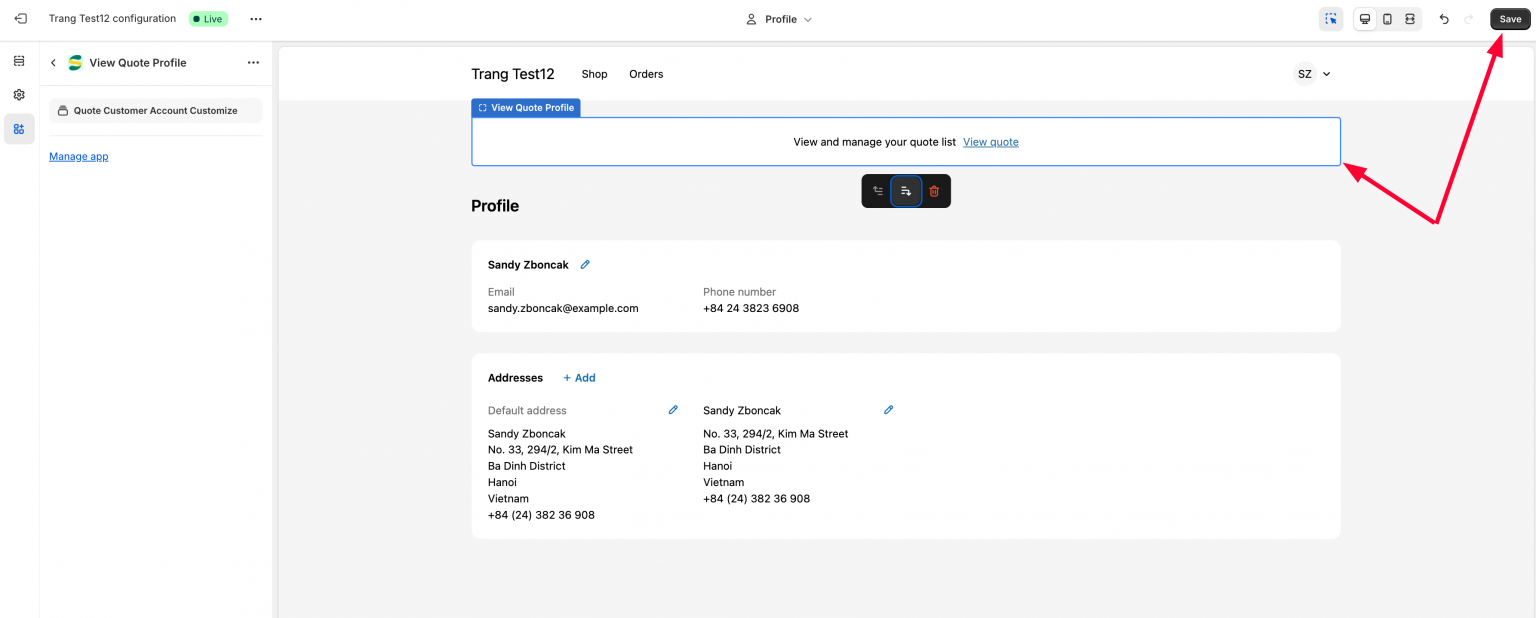
<figure><img src="https://2993310686-files.gitbook.io/~/files/v0/b/gitbook-x-prod.appspot.com/o/spaces%2FIvNtDAMNVIdy5nl9kiOU%2Fuploads%2Fgit-blob-7ec762002949cd8dfaca68d41185635c9ec5c77d%2Fscreenshot-shopify-customer-account-save-profile.png?alt=media" alt="The profile page in the Shopify editor with the quote banner in place and an arrow pointing to Save"><figcaption><p>Save the profile page before moving to the menu.</p></figcaption></figure>

On the **Quote List** section page, click **Save** first, **then** click the **Quote list block** to start adding it to the header menu.

{% hint style="danger" %}
The order matters. If you try to add the block before saving, it is not there to add. Save, then add.
{% endhint %}
{% endstep %}

{% step %}

### Place Quote list in the header menu, and save again

<figure><img src="https://2993310686-files.gitbook.io/~/files/v0/b/gitbook-x-prod.appspot.com/o/spaces%2FIvNtDAMNVIdy5nl9kiOU%2Fuploads%2Fgit-blob-c6d649addedfb8b9039e4c090d74eb03c0c96601%2Fscreenshot-shopify-customer-account-menu.png?alt=media" alt="The Customer account main menu panel in the Shopify editor, with the menu items outlined in red"><figcaption><p>The menu is its own save — the profile page's Save does not cover it.</p></figcaption></figure>

Set up the **Quote list section** in the header menu and click **Save** a second time. Two saves, not one — the first one makes the block available, the second one keeps where you put it.
{% endstep %}

{% step %}

### Check it as a customer

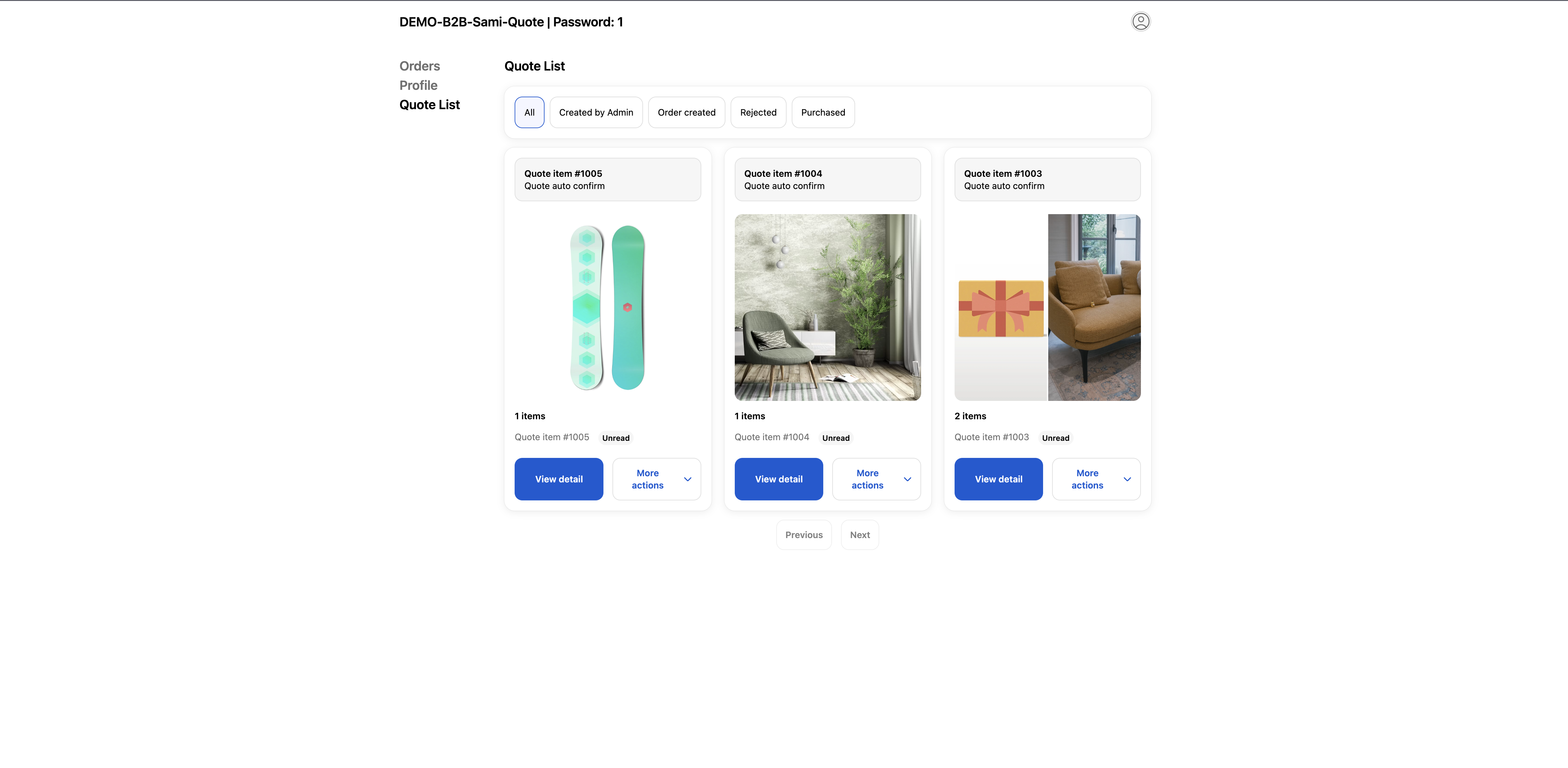
Go back to your storefront, sign in as a customer and open the account area.

<figure><img src="https://2993310686-files.gitbook.io/~/files/v0/b/gitbook-x-prod.appspot.com/o/spaces%2FIvNtDAMNVIdy5nl9kiOU%2Fuploads%2Fgit-blob-e4e50505c791b6427b0718d847bdf26ba9b35556%2FScreenshot%202026-09-29%20at%2016-46-15.png?alt=media" alt="A storefront customer account page showing the customer&#x27;s Quote List"><figcaption><p>Signed-in customers find their quotes in their own account.</p></figcaption></figure>
{% endstep %}
{% endstepper %}

## Step 2 — Decide what customers may do

**Permission setting** is where you "Set permissions that allow your customers to view, manage, or respond to their quotes." So this is not only about whether quotes are visible — it is also where you decide whether a customer can act on one.

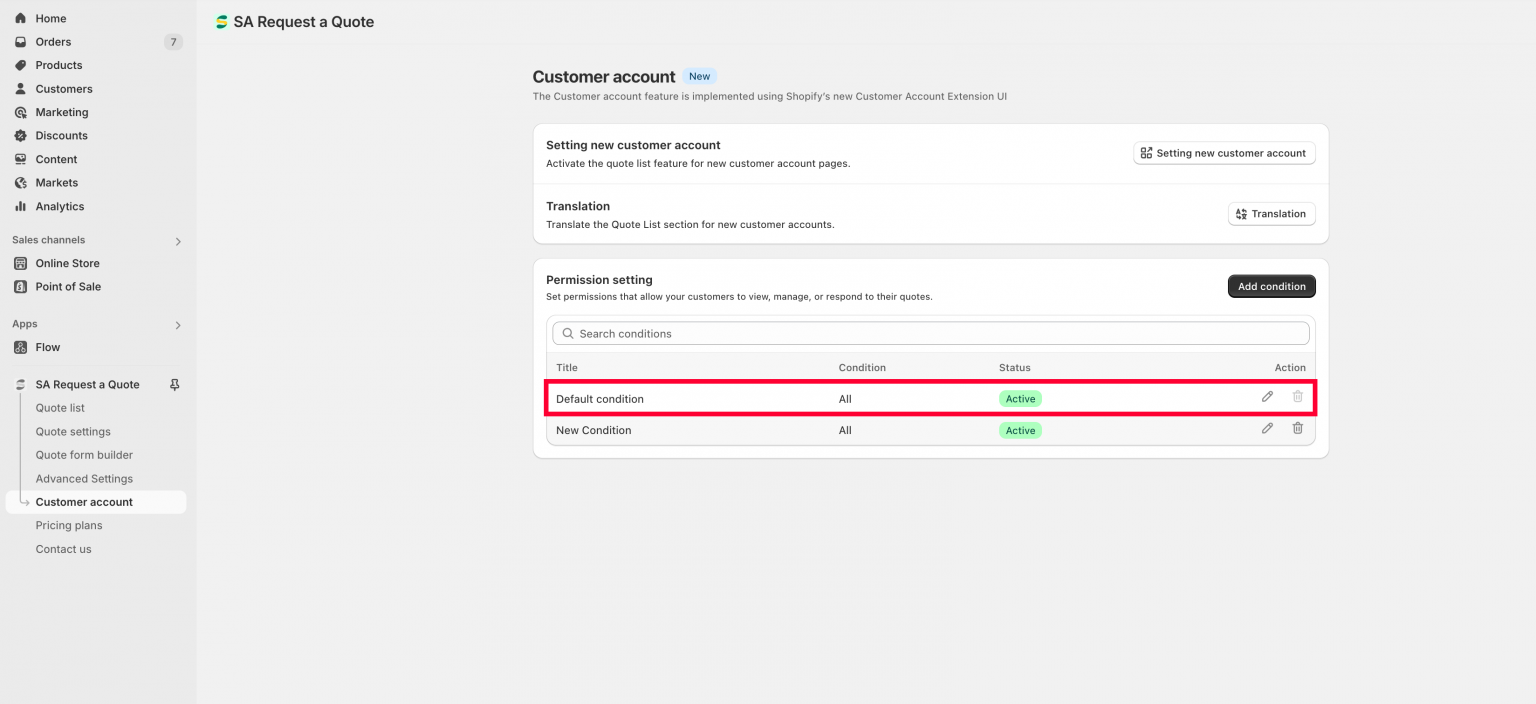
The card holds an **Add condition** button, a **Search conditions** box, and a table with the columns **Title**, **Condition**, **Status** and **Action**. Each row has an edit and a delete control under **Action**. The table starts with a **Default condition** row.

### The Default condition, and when it stops applying

<figure><img src="https://2993310686-files.gitbook.io/~/files/v0/b/gitbook-x-prod.appspot.com/o/spaces%2FIvNtDAMNVIdy5nl9kiOU%2Fuploads%2Fgit-blob-723fed6ebfaf67327fb106e63274a72931ac6d1b%2Fscreenshot-customer-account-permission-table.png?alt=media" alt="The Permission setting table with the Default condition row outlined in red, its status Active"><figcaption><p><strong>Default condition</strong> is what applies until you add your own.</p></figcaption></figure>

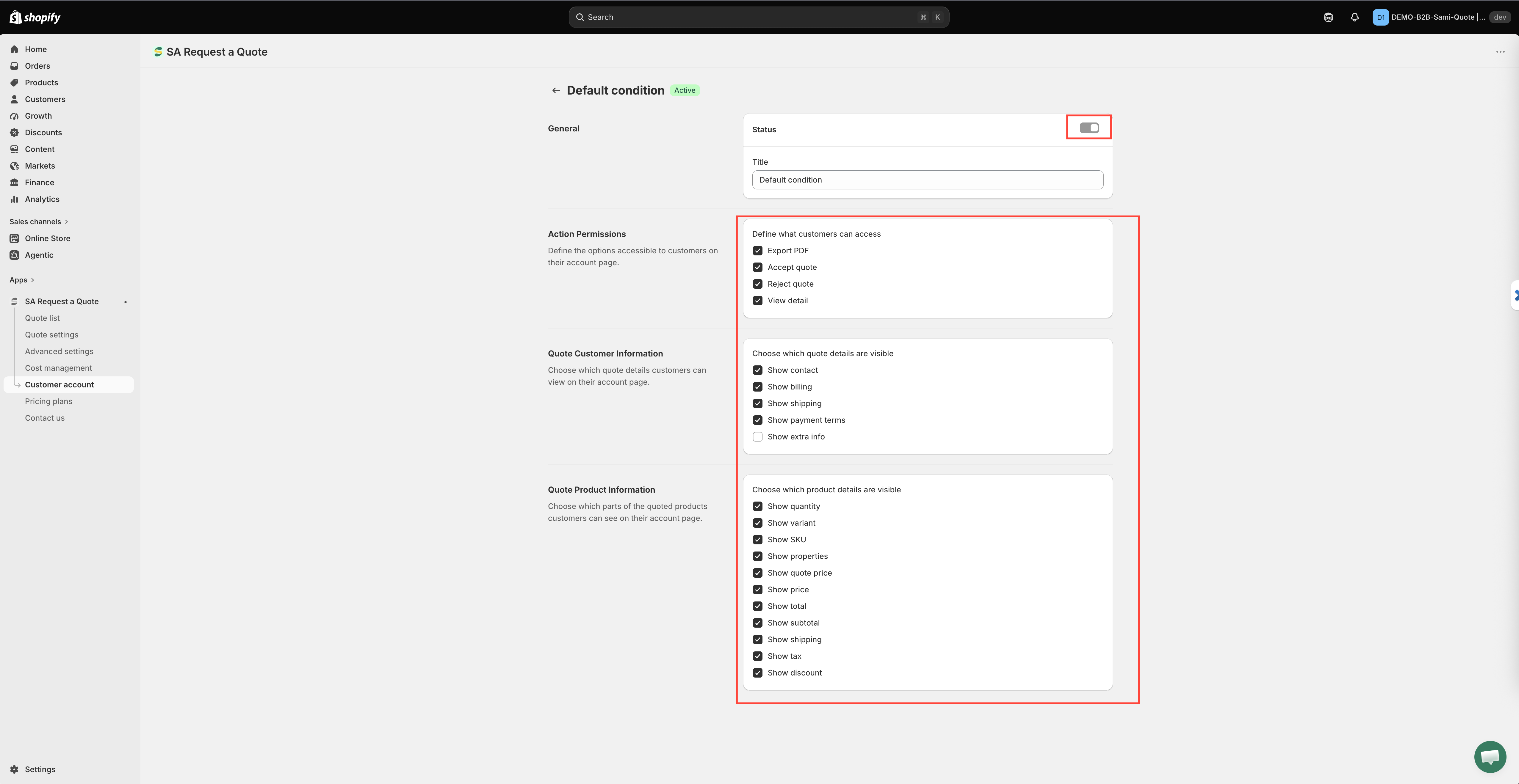
If you never create a condition of your own, the app applies the **Default condition** on the first row, and that row carries **all** permissions. That is why quotes look fully open before you have configured anything.

{% hint style="danger" %}
**The Default condition stops working the moment you create custom conditions.** From then on, only your own conditions decide what customers see and do. If you add one narrow condition and nothing else, every customer outside it loses access — so make sure your conditions between them cover everyone you want to keep serving.
{% endhint %}

The Default row is deliberately fenced off: it has no **Condition** section (it targets everybody), its **Status** switch is locked, and its delete control is disabled. You can still open it with the edit control and change which permissions and which fields it grants.

### Add a condition

On the **Customer account** page, scroll to **Permission setting** and click **Add condition**.

<figure><img src="https://2993310686-files.gitbook.io/~/files/v0/b/gitbook-x-prod.appspot.com/o/spaces%2FIvNtDAMNVIdy5nl9kiOU%2Fuploads%2Fgit-blob-bd4548300f7c91e9e9f74ea3cbc4e2e20743c0a0%2FScreenshot%202026-09-30%20at%2011-15-56.png?alt=media" alt="The Customer account page with Permission setting and its Add condition button outlined in red"><figcaption><p>Conditions decide what each kind of customer may do with a quote.</p></figcaption></figure>

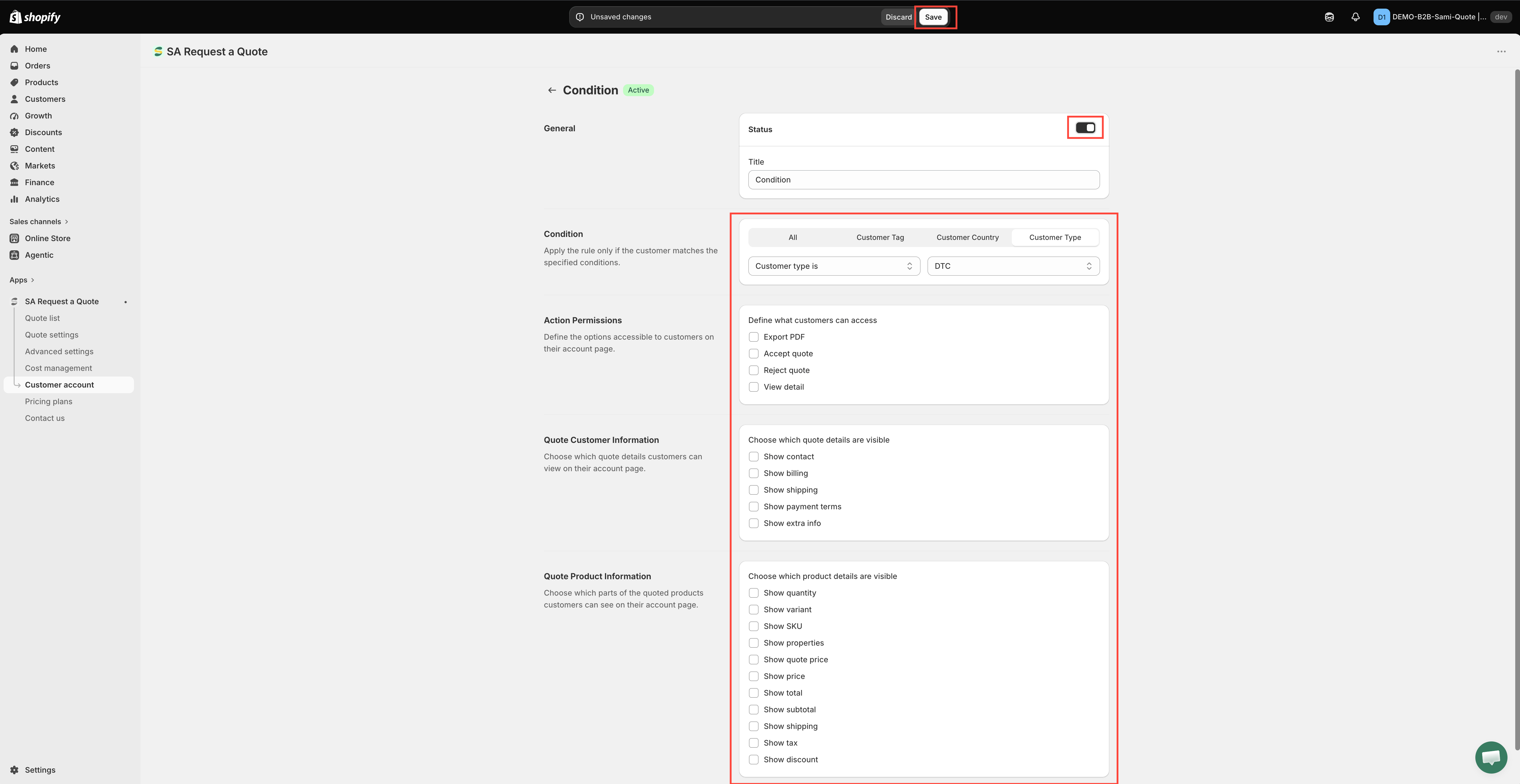
The screen that opens has **five** sections. Work down them in order.

<figure><img src="https://2993310686-files.gitbook.io/~/files/v0/b/gitbook-x-prod.appspot.com/o/spaces%2FIvNtDAMNVIdy5nl9kiOU%2Fuploads%2Fgit-blob-860a8f2dcf86053f7a20989e8c8af36599a518e5%2Fscreenshot-customer-account-condition-editor.png?alt=media" alt="The condition editor, with General and Status at the top, then Action Permissions, Quote Customer Information and Quote Product Information"><figcaption><p>One condition, top to bottom: what it is called, who it matches, and what it allows.</p></figcaption></figure>

{% stepper %}
{% step %}

### General

Two controls: a **Status** switch and a **Title** field.

Turn **Status** on to make the condition live on your storefront; turn it off later to retire it without deleting it. A new condition is created **off**, and the badge beside the title reads **Draft** until you switch it on — a condition sitting at Draft is the usual reason a permission "did not apply".

Type a **Title** you will recognise in the list a year from now, such as `Wholesale customers — full access`. The field starts with the placeholder text `Condition`, and the app refuses to save with it empty ("Title can't be blank").
{% endstep %}

{% step %}

### Condition

"Apply the rule only if the customer matches the specified conditions." This is who the rule applies to. Pick one of four:

<table><thead><tr><th width="200">Choice</th><th>What you then set</th></tr></thead><tbody><tr><td><strong>All</strong></td><td>Nothing — it reads "All logged-in customers".</td></tr><tr><td><strong>Customer Tag</strong></td><td><strong>Customer tag contains</strong> or <strong>Customer tag doesn't contain</strong>, then the tags themselves. Separate several tags with commas.</td></tr><tr><td><strong>Customer Country</strong></td><td><strong>Customer country is in</strong> or <strong>Customer country is not in</strong>, then search for and pick countries. Each one you pick is added as a tag you can remove.</td></tr><tr><td><strong>Customer Type</strong></td><td><strong>Customer type is</strong> or <strong>Customer type is not</strong>, then <strong>DTC</strong> or <strong>B2B</strong>.</td></tr></tbody></table>

{% hint style="warning" %}
Only customers who satisfy this condition can see the quote list section on the account page. Everything you grant in the next three sections is granted **to them only**.
{% endhint %}

<figure><img src="https://2993310686-files.gitbook.io/~/files/v0/b/gitbook-x-prod.appspot.com/o/spaces%2FIvNtDAMNVIdy5nl9kiOU%2Fuploads%2Fgit-blob-d64f5e3b67824bebb3ee8d98f308efea63dd674c%2FScreenshot%202026-10-01%20at%2000-33-35.png?alt=media" alt=""><figcaption></figcaption></figure>
{% endstep %}

{% step %}

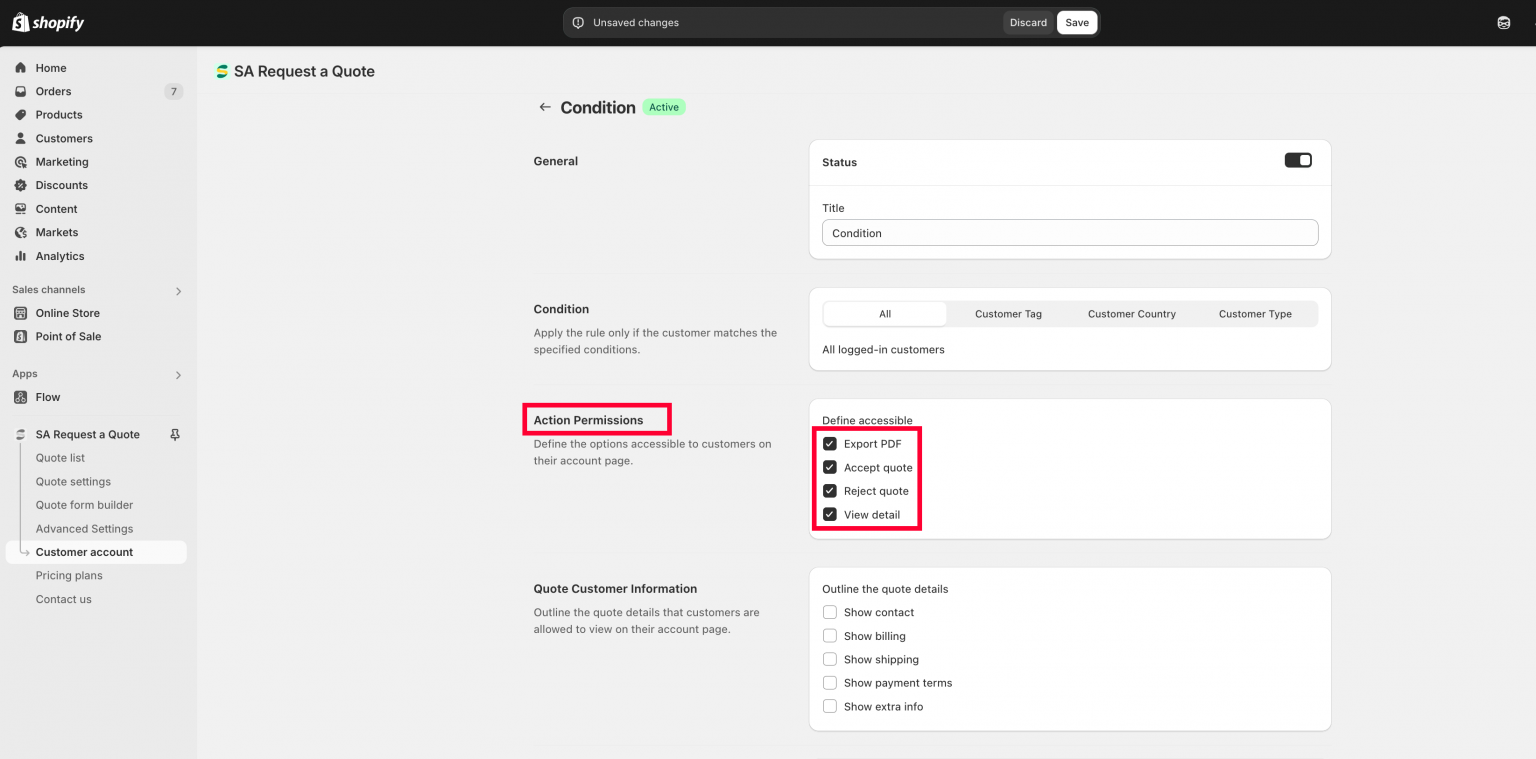
### Action Permissions

<figure><img src="https://2993310686-files.gitbook.io/~/files/v0/b/gitbook-x-prod.appspot.com/o/spaces%2FIvNtDAMNVIdy5nl9kiOU%2Fuploads%2Fgit-blob-84aea23800d2c694452a781b1a3d095b35a944bc%2Fscreenshot-customer-account-action-permissions.png?alt=media" alt="The Action Permissions section of the condition editor outlined in red, with Export PDF, Accept quote, Reject quote and View detail"><figcaption><p>Four switches decide what a matching customer can do to a quote.</p></figcaption></figure>

"Define the options accessible to customers on their account page." Tick what a matching customer is allowed to **do** with a quote:

* **Export PDF**
* **Accept quote**
* **Reject quote**
* **View detail**

Leave them all unticked and the customer can see that a quote exists but cannot open or answer it.
{% endstep %}

{% step %}

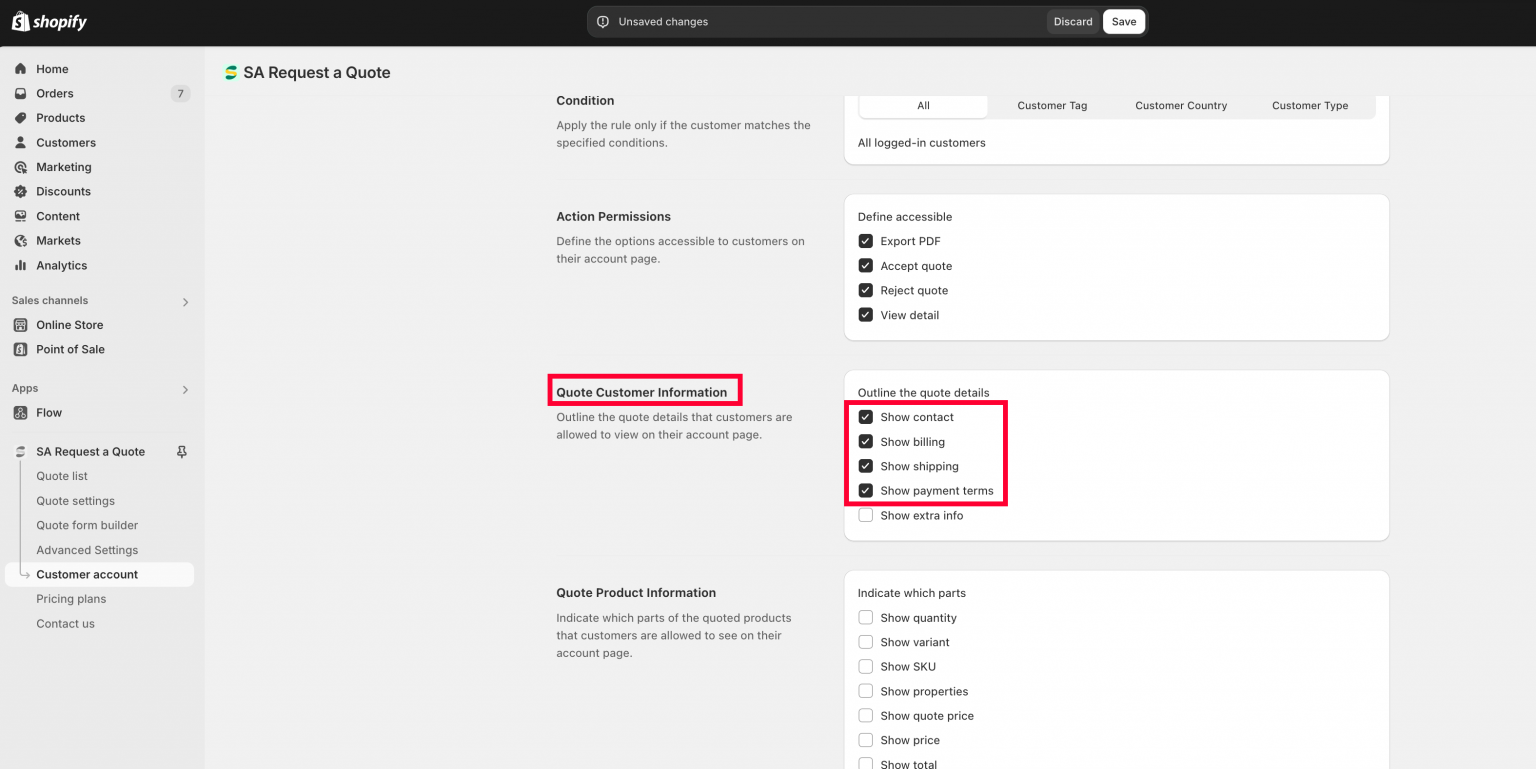
### Quote Customer Information

<figure><img src="https://2993310686-files.gitbook.io/~/files/v0/b/gitbook-x-prod.appspot.com/o/spaces%2FIvNtDAMNVIdy5nl9kiOU%2Fuploads%2Fgit-blob-5f978b2c87bfac363e8a8c00ad463778a1cb8e6c%2Fscreenshot-customer-account-customer-info.png?alt=media" alt="The Quote Customer Information section of the condition editor outlined in red"><figcaption><p>Choose which of their own details a customer sees on the quote.</p></figcaption></figure>

"Choose which quote details customers can view on their account page." Tick which of their own details are shown back to them:

**Show contact** · **Show billing** · **Show shipping** · **Show payment terms** · **Show extra info**
{% endstep %}

{% step %}

### Quote Product Information

<figure><img src="https://2993310686-files.gitbook.io/~/files/v0/b/gitbook-x-prod.appspot.com/o/spaces%2FIvNtDAMNVIdy5nl9kiOU%2Fuploads%2Fgit-blob-108a5e26be8ff09b247832459c43e41242bc92b7%2Fscreenshot-customer-account-product-info.png?alt=media" alt="The Quote Product Information section of the condition editor outlined in red"><figcaption><p>And which parts of the quoted products they see, price included.</p></figcaption></figure>

"Choose which parts of the quoted products customers can see on their account page." Tick what the product lines show:

**Show quantity** · **Show variant** · **Show SKU** · **Show properties** · **Show quote price** · **Show price** · **Show total** · **Show subtotal** · **Show shipping** · **Show tax** · **Show discount**

{% hint style="info" %}
**Show quote price** and **Show price** are separate ticks. The first is the price you negotiated on the quote; the second is the product's normal store price. Tick both only if you want the customer to compare them.
{% endhint %}
{% endstep %}

{% step %}

### Save, then check it in the storefront

<figure><img src="https://2993310686-files.gitbook.io/~/files/v0/b/gitbook-x-prod.appspot.com/o/spaces%2FIvNtDAMNVIdy5nl9kiOU%2Fuploads%2Fgit-blob-d405283398916845bfe28ea03d8a412f83467f43%2Fscreenshot-storefront-quote-card-actions.png?alt=media" alt="A quote card in the storefront account page with its actions menu open, showing Accept quote and Reject quote"><figcaption><p>The permissions you granted, as the customer meets them.</p></figcaption></figure>

Click **Save** on the save bar at the top. **Discard changes** beside it throws the edits away.

Then sign in to your own storefront as a test customer who matches the condition and confirm you see exactly what you granted — and that a customer who does *not* match sees what you expect too.
{% endstep %}
{% endstepper %}

{% hint style="warning" %}
Test every condition from the customer's side before you rely on it. A permission you think you granted, but did not, looks to the customer like a quote they are not allowed to answer — and they will email you instead.
{% endhint %}

{% hint style="info" %}
Keep the permissions as simple as your business allows. A short list is easier to check a year from now than a long one.
{% endhint %}

<figure><img src="https://2993310686-files.gitbook.io/~/files/v0/b/gitbook-x-prod.appspot.com/o/spaces%2FIvNtDAMNVIdy5nl9kiOU%2Fuploads%2Fgit-blob-1b20c0dcc36ee32215b67e02560ab529dc683914%2FScreenshot%202026-10-01%20at%2000-31-21.png?alt=media" alt=""><figcaption></figcaption></figure>

## Step 3 — Translate the section

**Translation** on the same page lets you "Translate the Quote List section for new customer accounts." It covers that section of the account page and nothing else.

{% stepper %}
{% step %}

### Open the Translation button

On the **Customer account** page, go to the **Translation** card and click the **Translation** button.
{% endstep %}

{% step %}

### Fill in the wording, group by group

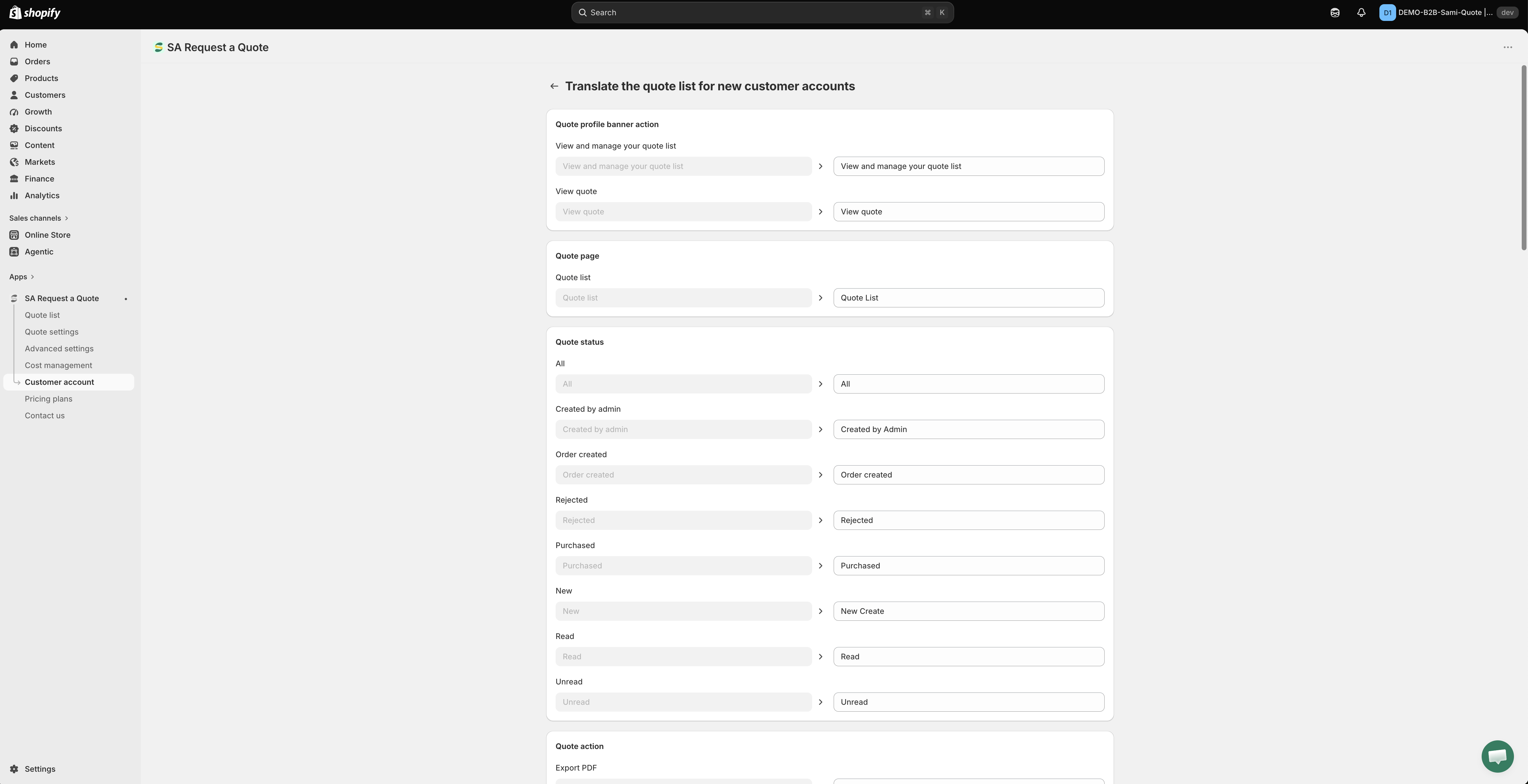
The **Translate the quote list for new customer accounts** page lists every string in the section, grouped under headings such as **Quote profile banner action**, **Quote page**, **Quote status**, **Quote action**, **Quote item**, **Customer information**, **Payment information**, **Quote product**, **Export modal** and **Empty Page**.

Each string is a pair of fields: the left one shows the original English and cannot be edited, the right one is yours to fill in. Click into the right-hand field and type the wording you want customers to read.

<figure><img src="https://2993310686-files.gitbook.io/~/files/v0/b/gitbook-x-prod.appspot.com/o/spaces%2FIvNtDAMNVIdy5nl9kiOU%2Fuploads%2Fgit-blob-7789f06dca563012e342296c45a8aec8f075b54a%2FScreenshot%202026-10-01%20at%2000-31-42.png?alt=media" alt=""><figcaption></figcaption></figure>

<figure><img src="https://2993310686-files.gitbook.io/~/files/v0/b/gitbook-x-prod.appspot.com/o/spaces%2FIvNtDAMNVIdy5nl9kiOU%2Fuploads%2Fgit-blob-8b5912db1ca405b9859fcf0edc26a869aa010d09%2FScreenshot%202026-10-01%20at%2000-31-58.png?alt=media" alt=""><figcaption></figcaption></figure>
{% endstep %}

{% step %}

### Save and check the storefront

Click **Save**, then sign in to your storefront and open the account area to see the new wording in place.
{% endstep %}
{% endstepper %}

Everything else your customers read — the quote form, your storefront text and both quote emails — is translated somewhere else, on the **Translations** tab of **Advanced settings**. See [Translate storefront text](/sa-request-a-quote/settings/translations.md).

{% hint style="info" %}
Do both. Translating your storefront text but not the account section leaves the quote list sitting in English in the middle of an otherwise translated account page.
{% endhint %}

## Two ways to show past quotes

<table><thead><tr><th width="270">Approach</th><th>Use when</th></tr></thead><tbody><tr><td>Quote history page</td><td>You want a page you can link from your menu, at <code>/pages/quotes-history</code>.</td></tr><tr><td>Customer account</td><td>Your store uses Shopify's new customer accounts and you want quotes to sit alongside orders, where customers expect them.</td></tr></tbody></table>

Both need the customer to be signed in, so neither replaces the emails you send. See [Quote history page](/sa-request-a-quote/storefront-quote-pages/quote-history-page.md).

## If the settings look greyed out

**Customer Account UI** is listed under the **PRO** plan. If the controls on this page are disabled and the app shows a padlock line reading "🔐 This feature is available on …", that is your plan rather than a fault — nothing is broken in your store or your theme. The link in that line goes to the plan that includes the feature, and **Pricing plans** in the app sidebar shows what each plan covers. See [Plan comparison](/sa-request-a-quote/reference/plan-comparison.md).

## If something is missing in the account

<table><thead><tr><th width="330">What you see</th><th>What to check</th></tr></thead><tbody><tr><td>Nothing at all in the account area</td><td>You are signed out, or the store is not on Shopify's new customer accounts.</td></tr><tr><td>The header menu link is missing</td><td>The <strong>Quote list block</strong> was added without saving the section first, or the second <strong>Save</strong> in the header menu was never made.</td></tr><tr><td>A customer sees the list but cannot accept or reject</td><td><strong>Accept quote</strong> and <strong>Reject quote</strong> are not ticked in <strong>Action Permissions</strong> for the condition that matches them.</td></tr><tr><td>A customer who used to see quotes no longer does</td><td>You created a custom condition, so the <strong>Default condition</strong> stopped applying and that customer matches none of your conditions.</td></tr><tr><td>A condition has no effect</td><td>Its badge reads <strong>Draft</strong>. Open it and turn <strong>Status</strong> on in <strong>General</strong>.</td></tr><tr><td>The section is in English on a translated store</td><td>Use the <strong>Translation</strong> button on this page — <strong>Advanced settings</strong> > <strong>Translations</strong> does not cover it.</td></tr></tbody></table>

## Next steps

* [Quote history page](/sa-request-a-quote/storefront-quote-pages/quote-history-page.md) — the standalone page alternative
* [Translate storefront text](/sa-request-a-quote/settings/translations.md) — translate the rest of the wording customers see
* [Pricing plans](/sa-request-a-quote/settings/pricing-plans.md) — check what your plan includes


---

# Agent Instructions
This documentation is published with GitBook. GitBook is the documentation platform designed so that both humans and AI agents can read, navigate, and reason over technical content effectively. Learn more at gitbook.com.

## Querying This Documentation
If you need additional information that is not directly available in this page, you can query the documentation by asking a question.

Perform an HTTP GET request on the following URL with the `ask` and `goal` query parameters:

```
GET https://docs.samita.io/sa-request-a-quote/storefront-quote-pages/customer-account-quotes.md?ask=<question>&goal=<user_goal>
```

`ask` is the immediate question: it should be specific, self-contained, and written in natural language.
`goal` is what the user is ultimately trying to achieve, the reason they need the answer. Sharing it helps GitBook give you a better, more relevant answer. A goal is most helpful when it describes the outcome the user wants rather than restating the question. For example, with `ask=how do I create an API token`, a goal like `automate deployments from our CI pipeline` lets GitBook tailor the answer to that use case.

The response will contain a direct answer to the question and relevant excerpts and sources from the documentation.

Use this mechanism when the answer is not explicitly present in the current page, you need clarification or additional context, or you want to retrieve related documentation sections.