> For the complete documentation index, see [llms.txt](https://docs.samita.io/llms.txt). Markdown versions of documentation pages are available by appending `.md` to page URLs; this page is available as [Markdown](https://docs.samita.io/sa-request-a-quote/whats-new.md).

# What's new

The changes worth knowing about if you used SA Request a Quote before its redesign, and where each one now lives.

The app was redesigned. If you set your store up on the earlier version, the settings you remember are still there — most of them simply live somewhere else now. This page covers the changes that move things around or add something you did not have before.

{% hint style="info" %}
Nothing you configured was lost in the redesign. Your button text, your form, your email templates and your quote history all carried over. What changed is where you go to edit them.
{% endhint %}

## September 2026

### Translations AI

Translation used to mean typing each string for each language by hand. It does not any more.

**Advanced settings** > **Translations** now offers **Translations AI**, described in the app as "Translate everything your customers see — quote form, storefront text and both quote emails." One action covers all three, so the form and the emails cannot drift apart.

The tab lists your languages with their status, and a **Translate** action on each row. The list mirrors Shopify rather than keeping one of its own: "To add or remove a language, go to Settings → Languages in your Shopify admin."

See [Translate storefront text](/sa-request-a-quote/settings/translations.md).

#### Where the rest of it went

<table data-search="false"><thead><tr><th width="300">If you are looking for</th><th>It is now at</th></tr></thead><tbody><tr><td>The quote form builder</td><td><strong>Quote settings</strong> > <strong>Customize</strong> > <strong>Quote form</strong></td></tr><tr><td>Button settings</td><td><strong>Quote settings</strong> > <strong>Customize</strong> > <strong>Button &#x26; widget</strong></td></tr><tr><td>Hide price</td><td><strong>Advanced settings</strong> > <strong>Hide price</strong></td></tr><tr><td>Mail notifications</td><td><strong>Advanced settings</strong> > <strong>Email notifications</strong></td></tr><tr><td>Integrations</td><td><strong>Advanced settings</strong> > <strong>Integrations</strong></td></tr><tr><td>PDF templates</td><td><strong>Advanced settings</strong> > <strong>PDF template</strong></td></tr><tr><td>Discount, shipping and tax on a quote</td><td><strong>Cost management</strong>, which is new</td></tr></tbody></table>

<figure><img src="https://2993310686-files.gitbook.io/~/files/v0/b/gitbook-x-prod.appspot.com/o/spaces%2FIvNtDAMNVIdy5nl9kiOU%2Fuploads%2Fgit-blob-2bd2c27bc740992f6c0c30397ef2eed098e4c4c8%2FScreenshot%202026-09-30%20at%2000-49-17.png?alt=media" alt="The Translations editor, with a field for every piece of storefront text beside its translation"><figcaption><p>Every string customers read is listed here with its translation.</p></figcaption></figure>

## August 2026

### Quote settings, rebuilt around Customize

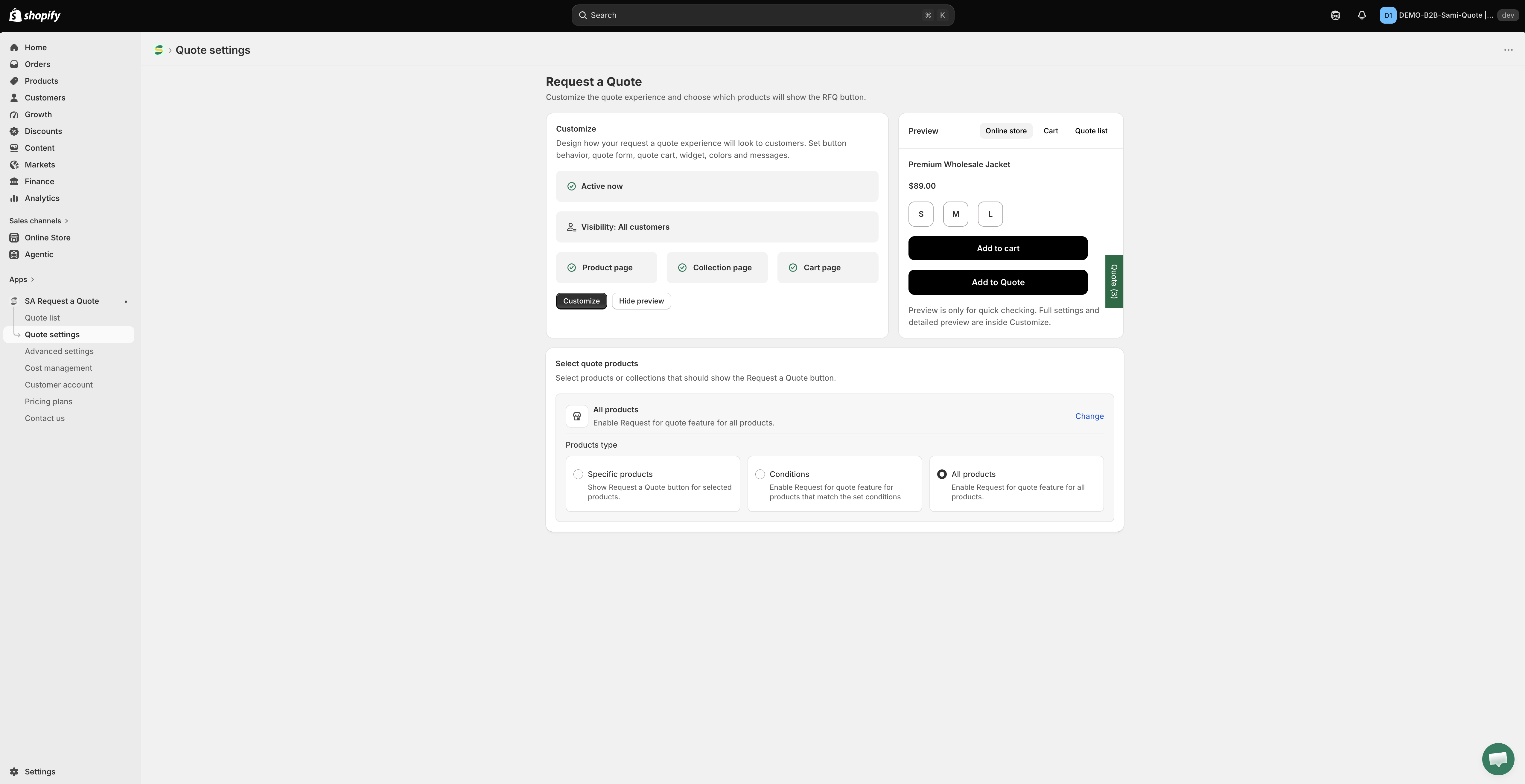
**Quote settings** used to be a page of tabs. It is now a short page with two things on it, and the detail has moved into an editor of its own.

<table><thead><tr><th width="230">On Quote settings</th><th>What it does</th></tr></thead><tbody><tr><td><strong>Customize</strong></td><td>"Design how your request a quote experience will look to customers. Set button behavior, quote form, quote cart, widget, colors and messages." The button opens a full-screen editor.</td></tr><tr><td><strong>Select quote products</strong></td><td>"Select products or collections that should show the Request a Quote button."</td></tr></tbody></table>

The **Customize** editor holds four tabs, and between them they cover everything the old tabbed page did:

<table><thead><tr><th width="230">Tab</th><th>What you set there</th></tr></thead><tbody><tr><td><strong>Button &#x26; widget</strong></td><td>Button text, where the button sits, what happens when it is clicked, and the floating quote widget</td></tr><tr><td><strong>Quote form</strong></td><td>The form itself — its template, its sections and its fields</td></tr><tr><td><strong>Quote cart page</strong></td><td>The storefront quote cart, including whether the form runs as <strong>Multiple step</strong> or <strong>Single page</strong></td></tr><tr><td><strong>Success message</strong></td><td>What a customer sees once the request is sent</td></tr></tbody></table>

A **Preview** sits beside the settings, with its own tabs for **Online store**, **Cart** and **Quote list**, so you can see a change before you save it. The app notes that "Preview is only for quick checking. Full settings and detailed preview are inside Customize."

<figure><img src="https://2993310686-files.gitbook.io/~/files/v0/b/gitbook-x-prod.appspot.com/o/spaces%2FIvNtDAMNVIdy5nl9kiOU%2Fuploads%2Fgit-blob-cdc426869756497ebf38f82ab7f149e1ad57ab42%2FScreenshot%202026-09-30%20at%2000-48-05.png?alt=media" alt="The Quote settings page, with the Customize card and the Select quote products card beneath it"><figcaption><p>Quote settings is now short: <strong>Customize</strong> opens the editor, <strong>Select quote products</strong> chooses what carries the button.</p></figcaption></figure>

{% hint style="warning" %}
If you are following an older guide or an older screenshot, look for **Quote settings** > **Customize** rather than a row of tabs. The **Quote form builder** item that used to sit in the sidebar is gone — building the form is now the **Quote form** tab of the Customize editor.
{% endhint %}

See [Quote form overview](/sa-request-a-quote/quote-form/overview.md) to build a form, and [Quote button on product pages](/sa-request-a-quote/collecting-quote-requests/button-on-product-pages.md) for the button.

## August 2026

### A reworked storefront quote cart

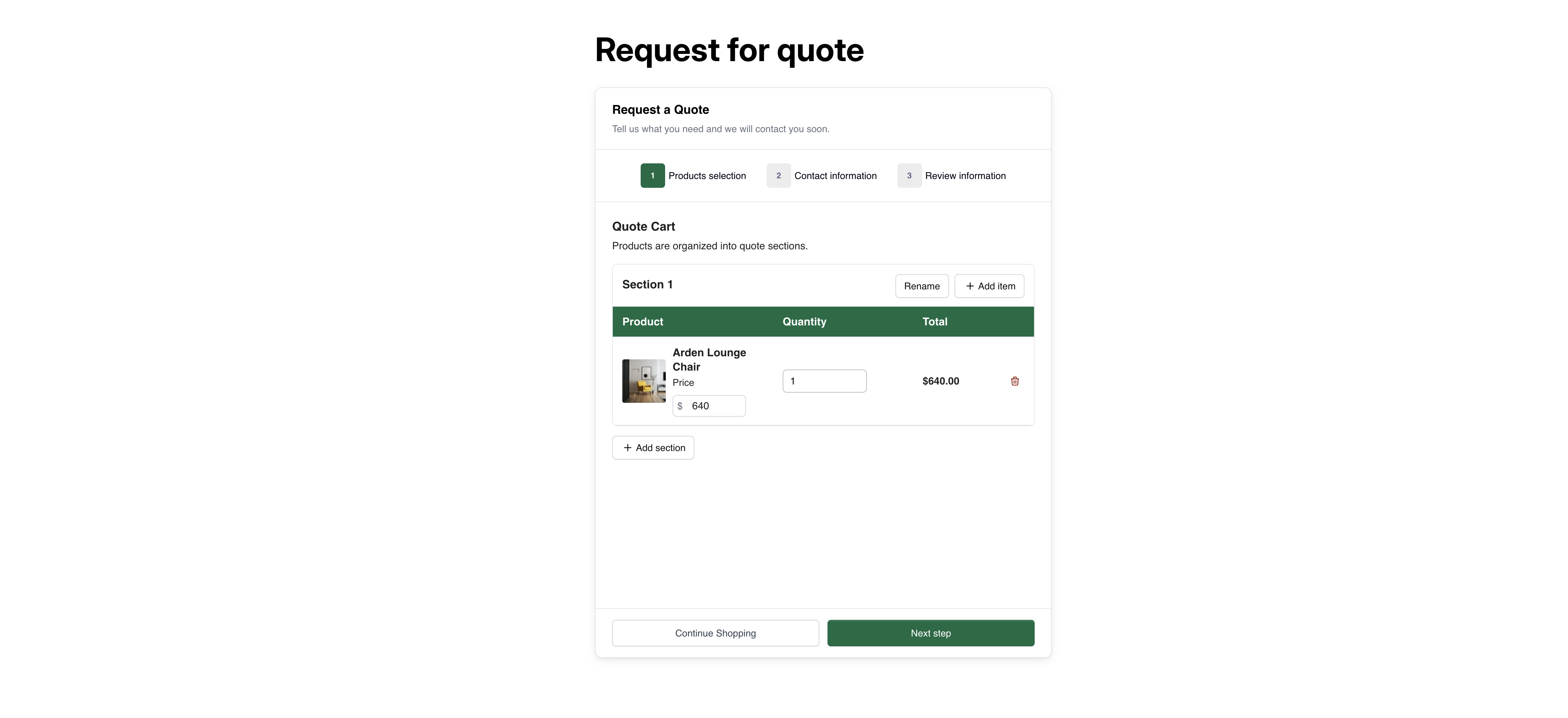
The quote cart page at `/pages/request-for-quote` can now run as a **three-step wizard** rather than one long form. The steps are **Products selection**, **Contact information** and **Review information**, so a customer confirms what they are asking for before it is sent.

You choose between the two layouts with **Quote form appearance** on the **Quote cart page** tab: **Multiple step** or **Single page**.

Two more settings on that tab are worth knowing:

* **Enable Quote Sections** — "Lets customers group the products in their quote cart into named sections." Useful when one request covers several rooms, sites or departments.
* **Enable Quote Cart Widget** — "Shows a floating button on your storefront so customers can open their quote cart from any page."

See [Request a Quote page](/sa-request-a-quote/storefront-quote-pages/request-a-quote-page.md).

<figure><img src="https://2993310686-files.gitbook.io/~/files/v0/b/gitbook-x-prod.appspot.com/o/spaces%2FIvNtDAMNVIdy5nl9kiOU%2Fuploads%2Fgit-blob-92dfebca1c879e2506fa466c94e74f3814f6dea6%2FScreenshot%202026-09-30%20at%2000-48-47.png?alt=media" alt="The storefront quote cart page, showing the three-step wizard and the quote cart beneath it"><figcaption><p>The quote cart as a customer meets it.</p></figcaption></figure>

## Next steps

* [Quickstart](/sa-request-a-quote/getting-started/quickstart.md) — set the app up from scratch
* [Quote form overview](/sa-request-a-quote/quote-form/overview.md) — build your quote form in the new editor
* [Translate storefront text](/sa-request-a-quote/settings/translations.md) — translate your storefront and emails


---

# Agent Instructions
This documentation is published with GitBook. GitBook is the documentation platform designed so that both humans and AI agents can read, navigate, and reason over technical content effectively. Learn more at gitbook.com.

## Querying This Documentation
If you need additional information that is not directly available in this page, you can query the documentation by asking a question.

Perform an HTTP GET request on the following URL with the `ask` and `goal` query parameters:

```
GET https://docs.samita.io/sa-request-a-quote/whats-new.md?ask=<question>&goal=<user_goal>
```

`ask` is the immediate question: it should be specific, self-contained, and written in natural language.
`goal` is what the user is ultimately trying to achieve, the reason they need the answer. Sharing it helps GitBook give you a better, more relevant answer. A goal is most helpful when it describes the outcome the user wants rather than restating the question. For example, with `ask=how do I create an API token`, a goal like `automate deployments from our CI pipeline` lets GitBook tailor the answer to that use case.

The response will contain a direct answer to the question and relevant excerpts and sources from the documentation.

Use this mechanism when the answer is not explicitly present in the current page, you need clarification or additional context, or you want to retrieve related documentation sections.