> For the complete documentation index, see [llms.txt](https://docs.samita.io/llms.txt). Markdown versions of documentation pages are available by appending `.md` to page URLs; this page is available as [Markdown](https://docs.samita.io/sami-b2b-onboarding/automation/tax-id-checks.md).
# Tax ID checks
Check buyers' tax IDs when they apply, with the EU's VIES registry or a number-format check, and choose what a failed check does.
Sami B2B Onboarding can check the tax ID on each application as soon as it's submitted. EU VAT numbers are looked up in VIES, the EU's own VAT registry. In some other countries, the app checks that the number has the right format. You choose what happens when a check fails, and your rules can use the result.
{% hint style="info" %}
**Before you start:** your application form needs a **Tax ID** question and a **Country** question. The default **Wholesale application** form has both: **Tax registration ID**, and **Country** in the shipping address. The check reads the country from the form's first **Country** question.
{% endhint %}
## What gets checked
The country the buyer chooses decides which check runs. You don't pick it.
| Check | Countries | What it tells you |
| -------------------------------------- | -------------------------------------------------------------------------------------------------------------------------------------------------------------------------------------------------------------------------------------------------- | --------------------------------------------------------------------------------------------------------- |
| **Registry**: EU VAT looked up in VIES | Austria, Belgium, Bulgaria, Croatia, Cyprus, Czechia, Denmark, Estonia, Finland, France, Germany, Greece, Hungary, Ireland, Italy, Latvia, Lithuania, Luxembourg, Malta, Netherlands, Poland, Portugal, Romania, Slovakia, Slovenia, Spain, Sweden | Whether VIES holds the number, and the business name it's registered to. |
| **Format**: number format only | Australia, India, Indonesia, Malaysia, New Zealand, Philippines, Singapore, Thailand, United Kingdom, United States, Vietnam | Whether the number has the right length and shape for that country. It doesn't prove the business exists. |
| None | Every other country | Nothing. The tax ID is collected but not checked. |
Buyers can type an EU VAT number with or without its country prefix, for example `DE123456789` or `123456789`. Spaces, dots and dashes are ignored.
The card's registry list also names Northern Ireland. The form's country list has no separate entry for it, so a buyer there chooses **United Kingdom** and gets the United Kingdom format check.
## Turn on the check
{% stepper %}
{% step %}
### Open the Tax ID validation card
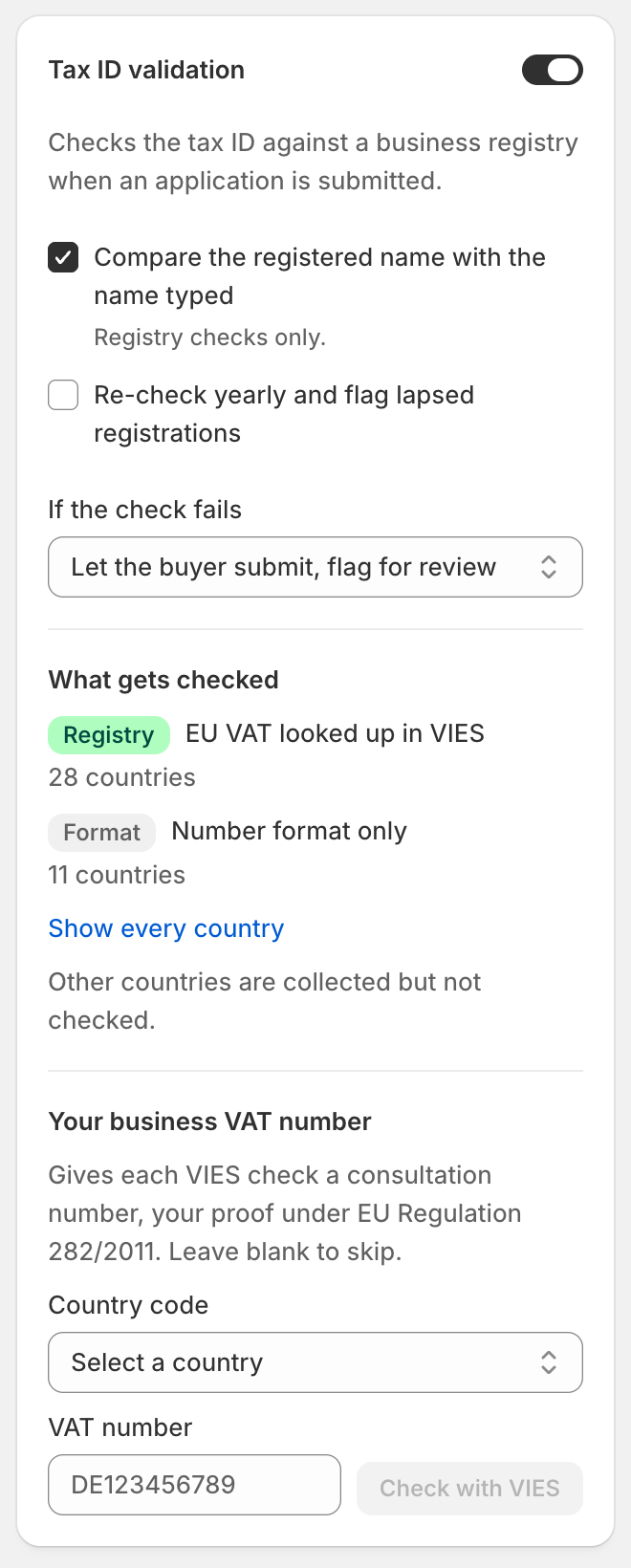
In the Shopify admin, open **Sami B2B Onboarding**, click **Automation** in the app menu, then click the **Rules** tab. The **Tax ID validation** card is in the right column.
Click **Show every country** under **What gets checked** to see the full country lists.
{% endstep %}
{% step %}
### Turn it on
Turn on the switch beside **Tax ID validation**. More settings appear:
* **Compare the registered name with the name typed**: on by default. For registry checks only, the app compares the name VIES returns with the company name on the application.
* **Re-check yearly and flag lapsed registrations**: off by default. See [Yearly re-check](#yearly-re-check) below.
{% endstep %}
{% step %}
### Choose what a failed check does
Under **If the check fails**, pick one of these:
| Option | What happens |
| --------------------------------------------------- | ------------------------------------------------------------------------------------------------------------------------------------------------------------------------------------------------------------------------------------------------------ |
| **Let the buyer submit, flag for review** (default) | The application arrives as usual. The failed check shows on it for your reviewer. |
| **Block the submit and show the error** | When the buyer submits, the app checks the number's format. A wrong format stops the submit, and a message under the Tax ID box tells the buyer the tax ID doesn't look valid for their country. The VIES lookup still runs after a successful submit. |
| **Reject automatically and email the buyer** | An application whose number fails is rejected straight away, and your rules don't run. If the decline email is on, it tells the buyer the tax ID couldn't be validated. |
**Block the submit and show the error** checks format only. EU numbers are checked against their country's VAT number shape at that moment, since a slow or busy registry must never hold up a buyer's submit.
{% endstep %}
{% step %}
### Add your own VAT number (optional, EU)
Under **Your business VAT number**, choose your **Country code** and type your **VAT number**. Then click **Check with VIES** to test it before you save:
* **Registered to** followed by your business name, or **VIES has this number**: the number is right.
* **VIES doesn't have this number**: check for a typo.
* **VIES didn't answer. Your number is saved either way.**: VIES is busy. Try again later.
With your number set, each VIES lookup that finds the buyer's number returns a consultation number. That's your proof of the check under EU Regulation 282/2011. Leave both boxes blank to skip it. If you fill in one, you must fill in the other.
{% endstep %}
{% step %}
### Save
Click **Save** in the save bar. You see **Automation saved**. From now on, every new application, and every answer to a request for information, is checked.
{% endstep %}
{% endstepper %}
Turn on Tax ID validation, then choose what a failed check does.
## See the result on an application
Each check is recorded on the application:
* On the application's page, the **Timeline** shows **Tax ID checked: valid**, **Tax ID checked: not valid** or **Tax ID not checked: the registry couldn't be reached**. The line under it says how it was checked, such as **Checked with VIES** or **Checked the format for US**. It also shows the registered name and the consultation number when VIES returns them. If the names differ, it says **Not the name on the application**.
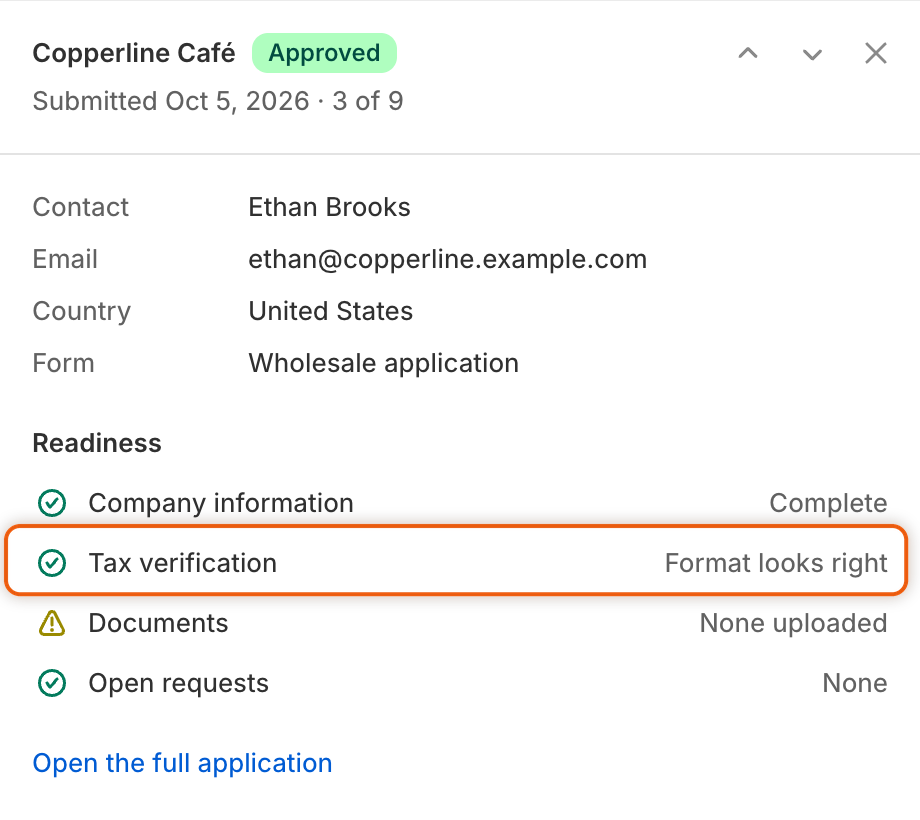
* On **Companies › Applications**, click the eye icon (**Quick review**) on the application's row. Under **Readiness**, the **Tax verification** row reads **Verified with VIES**, **Format looks right**, **Not valid** or **Registry unavailable**. If the registered name doesn't match, it shows **Registered to** and the name VIES holds. When the application has a tax ID but no check ran, because the check is off or the country isn't checked, the row reads **Not verified**.
A name that doesn't match doesn't fail the check. It's there for your reviewer to look at.
The Readiness list shows the result of the tax ID check for each application.
{% hint style="warning" %}
If VIES can't be reached, there's no answer, and the app never treats that as a failure. The application isn't rejected or blocked, and **Tax ID is valid** doesn't match it in your rules, so a rule that needs a valid tax ID leaves it for your team.
{% endhint %}
## Use the check in your rules
In a rule, the **Tax ID** condition with **is valid** matches only when the number passed:
* With the check on, it uses the check's answer: VIES for EU countries, the format check for the countries listed above.
* With the check off, it tests the number's format for the buyer's country, or the VAT number shape for an EU country.
* For a country that isn't checked, **is valid** never matches.
For example, with the check on, "When **Country** **is** **Germany** and **Tax ID** **is valid**, then **Approve automatically**" approves German buyers whose VAT number VIES confirms. See [Rules that decide applications](/sami-b2b-onboarding/automation/rules.md).
## Yearly re-check
With **Re-check yearly and flag lapsed registrations** on, the app looks up your companies' EU VAT numbers in VIES again, a year after their last check. Companies removed from B2B are skipped. It works through up to 25 companies a day.
If VIES no longer has the number, the company's page shows a **Tax registration no longer valid** banner. The banner tells you to ask the buyer for their current VAT number and update it on the company's location in Shopify. If VIES can't be reached, the company is tried again the next day. Format-only countries aren't re-checked, because the number's shape doesn't change.
## Next steps
* [Rules that decide applications](/sami-b2b-onboarding/automation/rules.md) — approve buyers whose tax ID is valid.
* [Approval presets](/sami-b2b-onboarding/automation/approval-presets.md) — set the tax setting each approved company gets.
* [Review an application](/sami-b2b-onboarding/reviewing-applications/review-an-application.md) — handle applications with a failed or unanswered check.
---
# Agent Instructions
This documentation is published with GitBook. GitBook is the documentation platform designed so that both humans and AI agents can read, navigate, and reason over technical content effectively. Learn more at gitbook.com.
## Querying This Documentation
If you need additional information that is not directly available in this page, you can query the documentation dynamically by asking a question.
Perform an HTTP GET request on the current page URL with the `ask` query parameter, and the optional `goal` query parameter:
```
GET https://docs.samita.io/sami-b2b-onboarding/automation/tax-id-checks.md?ask=&goal=
```
`ask` is the immediate question: it should be specific, self-contained, and written in natural language.
`goal` is optional and describes the broader end goal you are ultimately trying to accomplish on behalf of the user. GitBook uses it to tailor the answer towards what is most useful for that goal.
The response will contain a direct answer to the question and relevant excerpts and sources from the documentation.
Use this mechanism when the answer is not explicitly present in the current page, you need clarification or additional context, or you want to retrieve related documentation sections.