> For the complete documentation index, see [llms.txt](https://docs.samita.io/llms.txt). Markdown versions of documentation pages are available by appending `.md` to page URLs; this page is available as [Markdown](https://docs.samita.io/sami-b2b-onboarding/companies/documents.md).
# Documents
Find, download and export the business licenses, tax certificates and other files buyers upload with their applications.
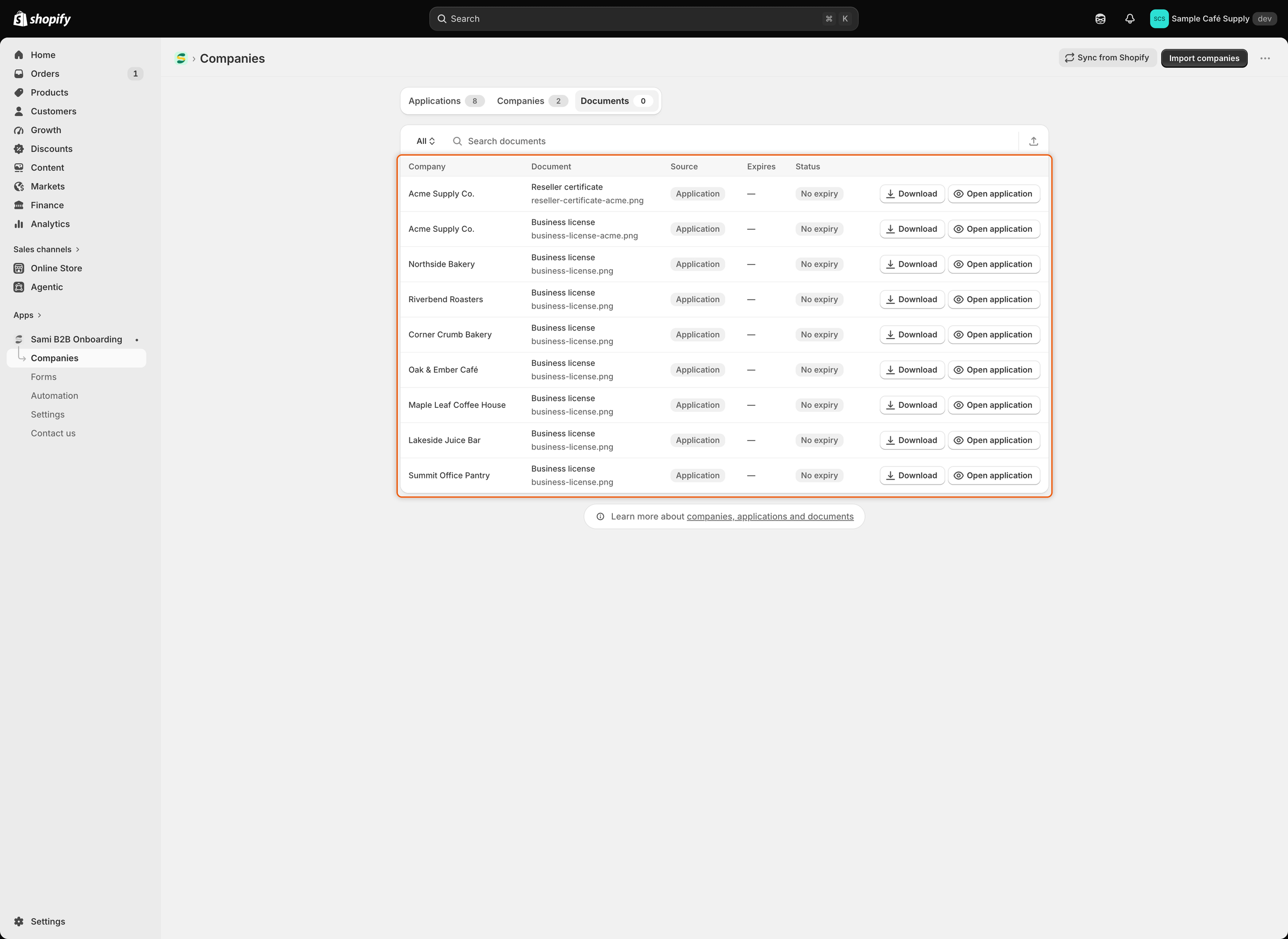
The **Documents** tab in Sami B2B Onboarding lists every file buyers upload through a document field on your application form, from every application, whatever its status. Use it to find a reseller certificate quickly, download it, or export the list for your records.
## How documents get there
A file becomes a document when the buyer uploads it through one of the four ready-made document fields. In the form builder, add them from the **Document fields** group:
* **Business license**
* **Tax certificate**
* **Tax registration**
* **Reseller certificate**
Each upload is listed under the field's document type. A plain **File upload** field doesn't add anything to **Documents**. Its file stays with the application's answers. To add document fields to your form, see [Build your form](/sami-b2b-onboarding/application-forms/build-your-form.md).
When a buyer uploads a file with a different name after you [request more information](/sami-b2b-onboarding/reviewing-applications/request-more-information.md), it's added as another document. The earlier one stays.
## Open the Documents tab
In the Shopify admin, open **Sami B2B Onboarding**, click **Companies** in the app menu, then click the **Documents** tab.
Each row shows the company, the document type with its file name, and buttons to download the file or open the application.
| Column | What it shows |
| ------------ | ------------------------------------------------------- |
| **Company** | The company the document belongs to. |
| **Document** | The document type, with the file name under it. |
| **Source** | **Application** for files uploaded with an application. |
| **Expires** | The expiry date, or a dash when there is none. |
| **Status** | **No expiry** when the document has no expiry date. |
The application form doesn't ask buyers for issue or expiry dates, so documents uploaded through it show a dash under **Expires** and **No expiry** under **Status**.
## Find a document
Type in **Search documents** to search by document type, file name or company name.
The view button at the start of the search field (**All** to start with) also offers **Needs attention**, for documents that expire within 30 days or have expired. Files uploaded through the form have no expiry date, so that list stays empty.
## Download a file
{% stepper %}
{% step %}
### Find the document
Search for the company or the document type.
{% endstep %}
{% step %}
### Click Download
Click **Download** on the document's row. The app makes a private download link and opens it in a new browser tab, where the file downloads. The link works for five minutes. To download the file again later, click **Download** again.
{% endstep %}
{% endstepper %}
When a document holds several files, **Download** on this tab gets the first one. To download each file, open the application and use its **Attachments** card.
If a banner says "That file couldn't be opened.", try again. If it keeps happening, the file may no longer be stored: ask the buyer for a new copy.
## Open the application
Click **Open application** on a row to see the application the file came with, including the buyer's answers and the decision.
A company's own page also lists its files in an **Attachments** card, with a button to download each file. See [Manage a company](/sami-b2b-onboarding/companies/manage-a-company.md).
## Export the list
{% stepper %}
{% step %}
### Open the Export dialog
On the **Documents** tab, click the **Export** icon beside the search field.
{% endstep %}
{% step %}
### Choose the rows and the format
Choose **Current page**, **All documents** or **Matching your search**. Then choose **CSV for Excel, Numbers, or other spreadsheet programs** or **Plain CSV file**.
{% endstep %}
{% step %}
### Export
Click **Export documents**. The CSV file downloads with the company, document type, source, issue date and expiry date of each document.
{% endstep %}
{% endstepper %}
## Next steps
* [Build your form](/sami-b2b-onboarding/application-forms/build-your-form.md) — add document fields to your application form.
* [Review an application](/sami-b2b-onboarding/reviewing-applications/review-an-application.md) — check a buyer's documents before you decide.
* [Manage a company](/sami-b2b-onboarding/companies/manage-a-company.md) — see a company's files beside its orders and terms.
---
# Agent Instructions
This documentation is published with GitBook. GitBook is the documentation platform designed so that both humans and AI agents can read, navigate, and reason over technical content effectively. Learn more at gitbook.com.
## Querying This Documentation
If you need additional information that is not directly available in this page, you can query the documentation dynamically by asking a question.
Perform an HTTP GET request on the current page URL with the `ask` query parameter, and the optional `goal` query parameter:
```
GET https://docs.samita.io/sami-b2b-onboarding/companies/documents.md?ask=&goal=
```
`ask` is the immediate question: it should be specific, self-contained, and written in natural language.
`goal` is optional and describes the broader end goal you are ultimately trying to accomplish on behalf of the user. GitBook uses it to tailor the answer towards what is most useful for that goal.
The response will contain a direct answer to the question and relevant excerpts and sources from the documentation.
Use this mechanism when the answer is not explicitly present in the current page, you need clarification or additional context, or you want to retrieve related documentation sections.