> For the complete documentation index, see [llms.txt](https://docs.samita.io/llms.txt). Markdown versions of documentation pages are available by appending `.md` to page URLs; this page is available as [Markdown](https://docs.samita.io/sami-b2b-onboarding/customer-accounts/company-application-page.md).

# Company application page

Add a page to your customer accounts where signed-in buyers open your application form and follow their application.

The Company application page is a page in your customer accounts made by Sami B2B Onboarding. A buyer who hasn't applied yet finds a button to your application form there. A buyer who has applied sees where their application stands. A buyer who already buys for a company is sent on to their company.

The page doesn't show the form itself. Its button opens the form's own page on your store, so buyers get the form exactly as you designed it. A buyer signed in to their account stays signed in on your store, so the application is filed under their account.

{% hint style="info" %}
Before you start, make sure your store uses Shopify's customer accounts (Shopify admin › **Settings › Customer accounts**), and that at least one application form is published. See [Create and publish a form](/sami-b2b-onboarding/application-forms/create-and-publish-a-form.md).
{% endhint %}

## Add the page to customer accounts

{% stepper %}
{% step %}

### Choose which form the page opens

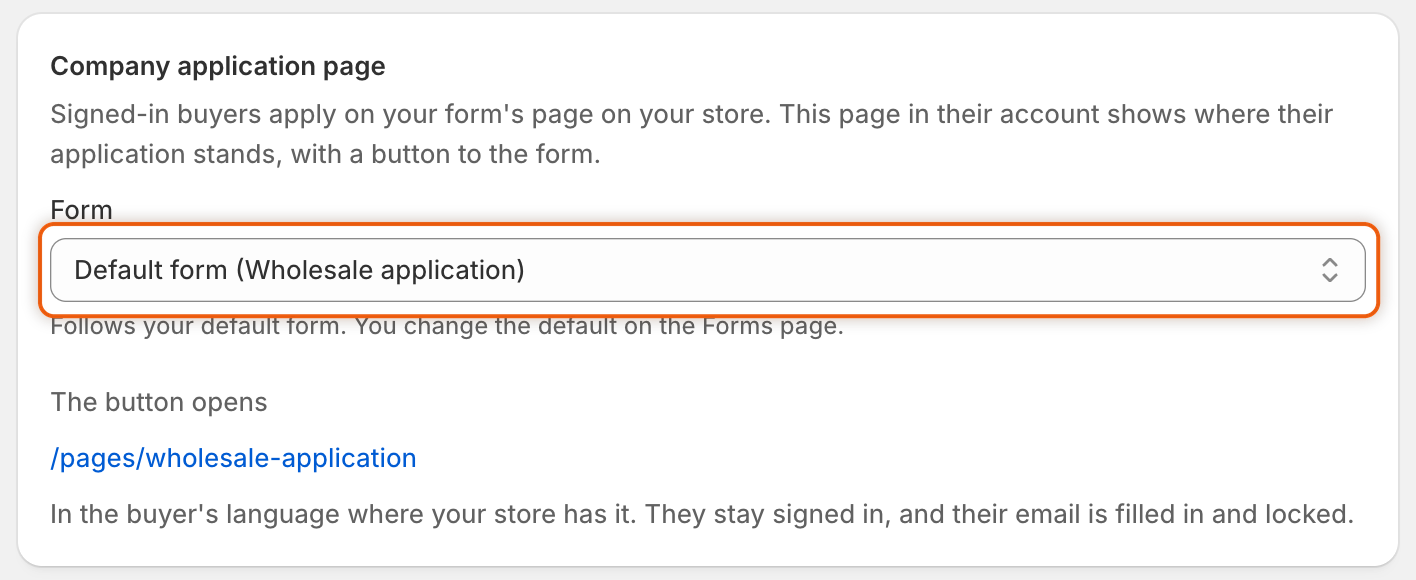
In the app, go to **Settings › Customer accounts**. In the **Company application page** card, open **Form**:

* **Default form (Wholesale application)** follows your default form. If you later make another form the default on the **Forms** page, the button follows it.
* Pick a form by name to always open that form, even if you change your default. Only published forms are listed.

Under the box, **The button opens** shows the address of that form's page on your store. Click it to check the page. If you changed **Form**, click **Save** in the save bar.

<figure><img src="https://3844812229-files.gitbook.io/~/files/v0/b/gitbook-x-prod.appspot.com/o/spaces%2FRrf4pQPgjvb3GW7IN3Ci%2Fuploads%2Fgit-blob-9cc3a4f70a1b3a606fedf796cd6382f8982d79c6%2Fscreenshot-accounts-application-page-form-select.png?alt=media" alt="The Company application page card with the Form box set to Default form (Wholesale application) and the form page&#x27;s address below it."><figcaption><p>The button on the account page opens this address, in the buyer's language where your store has it.</p></figcaption></figure>
{% endstep %}

{% step %}

### Open the checkout and accounts editor

In the **Extensions** card above, click **Add blocks in Customer accounts**. Shopify opens its checkout and accounts editor, at the list of app blocks.
{% endstep %}

{% step %}

### Add the Company application page

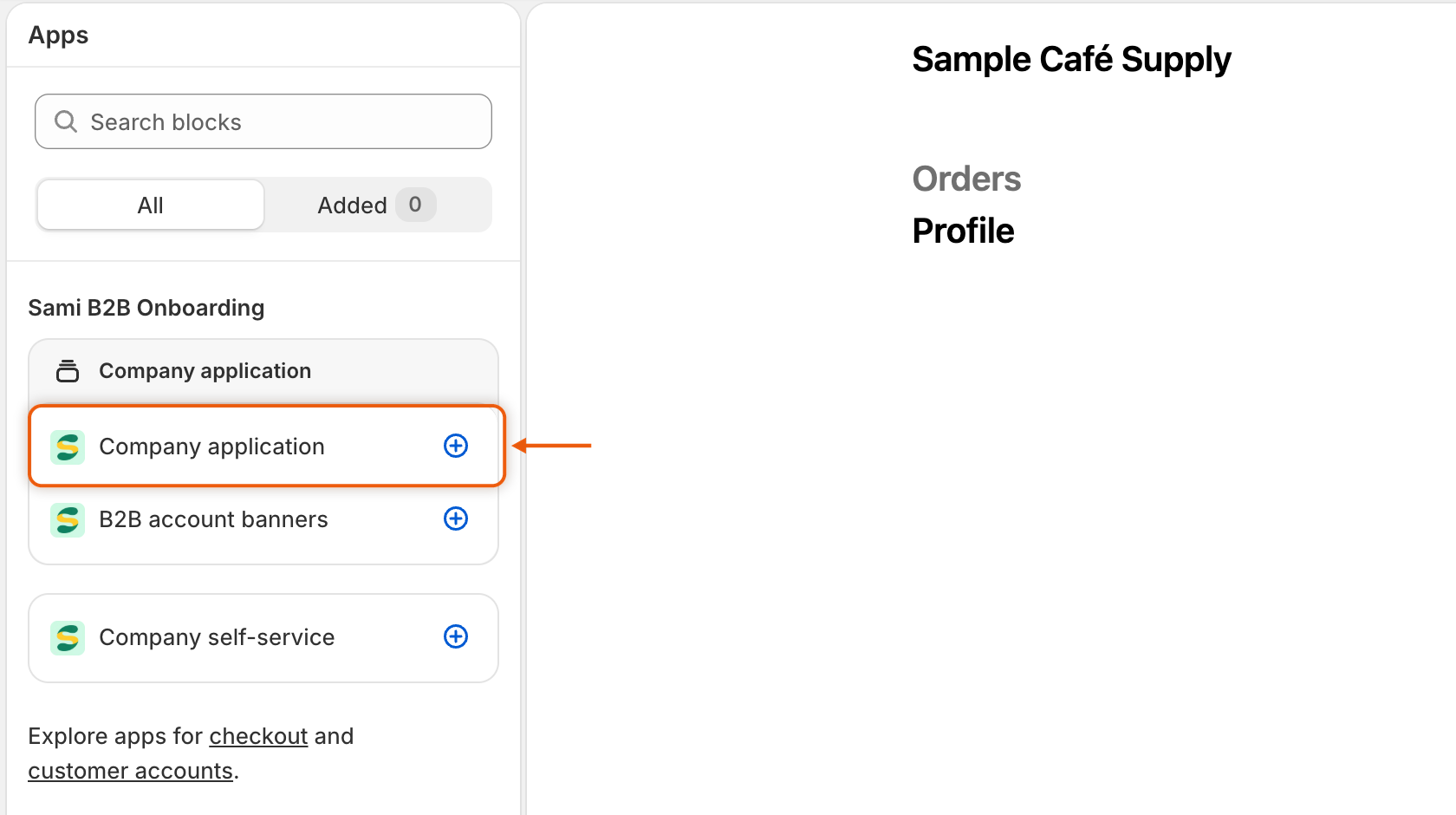
In the editor's list of app blocks, under **Sami B2B Onboarding**, click **+** beside **Company application** and choose **Accounts**. The new page opens in the editor, with a note that customers can't reach it until it's in a menu.

On the note, click **Add to menu**. If your store has no customer account menu yet, click **Create menu** instead. Shopify asks you to save your changes first: click **Save**. In **Edit menu**, the page is listed as **Company application**. Click **Save** to add the link, so buyers can open the page from their account. If you skip the note, save your changes in the editor and add the link later in Shopify admin under **Content › Menus**.

<figure><img src="https://3844812229-files.gitbook.io/~/files/v0/b/gitbook-x-prod.appspot.com/o/spaces%2FRrf4pQPgjvb3GW7IN3Ci%2Fuploads%2Fgit-blob-14c268b420453abb36ae26cf5f62c7419d420d1c%2Fscreenshot-shopify-accounts-editor-company-application.png?alt=media" alt="Shopify&#x27;s checkout and accounts editor with the app&#x27;s blocks listed, including Company application."><figcaption><p>Click + beside Company application, then add the new page to the customer account menu.</p></figcaption></figure>
{% endstep %}

{% step %}

### Check the status in the app

Go back to the app, open **Settings › Customer accounts** and click **Refresh statuses** (the circular arrow) in the **Extensions** card. **Company application page** now shows **Active**.
{% endstep %}

{% step %}

### See it as a buyer

Sign in to your store's customer account with a test email that hasn't applied and isn't a company contact. Open the account menu and choose the page you linked. You see the heading of your form, the message "Our application form is on our store. You stay signed in, and we'll link your application to this account." and an **Open the application form** button.
{% endstep %}
{% endstepper %}

## What buyers see

The page changes with the buyer's situation.

| The buyer…                                                  | Page heading                                                                                                           | What the page shows                                                                                                                                                                                                                   |
| ----------------------------------------------------------- | ---------------------------------------------------------------------------------------------------------------------- | ------------------------------------------------------------------------------------------------------------------------------------------------------------------------------------------------------------------------------------- |
| Hasn't applied yet                                          | Your form's heading and description, or "Apply for a business account" when the form's header is hidden in the builder | The message above and an **Open the application form** button.                                                                                                                                                                        |
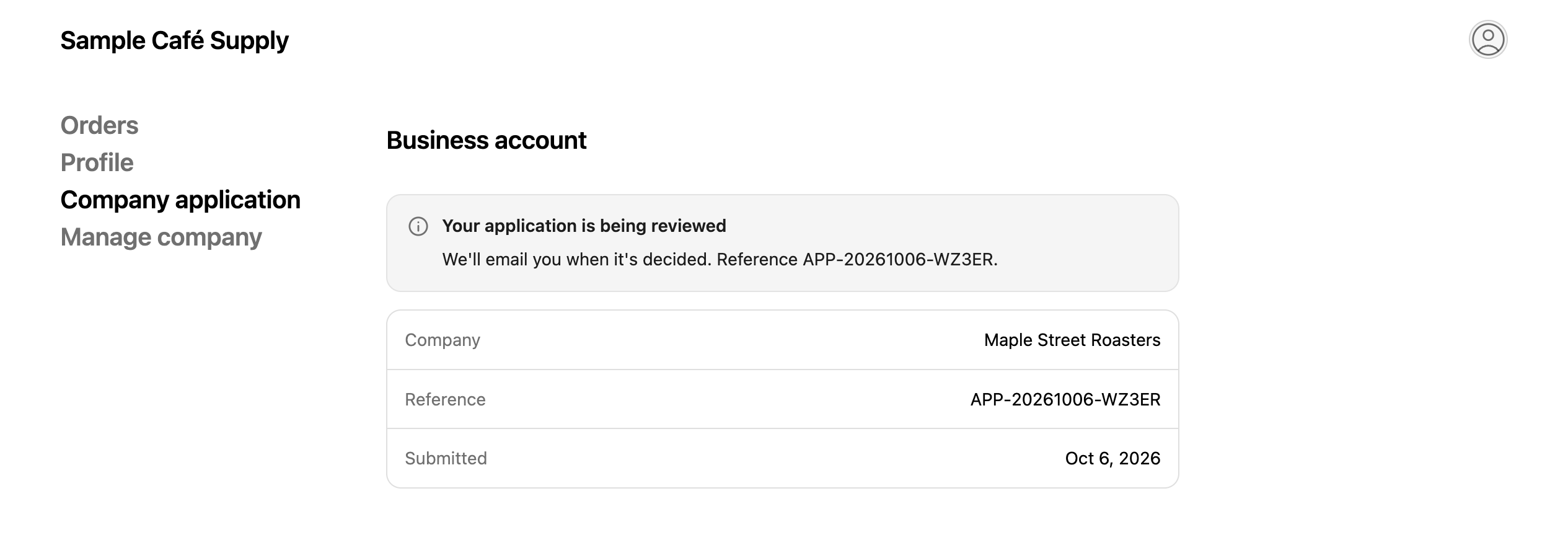
| Has applied, under review                                   | "Business account"                                                                                                     | "Your application is being reviewed" with "We'll email you when it's decided. Reference …".                                                                                                                                           |
| Was asked for more information                              | "Business account"                                                                                                     | "We need a little more from you" with what you asked for ("Please send us: …"), your message, or "Please check your email for what we still need.", and an **Update your application** button.                                        |
| Was rejected, with **Let them update it and send it again** | "Business account"                                                                                                     | "Your application wasn't approved", your message or "You can update your application and send it again.", and an **Update your application** button.                                                                                  |
| Was rejected, application closed                            | "Business account"                                                                                                     | "Your application wasn't approved" with your message or "Get in touch if you think this was a mistake."                                                                                                                               |
| Sent an update                                              | "Business account"                                                                                                     | "Thanks — we're reviewing your update" with "We'll email you when it's decided. Reference …".                                                                                                                                         |
| Is approved                                                 | "Business account"                                                                                                     | "Your business account is open" with "You can now order at your business prices."                                                                                                                                                     |
| Already buys for a company                                  | "Business account"                                                                                                     | "Your business account is open" and "You already buy on behalf of Acme Supply Co.", with a **Manage company** button that opens the [Company self-service page](/sami-b2b-onboarding/customer-accounts/company-self-service-page.md). |

Under the status of any application, a box lists the company name, the reference and the date the buyer submitted. An application a buyer sent as a guest shows here once they sign in with the same email address.

**Update your application** opens your form page with the buyer's earlier answers filled in and what you asked for at the top. See [Request more information](/sami-b2b-onboarding/reviewing-applications/request-more-information.md).

If no application form is published, or the form has no page on your store, the page says "The application form isn't available right now. Please contact the store." When no form is published, the **Company application page** card in Settings warns you too.

<figure><img src="https://3844812229-files.gitbook.io/~/files/v0/b/gitbook-x-prod.appspot.com/o/spaces%2FRrf4pQPgjvb3GW7IN3Ci%2Fuploads%2Fgit-blob-81b96ce4746165b8c22c0f8310310eb83c674e5c%2Fscreenshot-accounts-application-page-under-review.png?alt=media" alt="The Business account page in a customer account, showing that the application is being reviewed, with the company name, reference and submitted date below."><figcaption><p>Once a buyer has applied, the page shows where the application stands and the reference to quote if they contact you.</p></figcaption></figure>

## What happens on the form page

When the buyer clicks **Open the application form**, your form page opens in their language where your store has it. Because they are signed in:

* The form says "Signed in as … We'll link this application to your account."
* Their email is filled in from their account and can't be changed. The form shows no captcha.
* After they submit, the thank-you screen has a **Go to your account** button, and the page in their account now shows the application.

A signed-in buyer who has already applied, or who already buys for a company, sees where they stand on the form page instead of a blank form. See [After the buyer submits](/sami-b2b-onboarding/application-forms/after-the-buyer-submits.md#what-signed-in-customers-see).

## Change the wording

The page's sentences and buttons are in **Settings › Translate**. Open your default language (**Edit**) to reword the English, or another language (**Translate**) to translate it. Choose **Storefront messages** and find the **Customer account pages** card. This page's rows include **Application page heading**, **Application page message**, **Open application form button** and **Application form unavailable**. The rows starting with "Status heading" and "Status message" are shared with the [account banners](/sami-b2b-onboarding/customer-accounts/account-banners.md).

For a buyer who hasn't applied yet, the page heading is your form's own heading. Change it in the form builder. See [Translate](/sami-b2b-onboarding/settings/translate.md).

## Next steps

* [Account banners](/sami-b2b-onboarding/customer-accounts/account-banners.md) — invite buyers to apply from their Orders and Profile pages.
* [Company self-service page](/sami-b2b-onboarding/customer-accounts/company-self-service-page.md) — add the page that **Manage company** opens.
* [Ask buyers to log in before applying](/sami-b2b-onboarding/store-access/log-in-before-applying.md) — accept applications from signed-in customers only.


---

# Agent Instructions
This documentation is published with GitBook. GitBook is the documentation platform designed so that both humans and AI agents can read, navigate, and reason over technical content effectively. Learn more at gitbook.com.

## Querying This Documentation
If you need additional information that is not directly available in this page, you can query the documentation dynamically by asking a question.

Perform an HTTP GET request on the current page URL with the `ask` query parameter, and the optional `goal` query parameter:

```
GET https://docs.samita.io/sami-b2b-onboarding/customer-accounts/company-application-page.md?ask=<question>&goal=<endgoal>
```

`ask` is the immediate question: it should be specific, self-contained, and written in natural language.
`goal` is optional and describes the broader end goal you are ultimately trying to accomplish on behalf of the user. GitBook uses it to tailor the answer towards what is most useful for that goal.

The response will contain a direct answer to the question and relevant excerpts and sources from the documentation.

Use this mechanism when the answer is not explicitly present in the current page, you need clarification or additional context, or you want to retrieve related documentation sections.