> For the complete documentation index, see [llms.txt](https://docs.samita.io/llms.txt). Markdown versions of documentation pages are available by appending `.md` to page URLs; this page is available as [Markdown](https://docs.samita.io/sami-b2b-onboarding/integrations/captcha.md).

# Captcha (reCAPTCHA, hCaptcha)

Add a Google reCAPTCHA or hCaptcha check to a form, so bots can't send applications.

A captcha asks a guest to tick a box, such as "I'm not a robot", before the form can be sent. It keeps bots from filling your review queue with fake applications. Sami B2B Onboarding supports two providers: Google reCAPTCHA v2 with the "I'm not a robot" checkbox, and hCaptcha.

The store has one pair of keys from one provider. Each form turns the captcha on or off.

{% hint style="info" %}
Buyers who are signed in to their customer account never see the captcha. They already proved who they are when they signed in.
{% endhint %}

## Get your keys

{% tabs %}
{% tab title="Google reCAPTCHA" %}

1. Open the [reCAPTCHA admin console](https://www.google.com/recaptcha/admin/create) and sign in with your Google account.
2. Give the site a label, such as your store's name.
3. For the type, choose **Challenge (v2)**, then **"I'm not a robot" Checkbox**. Keys of another type, such as v3, don't work with the app.
4. Under **Domains**, add every domain your store is reached on: your own domain, such as `example.com`, and your `myshopify.com` domain.
5. Submit the form, then copy the **site key** and the **secret key**.
   {% endtab %}

{% tab title="hCaptcha" %}

1. Open the [hCaptcha dashboard](https://dashboard.hcaptcha.com/sites) and sign in.
2. Under **Sites**, add a new site.
3. Add every domain your store is reached on as a hostname: your own domain, such as `example.com`, and your `myshopify.com` domain. Save the site.
4. Copy the site key and the secret key the dashboard gives you.
   {% endtab %}
   {% endtabs %}

## Add the keys to the app

{% stepper %}
{% step %}

### Open the Captcha panel

Go to **Forms** and click **Edit** beside the form. In the rail on the left, click **Integrations**. Under **Connected apps**, click **Set up** on the **Captcha** row.

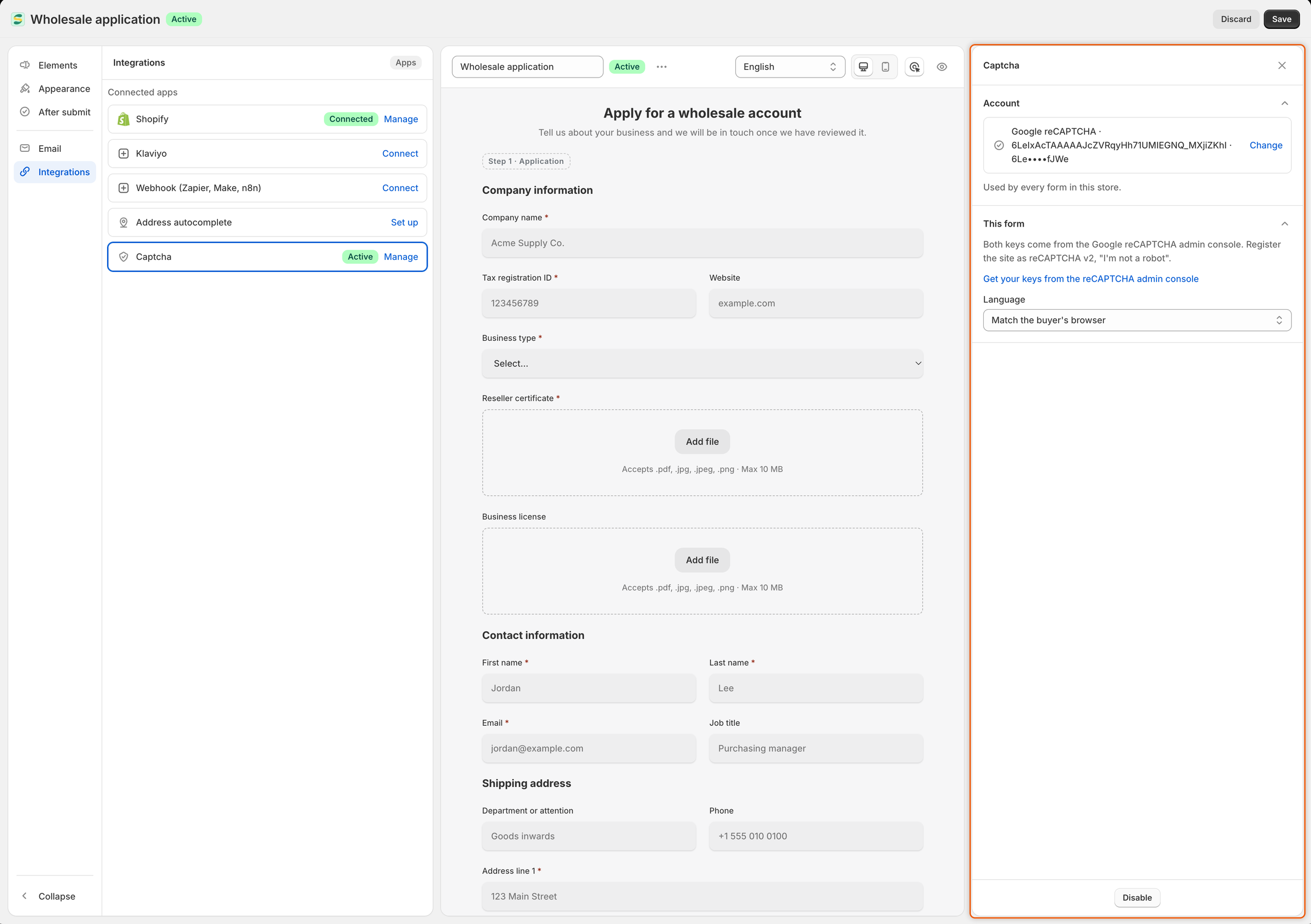
The **Captcha** panel opens with two sections: **Account** and **This form**.
{% endstep %}

{% step %}

### Fill in the keys

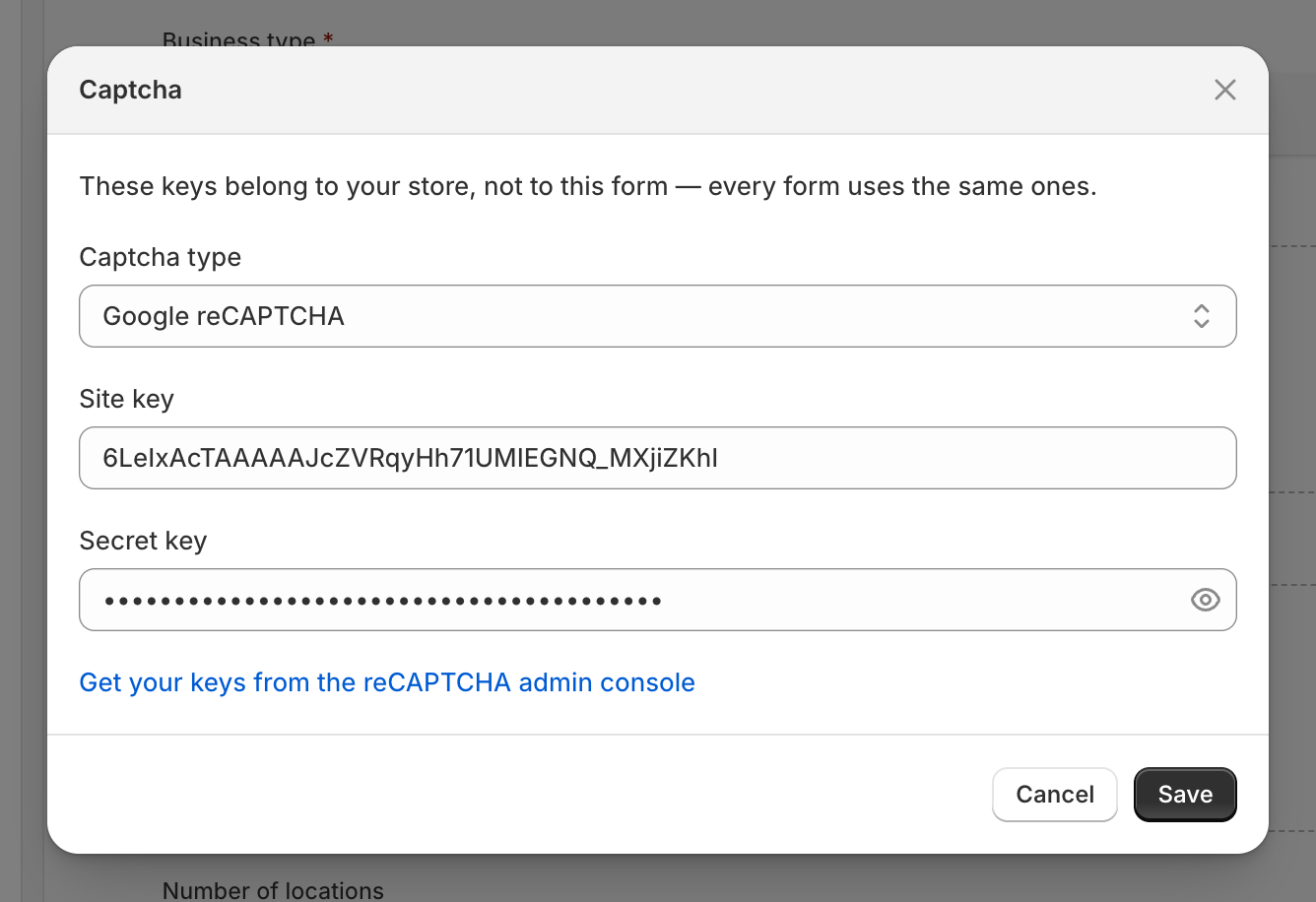
Under **Account**, click **Set up**. In the **Captcha** dialog:

1. In **Captcha type**, choose **Google reCAPTCHA** or **hCaptcha**, to match where your keys come from.
2. Paste the site key into **Site key**.
3. Paste the secret key into **Secret key**.

The link under the boxes, **Get your keys from the reCAPTCHA admin console** or **Get your keys from the hCaptcha dashboard**, follows the type you picked.

<figure><img src="https://3844812229-files.gitbook.io/~/files/v0/b/gitbook-x-prod.appspot.com/o/spaces%2FRrf4pQPgjvb3GW7IN3Ci%2Fuploads%2Fgit-blob-977d3fd61fd388686239196c2e5f0bc8a054777a%2Fscreenshot-integrations-captcha-keys-dialog.png?alt=media" alt="The Captcha dialog with Google reCAPTCHA chosen, a site key, a hidden secret key and a link to the reCAPTCHA admin console."><figcaption><p>Pick the provider that issued your keys, then paste both keys.</p></figcaption></figure>
{% endstep %}

{% step %}

### Save the keys

Click **Save**. You see **Keys saved**. The **Account** row shows the captcha type, the site key and the start and end of the secret key.

If a box is empty, it asks for the key, for example **Enter the site key from your account.**
{% endstep %}
{% endstepper %}

## Turn it on for the form

{% stepper %}
{% step %}

### Choose the language

Under **This form**, pick the **Language** of the captcha. **Match the buyer's browser** is the default. Pick a language to show the captcha in that language for every buyer.
{% endstep %}

{% step %}

### Enable it

At the bottom of the panel, click **Enable**. The button changes to **Disable**, and the **Captcha** row in **Connected apps** shows **Active**. If the keys aren't saved yet, a banner reads **Add both the site key and the secret key first.**

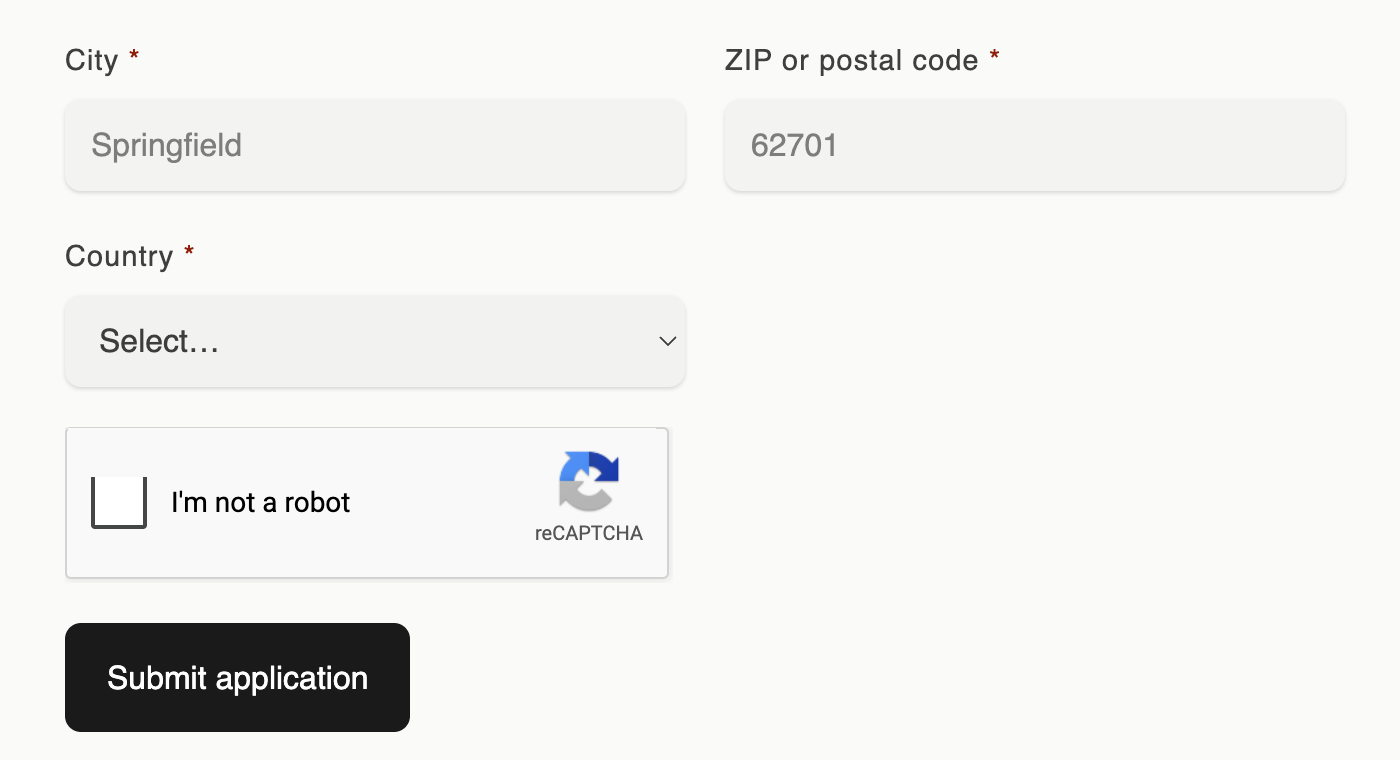
The preview now shows a stand-in captcha box, **I'm not a robot** or **I am human**, above the buttons on the form's last page. The real captcha only loads on your storefront.

<figure><img src="https://3844812229-files.gitbook.io/~/files/v0/b/gitbook-x-prod.appspot.com/o/spaces%2FRrf4pQPgjvb3GW7IN3Ci%2Fuploads%2Fgit-blob-9b5f37818ce33f38fee58c52ac7039debbe55bf1%2Fscreenshot-integrations-captcha-panel.png?alt=media" alt="The Captcha panel with saved keys, the Language dropdown and the Disable button at the bottom."><figcaption><p>Once the captcha is on, the button at the bottom reads Disable and the row shows Active.</p></figcaption></figure>
{% endstep %}

{% step %}

### Save the form

Click **Save** in the save bar. You see **Form saved**. Buyers get the captcha from now on.
{% endstep %}
{% endstepper %}

## Check it on your storefront

{% stepper %}
{% step %}

### Open the form as a guest

Go to **Forms** and click **Copy link** beside the form. Open the link in a private browser window, so you aren't signed in to your store.
{% endstep %}

{% step %}

### Find the captcha

Fill in the form. On its last page, the captcha sits above the buttons. Click **Submit application** without ticking it: the form says **Please complete the captcha.** under the box.

<figure><img src="https://3844812229-files.gitbook.io/~/files/v0/b/gitbook-x-prod.appspot.com/o/spaces%2FRrf4pQPgjvb3GW7IN3Ci%2Fuploads%2Fgit-blob-9dd9a680d9af1527a42b50171897b6340ddedd1f%2Fscreenshot-integrations-captcha-widget.png?alt=media" alt="The last page of the wholesale application form with an I&#x27;m not a robot captcha box above the Submit application button."><figcaption><p>Guests tick the captcha box before they can send the form.</p></figcaption></figure>
{% endstep %}

{% step %}

### Submit

Tick the box, solve the challenge if one appears, and submit. The thank-you screen appears, and the application arrives in **Companies › Applications**.
{% endstep %}
{% endstepper %}

## Who sees the captcha

* **Guests applying** see it on the form's last page.
* **Guests answering a request for more information** from the link in their email see it too.
* **Signed-in buyers** don't see it, on either.

A ticked box expires after a minute or two. The form then clears the tick and asks the buyer to tick it again. On a form too narrow for the normal captcha box, such as a block in a sidebar, the captcha shows in its compact size. On a dark form, it uses its dark look.

To change **Please complete the captcha.**, open **After submit** in the rail, expand **Error message** and type your own wording in the **Captcha** box.

If the app can't get an answer from the captcha provider when the buyer submits, it accepts the application rather than turning the buyer away. It still lands in your review queue.

## Fix common problems

| What you see                                                                                            | Why                                                                                                      | What to do                                                                                                                    |
| ------------------------------------------------------------------------------------------------------- | -------------------------------------------------------------------------------------------------------- | ----------------------------------------------------------------------------------------------------------------------------- |
| The captcha box shows an error such as "ERROR for site owner: Invalid site key", and nobody can submit. | **Captcha type** doesn't match the provider that issued the keys, or the site key wasn't copied in full. | Under **Account**, click **Change**. Set **Captcha type** to the provider that issued the keys, and paste the site key again. |
| The captcha box says the domain isn't valid for the site key.                                           | The domain the buyer is on isn't registered with the provider.                                           | Add that domain in the reCAPTCHA admin console or the hCaptcha dashboard.                                                     |
| Every application is refused with **That captcha check failed. Please try again.**                      | The secret key is wrong, or belongs to another site.                                                     | Under **Account**, click **Change**, paste the right secret key and click **Save**.                                           |
| No captcha on the form.                                                                                 | The captcha isn't enabled on this form, the keys were removed, or you're signed in.                      | Check the **Captcha** row shows **Active**, then test in a private window.                                                    |

{% hint style="warning" %}
A wrong secret key can't be spotted when you save it. Always do the storefront check above after you add or change keys.
{% endhint %}

## Turn it off

* **On one form**: open its **Captcha** panel, click **Disable**, then **Save**.
* **On every form**: under **Account**, click **Change**, then **Remove keys**. The dialog warns **Every form in this store stops using Captcha until you add keys again.** Click **Remove keys** to confirm. The captcha disappears from every form at once.

## Next steps

* [Ask buyers to log in before applying](/sami-b2b-onboarding/store-access/log-in-before-applying.md) — only accept applications from signed-in buyers.
* [Rules that decide applications](/sami-b2b-onboarding/automation/rules.md) — reject or flag applications that slip through, based on their answers.
* [Address autocomplete (Google Maps)](/sami-b2b-onboarding/integrations/address-autocomplete.md) — help real buyers fill in their address.


---

# Agent Instructions
This documentation is published with GitBook. GitBook is the documentation platform designed so that both humans and AI agents can read, navigate, and reason over technical content effectively. Learn more at gitbook.com.

## Querying This Documentation
If you need additional information that is not directly available in this page, you can query the documentation dynamically by asking a question.

Perform an HTTP GET request on the current page URL with the `ask` query parameter, and the optional `goal` query parameter:

```
GET https://docs.samita.io/sami-b2b-onboarding/integrations/captcha.md?ask=<question>&goal=<endgoal>
```

`ask` is the immediate question: it should be specific, self-contained, and written in natural language.
`goal` is optional and describes the broader end goal you are ultimately trying to accomplish on behalf of the user. GitBook uses it to tailor the answer towards what is most useful for that goal.

The response will contain a direct answer to the question and relevant excerpts and sources from the documentation.

Use this mechanism when the answer is not explicitly present in the current page, you need clarification or additional context, or you want to retrieve related documentation sections.