> For the complete documentation index, see [llms.txt](https://docs.samita.io/llms.txt). Markdown versions of documentation pages are available by appending `.md` to page URLs; this page is available as [Markdown](https://docs.samita.io/sami-b2b-onboarding/reviewing-applications/applications.md).

# Applications overview

Find the applications buyers send you, see where each one stands and pick the next one to decide.

Every application a buyer sends through your form lands in one list in Sami B2B Onboarding. From there you review it, then approve it, ask the buyer for more information or reject it.

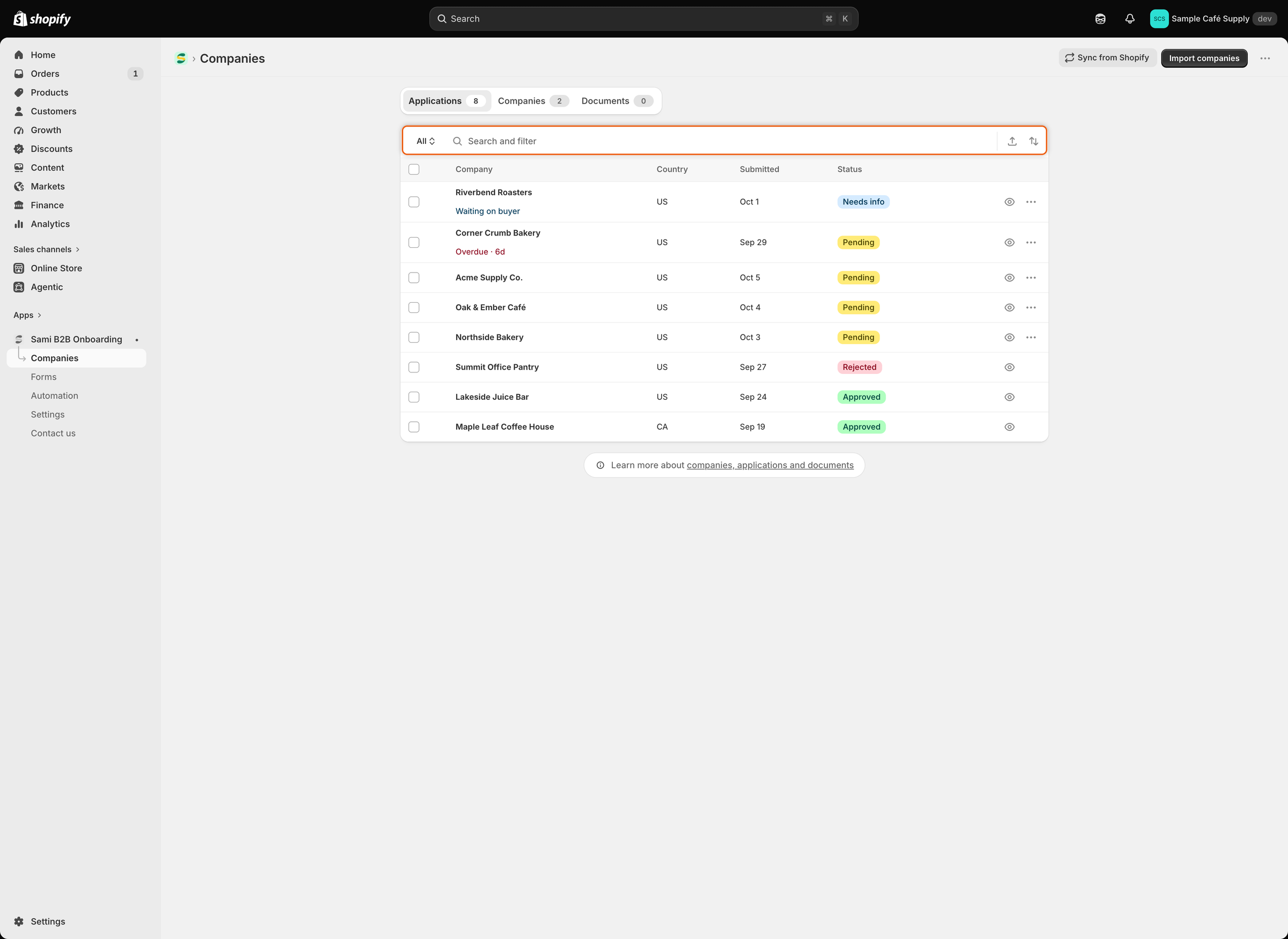
To open the list, open the app in the Shopify admin and click **Companies** in the app menu. The page opens on **Applications**, the first of three tabs at the top: **Applications**, **Companies** and **Documents**.

<figure><img src="https://3844812229-files.gitbook.io/~/files/v0/b/gitbook-x-prod.appspot.com/o/spaces%2FRrf4pQPgjvb3GW7IN3Ci%2Fuploads%2Fgit-blob-f3ed58b6fb81405a5eed83f0cb2ae05924007925%2Fscreenshot-applications-list.png?alt=media" alt="The Applications tab listing eight applications by company, country, submitted date and status, with Waiting on buyer and Overdue · 6d notes under two names, below a search bar starting with All."><figcaption><p>The button at the start of the search bar switches views; each row shows the application's status and, when it needs attention, a note under the company name.</p></figcaption></figure>

## Views

The button at the start of the search bar shows the view you're in. It reads **All** at first. Click it to switch views; each view shows how many applications it holds.

| View                  | What it lists                                                                                                        |
| --------------------- | -------------------------------------------------------------------------------------------------------------------- |
| **All**               | Every application.                                                                                                   |
| **Needs your action** | **Pending** and **Resubmitted** applications. The buyer is waiting for your decision.                                |
| **Waiting on buyer**  | **Needs info** applications. The buyer was asked for more and hasn't answered yet.                                   |
| **Overdue**           | Applications still open (**Pending**, **Resubmitted** or **Needs info**) more than 3 days after they were submitted. |
| **Decided**           | **Approved**, **Rejected** and **Abandoned** applications.                                                           |

## Statuses

| Status                                       | What it means                                                                                                                                | View              |
| -------------------------------------------- | -------------------------------------------------------------------------------------------------------------------------------------------- | ----------------- |
| **Pending**                                  | A new application. Nobody has decided yet.                                                                                                   | Needs your action |
| **Resubmitted**                              | The buyer sent the application again, after you asked for more information or after a rejection that let them update it.                     | Needs your action |
| **Needs info**                               | Someone on your team, a rule or a Shopify Flow workflow asked the buyer for more.                                                            | Waiting on buyer  |
| **Approved**                                 | Approved by your team or by a Shopify Flow workflow.                                                                                         | Decided           |
| **Approved** with **Auto-applied** beside it | Approved by one of your automation rules.                                                                                                    | Decided           |
| **Rejected**                                 | Rejected by your team, a rule, the tax ID check or a Shopify Flow workflow.                                                                  | Decided           |
| **Abandoned**                                | The buyer never answered your request, so the app closed it. You set how long it waits in **Settings › Application rules › Data retention**. | Decided           |

Under the company name, a row can also show a short note:

* **Waiting on buyer** in blue: the application is in **Needs info**.
* **Overdue · 6d** in red: the application is still open more than 5 days after it was submitted. The number is the days since then. This note replaces **Waiting on buyer**.

The **Overdue** view and the red note use different limits. An open application joins the view more than 3 days after it was submitted, but the red note appears only after more than 5.

## Find an application

* **Search**: type in the search bar. It matches the company name, the contact's name and email, and the application reference.
* **Filter**: click in the search bar and pick **Country** or **Form**, then tick one or more values. The filter stays in the bar as a token, for example **Country is** US. Click its × to remove it, or the clear button at the end of the bar to remove everything.
* **Sort**: click the sort icon at the end of the bar. Under **Sort by**, pick **Urgency** (applications in the **Overdue** view first, then by date), **Date submitted** or **Company**. Under **Order by**, pick the direction, for example **Most urgent first** or **Oldest first**. You can also click the **Company** and **Submitted** column headers.
* **Export**: click the export icon beside the sort icon to download the list as a CSV file. See [Decide several applications at once](/sami-b2b-onboarding/reviewing-applications/decide-several-at-once.md#export-applications-to-csv).

The list shows 25 applications per page. Click a row to open the full application, or the eye icon at the end of it for a quick look.

{% hint style="info" %}
Admins and reviewers can both review and decide applications. Approving also writes to Shopify, so it needs the **Companies** and **Customers** permissions on your own Shopify staff account. Without them, a banner on this page says which permission is missing, and the store owner can add it in Shopify under **Settings › Users**. See [Team and roles](/sami-b2b-onboarding/settings/team-and-roles.md).
{% endhint %}

## In this section

<table data-view="cards"><thead><tr><th></th><th></th><th data-hidden data-card-target data-type="content-ref"></th></tr></thead><tbody><tr><td><strong>Review an application</strong></td><td>Use the quick review drawer and the full application page, edit answers, assign a reviewer and leave comments.</td><td><a href="/sami-b2b-onboarding/reviewing-applications/review-an-application.md">Review an application</a></td></tr><tr><td><strong>Approve an application</strong></td><td>Set the terms and create the buyer's company and customer in Shopify.</td><td><a href="/sami-b2b-onboarding/reviewing-applications/approve-an-application.md">Approve an application</a></td></tr><tr><td><strong>Request more information</strong></td><td>Ask the buyer for a missing document or detail, and review what they send back.</td><td><a href="/sami-b2b-onboarding/reviewing-applications/request-more-information.md">Request more information</a></td></tr><tr><td><strong>Reject an application</strong></td><td>Turn an application down, with a reason, and choose whether the buyer can try again.</td><td><a href="/sami-b2b-onboarding/reviewing-applications/reject-an-application.md">Reject an application</a></td></tr><tr><td><strong>Decide several applications at once</strong></td><td>Approve or reject a batch, handle the ones that are refused, and export to CSV.</td><td><a href="/sami-b2b-onboarding/reviewing-applications/decide-several-at-once.md">Decide several applications at once</a></td></tr></tbody></table>

## Next steps

* [Review an application](/sami-b2b-onboarding/reviewing-applications/review-an-application.md) — open your first application and check it.
* [Approval presets](/sami-b2b-onboarding/automation/approval-presets.md) — set up the terms you'll approve with.
* [Rules that decide applications](/sami-b2b-onboarding/automation/rules.md) — let the app approve, assign or flag applications for you.


---

# Agent Instructions
This documentation is published with GitBook. GitBook is the documentation platform designed so that both humans and AI agents can read, navigate, and reason over technical content effectively. Learn more at gitbook.com.

## Querying This Documentation
If you need additional information that is not directly available in this page, you can query the documentation dynamically by asking a question.

Perform an HTTP GET request on the current page URL with the `ask` query parameter, and the optional `goal` query parameter:

```
GET https://docs.samita.io/sami-b2b-onboarding/reviewing-applications/applications.md?ask=<question>&goal=<endgoal>
```

`ask` is the immediate question: it should be specific, self-contained, and written in natural language.
`goal` is optional and describes the broader end goal you are ultimately trying to accomplish on behalf of the user. GitBook uses it to tailor the answer towards what is most useful for that goal.

The response will contain a direct answer to the question and relevant excerpts and sources from the documentation.

Use this mechanism when the answer is not explicitly present in the current page, you need clarification or additional context, or you want to retrieve related documentation sections.
