> For the complete documentation index, see [llms.txt](https://docs.samita.io/llms.txt). Markdown versions of documentation pages are available by appending `.md` to page URLs; this page is available as [Markdown](https://docs.samita.io/sami-b2b-onboarding/store-access/test-mode.md).

# Test your access rules

Try your access rules on your own tagged customer account before they reach your buyers.

Test mode lets you try your access rules on your own customer account before your buyers meet them. While it's on, the rules apply only to logged-in customers tagged `sami-b2b-od-lock-test`. Everyone else, guests included, sees and buys from your store as normal.

## What test mode covers

| Narrowed to tagged customers while test mode is on        | Not affected by test mode                                         |
| --------------------------------------------------------- | ----------------------------------------------------------------- |
| **Hide prices from retail visitors**                      | **Account required**: it applies to everyone as soon as you save. |
| **Hide add to cart**                                      | Companies you put on hold: they're always blocked at checkout.    |
| **Whole store lock**, including a private wholesale store |                                                                   |
| **Block checkout while pending**                          |                                                                   |

A tagged customer gets the rules even if they're approved or buy for a company. You can test on your own account even if it's already approved.

## Turn on test mode

{% stepper %}
{% step %}

### Open Access

In Sami B2B Onboarding, click **Settings**. **Access** opens first. If another section opens, click **Access** in the settings menu.
{% endstep %}

{% step %}

### Choose a visibility with rules

Under **Storefront visibility**, set **Who can browse, who can buy** to **Public catalog, private purchasing** or **Private wholesale store**. With **Public catalog, public purchasing**, there are no rules to test, and **Test mode** is hidden.
{% endstep %}

{% step %}

### Turn on Test mode

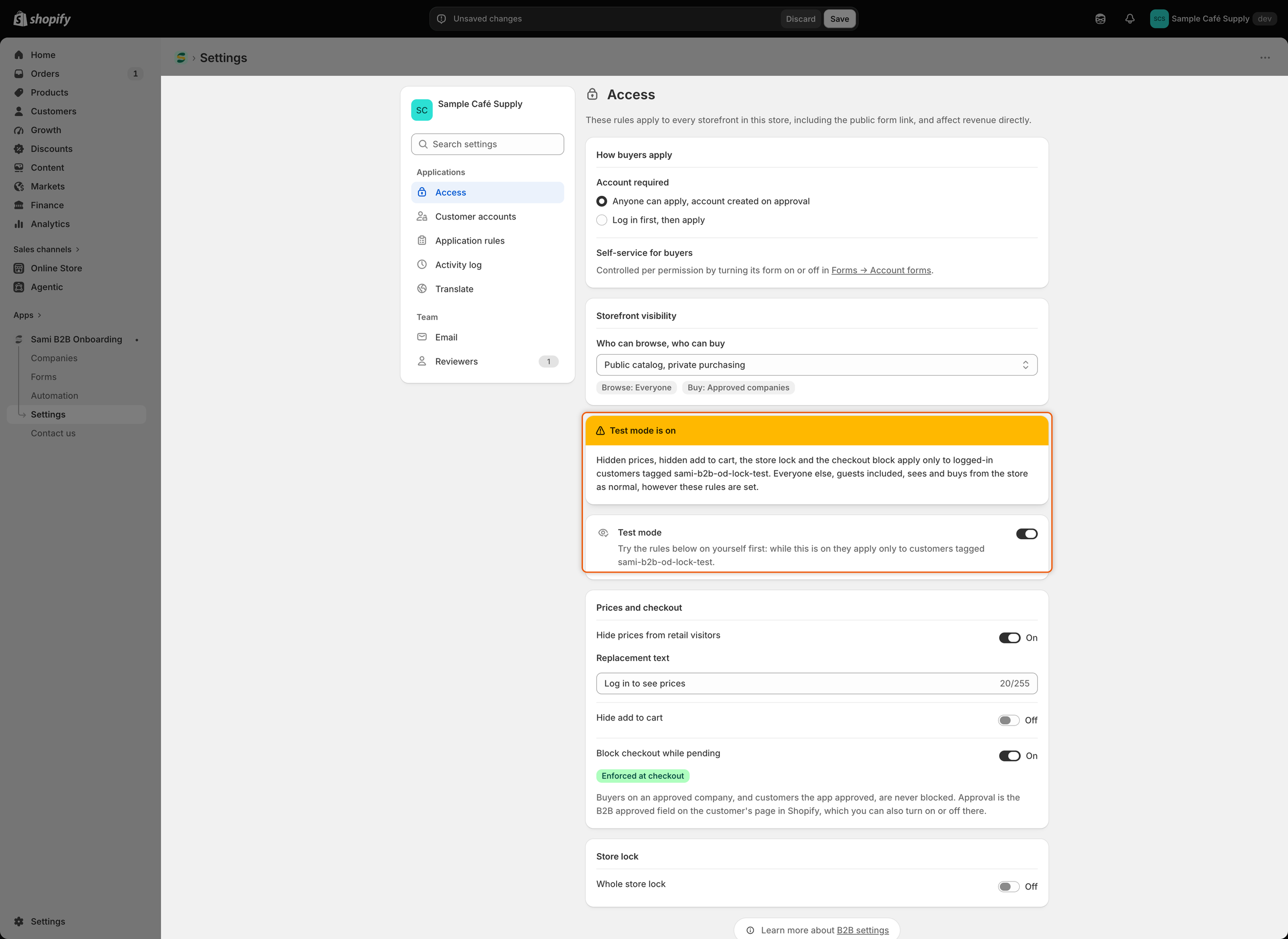
Turn on **Test mode**, in the card below **Storefront visibility**. A **Test mode is on** banner appears above it.

<figure><img src="https://3844812229-files.gitbook.io/~/files/v0/b/gitbook-x-prod.appspot.com/o/spaces%2FRrf4pQPgjvb3GW7IN3Ci%2Fuploads%2Fgit-blob-3d2238d9e4bed7f5cd7d731f63f0408c67a5f17a%2Fscreenshot-access-test-mode-banner.png?alt=media" alt="The Access page with a yellow Test mode is on banner above the Test mode switch, which is turned on."><figcaption><p>While test mode is on, the banner reminds you that the rules apply only to tagged customers.</p></figcaption></figure>
{% endstep %}

{% step %}

### Set the rules to test

Turn on the rules you want to try under **Prices and checkout** and **Store lock**. Turn on test mode in the same save as your rule changes, or before them. Rules saved without test mode reach your buyers straight away.
{% endstep %}

{% step %}

### Save

Click **Save** in the save bar. **Settings saved** appears.
{% endstep %}
{% endstepper %}

## Tag your customer account

{% stepper %}
{% step %}

### Open your customer

In Shopify admin, go to **Customers** and click the customer you'll log in with. If you don't have one, click **Add customer** and use an email address you can open.
{% endstep %}

{% step %}

### Add the tag

In the **Tags** box, type `sami-b2b-od-lock-test` exactly as shown, then press `Enter`. Click **Save**.

<figure><img src="https://3844812229-files.gitbook.io/~/files/v0/b/gitbook-x-prod.appspot.com/o/spaces%2FRrf4pQPgjvb3GW7IN3Ci%2Fuploads%2Fgit-blob-0e4a37d49c1063ee4ee8a4f8c9d18c6f80fb4f91%2Fscreenshot-shopify-test-mode-customer-tag.png?alt=media" alt="The Tags box on a Shopify customer page with the tag sami-b2b-od-lock-test."><figcaption><p>Only logged-in customers with this tag meet your rules while test mode is on.</p></figcaption></figure>
{% endstep %}
{% endstepper %}

## Test on your storefront

Open your store and log in as the tagged customer. Then check each rule you turned on:

| Rule                                 | What you should see                                                                                                                                                                    |
| ------------------------------------ | -------------------------------------------------------------------------------------------------------------------------------------------------------------------------------------- |
| **Hide prices from retail visitors** | Your replacement text where prices were. Because you're logged in, the text links to your account.                                                                                     |
| **Hide add to cart**                 | No **Add to cart** or **Buy it now** buttons on product pages.                                                                                                                         |
| **Whole store lock**                 | The lock screen with **Your account is waiting for approval**, a **View account** button and an **Apply for an account** button. Pages in **Always allow these pages** open as normal. |
| **Block checkout while pending**     | At checkout, the message **Your wholesale account is still being reviewed. You can't complete checkout yet.** You can't place the order.                                               |

To test the checkout block, you need a product in your cart. With **Hide add to cart** or the store lock on, switch them off for a moment. A private wholesale store is always locked, so pick **Public catalog, private purchasing** for this test. While test mode is on, these changes reach only tagged customers.

Then open your store in a private browser window, as a guest. Prices, buy buttons and checkout work as normal, and there's no lock screen.

{% hint style="info" %}
While test mode is on, you only see what logged-in customers see. Guests never meet the rules, so you can't see the guest lock screen or the log-in link on your storefront. To see the guest lock screen, open **Customize** next to **Appearance & wording** and look at the **Visitors** preview.
{% endhint %}

## Go live

{% stepper %}
{% step %}

### Turn off test mode

In **Settings › Access**, turn off **Test mode**. The banner goes away. If you switched a rule off or changed **Who can browse, who can buy** to test checkout, set it back now.
{% endstep %}

{% step %}

### Save

Click **Save** in the save bar. The rules now apply to every visitor who isn't approved, guests included.
{% endstep %}

{% step %}

### Check as a guest

Open your store in a private browser window. You meet the rules the way a new visitor does.
{% endstep %}

{% step %}

### Remove the tag when you're done

The tag does nothing while test mode is off. If you turn test mode on again later, tagged customers get the rules again, even when they're approved. To keep a customer out of future tests, remove `sami-b2b-od-lock-test` from them in Shopify admin and click **Save**.
{% endstep %}
{% endstepper %}

## Next steps

* [Hide prices and add to cart](/sami-b2b-onboarding/store-access/hide-prices-and-add-to-cart.md) — set what visitors who aren't approved see.
* [Lock the store](/sami-b2b-onboarding/store-access/lock-the-store.md) — customize the lock screen before you go live.
* [Block checkout until approved](/sami-b2b-onboarding/store-access/block-checkout-until-approved.md) — check that the block shows **Enforced at checkout**.
* [Troubleshooting](/sami-b2b-onboarding/help/troubleshooting.md) — what to check when a rule doesn't show.


---

# Agent Instructions
This documentation is published with GitBook. GitBook is the documentation platform designed so that both humans and AI agents can read, navigate, and reason over technical content effectively. Learn more at gitbook.com.

## Querying This Documentation
If you need additional information that is not directly available in this page, you can query the documentation dynamically by asking a question.

Perform an HTTP GET request on the current page URL with the `ask` query parameter, and the optional `goal` query parameter:

```
GET https://docs.samita.io/sami-b2b-onboarding/store-access/test-mode.md?ask=<question>&goal=<endgoal>
```

`ask` is the immediate question: it should be specific, self-contained, and written in natural language.
`goal` is optional and describes the broader end goal you are ultimately trying to accomplish on behalf of the user. GitBook uses it to tailor the answer towards what is most useful for that goal.

The response will contain a direct answer to the question and relevant excerpts and sources from the documentation.

Use this mechanism when the answer is not explicitly present in the current page, you need clarification or additional context, or you want to retrieve related documentation sections.
