> For the complete documentation index, see [llms.txt](https://docs.samita.io/llms.txt). Markdown versions of documentation pages are available by appending `.md` to page URLs; this page is available as [Markdown](https://docs.samita.io/samita-countdown-timer-bar/banners/design.md).
# Design a banner
Background, colours, spacing, the close button, and making the whole bar a link.
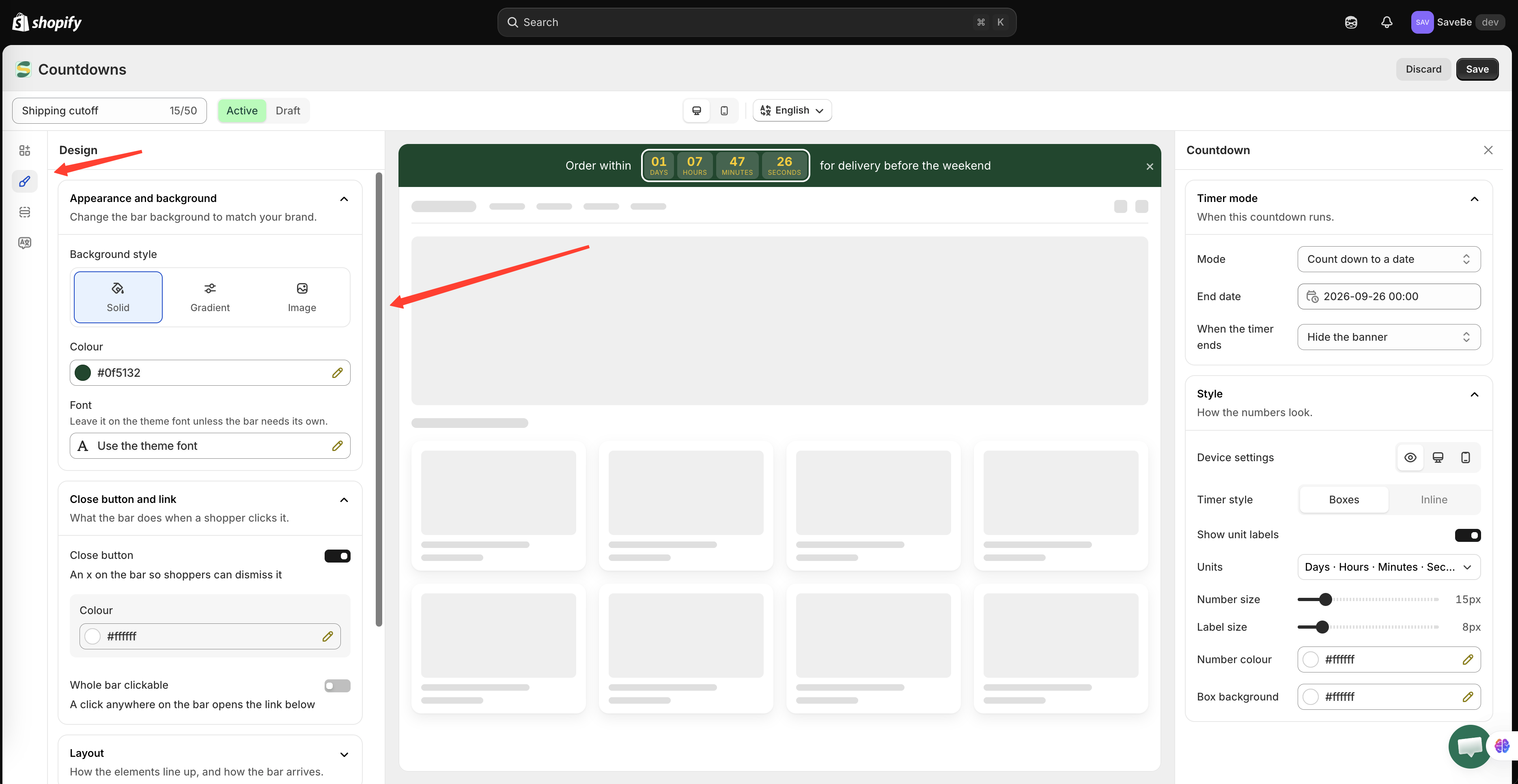
The **Design** panel is the brush icon in the builder's rail. It covers everything about how the bar looks, apart from the elements themselves.
Design settings apply to the whole bar, not to one element.
## Appearance and background
Three background styles:
| Style | What you set |
| ------------ | ---------------------------------------- |
| **Solid** | One colour |
| **Gradient** | A from colour, a to colour, and an angle |
| **Image** | A picture that covers the bar |
{% hint style="warning" %}
A background image makes text hard to read unless the picture is quiet. Test it against your longest message before publishing.
{% endhint %}
## Colours
| Setting | What it covers |
| ---------- | ------------------------------------------------------------------------ |
| **Font** | The typeface. Leave it on the theme font unless the bar needs its own. |
| **Text** | The bar's text colour |
| **Accent** | Buttons, discount codes, and the countdown — unless one is given its own |
Accent is the one worth understanding. Set it once and the button, the code outline, and the timer all follow. Give an element its own colour and that element stops following.
## Close button and link
Two separate things, both about what happens when a shopper interacts with the bar.
### Close button
Turn it on and an **×** appears at the end of the bar. Set its colour and its hover colour.
Once a shopper closes the banner it stays closed for them — the app remembers in their browser, so it doesn't reappear on the next page.
{% hint style="info" %}
On a phone the close button sits in the top-right corner rather than the middle of the bar, because a bar that wraps onto several lines would otherwise put the × across the message.
{% endhint %}
### Whole bar clickable
Turn this on and a click anywhere on the bar opens the link you set below it. **Open in a new tab** leaves your shop open behind it.
Clicks on a button or a discount code inside the bar still do their own thing — the bar link doesn't swallow them.
## Row
How the elements line up inside the bar.
| Setting | What it does |
| ------------------------- | --------------------------------------------------------------------------------------------------------------------- |
| **Alignment** | Left, centred, right, or spread out |
| **Gap between elements** | The space between each element |
| **Wrap on small screens** | On, the row wraps onto another line when it runs out of room. Off, it squeezes instead, which can clip long messages. |
## Spacing
**Vertical padding** is how tall the bar is. **Horizontal padding** is the margin at each end.
A thin bar reads as a notice; a tall one reads as a section of the page. Most announcement bars want the thin end.
## Custom CSS
At the foot of the panel, **Custom CSS (Developer Zone)** takes rules that apply inside this banner only. They can't reach the rest of your theme.
Use it for the things the panels don't cover — a text shadow, a letter spacing, a different border on one element.
{% hint style="info" %}
Custom CSS is per banner. It isn't shared with your other banners, and it doesn't affect countdowns or sale popups.
{% endhint %}
## Next steps
* [Animation and groups](/samita-countdown-timer-bar/banners/animation.md)
* [Bar content and elements](/samita-countdown-timer-bar/banners/content.md)
* [Custom CSS](/samita-countdown-timer-bar/design-and-translation/custom-css.md)
---
# Agent Instructions
This documentation is published with GitBook. GitBook is the documentation platform designed so that both humans and AI agents can read, navigate, and reason over technical content effectively. Learn more at gitbook.com.
## Querying This Documentation
If you need additional information that is not directly available in this page, you can query the documentation by asking a question.
Perform an HTTP GET request on the following URL with the `ask` and `goal` query parameters:
```
GET https://docs.samita.io/samita-countdown-timer-bar/banners/design.md?ask=&goal=
```
`ask` is the immediate question: it should be specific, self-contained, and written in natural language.
`goal` is what the user is ultimately trying to achieve, the reason they need the answer. Sharing it helps GitBook give you a better, more relevant answer. A goal is most helpful when it describes the outcome the user wants rather than restating the question. For example, with `ask=how do I create an API token`, a goal like `automate deployments from our CI pipeline` lets GitBook tailor the answer to that use case.
The response will contain a direct answer to the question and relevant excerpts and sources from the documentation.
Use this mechanism when the answer is not explicitly present in the current page, you need clarification or additional context, or you want to retrieve related documentation sections.