> For the complete documentation index, see [llms.txt](https://docs.samita.io/llms.txt). Markdown versions of documentation pages are available by appending `.md` to page URLs; this page is available as [Markdown](https://docs.samita.io/samita-countdown-timer-bar/banners/placement.md).
# Where a banner appears
Choose the top, the foot, or a shortcode, then limit the banner by page, device, and date.
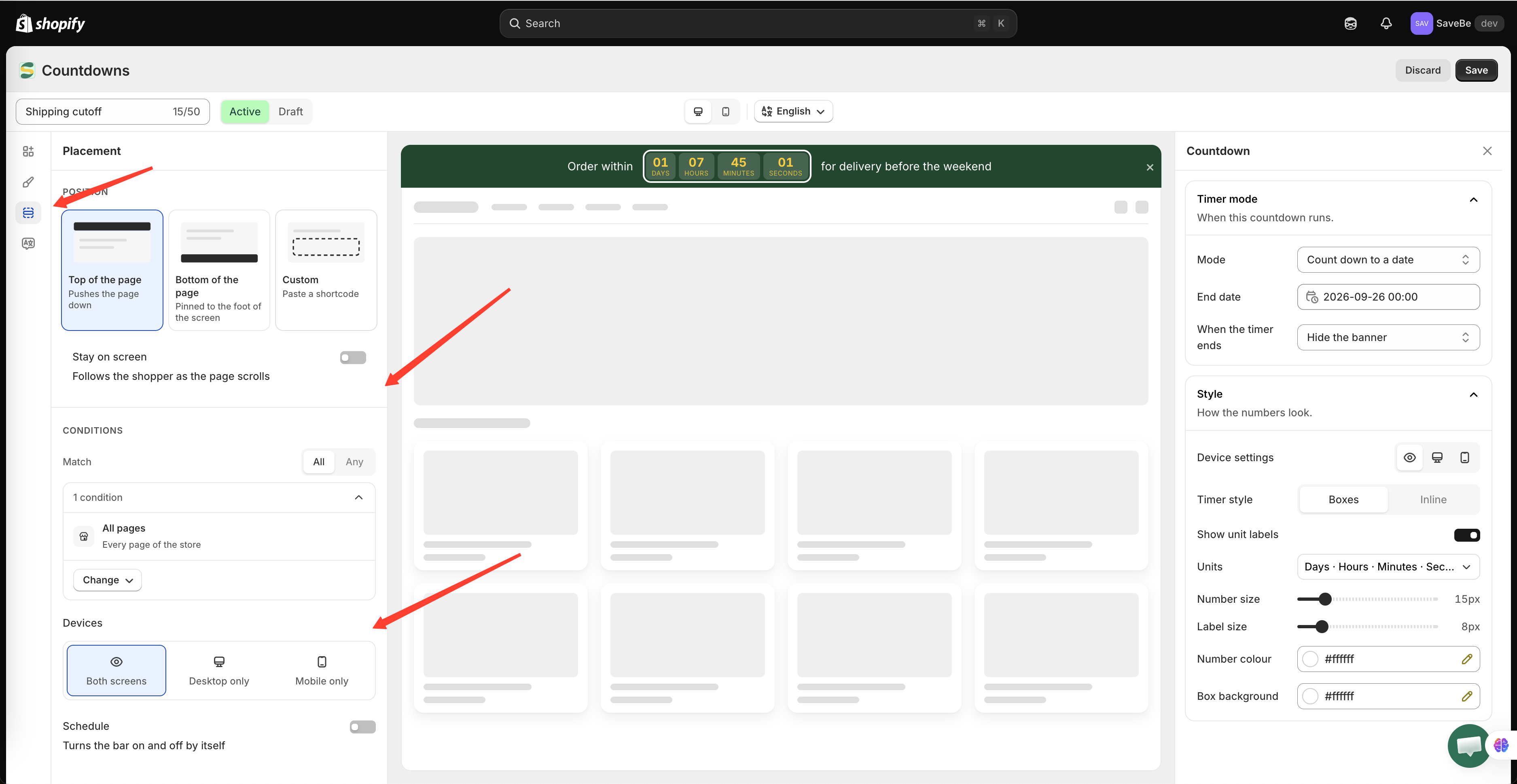
The **Placement** panel is the third icon in the builder's rail. It answers four questions: where on the page, on which pages, on which devices, and when.
Position first, then who sees it and when.
## Position
| Position | What it does |
| ---------------------- | ---------------------------------------------- |
| **Top of the page** | Sits above everything and pushes the page down |
| **Bottom of the page** | Pinned to the foot of the screen |
| **Custom** | Goes wherever you paste the shortcode |
Top and bottom need nothing from you — the app inserts the bar itself.
### Stay on screen
Off, the bar scrolls away with the rest of the page. On, it follows the shopper as they scroll.
{% hint style="warning" %}
Some themes set an `overflow` rule on the page that stops anything sticking. If **Stay on screen** is on and the bar still scrolls away, that's usually why — ask your theme developer, or leave the setting off.
{% endhint %}
### Custom and the shortcode
Choose **Custom** and the panel shows a snippet to copy:
```html
```
Paste it into your theme where the bar should appear. The app fills it in. Top and bottom need nothing pasted.
{% hint style="info" %}
**Stay on screen** does very little with a custom position. A bar pasted into the middle of a page can only stick within the section it was pasted into, and once the shopper scrolls past that section it goes with it.
{% endhint %}
## Conditions
Conditions decide which pages and which shoppers get the banner.
At the top, **All conditions** or **Any condition** — whether every rule has to be true, or just one of them.
Under that is the list of rules. Click one to open it; click **Add condition** to add another.
No rules at all means the bar shows everywhere.
### The rules you can add
| Rule | Matches on |
| ------------------- | --------------------------------------------------------------------------------------- |
| **All pages** | Every page of the store |
| **Page** | A page type — home, product, collection, cart, search, blog, article — or specific URLs |
| **Select products** | Product pages for the products you choose |
| **Product tag** | Product pages whose product carries a tag |
| **Collections** | Product pages for products in the collections you choose |
| **Customer** | Whether the shopper is logged in |
| **Customer tag** | A tag on the logged-in customer |
| **Language** | The language the shopper is reading the store in |
| **Country** | The shopper's country |
Opening a rule shows a **Comparison** — *is equal to*, *is not equal to*, and for text rules *starts with*, *ends with*, *contains*, *does not contain*.
{% hint style="warning" %}
**Select products**, **Product tag**, and **Collections** can only be judged on a product page. Combining one of them with **Page is Index page** under **All conditions** gives a rule that can never be true, because no page is both.
{% endhint %}
### Removing a rule
Open it and click **Remove condition** at the foot.
## Devices
**Both screens**, **Desktop only**, or **Mobile only** — for the whole banner.
To drop one element on a phone rather than the whole bar — or to give a phone its own sizes and colours for it — use that element's **Device settings** instead. See [One element, two screens](/samita-countdown-timer-bar/banners/content.md#one-element-two-screens).
## Schedule
Turns the bar on and off by itself, so you don't have to remember to come back and set it to Draft.
Before the start or after the end, the bar simply isn't there.
{% stepper %}
{% step %}
### Turn Schedule on
The **Starts** field appears.
{% endstep %}
{% step %}
### Set when it starts
Pick a date and time. Before that moment the banner doesn't render, even when it's Active.
{% endstep %}
{% step %}
### Set an end, if it has one
Turn on **Set an end date** and an **Ends** field appears.
Leave it off and the banner runs until you turn it off yourself.
{% endstep %}
{% endstepper %}
The end has to come after the start — the app says so if it doesn't.
## Next steps
* [Bar content and elements](/samita-countdown-timer-bar/banners/content.md)
* [Manage banners](/samita-countdown-timer-bar/banners/manage.md)
* [Display conditions](/samita-countdown-timer-bar/where-countdowns-appear/conditions.md)
---
# Agent Instructions
This documentation is published with GitBook. GitBook is the documentation platform designed so that both humans and AI agents can read, navigate, and reason over technical content effectively. Learn more at gitbook.com.
## Querying This Documentation
If you need additional information that is not directly available in this page, you can query the documentation by asking a question.
Perform an HTTP GET request on the following URL with the `ask` and `goal` query parameters:
```
GET https://docs.samita.io/samita-countdown-timer-bar/banners/placement.md?ask=&goal=
```
`ask` is the immediate question: it should be specific, self-contained, and written in natural language.
`goal` is what the user is ultimately trying to achieve, the reason they need the answer. Sharing it helps GitBook give you a better, more relevant answer. A goal is most helpful when it describes the outcome the user wants rather than restating the question. For example, with `ask=how do I create an API token`, a goal like `automate deployments from our CI pipeline` lets GitBook tailor the answer to that use case.
The response will contain a direct answer to the question and relevant excerpts and sources from the documentation.
Use this mechanism when the answer is not explicitly present in the current page, you need clarification or additional context, or you want to retrieve related documentation sections.