## Create a Cart Countdown Timer
The Cart Countdown timer is used to encourage customers to quickly proceed the checkout by counting down the time in the cart before the product is sold out. Please try following the below steps to create this feature.
### **Step to manage:**
From the App Dashboard page > Click on the **Countdowns** section in the navigation bar > **Create countdown** > Choose **Cart Countdown**
### **Setting Content:**
1. Set up the content for the Cart countdown by entering the text in the Message input field and setting up the **Countdown duration:**
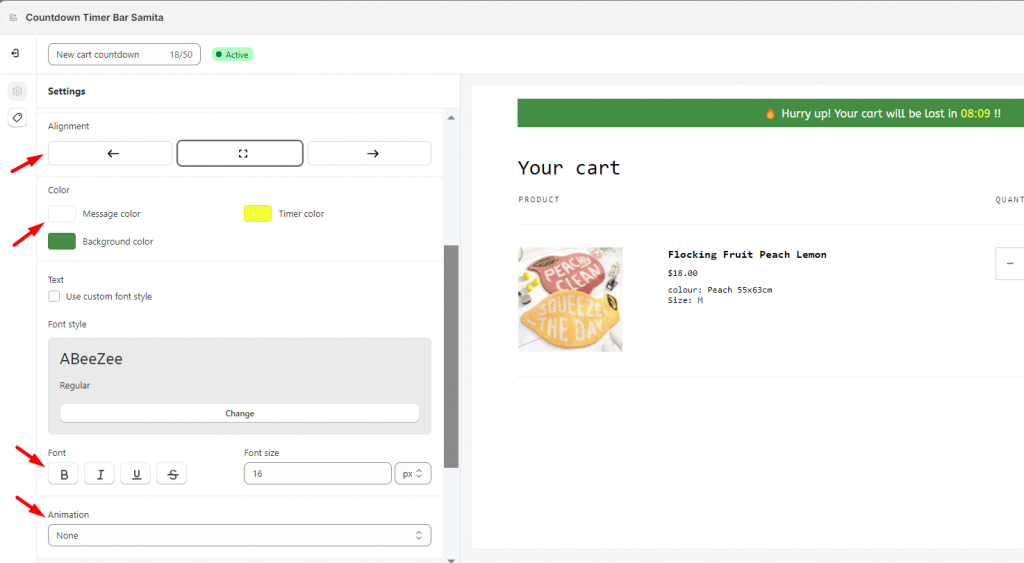
**2. Design the Cart Countdown look:**
For further customization, you can add CSS to do it by this Custom CSS box:
### **Setting Display condition for the Cart Countdown timer:**
1. Configure the condition for the Cart Countdown timer.
2. Set up display position: display the timer by the **Shortcode.** For further details, kindly review this [**document**](https://help.samita.io/docs/samita-countdown-timer-bar/steps-to-use-the-shortcode-to-display-the-timer-on-a-specific-position-on-the-online-store/).
3. Configure the **Action after the time expired**. There are 3 options:
* **Go to the homepage without clearing the cart:** After the countdown ends, the customers will be redirected to the homepage.
* **Hide the message and do nothing:** The countdown disappears only after the time ends.
* **Clear the cart and redirect to:** After the countdown ends, the customers will be redirected to the page you want to.
*You can leave the URL input field empty if you want the customers stay on the same page after the timer ends.*
After finishing all steps to create the Countdown, click **Save** and start checking on the front store
{% hint style="success" %}
**Friendly reminder!**\
If you do encounter any difficulty while proceeding with these steps, don’t show any hesitation to contact us promptly via the email address
{% endhint %}
---
# Agent Instructions: Querying This Documentation
If you need additional information that is not directly available in this page, you can query the documentation dynamically by asking a question.
Perform an HTTP GET request on the current page URL with the `ask` query parameter:
```
GET https://docs.samita.io/samita-countdown-timer-bar/cart-countdown.md?ask=
```
The question should be specific, self-contained, and written in natural language.
The response will contain a direct answer to the question and relevant excerpts and sources from the documentation.
Use this mechanism when the answer is not explicitly present in the current page, you need clarification or additional context, or you want to retrieve related documentation sections.