> For the complete documentation index, see [llms.txt](https://docs.samita.io/llms.txt). Markdown versions of documentation pages are available by appending `.md` to page URLs; this page is available as [Markdown](https://docs.samita.io/samita-countdown-timer-bar/countdown-timer-1/create-a-countdown-timer.md).
# Create a Countdown Timer
The Countdown Timer is used to create customers’ eagerness for the upcoming products and increase sales to your store. In order to manage this setting, kindly follow the below instructions to know how to set it up:
#### **Step to manage:**
From the **Countdowns** page of the app > Click on **Create countdown** > Choose **Countdown Timer**
There are 3 steps to set up a Countdown timer: **Settings, Design,** and **Display**. The Settings page is showing first when accessing the Countdown timer:
### Setting content:
**You can edit and configure the content of the timer in this step.**
1. In the **Content** section, click on the **Template** and choose the one you like:
2\. Set up **Title**, **Subtitle** and **Date format** for the Timer:
3\. **Show button** (Optional): This setting helps you redirect the customers to the page where the sale presents to purchase stuff easily.
To use this feature, please turn on the slide **“Buy now, add to cart” button**, there will be a **Text** field for you to add content and a **Link** field so you can add the page URL you want the customers to be redirected to:
### Setting Timer:
There are 3 timer types in this section. Depending on your choice, you can decide to apply the kind of time to the Countdown timer. For further understanding and explanation for each time type, please review this [**guide**](#configure-the-setting-timer).
### **Design the Countdown timer**
**Step to manage:**
1. Click on the **Design icon**
2. You can choose to set up the template color or use the upload image setting:
3\. Set up the color for the Countdown timer
4\. Design font text and border size for the **Title**, **Subtitle**, **Padding** and **Button** (Show button setting that is mentioned above)
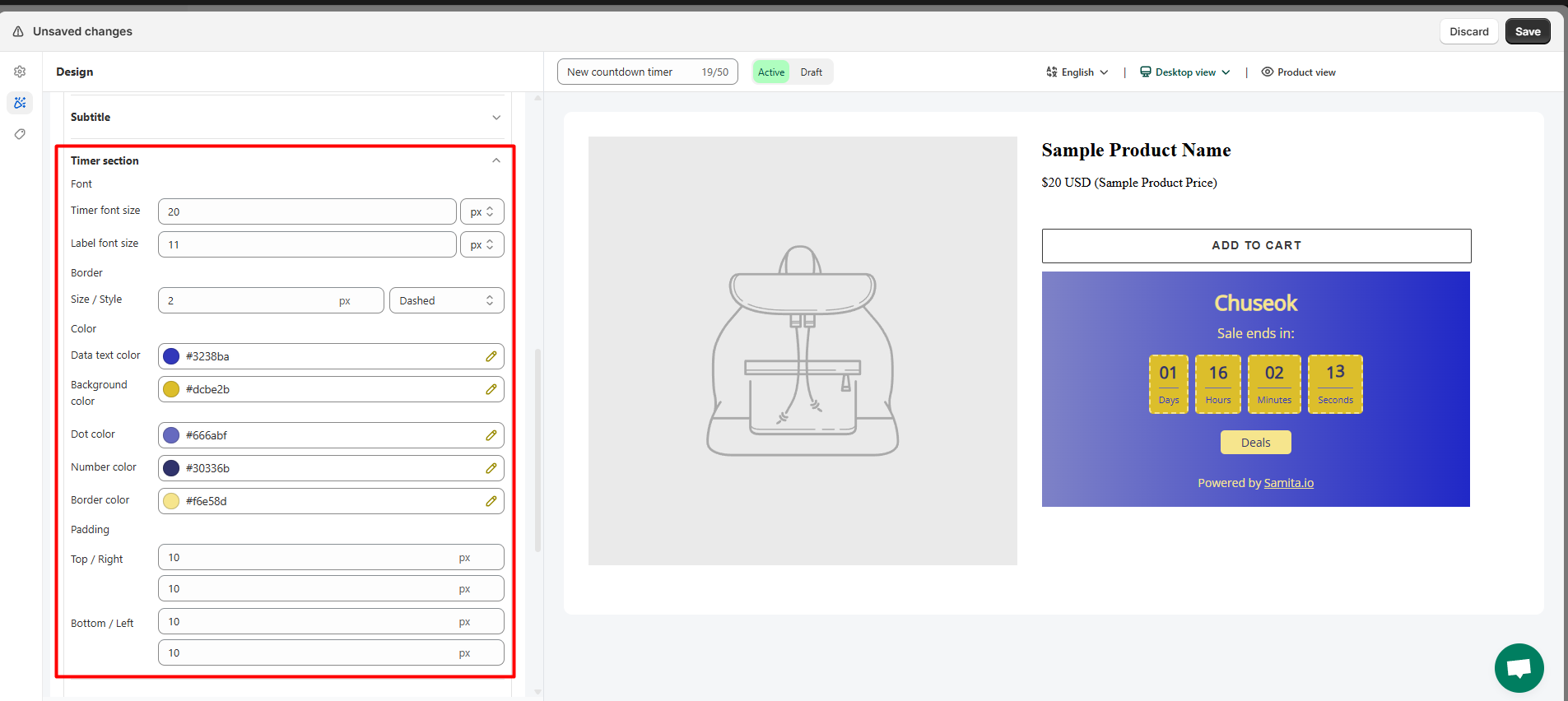
5\. Click on the small arrow to design the **Timer section**, Countdown timer size **on Mobile**
6\. For further customization, you can use the **Custom CSS** box below to add CSS for the Countdown timer design:
### Setting Display condition for the Countdown timer:
1. Configure the condition for the Countdown timer
2. Set up display position: Show the timer on the **product page** or display it in other places by the **Shortcode**
3. Set device targeting to choose the device you want to show the Countdown timer on: **Desktop** or M**obile**.
For further information about this step, please review this [**guide**](https://help.samita.io/docs/samita-countdown-timer-bar/setup-display-conditions-and-display-position-for-the-timer/) for better understanding.
After finishing all steps to create the Countdown, click **Save** and start checking on the front store
**Important step!**
In order to enable the app data to your front store, please don’t forget to [activate our app embed](/samita-countdown-timer-bar/general-1/theme-integration.md) to your theme.
{% hint style="success" %}
**Friendly reminder!**\
If you do encounter any difficulty while proceeding with these steps, don’t show any hesitation to contact us promptly via the email address [support@samita.io](https://samita.io/pages/contact)
{% endhint %}
---
# Agent Instructions
This documentation is published with GitBook. GitBook is the documentation platform designed so that both humans and AI agents can read, navigate, and reason over technical content effectively. Learn more at gitbook.com.
## Querying This Documentation
If you need additional information that is not directly available in this page, you can query the documentation dynamically by asking a question.
Perform an HTTP GET request on the current page URL with the `ask` query parameter, and the optional `goal` query parameter:
```
GET https://docs.samita.io/samita-countdown-timer-bar/countdown-timer-1/create-a-countdown-timer.md?ask=&goal=
```
`ask` is the immediate question: it should be specific, self-contained, and written in natural language.
`goal` is optional and describes the broader end goal you are ultimately trying to accomplish on behalf of the user. GitBook uses it to tailor the answer towards what is most useful for that goal.
The response will contain a direct answer to the question and relevant excerpts and sources from the documentation.
Use this mechanism when the answer is not explicitly present in the current page, you need clarification or additional context, or you want to retrieve related documentation sections.