> For the complete documentation index, see [llms.txt](https://docs.samita.io/llms.txt). Markdown versions of documentation pages are available by appending `.md` to page URLs; this page is available as [Markdown](https://docs.samita.io/samita-countdown-timer-bar/countdown-timer/count-down-to-a-date.md).
# Count down to a date
Build a timer that counts down to one fixed deadline — a sale end, a launch, a pre-order cut-off.
**Countdown to a date** is the default Time type and the one most campaigns want. Every shopper sees the same clock, counting down to a single moment you choose. When that moment passes, the timer does whatever you told it to do at zero.
Use it for a sale that really ends, a product that really launches, or a shipping cut-off you really honour.
## Steps to set it up
{% stepper %}
{% step %}
### Create the countdown
Open the app and click **Create countdown**, either from the dashboard or from the **Countdowns** page.
{% endstep %}
{% step %}
### Pick a Countdown timer template
On the **Countdown templates** page, leave the type tab on **Countdown timer**, choose a design, and click **Select**. See [Choose a template](/samita-countdown-timer-bar/countdowns/templates.md) if you want to filter by occasion.
{% endstep %}
{% step %}
### Name it
Give the countdown a name at the top of the builder — "Spring sale, ends 31 Mar", for instance. Only you see it.
{% endstep %}
{% step %}
### Write the text
On the **Settings** tab, open **Content** and fill in the **Title**, **Subtitle**, and the four timer labels. Full detail in [Timer text and button](/samita-countdown-timer-bar/countdown-timer/content.md).
{% endstep %}
{% step %}
### Choose Countdown to a date
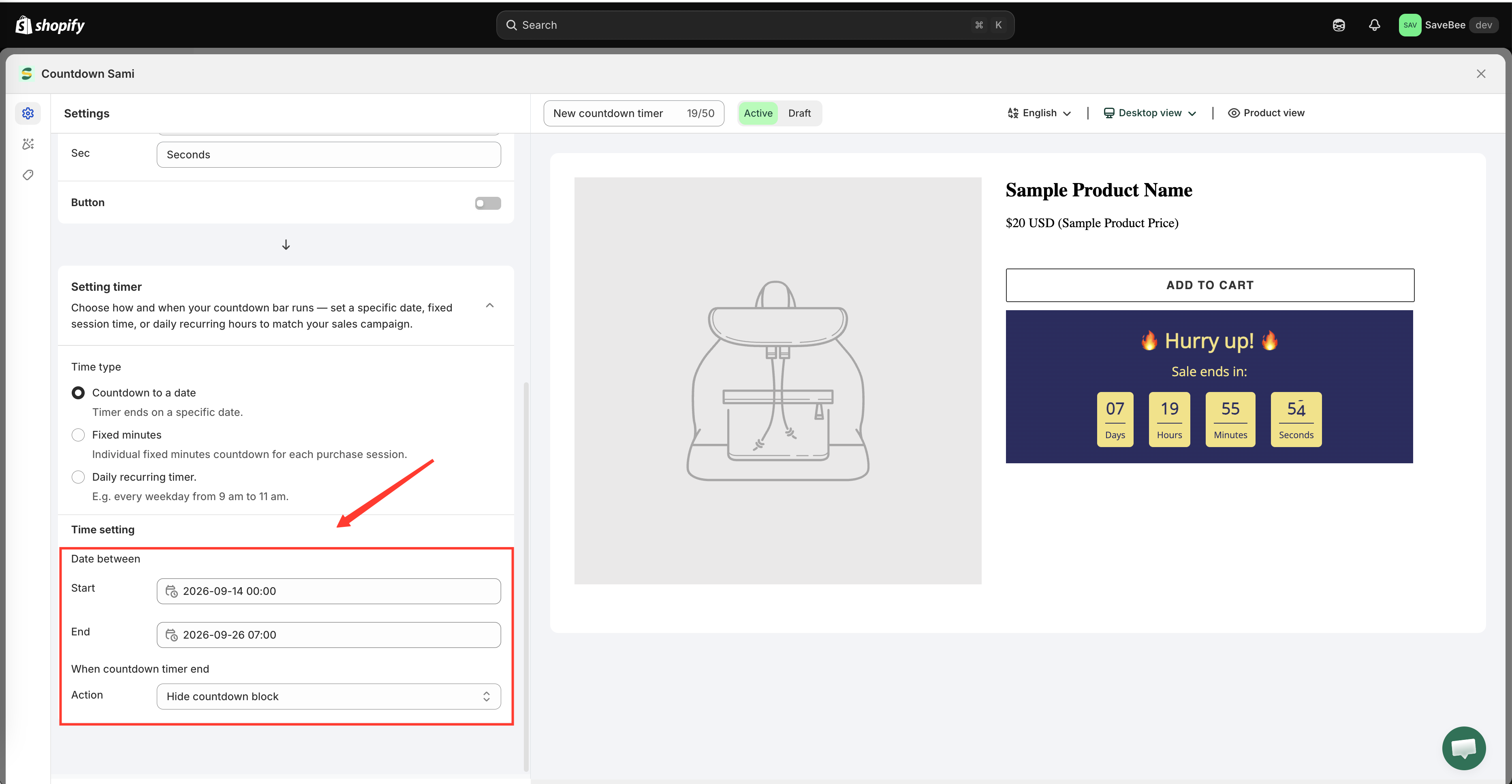
Open the **Setting timer** section and set **Time type** to **Countdown to a date**. It's described in the app as "Timer ends on a specific date." and is selected by default on a new timer.
Countdown to a date is the default Time type.
{% endstep %}
{% step %}
### Set the End date
Under **Date between**, set **End** to the date and time the campaign finishes. This is the moment the timer counts towards, down to the second.
End is the deadline. Start is optional.
{% endstep %}
{% step %}
### Set a Start date, or leave it empty
Leave **Start** empty and the timer is live as soon as you save it.
Set a **Start** and the timer stays hidden until that moment arrives, then appears on its own. This is how you schedule a sale in advance: build it today, set it to start Friday morning, save it as Active, and forget about it.
{% endstep %}
{% step %}
### Choose what happens at zero
Set **When countdown timer end** to one of **Do nothing**, **Hide countdown block**, or **Repeat the timer**. For a real deadline, **Hide countdown block** is usually right. See [When the timer ends](/samita-countdown-timer-bar/countdown-timer/when-the-timer-ends.md).
{% endstep %}
{% step %}
### Style it on the Design tab
Switch to **Design** to change colors, fonts, background, borders, and spacing — or skip it and keep the template's look. See [Design a countdown](/samita-countdown-timer-bar/design-and-translation/design.md).
{% endstep %}
{% step %}
### Choose where it shows
On the **Display** tab, tick **Product page** under **Show countdown on** to place it automatically on product pages, or copy the **Shortcode** to put it somewhere specific.
Use the **Conditions** section above it to limit the timer to certain products, collections, pages, customers, languages, or countries. See [Display conditions](/samita-countdown-timer-bar/where-countdowns-appear/conditions.md).
{% endstep %}
{% step %}
### Save it as Active
Set the status to **Active** and click **Save**. A **Draft** is saved but never rendered.
{% endstep %}
{% step %}
### Check it on your storefront
Open a page that matches the countdown's conditions on your live storefront. The timer should be visible and ticking. If the Start date hasn't arrived yet, it correctly shows nothing.
{% endstep %}
{% endstepper %}
## How the deadline is read
The remaining time is worked out in the shopper's browser by comparing the End date you set against their device clock. There's no separate timezone setting — the End date you enter is the deadline the app counts towards.
The practical consequences:
* Shoppers in other timezones see the same moment expressed as their own remaining time, which is what you want.
* A shopper whose device clock is badly wrong sees a wrong timer. There's nothing the app can do about that, and it's rare.
## Extending or shortening a running sale
Change the **End** date and save. Every shopper's timer picks up the new deadline the next time they load the page — you don't need to recreate the countdown.
You can do this without opening the full builder, from the [Countdowns list](/samita-countdown-timer-bar/countdowns/manage.md).
{% hint style="info" %}
If a campaign has already ended and you extend it, a timer set to **Hide countdown block** comes back on its own.
{% endhint %}
## Next steps
* [When the timer ends](/samita-countdown-timer-bar/countdown-timer/when-the-timer-ends.md)
* [Timer text and button](/samita-countdown-timer-bar/countdown-timer/content.md)
* [Display conditions](/samita-countdown-timer-bar/where-countdowns-appear/conditions.md)
* [Design a countdown](/samita-countdown-timer-bar/design-and-translation/design.md)
---
# Agent Instructions
This documentation is published with GitBook. GitBook is the documentation platform designed so that both humans and AI agents can read, navigate, and reason over technical content effectively. Learn more at gitbook.com.
## Querying This Documentation
If you need additional information that is not directly available in this page, you can query the documentation by asking a question.
Perform an HTTP GET request on the following URL with the `ask` and `goal` query parameters:
```
GET https://docs.samita.io/samita-countdown-timer-bar/countdown-timer/count-down-to-a-date.md?ask=&goal=
```
`ask` is the immediate question: it should be specific, self-contained, and written in natural language.
`goal` is what the user is ultimately trying to achieve, the reason they need the answer. Sharing it helps GitBook give you a better, more relevant answer. A goal is most helpful when it describes the outcome the user wants rather than restating the question. For example, with `ask=how do I create an API token`, a goal like `automate deployments from our CI pipeline` lets GitBook tailor the answer to that use case.
The response will contain a direct answer to the question and relevant excerpts and sources from the documentation.
Use this mechanism when the answer is not explicitly present in the current page, you need clarification or additional context, or you want to retrieve related documentation sections.