> For the complete documentation index, see [llms.txt](https://docs.samita.io/llms.txt). Markdown versions of documentation pages are available by appending `.md` to page URLs; this page is available as [Markdown](https://docs.samita.io/samita-countdown-timer-bar/countdowns/templates.md).
# Choose a template
Browse, filter, and search the ready-made designs for every countdown type.
Every countdown starts from a template. A template is a starting design — colors, layout, background artwork — and nothing about it is permanent: you can change every part of it in the builder afterwards, or swap to a different template later.
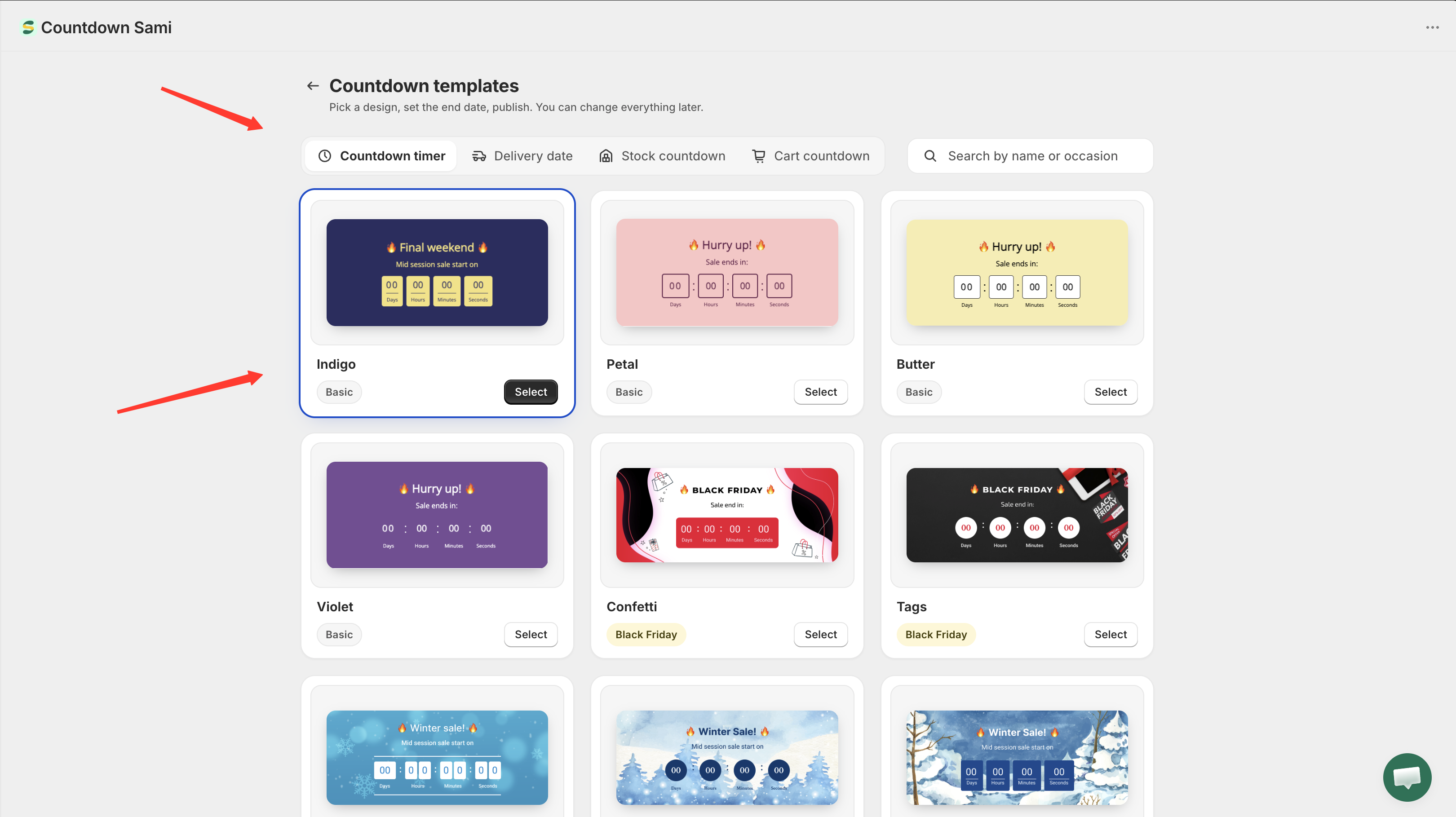
The **Countdown templates** page opens whenever you click **Create countdown**.
The template picker: type tabs across the top, search on the right, designs below.
## Choose the type first
The segmented bar at the top switches between **Countdown timer**, **Delivery date**, **Stock countdown**, and **Cart countdown**. Each type has its own set of designs, and switching type clears whatever filter or search you had.
## Timer designs are grouped by occasion
Countdown timer templates come in ten occasions:
**Basic** · **Black Friday** · **Winter Sale** · **Christmas** · **April Fool's Day** · **Moon Festival** · **New Year** · **Summer Sale** · **Valentine** · **Halloween**
Each design has a name read off its artwork — Onyx, Ribbon, Snowfall, Lantern, Parasol — rather than a number. The chip in the corner of each card tells you which occasion it belongs to.
Timer designs are also drawn for different places on your store. Some are shaped for the product page, some for a full-width bar across the top or bottom of the page, and some for a landing page. The shape travels with the design when you select it, so pick one that suits where you intend to show the timer.
{% hint style="info" %}
Landing-page and top-bottom-bar designs don't place themselves — tick **Product page** for automatic placement, or use the [shortcode](/samita-countdown-timer-bar/where-countdowns-appear/shortcode.md) to put them exactly where you want.
{% endhint %}
## The other three types are layouts, not occasions
**Delivery date** has four layouts, matching the four ways the message and the order-progress bar can be arranged:
| Layout | Shows |
| ------------------------ | --------------------------------------------- |
| Message and progress bar | The delivery message above the progress bar |
| Progress bar and message | The progress bar above the message |
| Message only | Just the delivery text |
| Progress bar only | Just the Ordered → Dispatched → Delivered bar |
**Stock countdown** and **Cart countdown** each have a single default layout.
## Filter by occasion
Clicking a season chip on the dashboard opens the picker already filtered to it. The filter shows as a chip above the grid — click the ✕ on that chip to clear it and see every design for the type again.
## Search
The search field matches on both the design's name and its occasion, in your admin language and in English. Typing `halloween` finds the Halloween design even though it's named Midnight; typing `midnight` finds it too.
The grid shows 12 designs per page, with arrows underneath when there are more.
## Select a design
Click **Select** on a card. The builder opens with that design already applied and your countdown ready to configure.
{% hint style="info" %}
Changed your mind about the look? You don't have to start over — open the countdown and pick a different template from inside the builder.
{% endhint %}
## Next steps
* [Create your first countdown](/samita-countdown-timer-bar/quick-start/quickstart.md)
* [Countdown timer overview](/samita-countdown-timer-bar/countdown-timer/overview.md)
* [Design a countdown](/samita-countdown-timer-bar/design-and-translation/design.md)
* [Manage countdowns](/samita-countdown-timer-bar/countdowns/manage.md)
---
# Agent Instructions
This documentation is published with GitBook. GitBook is the documentation platform designed so that both humans and AI agents can read, navigate, and reason over technical content effectively. Learn more at gitbook.com.
## Querying This Documentation
If you need additional information that is not directly available in this page, you can query the documentation by asking a question.
Perform an HTTP GET request on the following URL with the `ask` and `goal` query parameters:
```
GET https://docs.samita.io/samita-countdown-timer-bar/countdowns/templates.md?ask=&goal=
```
`ask` is the immediate question: it should be specific, self-contained, and written in natural language.
`goal` is what the user is ultimately trying to achieve, the reason they need the answer. Sharing it helps GitBook give you a better, more relevant answer. A goal is most helpful when it describes the outcome the user wants rather than restating the question. For example, with `ask=how do I create an API token`, a goal like `automate deployments from our CI pipeline` lets GitBook tailor the answer to that use case.
The response will contain a direct answer to the question and relevant excerpts and sources from the documentation.
Use this mechanism when the answer is not explicitly present in the current page, you need clarification or additional context, or you want to retrieve related documentation sections.