> For the complete documentation index, see [llms.txt](https://docs.samita.io/llms.txt). Markdown versions of documentation pages are available by appending `.md` to page URLs; this page is available as [Markdown](https://docs.samita.io/samita-countdown-timer-bar/design-and-translation/design.md).
# Design a countdown
Change colors, fonts, backgrounds, borders, and spacing so a countdown matches your store.
A template gives you a starting look. The **Design** tab is where you make it yours — or where you rebuild it entirely, since every part is editable.
Countdown timers and estimated delivery dates get a full **Design** tab. Stock and cart countdowns have fewer options, and keep them inside the **Settings** tab instead.
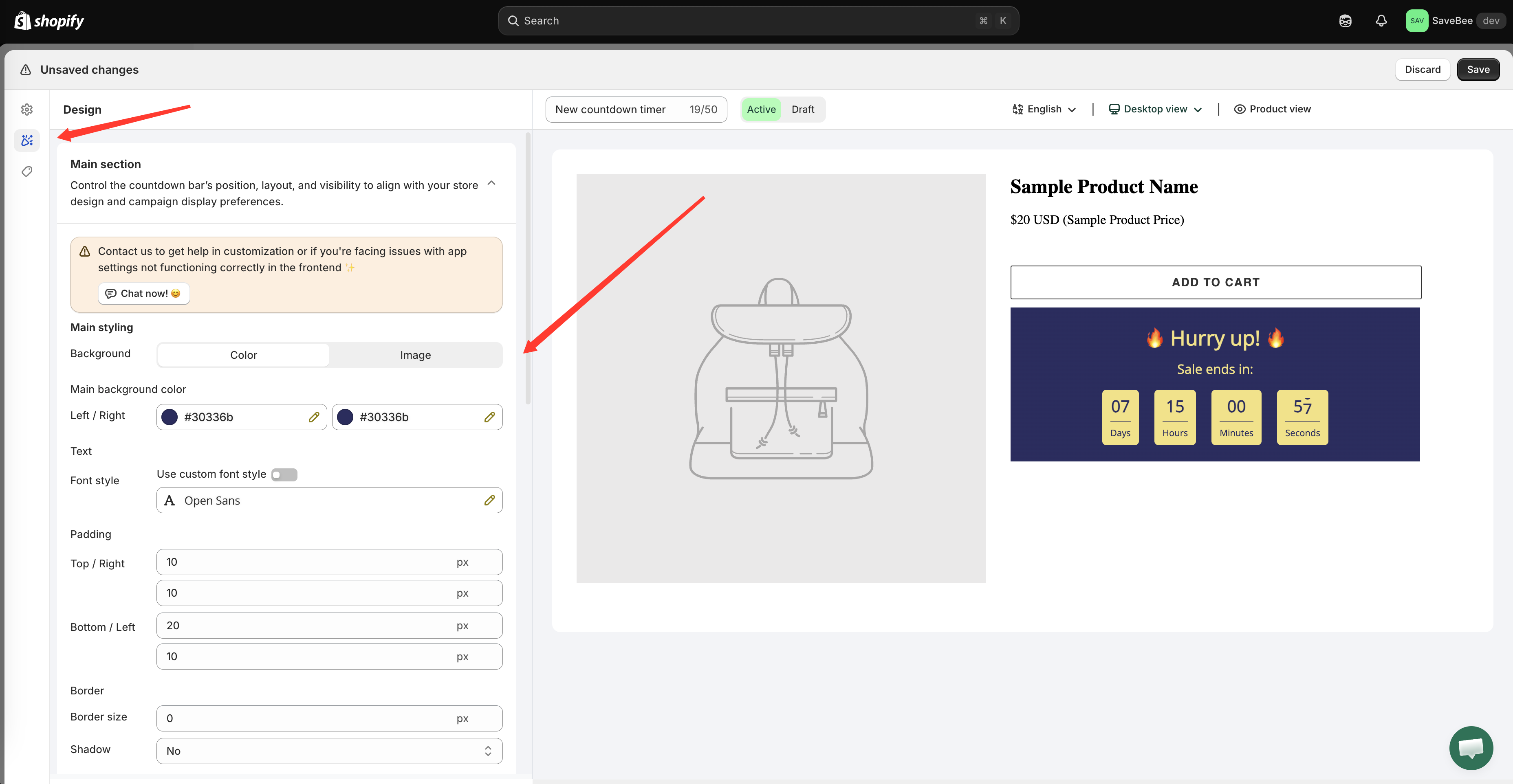
The Design tab, with the preview updating as you change settings.
{% hint style="info" %}
The preview beside the settings updates as you work, so you don't have to save and check your storefront after every change. It shows the countdown's design, not your theme's layout — check the real page at the end.
{% endhint %}
## Switching template
You're not stuck with the design you picked at the start. Open the templates picker from inside the builder and choose another — the seasons are tabbed across the top: **Default**, **New year**, **Valentine**, **Summer Sale**, **Moon Festival**, **Halloween**, **Black Friday**, **Christmas**, and **Winter Sales**.
Switching template replaces the design. Your text, timing, and conditions are kept.
## Countdown timer design
The timer's Design tab has four sections plus custom CSS.
### Design Main Section
The countdown's outer container — the panel everything else sits inside.
| Group | Controls |
| ----------------- | -------------------------------------------------------------------------------------------------------------------------------------------------------------------------------------------- |
| **Background** | A solid colour or an uploaded image. With colour you get a **Main background color** with separate **Left** and **Right** values, so a flat fill is one colour on both and a gradient is two |
| **Overlay image** | Darkens an uploaded background so text stays readable over it |
| **Text** | The font for the whole countdown. Turn on **Use custom font style** to pick a font family and weight |
| **Padding** | Space inside the panel, set as Top / Right and Bottom / Left |
| **Border** | Border size, radius, style — **Solid**, **Dotted**, or **Dashed** — and colour |
| **Shadow** | **Yes** or **No** |
{% hint style="info" %}
Uploaded images must be PNG, JPEG, or JPG and under 1 MB. Large images slow your product pages down — crop and compress before uploading.
{% endhint %}
### Element styling: Title and Subtitle
The **Title** and **Subtitle** each get their own font, font size, colour, and margins. This is where you make the title dominate and the subtitle recede, or bring them closer together.
### Design Timer Section
The digits themselves.
| Group | Controls |
| ----------- | ------------------------------------------------------------------------------------------------------------------------------------------------------ |
| **Font** | **Timer font size** for the numbers and **Label font size** for the words underneath |
| **Border** | Size and style of the box around each unit |
| **Color** | **Number color**, **Data text color** for the labels, **Background color** for each unit's box, **Dot color** for the separators, and **Border color** |
| **Padding** | Space inside each unit's box |
Setting a background and border on the units gives you the boxed look; leaving both clear gives you plain numbers on the panel.
### Button
If you've turned the [button](/samita-countdown-timer-bar/countdown-timer/content.md) on, it gets its own border (radius, size, style), colours (background, text, border), and padding.
### Design Mobile Section
Separate font sizes for phones, described in the app as "Optimize countdown appearance and layout for mobile devices to ensure a smooth and responsive user experience."
You can set mobile-specific sizes for the **Title**, **Subtitle**, **Timer number**, and **Timer label**, plus mobile padding.
This section is worth a minute on every countdown. A title that reads well at 25px on desktop is usually too big on a phone, and four timer units at desktop size often wrap or overflow.
## Estimated delivery date design
A delivery date's Design tab is split to match its two parts:
* **Design Main Widget** — the message: fonts, colours, size, borders, spacing.
* **Design Process Widget** — the Ordered → Dispatched → Delivered bar: icons, colours, and spacing.
If your layout is **Message only** or **Progress bar only**, only the relevant half matters.
## Stock and cart countdown design
These two have their design controls inside the **Settings** tab.
**Stock countdown** offers **Alignment**, separate colours for the message, slider, stock figure, and background, and an **Animation** — **None**, **Flash**, or **Pulse**.
**Cart countdown** offers position, colours for the message, timer, and background, borders, and fonts.
## Custom CSS
Every type ends with a **Custom CSS (Developer Zone)** box for anything the controls don't cover. See [Custom CSS](/samita-countdown-timer-bar/design-and-translation/custom-css.md).
## Practical advice
**Borrow from your theme.** A countdown in your brand colours looks like part of the store; one in template defaults looks bolted on. Your theme's accent colour is usually the right background.
**Contrast matters more than colour.** The numbers are the point — make sure they're readable against whatever is behind them, including at the small end of the size range.
**Check it on a real page.** The preview shows the countdown alone, on its own background. Your product page has a price, a button, and images competing with it.
**Check it on a phone.** Use the Design Mobile Section rather than accepting whatever the desktop sizes do on a small screen.
## Next steps
* [Custom CSS](/samita-countdown-timer-bar/design-and-translation/custom-css.md)
* [Translate countdown text](/samita-countdown-timer-bar/design-and-translation/translate.md)
* [Timer text and button](/samita-countdown-timer-bar/countdown-timer/content.md)
* [Choose a template](/samita-countdown-timer-bar/countdowns/templates.md)
---
# Agent Instructions
This documentation is published with GitBook. GitBook is the documentation platform designed so that both humans and AI agents can read, navigate, and reason over technical content effectively. Learn more at gitbook.com.
## Querying This Documentation
If you need additional information that is not directly available in this page, you can query the documentation by asking a question.
Perform an HTTP GET request on the following URL with the `ask` and `goal` query parameters:
```
GET https://docs.samita.io/samita-countdown-timer-bar/design-and-translation/design.md?ask=&goal=
```
`ask` is the immediate question: it should be specific, self-contained, and written in natural language.
`goal` is what the user is ultimately trying to achieve, the reason they need the answer. Sharing it helps GitBook give you a better, more relevant answer. A goal is most helpful when it describes the outcome the user wants rather than restating the question. For example, with `ask=how do I create an API token`, a goal like `automate deployments from our CI pipeline` lets GitBook tailor the answer to that use case.
The response will contain a direct answer to the question and relevant excerpts and sources from the documentation.
Use this mechanism when the answer is not explicitly present in the current page, you need clarification or additional context, or you want to retrieve related documentation sections.