> For the complete documentation index, see [llms.txt](https://docs.samita.io/llms.txt). Markdown versions of documentation pages are available by appending `.md` to page URLs; this page is available as [Markdown](https://docs.samita.io/samita-countdown-timer-bar/design-and-translation/translate.md).
# Translate countdown text
Show different wording per storefront language, so each shopper reads the countdown in their own.
If your store sells in more than one language, a countdown can carry a different version of its text for each one. A shopper browsing in French sees the French wording; a shopper browsing in English sees the English. Same countdown, same timing, same design.
The app puts it plainly: you can translate the countdown's content based on the online store's locale. Customers with the `en` locale see the countdown in English; customers with the `fr` locale see it in French.
## What you can translate
Everything the shopper reads, per countdown type:
| Type | Translatable |
| --------------------------- | ------------------------------------------------------------------------------------- |
| **Countdown timer** | Title, Subtitle, the four timer labels (Days, Hours, Min, Sec), and the button's text |
| **Estimated delivery date** | The delivery message, and the progress bar's titles, descriptions, and tooltips |
| **Stock countdown** | The stock message |
| **Cart countdown** | The cart message |
Timing, conditions, and design are shared across every language — you're translating the words, not building a separate countdown.
## Which languages are offered
The list comes from your store's own published languages in Shopify, under **Settings → Languages**. Your primary language is the default.
Publish a new language in Shopify and it appears in the countdown's language list the next time you open the builder. There's no separate language list in the app to maintain.
## Steps to translate a countdown
{% stepper %}
{% step %}
### Open the countdown
Open the countdown you want to translate from the **Countdowns** list.
{% endstep %}
{% step %}
### Write the default language version first
Make sure the text is finished in your primary language before you translate it. Anything you change later has to be changed in every language separately.
{% endstep %}
{% step %}
### Switch language in the top bar
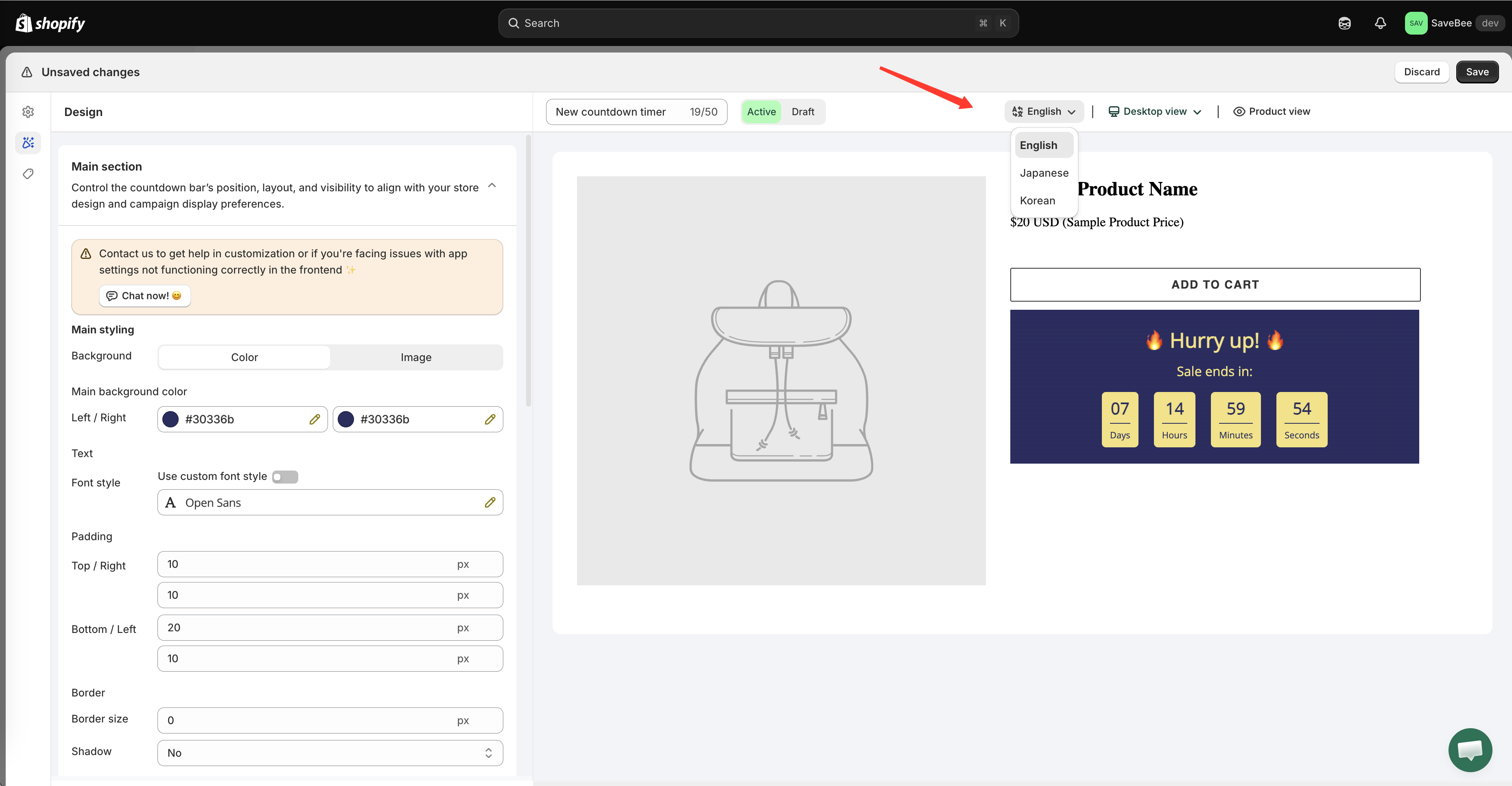
Find the language button in the builder's top bar — it shows the current language's name next to a translate icon. Click it and pick the language you want to write.
The language switcher in the builder's top bar lists your store's published languages.
{% endstep %}
{% step %}
### Rewrite the text fields
With that language selected, go through the **Content** section and write the text in that language. The fields now hold that language's version — editing them doesn't touch your default wording.
Translate the timer labels too, not just the headline. `Days` / `Hours` / `Min` / `Sec` left in English inside otherwise-translated copy is the detail shoppers notice.
{% endstep %}
{% step %}
### Repeat for each language
Switch again and repeat for every published language you want covered.
{% endstep %}
{% step %}
### Save
Click **Save**. All the language versions are saved together, as one countdown.
{% endstep %}
{% step %}
### Check each language on your storefront
Open your storefront and switch language using your theme's own language selector — or add the locale to the URL, for example `your-store.com/fr/products/...`. The countdown should show that language's wording.
Check the layout as well as the words: translations are often longer than the original, and a title that fits in English can wrap awkwardly in German.
{% endstep %}
{% endstepper %}
## Languages you haven't translated
A language you don't write a version for falls back to the default text. Shoppers in that language see the countdown with your primary wording rather than nothing at all — worth knowing when you publish a new storefront language and forget to come back here.
## Translating versus targeting
Translation and [conditions](/samita-countdown-timer-bar/where-countdowns-appear/conditions.md) solve different problems:
* **Translate** when the offer is the same everywhere and only the wording changes. One countdown, several languages.
* **Use a Language condition** when the offer itself differs by market — different end dates, different delivery promises, different design. Separate countdowns, each with its own Language condition.
{% hint style="info" %}
Delivery dates often need the second approach. A delivery window that's honest for one market usually isn't for another, and that's a different countdown, not a translation.
{% endhint %}
## This is not the app's own language
Translating a countdown changes what shoppers read on your storefront. The language of the app's admin interface is a separate setting in the dashboard footer — see [App language](/samita-countdown-timer-bar/settings/app-language.md).
## Next steps
* [Timer text and button](/samita-countdown-timer-bar/countdown-timer/content.md)
* [Delivery variables](/samita-countdown-timer-bar/estimated-delivery-date/variables.md)
* [Display conditions](/samita-countdown-timer-bar/where-countdowns-appear/conditions.md)
* [App language](/samita-countdown-timer-bar/settings/app-language.md)
---
# Agent Instructions
This documentation is published with GitBook. GitBook is the documentation platform designed so that both humans and AI agents can read, navigate, and reason over technical content effectively. Learn more at gitbook.com.
## Querying This Documentation
If you need additional information that is not directly available in this page, you can query the documentation by asking a question.
Perform an HTTP GET request on the following URL with the `ask` and `goal` query parameters:
```
GET https://docs.samita.io/samita-countdown-timer-bar/design-and-translation/translate.md?ask=&goal=
```
`ask` is the immediate question: it should be specific, self-contained, and written in natural language.
`goal` is what the user is ultimately trying to achieve, the reason they need the answer. Sharing it helps GitBook give you a better, more relevant answer. A goal is most helpful when it describes the outcome the user wants rather than restating the question. For example, with `ask=how do I create an API token`, a goal like `automate deployments from our CI pipeline` lets GitBook tailor the answer to that use case.
The response will contain a direct answer to the question and relevant excerpts and sources from the documentation.
Use this mechanism when the answer is not explicitly present in the current page, you need clarification or additional context, or you want to retrieve related documentation sections.