> For the complete documentation index, see [llms.txt](https://docs.samita.io/llms.txt). Markdown versions of documentation pages are available by appending `.md` to page URLs; this page is available as [Markdown](https://docs.samita.io/samita-countdown-timer-bar/estimated-delivery-date-1/configure-the-date-range-setting.md).
# Configure the Date range setting
After setting up the content for the Estimated delivery date, you will need to configure the time range for the delivery.
* ***Note: The order dispatched day will be calculated based on the ordered day. The order delivered day will be calculated based on the order dispatched day.***
1. Set up the **Order dispatched days range**. Depending on your store’s delivery process, the dispatched day can be extended from days to days. For example, after placing the order, there will be **2 – 3 days** for the shipper to deliver all the containers/orders to the ship/train and start transferring the orders/containers to the post office. The day range will now be configured as follows:
2\. Set up the **Order dispatched working days**. Please tick on the days that you will work on.
If the order is not dispatched on weekends, the dispatched day will be counted for 2 days more. In this case, normally, the maximum day when the order is dispatched will be on **Sep 7th** (as what you set up in the “Max day” setting), however, as the Saturday and Sunday are not ticked, the maximum dispatched day will be **Sep 9th** because it will be added 2 more days for the weekend.
If you tick both days, the maximum dispatched day will be as expected:
3\. Set up the **Order delivered days range**. You set it up with the same rule as the order dispatched days range.
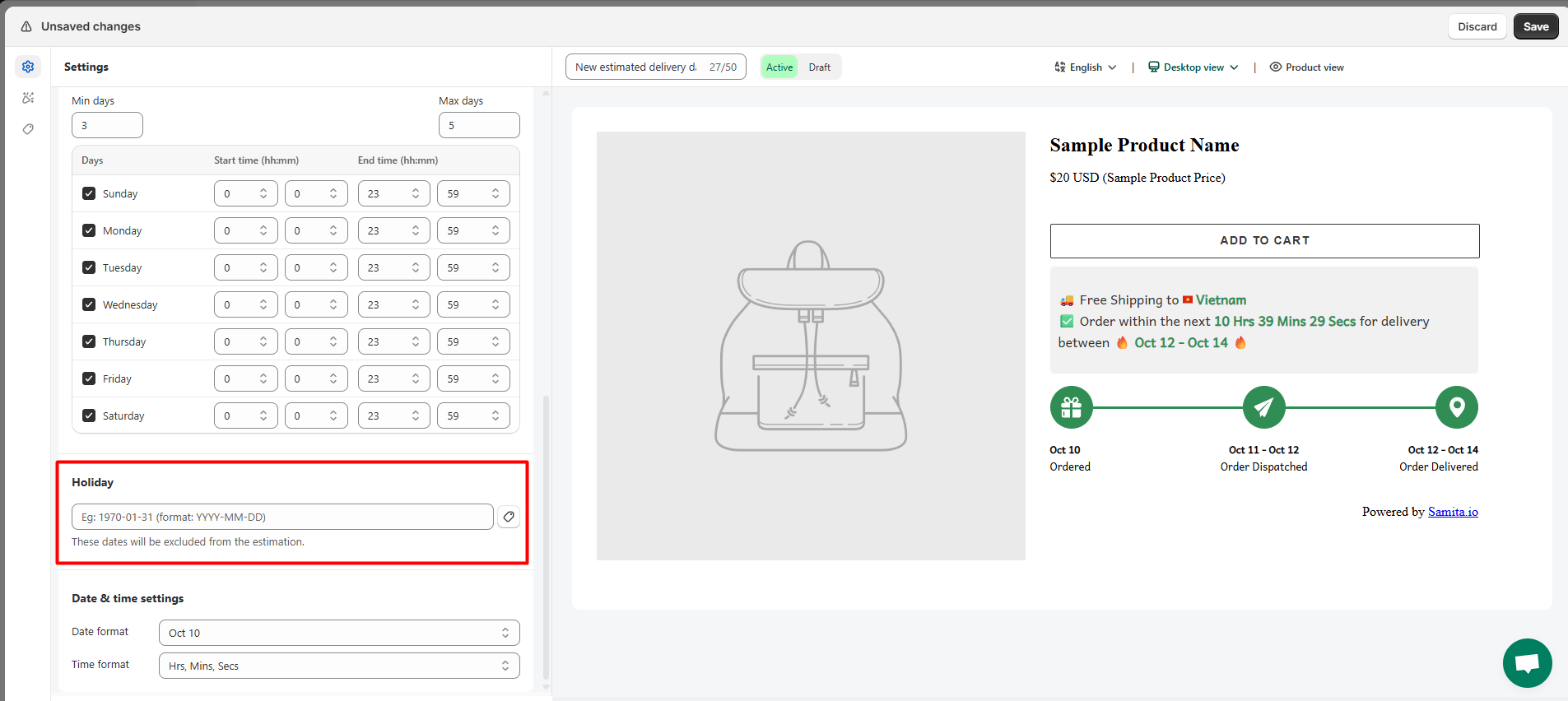
4\. You can exclude the day that is on holiday occasion in your place by setting up the **Holiday** field:
5\. Set up **Date and Time formats**.
6\. Configure the **Cut-off time** for the order: Cut-offs represent the time limits within which the goods must be delivered to the ocean carrier to be loaded onto a departing ship. Cut-off time means the latest possible time in which containers or cargoes of the goods can be delivered to a ship or designated point.
If you want to set up a specific cutoff time for each day of the week, please set up the **Start time** and **End time** by days of the week:
Then for each day, there will be a different cutoff time.
**\*Note:**
*The time in the message bar will disappear after the cut-off time starts. It will look like this in the front store:*
{% hint style="success" %}
**Friendly reminder!**\
If you do encounter any difficulty while proceeding with these steps, don’t show any hesitation to contact us promptly via the email address [support@samita.io](https://samita.io/pages/contact)
{% endhint %}
---
# Agent Instructions
This documentation is published with GitBook. GitBook is the documentation platform designed so that both humans and AI agents can read, navigate, and reason over technical content effectively. Learn more at gitbook.com.
## Querying This Documentation
If you need additional information that is not directly available in this page, you can query the documentation dynamically by asking a question.
Perform an HTTP GET request on the current page URL with the `ask` query parameter, and the optional `goal` query parameter:
```
GET https://docs.samita.io/samita-countdown-timer-bar/estimated-delivery-date-1/configure-the-date-range-setting.md?ask=&goal=
```
`ask` is the immediate question: it should be specific, self-contained, and written in natural language.
`goal` is optional and describes the broader end goal you are ultimately trying to accomplish on behalf of the user. GitBook uses it to tailor the answer towards what is most useful for that goal.
The response will contain a direct answer to the question and relevant excerpts and sources from the documentation.
Use this mechanism when the answer is not explicitly present in the current page, you need clarification or additional context, or you want to retrieve related documentation sections.