> For the complete documentation index, see [llms.txt](https://docs.samita.io/llms.txt). Markdown versions of documentation pages are available by appending `.md` to page URLs; this page is available as [Markdown](https://docs.samita.io/samita-countdown-timer-bar/estimated-delivery-date/create.md).

# Create an estimated delivery date

Build a delivery-date widget end to end, from layout and message through to your live product page.

This guide builds a complete estimated delivery date: a message with a real delivery window, an order-progress bar, and the dispatch and delivery rules behind them.

Make sure the [app embed is on](/samita-countdown-timer-bar/quick-start/enable-app-embed.md) before you start, or the result won't appear on your storefront.

## Steps to set it up

{% stepper %}
{% step %}

### Create the countdown

Click **Create countdown** from the dashboard or the **Countdowns** page.
{% endstep %}

{% step %}

### Pick a Delivery date layout

On the **Countdown templates** page, switch the type tab to **Delivery date**. There are four layouts:

| Layout                       | Shows                                           |
| ---------------------------- | ----------------------------------------------- |
| **Message and progress bar** | The message above the progress bar              |
| **Progress bar and message** | The progress bar above the message              |
| **Message only**             | Just the delivery text                          |
| **Progress bar only**        | Just the Ordered → Dispatched → Delivered strip |

Click **Select** on the one you want. You can switch layout later from the **Layout** control in the builder.
{% endstep %}

{% step %}

### Name it

Give it a name like "Standard UK delivery". Only you see it.
{% endstep %}

{% step %}

### Write the message

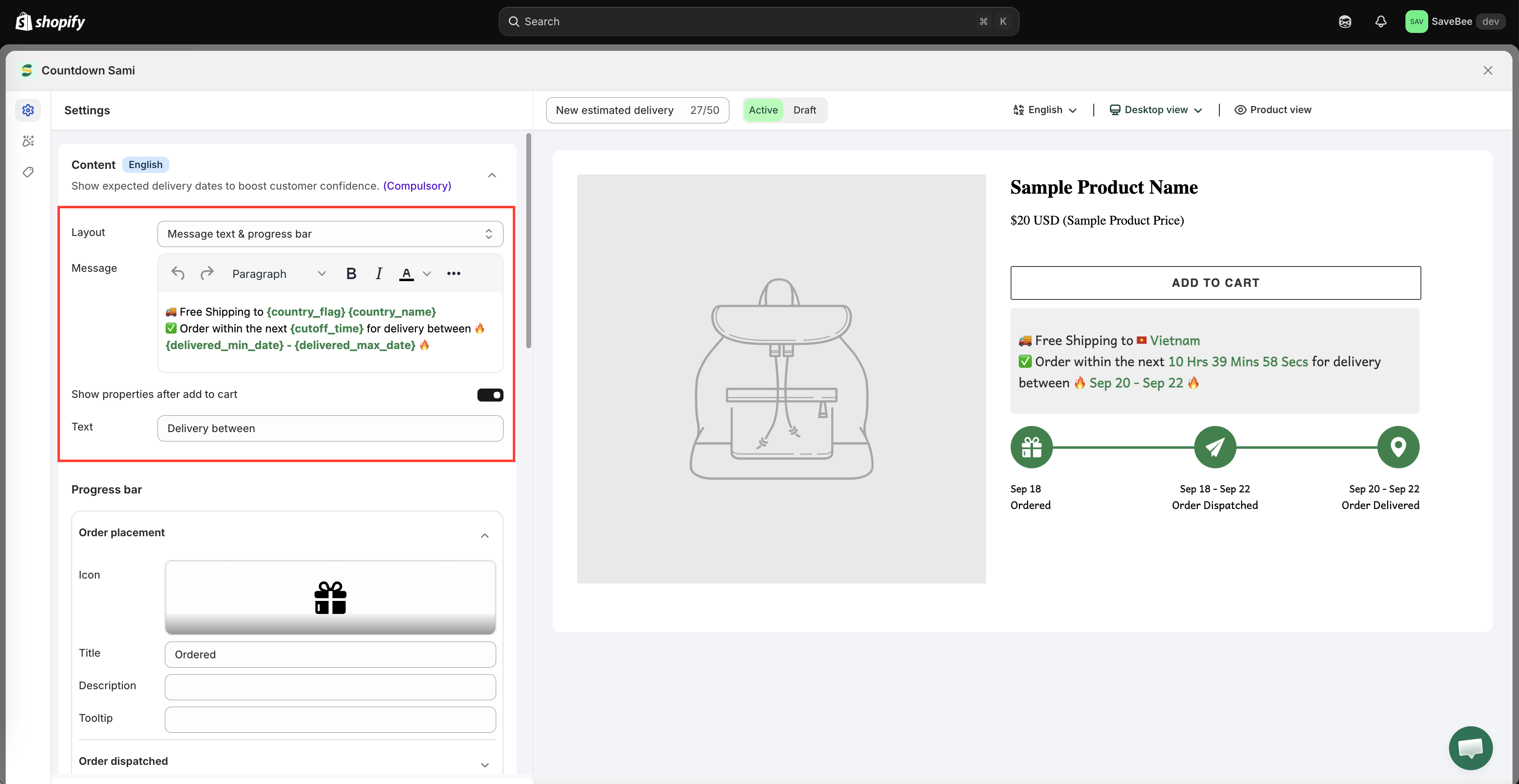
On the **Settings** tab, open the **Content** section. The **Message** field is a rich-text editor — you can bold, color, and add line breaks, and you can drop in variables that the app replaces with real dates.

A new delivery date starts with a message along these lines:

> 🚚 Free Shipping to **{country\_flag} {country\_name}** ✅ Order within the next **{cutoff\_time}** for delivery between **{delivered\_min\_date} - {delivered\_max\_date}**

Edit the wording to suit your store, keeping the variables you want. The full list is in [Delivery variables](/samita-countdown-timer-bar/estimated-delivery-date/variables.md).

<figure><img src="https://855148666-files.gitbook.io/~/files/v0/b/gitbook-x-prod.appspot.com/o/spaces%2FaOJwtwIUCsbYLCDqZD0u%2Fuploads%2Fgit-blob-86940a89c4150ee8db8e690db099a560b0e1e289%2Fscreenshot-delivery-message-editor.png?alt=media" alt="The delivery Message editor with text and variables"><figcaption><p>The Message field mixes your own wording with date variables.</p></figcaption></figure>
{% endstep %}

{% step %}

### Set up the progress bar

Still in **Content**, open the **Progress bar** section. It has three stages, each with the same four fields:

| Stage                | Default title    |
| -------------------- | ---------------- |
| **Order placement**  | Ordered          |
| **Order dispatched** | Order Dispatched |
| **Order delivered**  | Order Delivered  |

For each stage you can set:

* **Icon** — pick from the app's icon library
* **Title** — the label under the icon
* **Description** — an optional line beneath the title
* **Tooltip** — text shown when a shopper hovers the stage

The **Order dispatched** stage can be switched off if you'd rather show a two-stage bar.

<figure><img src="https://855148666-files.gitbook.io/~/files/v0/b/gitbook-x-prod.appspot.com/o/spaces%2FaOJwtwIUCsbYLCDqZD0u%2Fuploads%2Fgit-blob-365df3c833b556631e834828f2e33abbf6b3b619%2Fscreenshot-delivery-progress-bar.png?alt=media" alt="The Progress bar settings showing the three stages with their icon, title, description and tooltip fields"><figcaption><p>Each progress-bar stage has an icon, title, description, and tooltip.</p></figcaption></figure>

{% hint style="info" %}
If you chose **Message only** as your layout, skip this step — the progress bar isn't shown.
{% endhint %}
{% endstep %}

{% step %}

### Set the dispatch and delivery ranges

Open the **Date range setting** section and set how long each stage takes:

* **Order dispatched days range** — **Min days** and **Max days** before the order leaves you, plus the weekdays you dispatch on. Defaults to 1–3 days, Monday to Friday.
* **Order delivered days range** — **Min days** and **Max days** in transit, plus the weekdays deliveries arrive on. Defaults to 3–5 days, every day.

Full detail, including holidays and date formats, is in [Date range settings](/samita-countdown-timer-bar/estimated-delivery-date/date-range.md).

<figure><img src="https://855148666-files.gitbook.io/~/files/v0/b/gitbook-x-prod.appspot.com/o/spaces%2FaOJwtwIUCsbYLCDqZD0u%2Fuploads%2Fgit-blob-a9db9b2de5c6ca4879fb67359c327668032a0e99%2Fscreenshot-delivery-date-range.png?alt=media" alt="The Date range setting section with dispatch and delivery day ranges and working days"><figcaption><p>The dispatch and delivery ranges produce the window shown in the message.</p></figcaption></figure>
{% endstep %}

{% step %}

### Set the cut-off time

Still in **Date range setting**, set the daily cut-off — the time after which an order counts as tomorrow's. It defaults to 23:59, which effectively means "all day".

If your real cut-off differs by weekday, you can set one per day. See [Cut-off time](/samita-countdown-timer-bar/estimated-delivery-date/cutoff-time.md).
{% endstep %}

{% step %}

### Choose the date and time format

Under **Date & time settings**, pick a **Date format** and a **Time format**.

Date formats range from `MMM DD` (the default, "Mar 14") through `DD/MM/YYYY` to `dddd, MMMM DD, YYYY` ("Friday, March 14, 2026"). Time formats control how the `{cutoff_time}` countdown reads — from `Hrs, Mins, Secs` down to `H, M, S`.

Pick the convention your customers expect. `DD/MM` and `MM/DD` mean different things to different countries.
{% endstep %}

{% step %}

### Style it on the Design tab

Switch to **Design** to adjust the message widget and the progress widget — fonts, colors, sizes, spacing. See [Design a countdown](/samita-countdown-timer-bar/design-and-translation/design.md).
{% endstep %}

{% step %}

### Choose where it shows

On the **Display** tab, tick **Product page** under **Show countdown on**, or copy the **Shortcode** to place it exactly where you want.

Use **Conditions** to limit it — a delivery promise that's true for one collection often isn't true for another. See [Display conditions](/samita-countdown-timer-bar/where-countdowns-appear/conditions.md).

{% hint style="info" %}
Different delivery promises for different products? Create one delivery date per promise and give each its own condition, rather than trying to make one cover everything.
{% endhint %}
{% endstep %}

{% step %}

### Save it as Active

Set the status to **Active** and click **Save**.
{% endstep %}

{% step %}

### Check it on your storefront

Open a matching product page on your live storefront. Check that:

* The dates make sense — not in the past, not absurdly far out.
* The country name and flag match where you're browsing from.
* The cut-off countdown is running.

Then check it again after your cut-off time has passed. The window should have moved on by a day.
{% endstep %}
{% endstepper %}

## Next steps

* [Date range settings](/samita-countdown-timer-bar/estimated-delivery-date/date-range.md)
* [Cut-off time](/samita-countdown-timer-bar/estimated-delivery-date/cutoff-time.md)
* [Delivery variables](/samita-countdown-timer-bar/estimated-delivery-date/variables.md)
* [Display conditions](/samita-countdown-timer-bar/where-countdowns-appear/conditions.md)


---

# Agent Instructions
This documentation is published with GitBook. GitBook is the documentation platform designed so that both humans and AI agents can read, navigate, and reason over technical content effectively. Learn more at gitbook.com.

## Querying This Documentation
If you need additional information that is not directly available in this page, you can query the documentation by asking a question.

Perform an HTTP GET request on the following URL with the `ask` and `goal` query parameters:

```
GET https://docs.samita.io/samita-countdown-timer-bar/estimated-delivery-date/create.md?ask=<question>&goal=<user_goal>
```

`ask` is the immediate question: it should be specific, self-contained, and written in natural language.
`goal` is what the user is ultimately trying to achieve, the reason they need the answer. Sharing it helps GitBook give you a better, more relevant answer. A goal is most helpful when it describes the outcome the user wants rather than restating the question. For example, with `ask=how do I create an API token`, a goal like `automate deployments from our CI pipeline` lets GitBook tailor the answer to that use case.

The response will contain a direct answer to the question and relevant excerpts and sources from the documentation.

Use this mechanism when the answer is not explicitly present in the current page, you need clarification or additional context, or you want to retrieve related documentation sections.
