> For the complete documentation index, see [llms.txt](https://docs.samita.io/llms.txt). Markdown versions of documentation pages are available by appending `.md` to page URLs; this page is available as [Markdown](https://docs.samita.io/samita-countdown-timer-bar/estimated-delivery-date/overview.md).
# Estimated delivery date overview
Show shoppers when their order will be dispatched and delivered, before they buy.
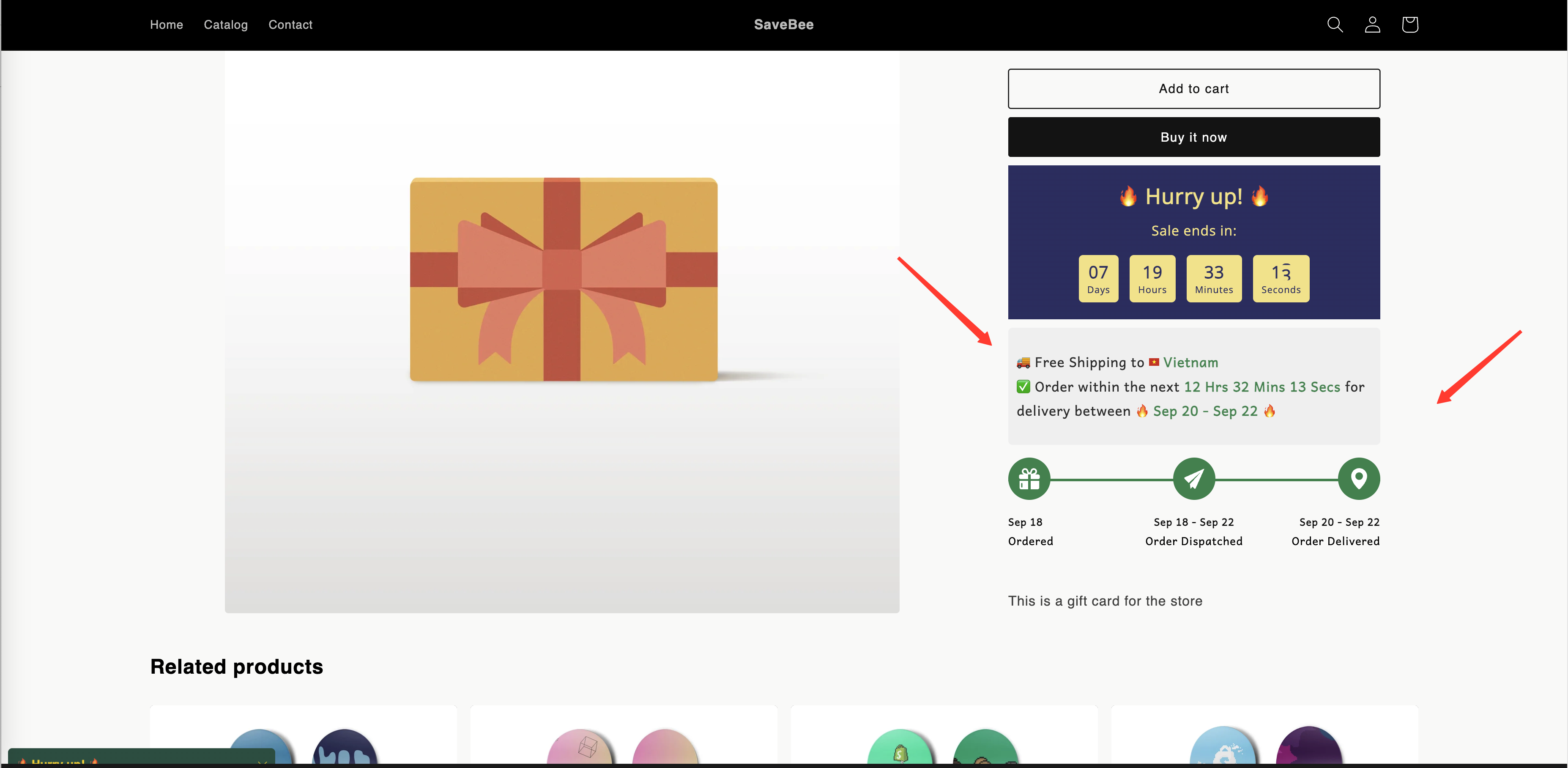
An estimated delivery date answers the question shoppers ask right before they commit: *when will this actually arrive?* Instead of a ticking clock, it shows a calculated delivery window — "Order within the next 4h 12m for delivery between Mar 14 – Mar 16" — and optionally an order-progress bar from Ordered through Dispatched to Delivered.
A delivery date on a product page: message above, progress bar below.
## What it's made of
| Part | What it does | Guide |
| ---------------- | ----------------------------------------------------------------- | -------------------------------------------------------------------------------------------------- |
| **Layout** | Which of the message and progress bar appear, and in which order | [Create an estimated delivery date](/samita-countdown-timer-bar/estimated-delivery-date/create.md) |
| **Message** | The sentence shoppers read, built from text and variables | [Delivery variables](/samita-countdown-timer-bar/estimated-delivery-date/variables.md) |
| **Progress bar** | The Ordered → Dispatched → Delivered strip, with icons and labels | [Create an estimated delivery date](/samita-countdown-timer-bar/estimated-delivery-date/create.md) |
| **Date ranges** | How many working days dispatch and delivery each take | [Date range settings](/samita-countdown-timer-bar/estimated-delivery-date/date-range.md) |
| **Cut-off time** | The daily deadline for today's orders to count | [Cut-off time](/samita-countdown-timer-bar/estimated-delivery-date/cutoff-time.md) |
## How the dates are worked out
The app doesn't read your real fulfilment data. It calculates a window from the rules you give it:
1. Start from today — or tomorrow, if the [cut-off time](/samita-countdown-timer-bar/estimated-delivery-date/cutoff-time.md) for today has already passed.
2. Add the **dispatch** range, counting only the weekdays you marked as dispatch working days.
3. Add the **delivery** range, counting only the weekdays you marked as delivery working days.
4. Skip any dates you've listed as **holidays**.
5. Format the result using the date format you chose.
The minimum and maximum of each range give you the two ends of the window, which you place in the message with `{delivered_min_date}` and `{delivered_max_date}`.
{% hint style="warning" %}
These are estimates you control, not tracked shipping promises. Set the ranges to reflect what your store can actually do — an over-optimistic window costs you more in support tickets than it gains in conversions.
{% endhint %}
## Where to start
If you're setting one up for the first time, follow [Create an estimated delivery date](/samita-countdown-timer-bar/estimated-delivery-date/create.md) — it runs from creating the countdown through to checking it on your storefront.
Come back to the other pages when you're tuning it:
* [Date range settings](/samita-countdown-timer-bar/estimated-delivery-date/date-range.md) — dispatch and delivery ranges, working days, holidays, and date formats.
* [Cut-off time](/samita-countdown-timer-bar/estimated-delivery-date/cutoff-time.md) — the daily deadline, including setting a different one per weekday.
* [Delivery variables](/samita-countdown-timer-bar/estimated-delivery-date/variables.md) — the seven tokens you can put in the message.
## Next steps
* [Create an estimated delivery date](/samita-countdown-timer-bar/estimated-delivery-date/create.md)
* [Date range settings](/samita-countdown-timer-bar/estimated-delivery-date/date-range.md)
* [Cut-off time](/samita-countdown-timer-bar/estimated-delivery-date/cutoff-time.md)
* [Delivery variables](/samita-countdown-timer-bar/estimated-delivery-date/variables.md)
---
# Agent Instructions
This documentation is published with GitBook. GitBook is the documentation platform designed so that both humans and AI agents can read, navigate, and reason over technical content effectively. Learn more at gitbook.com.
## Querying This Documentation
If you need additional information that is not directly available in this page, you can query the documentation by asking a question.
Perform an HTTP GET request on the following URL with the `ask` and `goal` query parameters:
```
GET https://docs.samita.io/samita-countdown-timer-bar/estimated-delivery-date/overview.md?ask=&goal=
```
`ask` is the immediate question: it should be specific, self-contained, and written in natural language.
`goal` is what the user is ultimately trying to achieve, the reason they need the answer. Sharing it helps GitBook give you a better, more relevant answer. A goal is most helpful when it describes the outcome the user wants rather than restating the question. For example, with `ask=how do I create an API token`, a goal like `automate deployments from our CI pipeline` lets GitBook tailor the answer to that use case.
The response will contain a direct answer to the question and relevant excerpts and sources from the documentation.
Use this mechanism when the answer is not explicitly present in the current page, you need clarification or additional context, or you want to retrieve related documentation sections.