> For the complete documentation index, see [llms.txt](https://docs.samita.io/llms.txt). Markdown versions of documentation pages are available by appending `.md` to page URLs; this page is available as [Markdown](https://docs.samita.io/samita-countdown-timer-bar/quick-start/enable-app-embed.md).
# Turn on the app embed
Turn on the theme app embed so your countdowns and sale popups actually render on the storefront.
Countdown Timer Bar Samita reaches your storefront through a Shopify **theme app embed**. In your theme editor's App embeds panel it's listed as **Samita Countdown Timer Bar**. Until that embed is on, the app can save countdowns perfectly well — shoppers just won't see any of them.
{% hint style="warning" %}
The embed is the single switch behind every countdown and every sale popup. Turning it off hides all of them at once, regardless of their individual status.
{% endhint %}
## Turn it on from the dashboard
The fastest route opens the theme editor already scrolled to the right panel, so you don't have to hunt for the embed.
{% stepper %}
{% step %}
### Open the dashboard
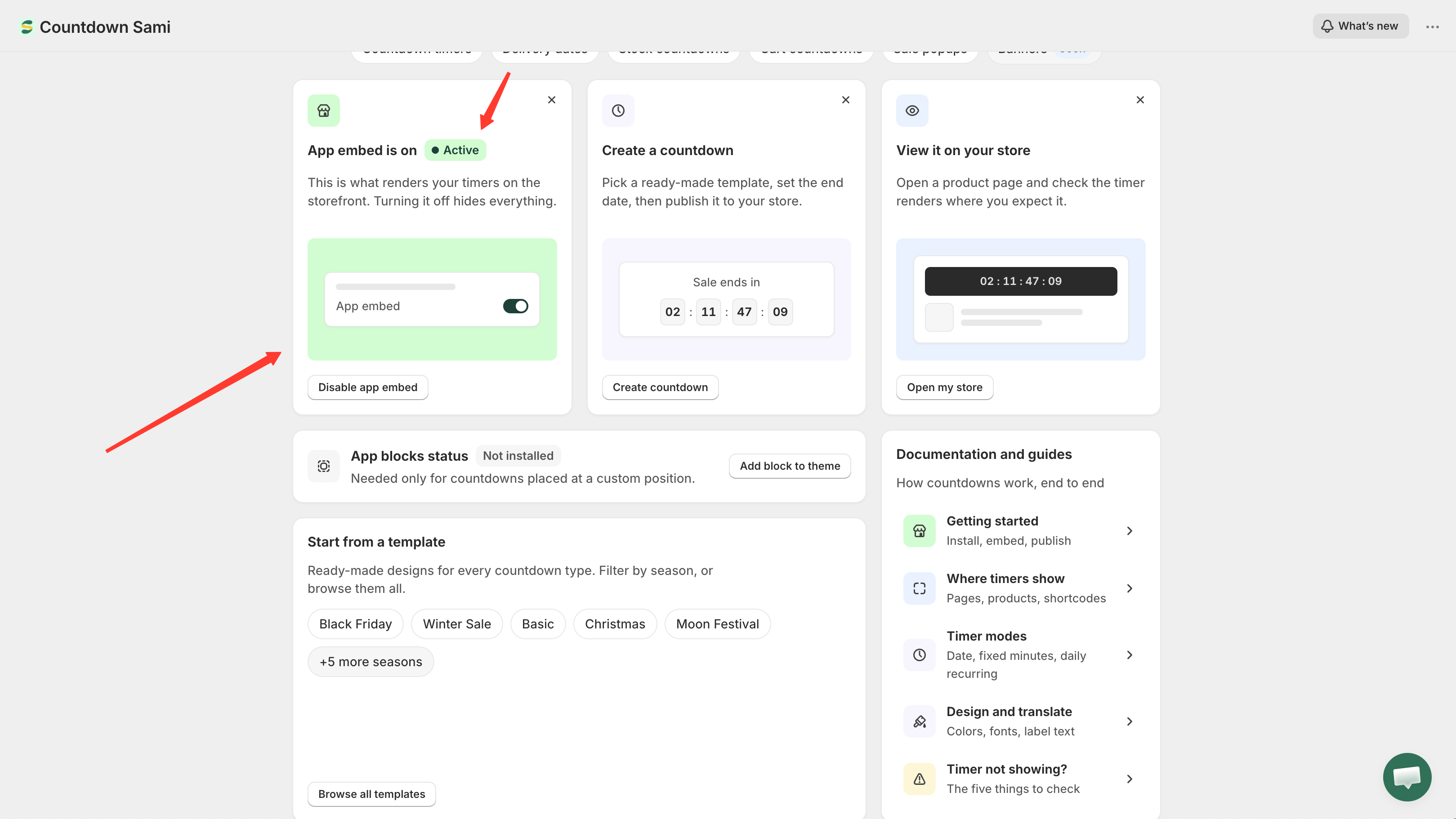
Open the app. The dashboard's first setup card shows the current embed status — **Active** or **Inactive**.
The app embed card on the dashboard reports the current status.
{% endstep %}
{% step %}
### Click Enable app embed
The app opens your theme editor in a new browser tab, with the **App embeds** panel already filtered to this app.
{% endstep %}
{% step %}
### Switch the embed on
Find **Samita Countdown Timer Bar** in the App embeds panel and turn its toggle on.
Turn the embed on in the theme editor's App embeds panel.
{% endstep %}
{% step %}
### Click Save in the theme editor
Nothing takes effect until you save the theme.
{% endstep %}
{% step %}
### Go back to the app tab
The dashboard re-checks the embed status when you return to it, so the card should flip to **Active** on its own. If it still says Inactive, reload the page.
Back on the dashboard, the card reports Active.
{% endstep %}
{% endstepper %}
## The embed is per theme
The status you see applies to the theme you're working with. Enable the embed on one theme and preview a different one, and nothing will render there.
If you run more than one theme — a live theme plus a draft you're preparing, for example — open the theme editor for each theme you want countdowns on and turn the embed on separately. You can switch theme and check status from the [Theme integration](https://github.com/samita-baoan/doc-timer/tree/restructure/docs-v2/settings/theme-integration.md) page.
{% hint style="info" %}
Duplicating a theme copies its embed setting along with it. A brand-new theme installed from the Shopify Theme Store starts with the embed off.
{% endhint %}
## App blocks are a separate thing
Alongside the embed, the dashboard reports an **App blocks status**. That's a different mechanism, and you only need it if you want to place a countdown at an exact spot in your theme rather than letting the app position it automatically. See [Place a countdown with a shortcode](/samita-countdown-timer-bar/where-countdowns-appear/shortcode.md).
## Next steps
* [Create your first countdown](/samita-countdown-timer-bar/quick-start/quickstart.md)
* [Theme integration](https://github.com/samita-baoan/doc-timer/tree/restructure/docs-v2/settings/theme-integration.md)
* [Countdown not showing](/samita-countdown-timer-bar/help/countdown-not-showing.md)
---
# Agent Instructions
This documentation is published with GitBook. GitBook is the documentation platform designed so that both humans and AI agents can read, navigate, and reason over technical content effectively. Learn more at gitbook.com.
## Querying This Documentation
If you need additional information that is not directly available in this page, you can query the documentation by asking a question.
Perform an HTTP GET request on the following URL with the `ask` and `goal` query parameters:
```
GET https://docs.samita.io/samita-countdown-timer-bar/quick-start/enable-app-embed.md?ask=&goal=
```
`ask` is the immediate question: it should be specific, self-contained, and written in natural language.
`goal` is what the user is ultimately trying to achieve, the reason they need the answer. Sharing it helps GitBook give you a better, more relevant answer. A goal is most helpful when it describes the outcome the user wants rather than restating the question. For example, with `ask=how do I create an API token`, a goal like `automate deployments from our CI pipeline` lets GitBook tailor the answer to that use case.
The response will contain a direct answer to the question and relevant excerpts and sources from the documentation.
Use this mechanism when the answer is not explicitly present in the current page, you need clarification or additional context, or you want to retrieve related documentation sections.