> For the complete documentation index, see [llms.txt](https://docs.samita.io/llms.txt). Markdown versions of documentation pages are available by appending `.md` to page URLs; this page is available as [Markdown](https://docs.samita.io/samita-countdown-timer-bar/quick-start/installation.md).
# Install the app
Add Countdown Timer Bar Samita to your Shopify store from the App Store.
Countdown Timer Bar Samita installs like any other Shopify app: you add it from the Shopify App Store, approve the permissions it asks for, and it opens inside your Shopify admin.
## Install from the Shopify App Store
{% stepper %}
{% step %}
### Open the App Store listing
Go to [Countdown Timer Bar Samita](https://apps.shopify.com/countdown-timer-bar-samita) on the Shopify App Store.
{% endstep %}
{% step %}
### Click Install
Shopify asks which store to install on if you're signed in to more than one. Pick the store you want the countdowns to appear on.
{% endstep %}
{% step %}
### Review and approve the permissions
Shopify shows exactly what the app will be able to access before anything is installed. The app asks to read your products, files, themes, and storefront languages, and to write files — it needs these to show you a product picker, to render countdowns on the storefront, and to store the images you upload.
For a plain-language explanation of each permission, see [Permissions and data](/samita-countdown-timer-bar/reference/permissions-and-data.md).
{% endstep %}
{% step %}
### Land on the dashboard
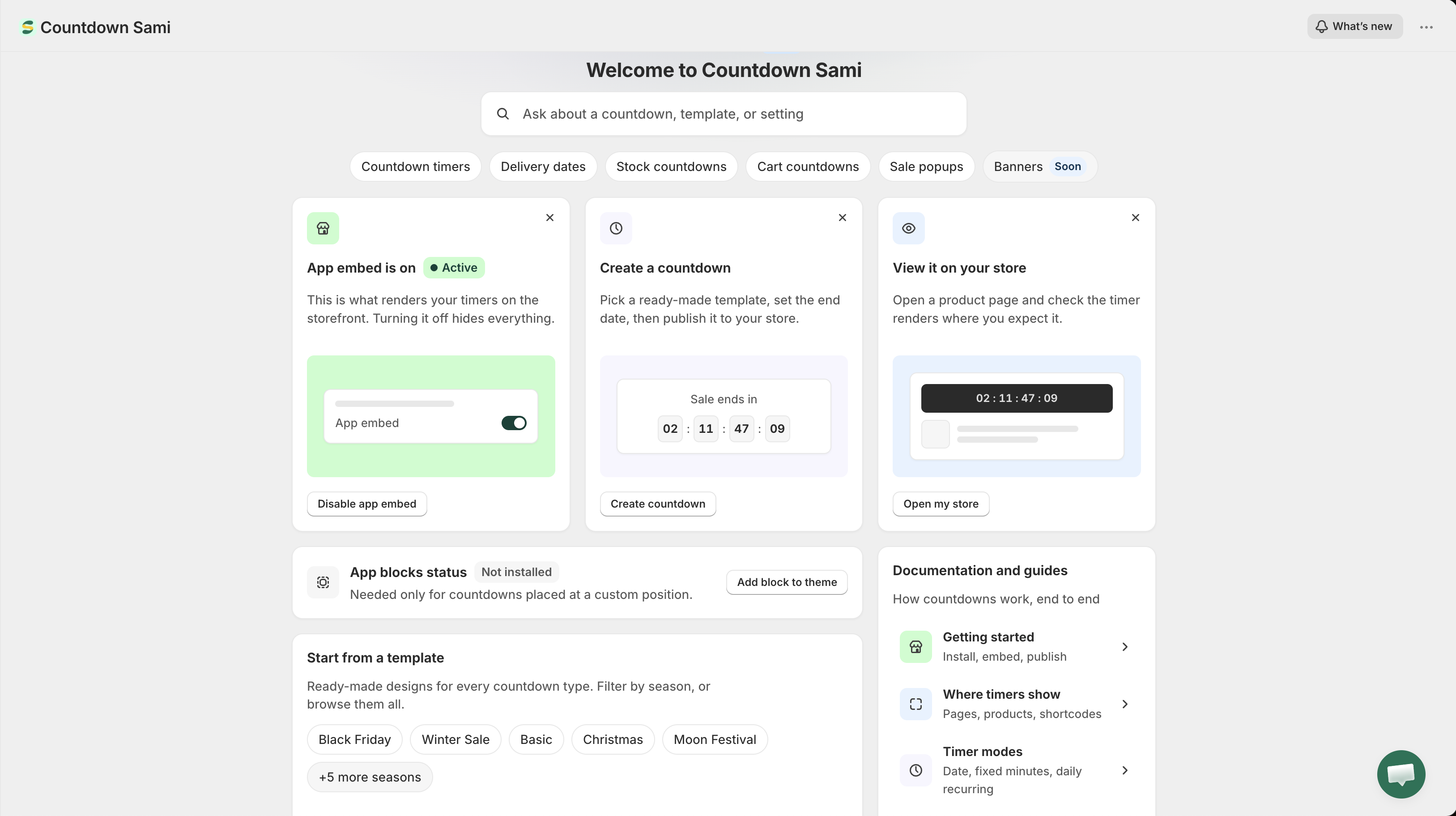
After you approve, the app opens on its **Dashboard** inside your Shopify admin. This is where you create countdowns, check whether the app embed is on, and reach every other part of the app.
The app dashboard, the first screen you see after installing.
{% endstep %}
{% endstepper %}
## Where to find the app later
The app lives in your Shopify admin under **Apps**. Open **Apps → Countdown Timer Bar Samita** any time to come back to it.
{% hint style="warning" %}
Installing the app doesn't put anything on your storefront yet. The app embed is a separate switch you turn on in your theme — that's the next step.
{% endhint %}
## Next steps
* [Turn on the app embed](/samita-countdown-timer-bar/quick-start/enable-app-embed.md)
* [Create your first countdown](/samita-countdown-timer-bar/quick-start/quickstart.md)
* [Permissions and data](/samita-countdown-timer-bar/reference/permissions-and-data.md)
---
# Agent Instructions
This documentation is published with GitBook. GitBook is the documentation platform designed so that both humans and AI agents can read, navigate, and reason over technical content effectively. Learn more at gitbook.com.
## Querying This Documentation
If you need additional information that is not directly available in this page, you can query the documentation by asking a question.
Perform an HTTP GET request on the following URL with the `ask` and `goal` query parameters:
```
GET https://docs.samita.io/samita-countdown-timer-bar/quick-start/installation.md?ask=&goal=
```
`ask` is the immediate question: it should be specific, self-contained, and written in natural language.
`goal` is what the user is ultimately trying to achieve, the reason they need the answer. Sharing it helps GitBook give you a better, more relevant answer. A goal is most helpful when it describes the outcome the user wants rather than restating the question. For example, with `ask=how do I create an API token`, a goal like `automate deployments from our CI pipeline` lets GitBook tailor the answer to that use case.
The response will contain a direct answer to the question and relevant excerpts and sources from the documentation.
Use this mechanism when the answer is not explicitly present in the current page, you need clarification or additional context, or you want to retrieve related documentation sections.