> For the complete documentation index, see [llms.txt](https://docs.samita.io/llms.txt). Markdown versions of documentation pages are available by appending `.md` to page URLs; this page is available as [Markdown](https://docs.samita.io/samita-countdown-timer-bar/quick-start/quickstart.md).

# Create your first countdown

Build a working sale timer end to end, from picking a template to seeing it tick on your product page.

This walkthrough builds one complete, common countdown: a sale timer on your product pages that counts down to a fixed end date and disappears when it's over. It touches every part of the builder — content, timing, design, and display — without any of the more advanced options.

Make sure you've [turned on the app embed](/samita-countdown-timer-bar/quick-start/enable-app-embed.md) first, or the countdown you build here won't render on your storefront.

{% stepper %}
{% step %}

### Start a new countdown

Open the app. On the dashboard, click **Create countdown** on the second setup card. (From the **Countdowns** page, the **Create countdown** button does the same thing.)

<figure><img src="https://855148666-files.gitbook.io/~/files/v0/b/gitbook-x-prod.appspot.com/o/spaces%2FaOJwtwIUCsbYLCDqZD0u%2Fuploads%2Fgit-blob-68c816c3e001bad98ea40352d84ee5e98d2b1d68%2Fscreenshot-dashboard-create-countdown.png?alt=media" alt="The dashboard setup card with the Create countdown button"><figcaption><p>Start a countdown from the dashboard's Create a countdown card.</p></figcaption></figure>
{% endstep %}

{% step %}

### Pick a template

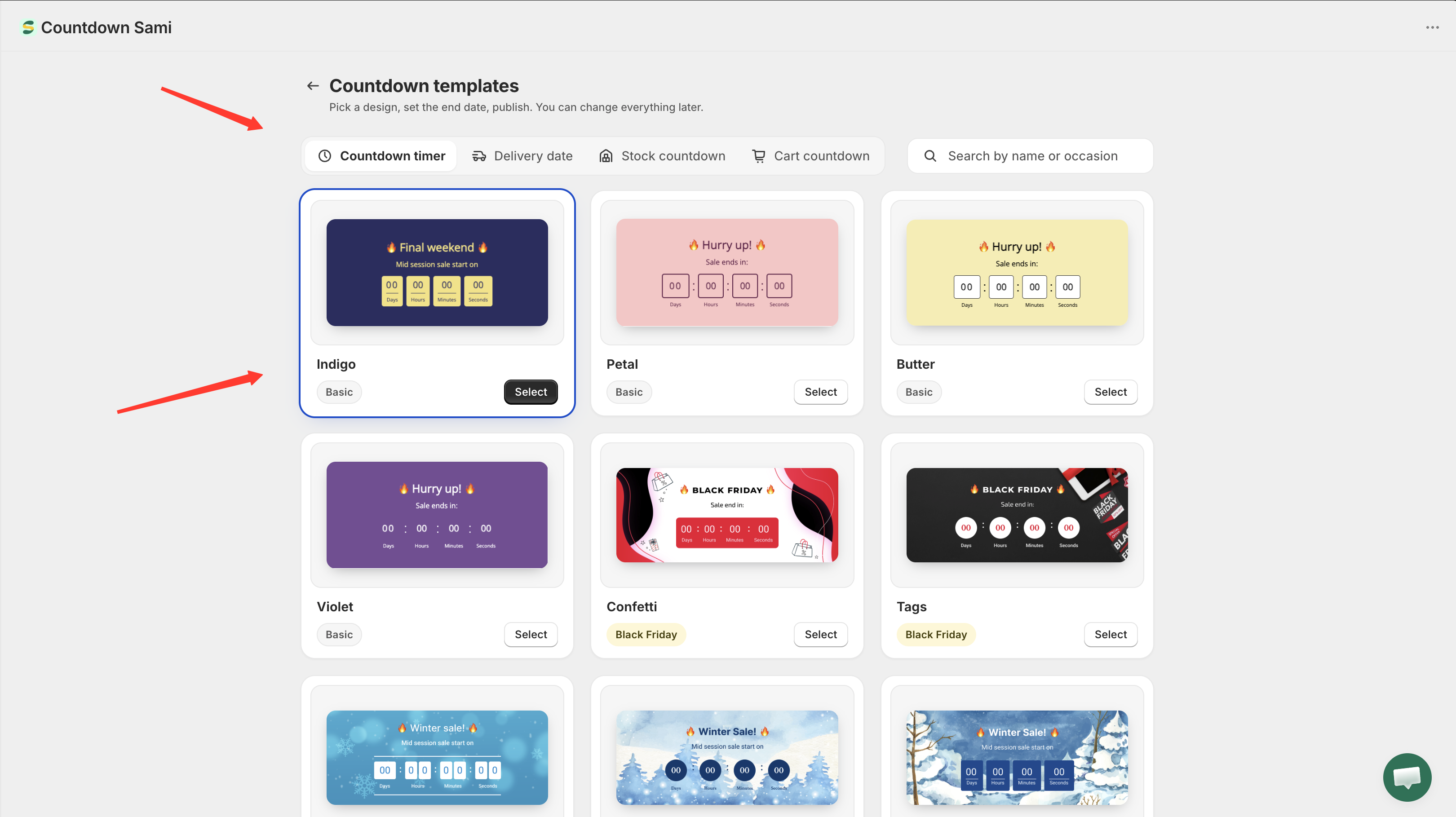
The **Countdown templates** page opens with four type tabs across the top: **Countdown timer**, **Delivery date**, **Stock countdown**, and **Cart countdown**. Leave it on **Countdown timer**.

Browse the designs, or search by name or occasion — typing `black friday` finds that season's designs even though they're named things like Onyx and Ribbon. When you've found one you like, click **Select** on its card.

<figure><img src="https://855148666-files.gitbook.io/~/files/v0/b/gitbook-x-prod.appspot.com/o/spaces%2FaOJwtwIUCsbYLCDqZD0u%2Fuploads%2Fgit-blob-d77985a19b5189bfe4845253b4e26c1db4442694%2Fscreenshot-templates-picker.png?alt=media" alt="The Countdown templates page showing the type tabs and a grid of timer designs"><figcaption><p>Pick a design from the template grid — you can change everything about it later.</p></figcaption></figure>
{% endstep %}

{% step %}

### Name the countdown

The builder opens with your chosen design already in the preview. Give the countdown a name at the top — something like "Spring sale timer". This name is only for you; shoppers never see it.
{% endstep %}

{% step %}

### Write the timer text

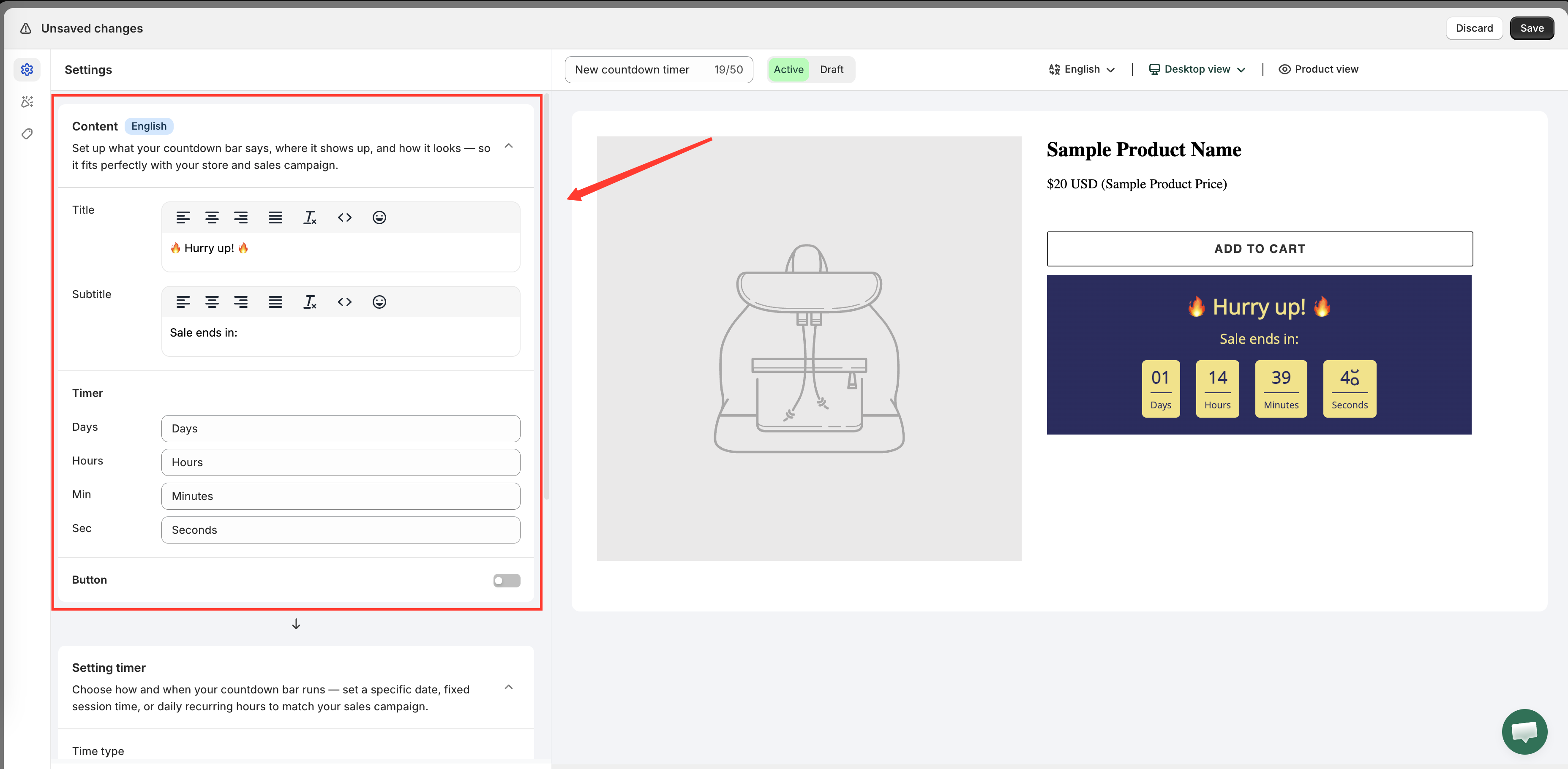
On the **Settings** tab, open the **Content** section and set what the timer says:

* **Title** — the big line, for example `🔥 Hurry up! 🔥`
* **Subtitle** — the line above the digits, for example `Sale ends in:`
* **Timer** — the labels under each number: Days, Hours, Min, Sec

<figure><img src="https://855148666-files.gitbook.io/~/files/v0/b/gitbook-x-prod.appspot.com/o/spaces%2FaOJwtwIUCsbYLCDqZD0u%2Fuploads%2Fgit-blob-9d43636fa734cfa70f0bfe20a2e716ddc0d57bd3%2Fscreenshot-timer-content-fields.png?alt=media" alt="The Content section of the timer settings with the Title, Subtitle, and timer label fields"><figcaption><p>The Content section controls every piece of text on the timer.</p></figcaption></figure>
{% endstep %}

{% step %}

### Set the end date

Still on **Settings**, open the **Setting timer** section. Leave **Time type** on **Countdown to a date** — it's the default and the mode this example needs.

Under **Date between**, set **End** to the moment your sale finishes. Leave **Start** empty so the timer runs from now; fill it in if you want the timer to stay hidden until the sale actually opens.

<figure><img src="https://855148666-files.gitbook.io/~/files/v0/b/gitbook-x-prod.appspot.com/o/spaces%2FaOJwtwIUCsbYLCDqZD0u%2Fuploads%2Fgit-blob-930a8bc004414c533c55cf5ba47c370aa43ccf40%2Fscreenshot-timer-time-type.png?alt=media" alt="The Setting timer section with Time type set to Countdown to a date and an end date chosen"><figcaption><p>Countdown to a date is the default Time type — set the End date to your deadline.</p></figcaption></figure>
{% endstep %}

{% step %}

### Choose what happens at zero

Below the dates, set **When countdown timer end** to **Hide countdown block**. When the deadline passes, the timer disappears rather than sitting at 00:00:00.

The other two options are covered in [When the timer ends](/samita-countdown-timer-bar/countdown-timer/when-the-timer-ends.md).
{% endstep %}

{% step %}

### Choose where it shows

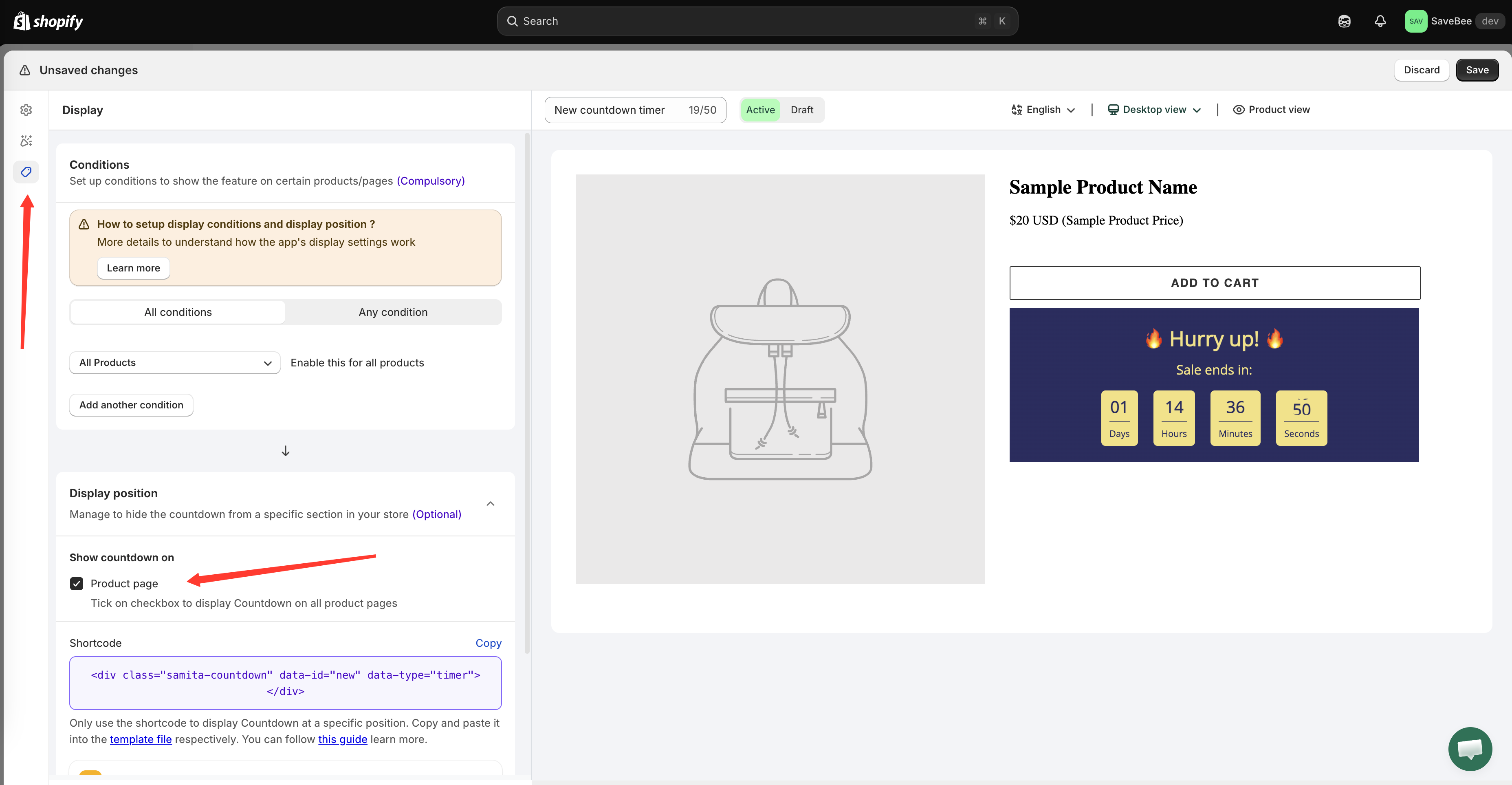
Switch to the **Display** tab. Under **Show countdown on**, tick **Product page**. That places the timer on every product page, just below the Add to cart area.

<figure><img src="https://855148666-files.gitbook.io/~/files/v0/b/gitbook-x-prod.appspot.com/o/spaces%2FaOJwtwIUCsbYLCDqZD0u%2Fuploads%2Fgit-blob-5745aa8f8a4bc0e9009418ae212142a9e0f4443c%2Fscreenshot-display-product-page.png?alt=media" alt="The Display tab with the Product page checkbox ticked under Show countdown on"><figcaption><p>Ticking Product page puts the timer on all product pages.</p></figcaption></figure>
{% endstep %}

{% step %}

### Limit it to the right products (optional)

Above the display position, the **Conditions** section decides which products get the timer. Leave it on **All Products** to cover your whole catalog, or change it to target a collection, specific products, or a customer group — see [Display conditions](/samita-countdown-timer-bar/where-countdowns-appear/conditions.md).
{% endstep %}

{% step %}

### Save it as active

Click **Save**. Check the status control reads **Active**, not **Draft** — a draft is saved but never rendered.

<figure><img src="https://855148666-files.gitbook.io/~/files/v0/b/gitbook-x-prod.appspot.com/o/spaces%2FaOJwtwIUCsbYLCDqZD0u%2Fuploads%2Fgit-blob-75244984529cc30a21484f0ee5e81ad212ddeab8%2Fscreenshot-builder-save-active.png?alt=media" alt="The builder top bar with the status set to Active and the Save button"><figcaption><p>Save the countdown with its status set to Active.</p></figcaption></figure>
{% endstep %}

{% step %}

### Check it on your storefront

Open any product page on your live storefront in a new tab — the dashboard's **Open my store** button is a shortcut. You should see your timer below the Add to cart button, counting down.

Try it on your phone too, or narrow the browser window: themes lay product pages out differently on small screens, and it's worth seeing the timer where most of your shoppers will.

<figure><img src="https://855148666-files.gitbook.io/~/files/v0/b/gitbook-x-prod.appspot.com/o/spaces%2FaOJwtwIUCsbYLCDqZD0u%2Fuploads%2Fgit-blob-2acf7bb359e17e4fc403c0684f1a5f12f45e3ec3%2Fscreenshot-storefront-timer-product-page.png?alt=media" alt="A storefront product page with the countdown timer rendered below the Add to cart button"><figcaption><p>The finished timer on a live product page.</p></figcaption></figure>
{% endstep %}
{% endstepper %}

{% hint style="success" %}
If the timer appears on your product page and the seconds are ticking down, everything is wired up correctly: the embed is on, the countdown is active, and its conditions match.
{% endhint %}

{% hint style="info" %}
Don't see it? Work through [Countdown not showing](/samita-countdown-timer-bar/help/countdown-not-showing.md) — it's a short checklist and the first two items catch most cases.
{% endhint %}

## Next steps

* [How countdowns work](/samita-countdown-timer-bar/quick-start/how-countdowns-work.md)
* [Design a countdown](/samita-countdown-timer-bar/design-and-translation/design.md)
* [Display conditions](/samita-countdown-timer-bar/where-countdowns-appear/conditions.md)
* [Countdown types](/samita-countdown-timer-bar/countdowns/overview.md)


---

# Agent Instructions
This documentation is published with GitBook. GitBook is the documentation platform designed so that both humans and AI agents can read, navigate, and reason over technical content effectively. Learn more at gitbook.com.

## Querying This Documentation
If you need additional information that is not directly available in this page, you can query the documentation by asking a question.

Perform an HTTP GET request on the following URL with the `ask` and `goal` query parameters:

```
GET https://docs.samita.io/samita-countdown-timer-bar/quick-start/quickstart.md?ask=<question>&goal=<user_goal>
```

`ask` is the immediate question: it should be specific, self-contained, and written in natural language.
`goal` is what the user is ultimately trying to achieve, the reason they need the answer. Sharing it helps GitBook give you a better, more relevant answer. A goal is most helpful when it describes the outcome the user wants rather than restating the question. For example, with `ask=how do I create an API token`, a goal like `automate deployments from our CI pipeline` lets GitBook tailor the answer to that use case.

The response will contain a direct answer to the question and relevant excerpts and sources from the documentation.

Use this mechanism when the answer is not explicitly present in the current page, you need clarification or additional context, or you want to retrieve related documentation sections.