> For the complete documentation index, see [llms.txt](https://docs.samita.io/llms.txt). Markdown versions of documentation pages are available by appending `.md` to page URLs; this page is available as [Markdown](https://docs.samita.io/samita-countdown-timer-bar/sale-popups/create.md).
# Create a sale popup
Build a sale popup end to end, from its content through to a live storefront page.
This guide builds one complete sale popup: an image, a heading and a line of text, a link, a position, a schedule, and the pages it should appear on.
Make sure the [app embed is on](/samita-countdown-timer-bar/quick-start/enable-app-embed.md) before you start — it renders sale popups as well as countdowns.
## Steps to set it up
{% stepper %}
{% step %}
### Open Sale Popups and create one
Click **Sale Popups** in the app's menu, then **Create popup**.
{% endstep %}
{% step %}
### Name it
Give it a name at the top of the editor — "Spring sale banner", for example. Only you see it.
{% endstep %}
{% step %}
### Write the content
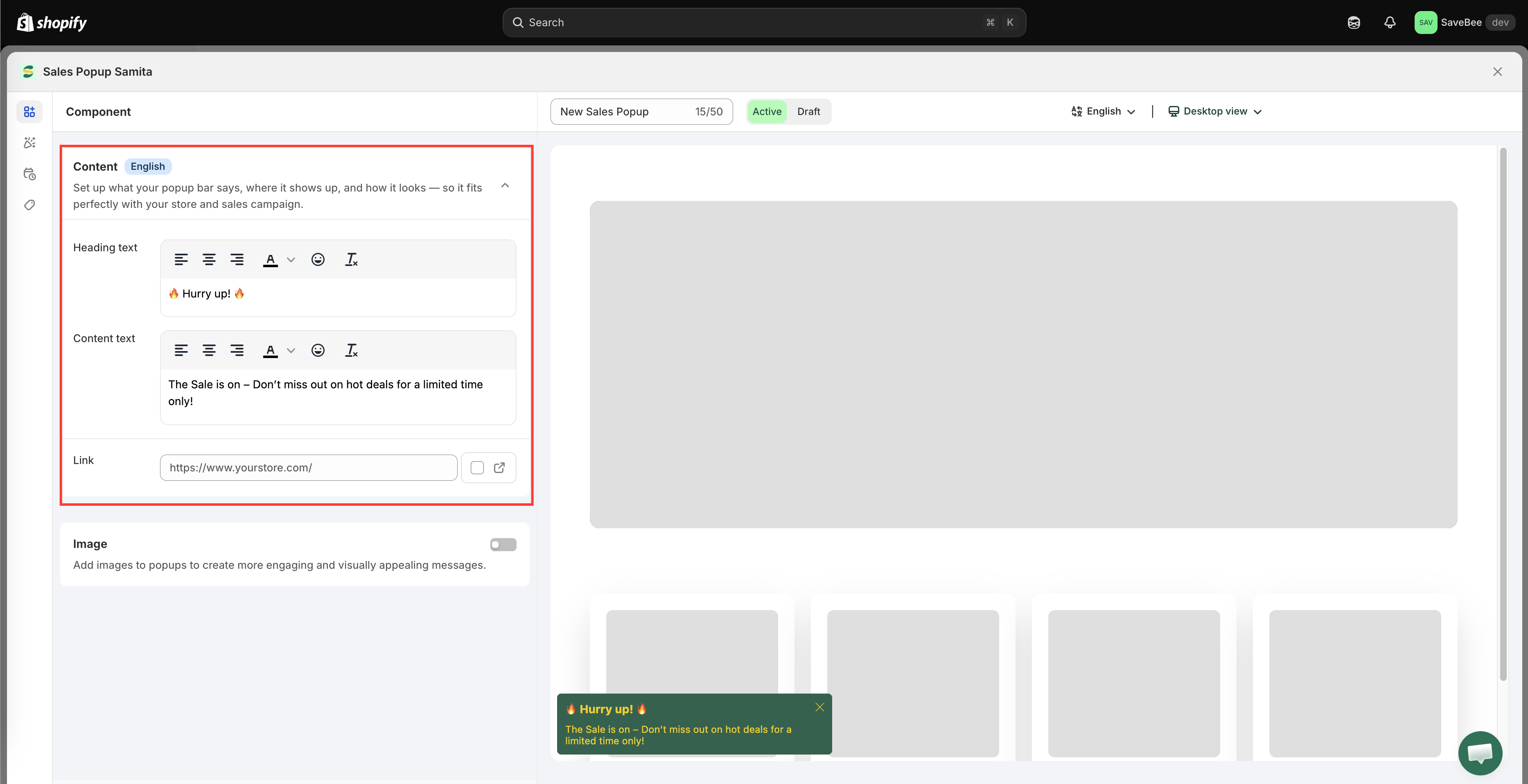
On the **Component** tab, fill in:
* **Heading text** — the bold first line. A new popup starts with `🔥 Hurry up! 🔥`
* **Content text** — the line underneath. A new popup starts with "The Sale is on – Don't miss out on hot deals for a limited time only!"
* **Link** — where the popup goes when clicked, with an option to open it in a new tab
* **Image** — an optional picture beside the text
Full detail in [Popup content and image](/samita-countdown-timer-bar/sale-popups/content.md).
The Component tab holds everything a shopper reads and clicks.
{% endstep %}
{% step %}
### Style it and place it
Switch to the **Design** tab:
* **Appearance and background** — solid, gradient, or image fill, with opacity, borders, padding and margins
* **Position settings** — where it floats, separately for desktop and mobile, with an animation
* **Size settings** — popup size and image size, with different sizes for mobile if you want
* **Font family and font size** — heading and content font sizes
Details in [Design and position](/samita-countdown-timer-bar/sale-popups/design.md).
{% endstep %}
{% step %}
### Set the schedule
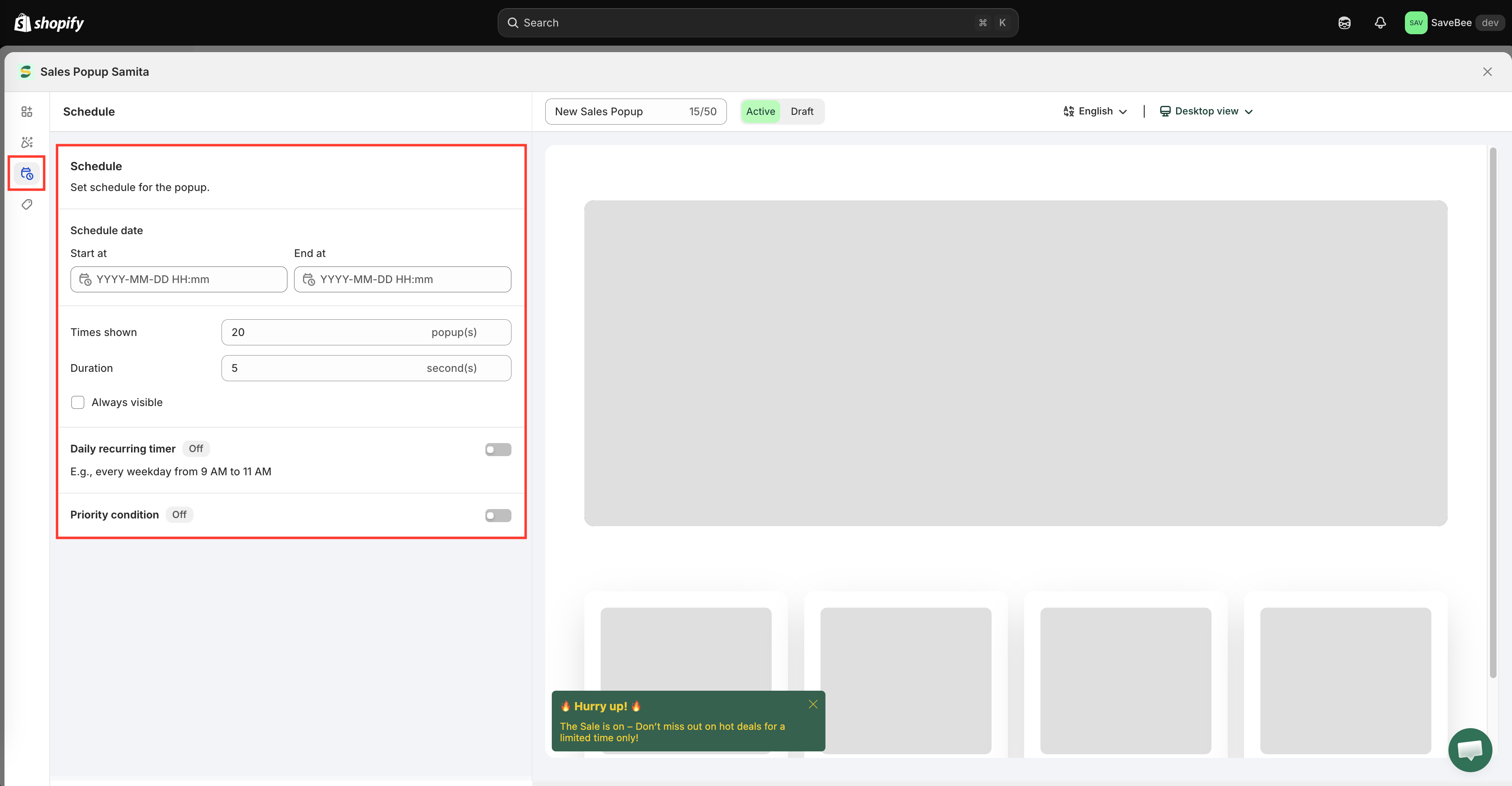
Switch to the **Schedule** tab:
* **Schedule date** — **Start at** and **End at**
* **Times shown** — how many times one shopper sees it
* **Duration** — how long it stays on screen, in seconds
* **Always visible** — keep it on screen instead of timing out
Details in [Visibility and schedule](/samita-countdown-timer-bar/sale-popups/visibility.md).
The Schedule tab controls when the popup runs and how long it stays.
{% endstep %}
{% step %}
### Choose who sees it
Switch to the **Display** tab and set the **Conditions**. Popups can be targeted by **All pages**, **Select products**, **Collections**, **Page**, **Customer**, **Customer tag**, **Language**, and **Country**. See [Display conditions](/samita-countdown-timer-bar/where-countdowns-appear/conditions.md).
The same tab carries a shortcode, under **Custom location to show popup**, if you'd rather pin the popup into the page than let it float.
{% endstep %}
{% step %}
### Check the shared settings
Open **Popup General Settings** and check the timing that applies to every popup — how long before the first one appears, the gap between pops, and the maximum number. A new store's defaults are deliberately low. See [Sale popup general settings](/samita-countdown-timer-bar/sale-popups/general-settings.md).
{% endstep %}
{% step %}
### Save it as Active
Set the status to **Active** and click **Save**. A **Draft** popup never appears.
{% endstep %}
{% step %}
### Check it on your storefront
Open your live storefront on a page that matches the popup's conditions and wait for it to appear — remember the **Time before the first pop** delay in the general settings.
Check three things:
1. It appears in the corner you chose, and doesn't cover anything important.
2. The close button works.
3. The link goes where you meant it to.
Then check it on a phone. Popups take up proportionally much more of a small screen, and this is where the mobile position and size settings earn their keep.
{% endstep %}
{% endstepper %}
## Next steps
* [Popup content and image](/samita-countdown-timer-bar/sale-popups/content.md)
* [Design and position](/samita-countdown-timer-bar/sale-popups/design.md)
* [Visibility and schedule](/samita-countdown-timer-bar/sale-popups/visibility.md)
* [Sale popup general settings](/samita-countdown-timer-bar/sale-popups/general-settings.md)
---
# Agent Instructions
This documentation is published with GitBook. GitBook is the documentation platform designed so that both humans and AI agents can read, navigate, and reason over technical content effectively. Learn more at gitbook.com.
## Querying This Documentation
If you need additional information that is not directly available in this page, you can query the documentation by asking a question.
Perform an HTTP GET request on the following URL with the `ask` and `goal` query parameters:
```
GET https://docs.samita.io/samita-countdown-timer-bar/sale-popups/create.md?ask=&goal=
```
`ask` is the immediate question: it should be specific, self-contained, and written in natural language.
`goal` is what the user is ultimately trying to achieve, the reason they need the answer. Sharing it helps GitBook give you a better, more relevant answer. A goal is most helpful when it describes the outcome the user wants rather than restating the question. For example, with `ask=how do I create an API token`, a goal like `automate deployments from our CI pipeline` lets GitBook tailor the answer to that use case.
The response will contain a direct answer to the question and relevant excerpts and sources from the documentation.
Use this mechanism when the answer is not explicitly present in the current page, you need clarification or additional context, or you want to retrieve related documentation sections.