> For the complete documentation index, see [llms.txt](https://docs.samita.io/llms.txt). Markdown versions of documentation pages are available by appending `.md` to page URLs; this page is available as [Markdown](https://docs.samita.io/samita-countdown-timer-bar/sale-popups/design.md).
# Design and position
Style a sale popup and decide where it floats on desktop and mobile.
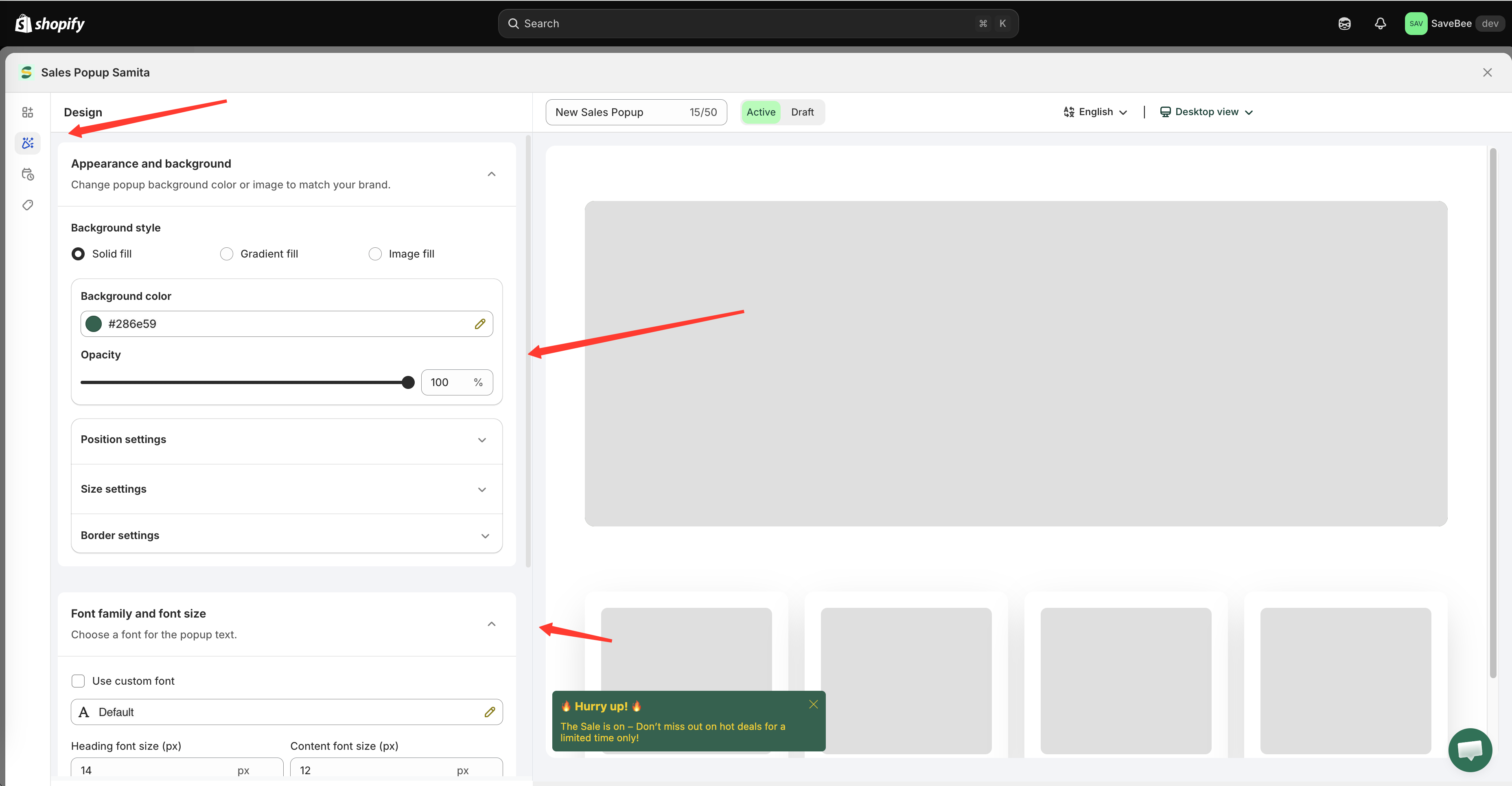
The **Design** tab controls how a sale popup looks and where it appears. It's split into background, position, size, and fonts, with a custom CSS box at the end.
The Design tab, with the popup preview beside it.
## Appearance and background
**Background style** offers three fills:
| Style | What you set |
| ----------------- | -------------------------------------------------------------- |
| **Solid fill** | A **Background color** and an **Opacity** |
| **Gradient fill** | **Gradient color 1**, **Gradient color 2**, and an **Opacity** |
| **Image fill** | An uploaded image — PNG, JPEG or JPG, under 1 MB |
Alongside it you'll find **Border settings** — **Border style** (**Solid**, **Dashed**, **Dotted**), border size, radius, colour, and a **Box shadow** toggle — plus **Padding** and **Margin**.
{% hint style="info" %}
Opacity below 100% lets the page show through the popup. It looks light and modern on a plain background and unreadable on a busy one — check it against a real product page, not the preview.
{% endhint %}
## Position settings
Where the popup floats. Desktop and mobile are configured separately, on their own tabs.
### Desktop
* **Show on desktop** — turn desktop display on or off
* **Desktop position** — **Top left**, **Top middle**, **Top right**, **Bottom left**, **Bottom middle**, or **Bottom right**
* **Animation type** — **Slide from top**, **Slide from bottom**, **Slide from left**, **Slide from right**, or **Fade in-out**
* **Margin top/bottom (px)** and **Margin left/right (px)** — nudge it away from the screen edges
### Mobile
The same set: **Show on mobile**, **Mobile position**, animation, and margins.
{% hint style="warning" %}
At least one of **Show on desktop** and **Show on mobile** has to stay on — the app won't let you save a popup that can't appear anywhere.
{% endhint %}
### Choosing a position
**Bottom left** is the default and the safest. It's out of the way of your header, your cart, and the sticky Add to cart bar most themes put at the bottom of a mobile product page.
Worth checking before you settle on anything else:
* **Bottom right** collides with live-chat widgets on many stores.
* **Top** positions can cover announcement bars and sticky headers.
* **Mobile margins** matter more than desktop ones — there's far less room for the popup to sit in.
## Size settings
| Setting | Options |
| --------------------------------- | ------------------------------------------------------- |
| **Popup size** | Small · Medium · Large |
| **Image size** | Small · Medium · Large |
| **Use different size for mobile** | Unlocks **Mobile popup size** and **Mobile image size** |
Turn the mobile option on for anything above Small. A Large popup on a phone can cover most of the screen, which is the fastest way to have it closed unread.
## Font family and font size
* **Use custom font** — pick a font family and weight, or inherit your theme's
* **Heading font size (px)** and **Content font size (px)**
Matching your theme's font is usually what makes a popup feel like part of the store rather than something bolted on.
## Custom CSS
A **Custom CSS (Developer Zone)** box at the end of the tab takes plain CSS applied to this popup. The same cautions as elsewhere apply — see [Custom CSS](/samita-countdown-timer-bar/design-and-translation/custom-css.md).
## Placing a popup in the page instead
By default a popup floats above the page at the position you set here. If you'd rather have it sit inside the page — in a section, at a fixed spot — the **Display** tab has a shortcode for that, under **Custom location to show popup**:
```html
```
Copy it, then paste it into a **Samita Countdown** app block in your theme editor. The steps are the same as for countdowns — see [Place a countdown with a shortcode](/samita-countdown-timer-bar/where-countdowns-appear/shortcode.md).
## Next steps
* [Visibility and schedule](/samita-countdown-timer-bar/sale-popups/visibility.md)
* [Popup content and image](/samita-countdown-timer-bar/sale-popups/content.md)
* [Sale popup general settings](/samita-countdown-timer-bar/sale-popups/general-settings.md)
* [Custom CSS](/samita-countdown-timer-bar/design-and-translation/custom-css.md)
---
# Agent Instructions
This documentation is published with GitBook. GitBook is the documentation platform designed so that both humans and AI agents can read, navigate, and reason over technical content effectively. Learn more at gitbook.com.
## Querying This Documentation
If you need additional information that is not directly available in this page, you can query the documentation by asking a question.
Perform an HTTP GET request on the following URL with the `ask` and `goal` query parameters:
```
GET https://docs.samita.io/samita-countdown-timer-bar/sale-popups/design.md?ask=&goal=
```
`ask` is the immediate question: it should be specific, self-contained, and written in natural language.
`goal` is what the user is ultimately trying to achieve, the reason they need the answer. Sharing it helps GitBook give you a better, more relevant answer. A goal is most helpful when it describes the outcome the user wants rather than restating the question. For example, with `ask=how do I create an API token`, a goal like `automate deployments from our CI pipeline` lets GitBook tailor the answer to that use case.
The response will contain a direct answer to the question and relevant excerpts and sources from the documentation.
Use this mechanism when the answer is not explicitly present in the current page, you need clarification or additional context, or you want to retrieve related documentation sections.