> For the complete documentation index, see [llms.txt](https://docs.samita.io/llms.txt). Markdown versions of documentation pages are available by appending `.md` to page URLs; this page is available as [Markdown](https://docs.samita.io/samita-countdown-timer-bar/sale-popups/overview.md).

# Sale popups overview

Small promotional notifications that float on your storefront, with their own list, editor, and settings.

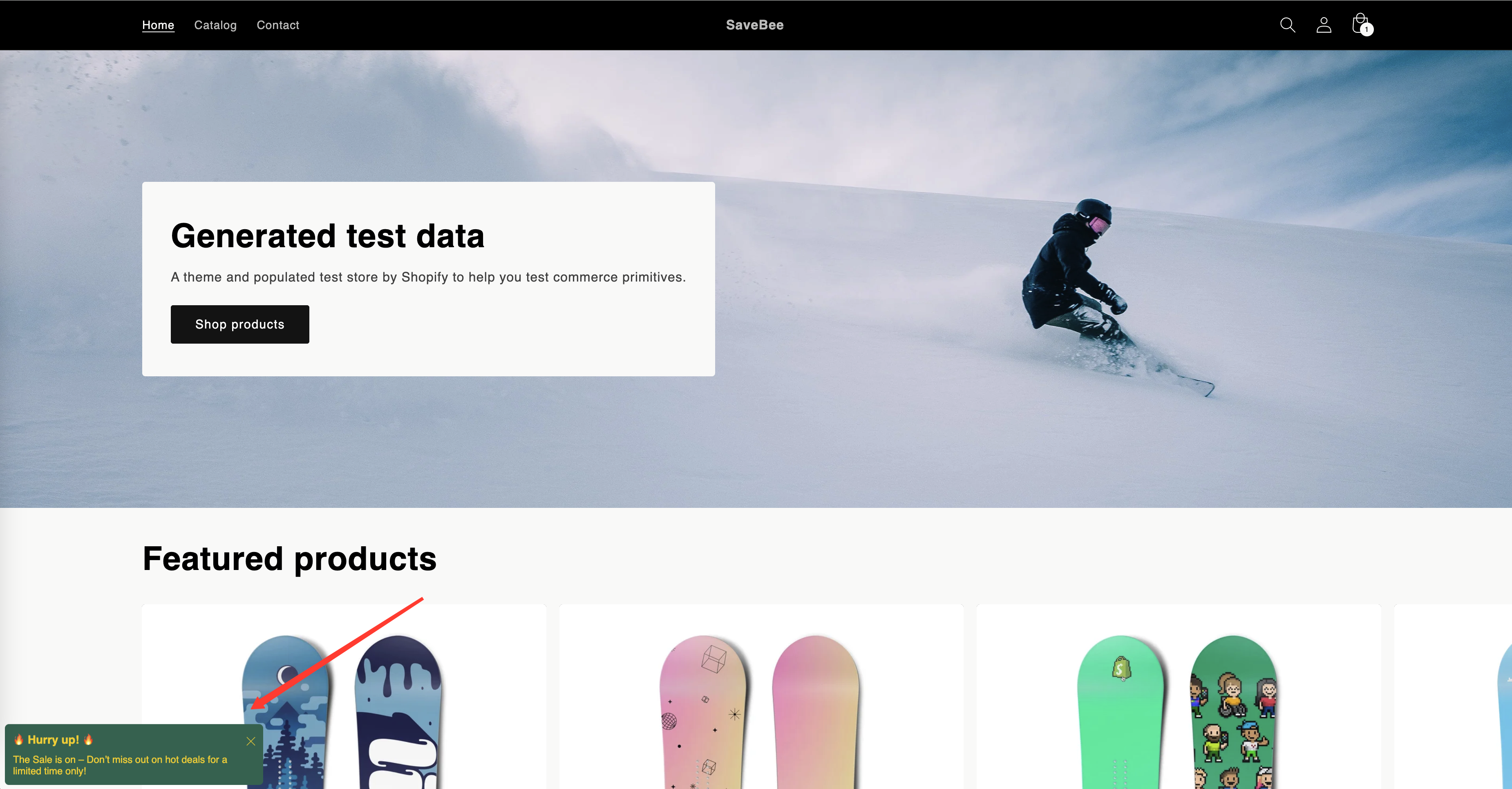
A sale popup is a compact notification that appears in a corner of your storefront — an image, a heading, a line of text, and a close button, optionally linking somewhere. It's the place to put "The Sale is on" or "Free shipping this weekend" without taking over the page.

Sale popups aren't a countdown type. They live in their own section of the app, reached from **Sale Popups** in the app's menu, and they have their own list page, their own editor, and a shared settings page.

<figure><img src="https://855148666-files.gitbook.io/~/files/v0/b/gitbook-x-prod.appspot.com/o/spaces%2FaOJwtwIUCsbYLCDqZD0u%2Fuploads%2Fgit-blob-f830996022edf456f121fd9f73a83ce385c44a09%2Fscreenshot-storefront-sale-popup.png?alt=media" alt="A storefront page with a sale popup in the bottom-left corner showing an image, heading, and text"><figcaption><p>A sale popup on the storefront, in its default bottom-left position.</p></figcaption></figure>

## How a popup is built

The editor has four tabs:

| Tab           | What it holds                                          | Guide                                                                                   |
| ------------- | ------------------------------------------------------ | --------------------------------------------------------------------------------------- |
| **Component** | The image, heading, text, and link                     | [Popup content and image](/samita-countdown-timer-bar/sale-popups/content.md)           |
| **Design**    | Background, position, size, borders, fonts, custom CSS | [Design and position](/samita-countdown-timer-bar/sale-popups/design.md)                |
| **Schedule**  | When it runs, how long it shows, how often             | [Visibility and schedule](/samita-countdown-timer-bar/sale-popups/visibility.md)        |
| **Display**   | Which pages and shoppers see it, plus the shortcode    | [Display conditions](/samita-countdown-timer-bar/where-countdowns-appear/conditions.md) |

On top of those, one **Popup General Settings** page controls behaviour shared by every popup — timing between pops, how many at once, and the order they run in. See [Sale popup general settings](/samita-countdown-timer-bar/sale-popups/general-settings.md).

## They place themselves

You don't have to put a popup anywhere. Once it's Active and its conditions match, the app floats it over the page at the position you set in the Design tab — bottom left by default.

If you'd rather pin one into the page itself, the Display tab has a shortcode for that. See [Design and position](/samita-countdown-timer-bar/sale-popups/design.md).

## Where to start

<table data-view="cards"><thead><tr><th></th><th></th><th></th><th data-hidden data-card-target data-type="content-ref"></th></tr></thead><tbody><tr><td><i class="fa-wand-magic-sparkles">:wand-magic-sparkles:</i></td><td><strong>Create a sale popup</strong></td><td>The full setup, from a new popup to a live storefront.</td><td><a href="/samita-countdown-timer-bar/sale-popups/create.md">Create a sale popup</a></td></tr><tr><td><i class="fa-sliders">:sliders:</i></td><td><strong>General settings</strong></td><td>Timing and sequencing shared by every popup.</td><td><a href="/samita-countdown-timer-bar/sale-popups/general-settings.md">Sale popup general settings</a></td></tr></tbody></table>

## Managing your popups

The **Sale Popups** page lists them all, with **All**, **Active**, and **Draft** tabs, search, and sorting by date or name. Select popups with the checkboxes to **Set as active**, **Set as draft**, **Duplicate selected popup(s)**, or **Delete selected popup(s)** — the same pattern as the [Countdowns list](/samita-countdown-timer-bar/countdowns/manage.md).

The list also shows each popup's **Priority**, which decides what happens when more than one popup could show at the same time.

{% hint style="warning" %}
Popups interrupt. One well-timed popup helps; three competing for a corner of the same page is why shoppers install blockers. Keep the number small and the [general settings](/samita-countdown-timer-bar/sale-popups/general-settings.md) conservative.
{% endhint %}

## Next steps

* [Create a sale popup](/samita-countdown-timer-bar/sale-popups/create.md)
* [Popup content and image](/samita-countdown-timer-bar/sale-popups/content.md)
* [Design and position](/samita-countdown-timer-bar/sale-popups/design.md)
* [Sale popup general settings](/samita-countdown-timer-bar/sale-popups/general-settings.md)


---

# Agent Instructions
This documentation is published with GitBook. GitBook is the documentation platform designed so that both humans and AI agents can read, navigate, and reason over technical content effectively. Learn more at gitbook.com.

## Querying This Documentation
If you need additional information that is not directly available in this page, you can query the documentation by asking a question.

Perform an HTTP GET request on the following URL with the `ask` and `goal` query parameters:

```
GET https://docs.samita.io/samita-countdown-timer-bar/sale-popups/overview.md?ask=<question>&goal=<user_goal>
```

`ask` is the immediate question: it should be specific, self-contained, and written in natural language.
`goal` is what the user is ultimately trying to achieve, the reason they need the answer. Sharing it helps GitBook give you a better, more relevant answer. A goal is most helpful when it describes the outcome the user wants rather than restating the question. For example, with `ask=how do I create an API token`, a goal like `automate deployments from our CI pipeline` lets GitBook tailor the answer to that use case.

The response will contain a direct answer to the question and relevant excerpts and sources from the documentation.

Use this mechanism when the answer is not explicitly present in the current page, you need clarification or additional context, or you want to retrieve related documentation sections.
