> For the complete documentation index, see [llms.txt](https://docs.samita.io/llms.txt). Markdown versions of documentation pages are available by appending `.md` to page URLs; this page is available as [Markdown](https://docs.samita.io/samita-countdown-timer-bar/sale-popups/visibility.md).
# Visibility and schedule
Set when a sale popup runs, how long it stays on screen, and how often one shopper sees it.
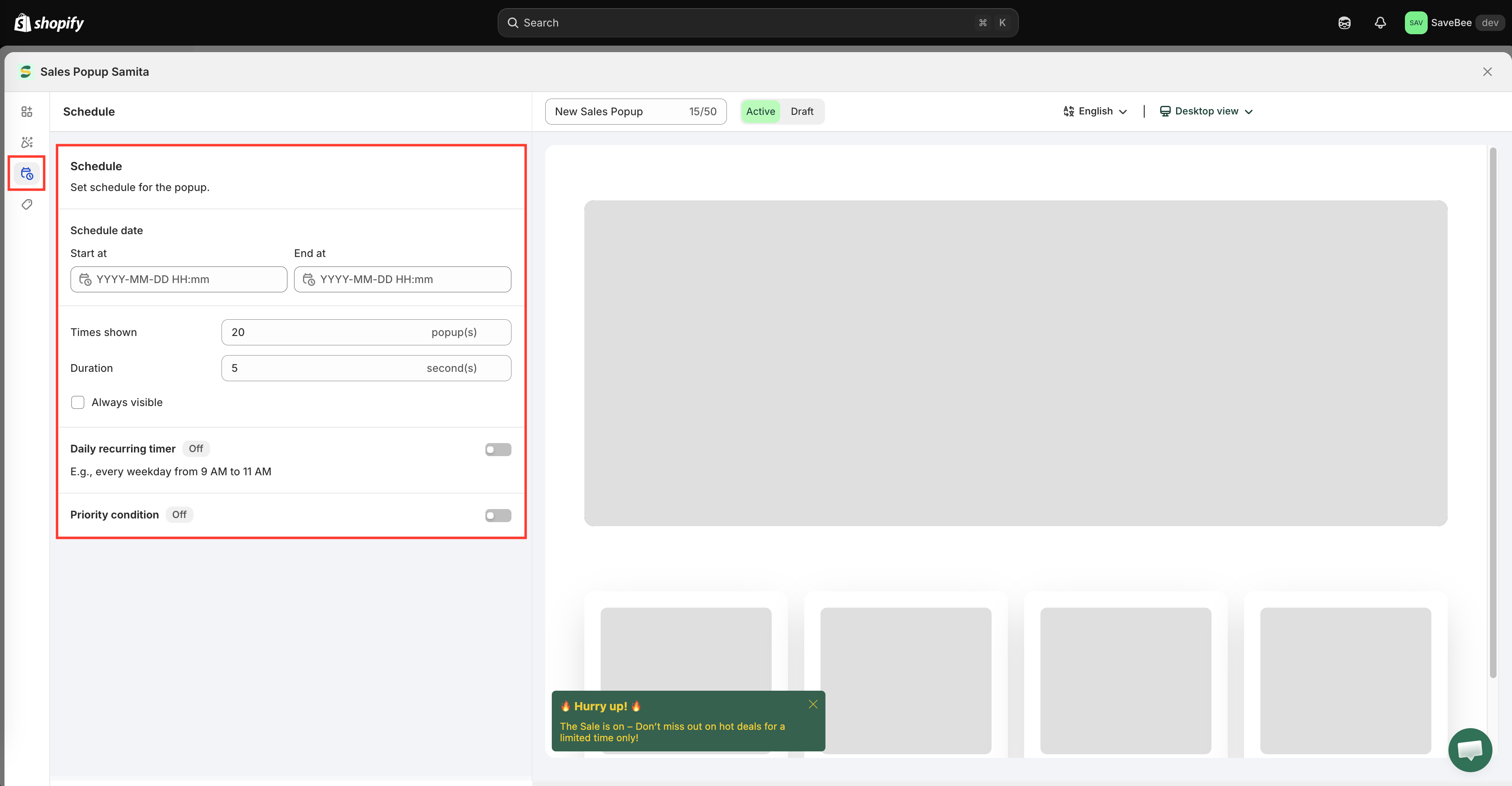
The **Schedule** tab decides when a popup is allowed to appear, and what happens once it does. The app sums it up as "Set schedule for the popup."
The Schedule tab of the popup editor.
## Schedule date
**Start at** and **End at** set the campaign window. Outside it the popup doesn't appear, whatever its status says.
Set both for a campaign with real dates — a weekend sale, a launch week. A popup with an end date turns itself off when the promotion finishes, which is one less thing to remember.
## Times shown
How many times one shopper sees this popup, counted in their browser.
This is the single most important setting for not annoying people. A popup that reappears on every page view of a ten-page browsing session has been seen ten times, and the tenth is not persuading anyone.
Two or three is enough for most announcements.
## Duration
How long the popup stays on screen before closing itself, in seconds.
Long enough to read and act on, short enough to get out of the way. If your popup has a heading and a line of text, five to eight seconds is a reasonable range.
## Always visible
Keeps the popup on screen until the shopper closes it, instead of timing out.
Use it sparingly. It's right for something the shopper genuinely needs to acknowledge, and wrong for a promotion — a permanent popup on a small screen is something people leave rather than close.
## Daily recurring timer
A popup can also run on a repeating schedule rather than continuously. Turn on **Daily recurring timer** — described in the app with the example "E.g., every weekday from 9 AM to 11 AM" — and set:
* **Weekday** — the days it runs, Monday through Sunday
* **Time between** — a **Start time** and **End time**, each with hours, minutes, and seconds
Outside those hours the popup doesn't appear. Use it for a genuinely recurring offer — a lunchtime deal, a weekend-only promotion.
Like everywhere else in the app, this is evaluated against the shopper's own device clock, so "9 AM" means 9 AM where they are.
## Priority
When more than one popup could appear at the same time, **Priority** decides which one wins. Lower numbers come first — `0` is the highest priority.
The priority of each popup is shown on the [Sale Popups list](/samita-countdown-timer-bar/sale-popups/overview.md), so you can see the running order at a glance.
{% hint style="info" %}
Priority only matters if you run several popups at once. If you can, it's better to have one popup with the right message than three competing for the same corner.
{% endhint %}
## Settings that live elsewhere
Some timing applies to every popup rather than just this one — how long before the first pop appears, the gap between two pops, and the maximum number shown. Those are on the [Popup General Settings](/samita-countdown-timer-bar/sale-popups/general-settings.md) page.
## Next steps
* [Sale popup general settings](/samita-countdown-timer-bar/sale-popups/general-settings.md)
* [Design and position](/samita-countdown-timer-bar/sale-popups/design.md)
* [Display conditions](/samita-countdown-timer-bar/where-countdowns-appear/conditions.md)
* [Create a sale popup](/samita-countdown-timer-bar/sale-popups/create.md)
---
# Agent Instructions
This documentation is published with GitBook. GitBook is the documentation platform designed so that both humans and AI agents can read, navigate, and reason over technical content effectively. Learn more at gitbook.com.
## Querying This Documentation
If you need additional information that is not directly available in this page, you can query the documentation by asking a question.
Perform an HTTP GET request on the following URL with the `ask` and `goal` query parameters:
```
GET https://docs.samita.io/samita-countdown-timer-bar/sale-popups/visibility.md?ask=&goal=
```
`ask` is the immediate question: it should be specific, self-contained, and written in natural language.
`goal` is what the user is ultimately trying to achieve, the reason they need the answer. Sharing it helps GitBook give you a better, more relevant answer. A goal is most helpful when it describes the outcome the user wants rather than restating the question. For example, with `ask=how do I create an API token`, a goal like `automate deployments from our CI pipeline` lets GitBook tailor the answer to that use case.
The response will contain a direct answer to the question and relevant excerpts and sources from the documentation.
Use this mechanism when the answer is not explicitly present in the current page, you need clarification or additional context, or you want to retrieve related documentation sections.