> For the complete documentation index, see [llms.txt](https://docs.samita.io/llms.txt). Markdown versions of documentation pages are available by appending `.md` to page URLs; this page is available as [Markdown](https://docs.samita.io/samita-countdown-timer-bar/stock-countdown/create.md).
# Create a stock countdown
Build a low-stock bar end to end, from message and inventory source to your live product page.
This guide builds a complete stock countdown: a message that reports the remaining stock, a threshold so it only appears when stock is genuinely low, and a slider to make the scarcity visible.
Make sure the [app embed is on](/samita-countdown-timer-bar/quick-start/enable-app-embed.md) before you start.
## Steps to set it up
{% stepper %}
{% step %}
### Create the countdown
Click **Create countdown** from the dashboard or the **Countdowns** page.
{% endstep %}
{% step %}
### Pick the Stock countdown layout
On the **Countdown templates** page, switch the type tab to **Stock countdown** and click **Select** on the default layout.
{% endstep %}
{% step %}
### Name it
Something like "Low stock bar — all products".
{% endstep %}
{% step %}
### Write the message
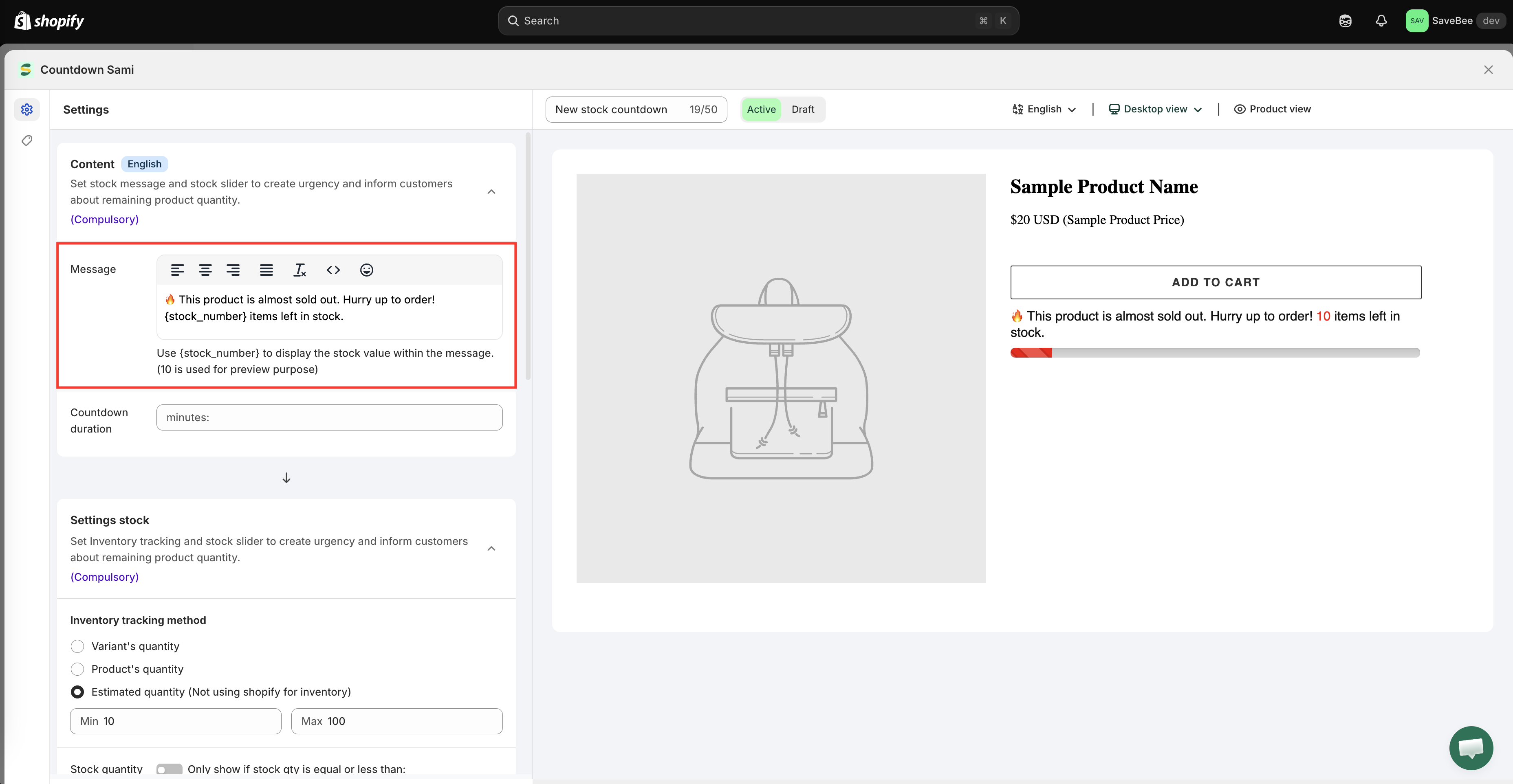
On the **Settings** tab, open **Content** and edit the **Message**. A new stock countdown starts with:
> 🔥 This product is almost sold out. Hurry up to order! {stock\_number} items left in stock.
`{stock_number}` is replaced with the real figure when the page loads. The app previews it as `10`.
Keep the variable somewhere in the sentence — a stock message without a number is just a claim.
Use {stock_number} to place the real inventory figure in the message.
{% endstep %}
{% step %}
### Choose where the number comes from
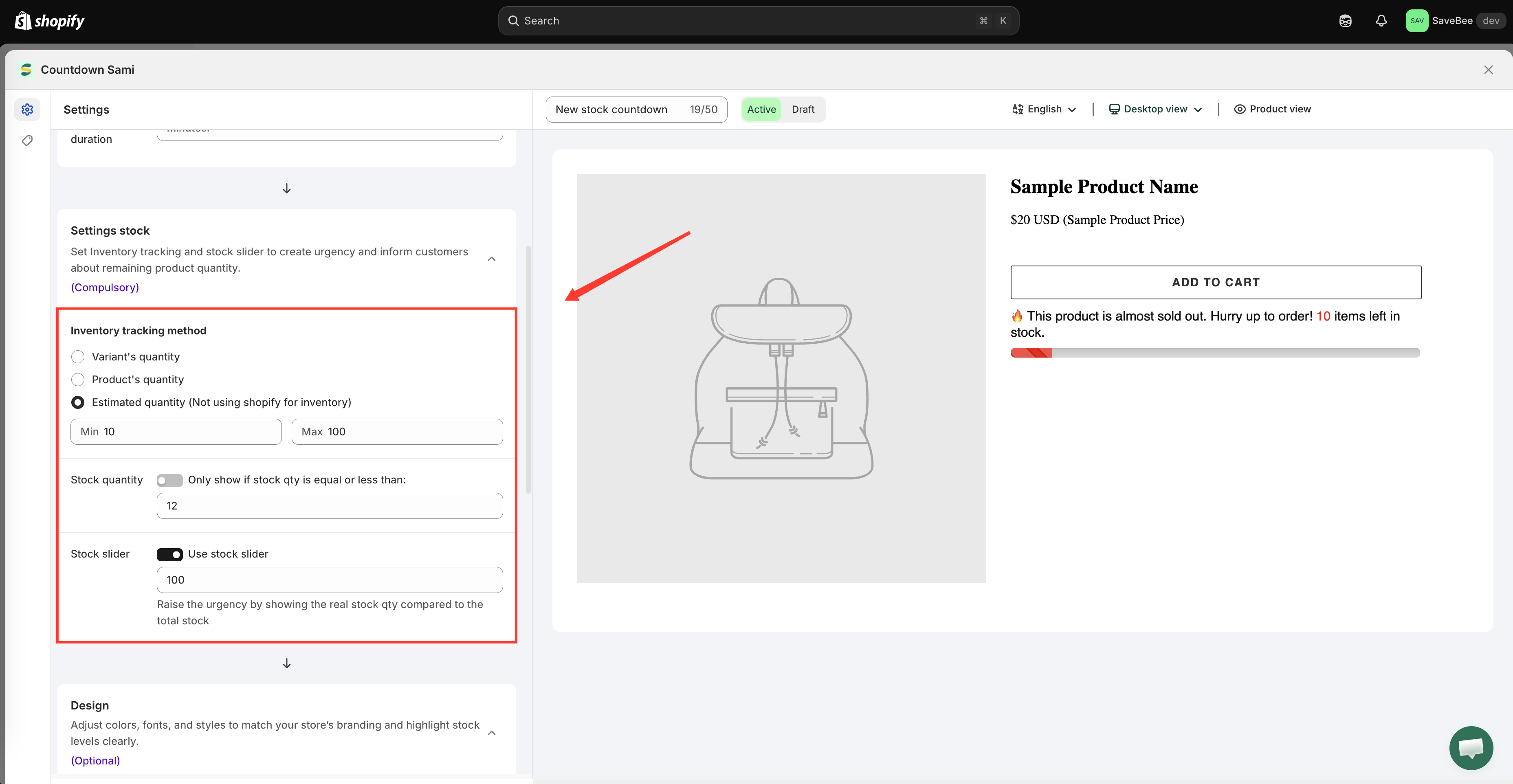
Open the **Settings stock** section and set **Inventory tracking method**:
| Method | Uses |
| -------------------------------------------------------- | ------------------------------------------------------------------------- |
| **Variant's Quantity** | The stock of the variant the shopper is currently looking at. The default |
| **Product's Quantity** | The product's stock across all its variants |
| **Estimated Quantity (Not using shopify for inventory)** | A number generated between a **Min** and **Max** you set |
Use **Variant's Quantity** if your variants have meaningfully different stock — a size that's nearly gone shouldn't be masked by one that isn't. Use **Product's Quantity** when the product is what sells out.
Full detail in [Inventory tracking and the stock slider](/samita-countdown-timer-bar/stock-countdown/inventory.md).
Three ways to source the number the message reports.
{% endstep %}
{% step %}
### Set the low-stock threshold
Still in **Settings stock**, turn on **Only show if stock qty is equal or less than** and enter a number. The default is 10.
Below that number the countdown appears; above it, nothing shows. This is what stops a permanent "almost sold out" banner on products with hundreds in stock.
{% hint style="info" %}
Leave the threshold off and the countdown shows on every matching product regardless of stock level — including one with 400 units, which undercuts the message.
{% endhint %}
{% endstep %}
{% step %}
### Turn on the stock slider
Turn on **Use stock slider** and set the total it measures against. The default is 100.
The slider fills in proportion to the remaining stock against that total, so "7 left" out of a total of 100 renders as a nearly empty bar.
{% endstep %}
{% step %}
### Style it
Open the **Design** section to set the **Alignment**, the colors for the message, slider, stock figure and background, and an **Animation** — **None**, **Flash**, or **Pulse**.
Flash and Pulse draw the eye, which is the point, but they're noticeable on a page that already has movement. Try the page as a whole before settling on one.
{% endstep %}
{% step %}
### Choose where it shows
On the **Display** tab, tick **Product page** under **Show countdown on**, or copy the **Shortcode** for a custom position.
Use **Conditions** to limit it to the products where scarcity is real — a collection of limited editions, for example. See [Display conditions](/samita-countdown-timer-bar/where-countdowns-appear/conditions.md).
{% endstep %}
{% step %}
### Save it as Active
Set the status to **Active** and click **Save**.
{% endstep %}
{% step %}
### Check it on your storefront
Open a product whose stock is **below your threshold**. The message should appear with the real figure and the slider should be drawn down.
Then open a product well above the threshold and check that nothing appears — that's the threshold working, not a fault.
If you're using **Variant's Quantity**, switch variants on the product page and watch the number follow the selection.
{% endstep %}
{% endstepper %}
## Next steps
* [Inventory tracking and the stock slider](/samita-countdown-timer-bar/stock-countdown/inventory.md)
* [Display conditions](/samita-countdown-timer-bar/where-countdowns-appear/conditions.md)
* [Design a countdown](/samita-countdown-timer-bar/design-and-translation/design.md)
* [Countdown not showing](/samita-countdown-timer-bar/help/countdown-not-showing.md)
---
# Agent Instructions
This documentation is published with GitBook. GitBook is the documentation platform designed so that both humans and AI agents can read, navigate, and reason over technical content effectively. Learn more at gitbook.com.
## Querying This Documentation
If you need additional information that is not directly available in this page, you can query the documentation by asking a question.
Perform an HTTP GET request on the following URL with the `ask` and `goal` query parameters:
```
GET https://docs.samita.io/samita-countdown-timer-bar/stock-countdown/create.md?ask=&goal=
```
`ask` is the immediate question: it should be specific, self-contained, and written in natural language.
`goal` is what the user is ultimately trying to achieve, the reason they need the answer. Sharing it helps GitBook give you a better, more relevant answer. A goal is most helpful when it describes the outcome the user wants rather than restating the question. For example, with `ask=how do I create an API token`, a goal like `automate deployments from our CI pipeline` lets GitBook tailor the answer to that use case.
The response will contain a direct answer to the question and relevant excerpts and sources from the documentation.
Use this mechanism when the answer is not explicitly present in the current page, you need clarification or additional context, or you want to retrieve related documentation sections.