> For the complete documentation index, see [llms.txt](https://docs.samita.io/llms.txt). Markdown versions of documentation pages are available by appending `.md` to page URLs; this page is available as [Markdown](https://docs.samita.io/samita-countdown-timer-bar/where-countdowns-appear/collection-search-file.md).
# Enable the Collection condition
Add one template file to your theme so the Collection condition can match products.
The **Collections** condition needs one small template file in your theme. Without it, the app can't tell which collections a product belongs to on the storefront, so a countdown targeted at a collection won't appear.
You only do this once per theme, and the app tells you when it's needed: a warning banner appears in the countdown builder, with a **Request setup** button if you'd rather support did it for you.
{% hint style="info" %}
Other conditions — All Products, Select products, Product variants, Page, Customer, Language, Country — don't need this file. Only **Collections** does.
{% endhint %}
## Steps to add the file
{% stepper %}
{% step %}
### Open your theme's code editor
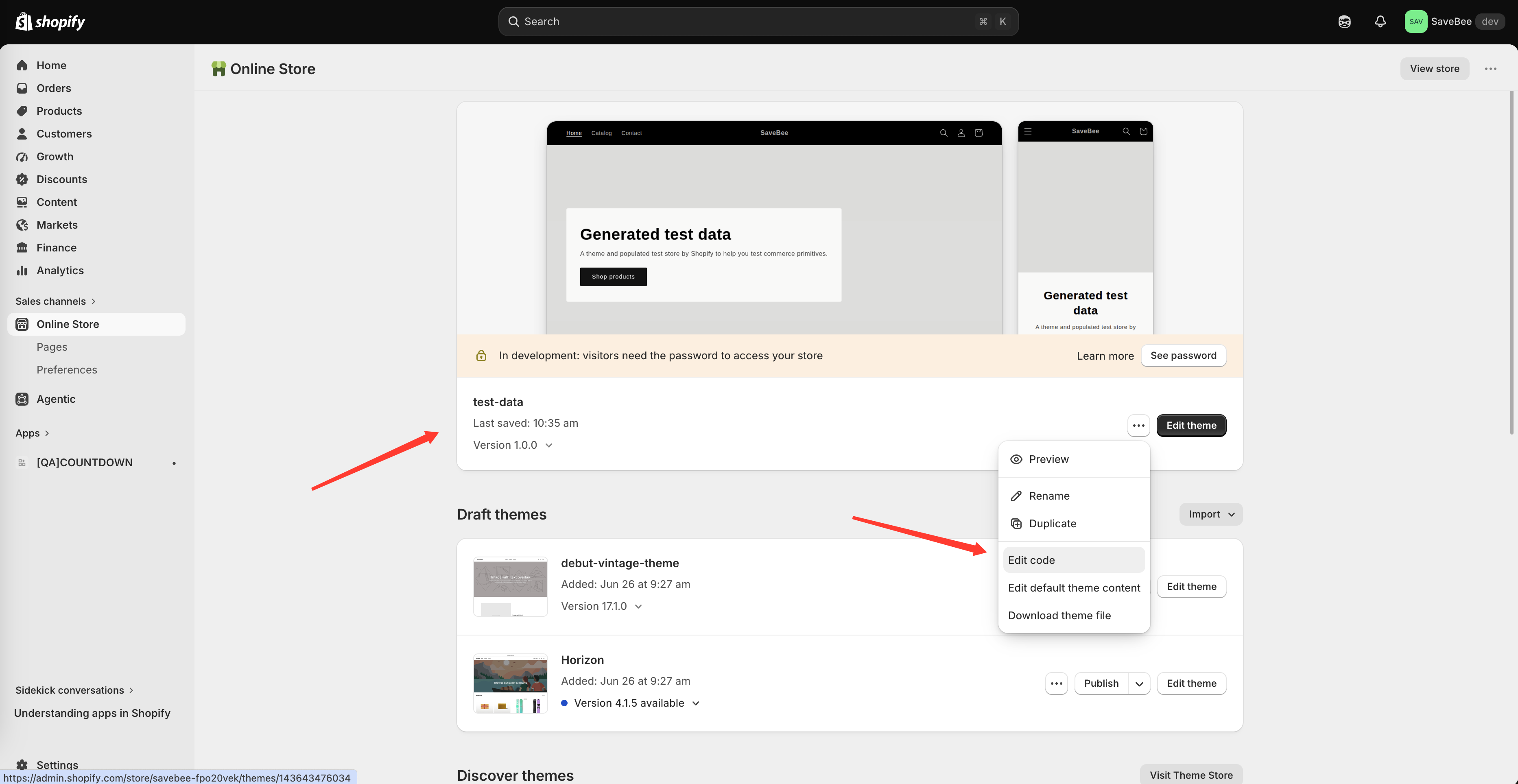
In your Shopify admin, go to **Online Store → Themes**. On the theme you want, click the **…** (More actions) button and choose **Edit code**.
Open the theme's code editor from More actions → Edit code.
{% endstep %}
{% step %}
### Create a new template file
In the **Templates** folder, click **Add a new template**, choose a **search** template of type **liquid**, and name it:
```
samiCountdownsProductsJson
```
Shopify saves this as `templates/search.samiCountdownsProductsJson.liquid`.
Create a search template named samiCountdownsProductsJson.
{% endstep %}
{% step %}
### Replace its contents
Delete whatever Shopify put in the new file and paste this in its place:
```liquid
{%- layout none -%}
{%- paginate search.results by 1000 -%}
[{%- for product in search.results -%}
{%- unless forloop.first -%},{%- endunless -%}
{
"id":{{-product.id-}},
"title":{{-product.title | json-}},
"handle":{{-product.handle | json-}},
"price":"{{-product.price-}}",
"price_max":"{{-product.price_max}}",
"price_min":"{{-product.price_min}}",
"type":{{-product.type | json-}},
"created_at":"{{-product.created_at | date: "%Y-%m-%d %H:%M" -}}",
"published_at":"{{-product.published_at | date: "%Y-%m-%d %H:%M" -}}",
"tags": {{-product.tags | json-}},
"vendor": {{-product.vendor | json-}},
"featured_image":"{{-product.featured_image-}}",
"url":"{{-product.url-}}",
"collections":{{-product.collections | map: 'id' | json-}},
"compare_at_price":"{{-product.compare_at_price-}}",
"compare_at_price_max": "{{-product.compare_at_price_max-}}",
"compare_at_price_min": "{{-product.compare_at_price_min-}}",
"price_varies": "{{-product.price_varies-}}",
"compare_at_price_varies": "{{-product.compare_at_price_varies-}}",
"images":[
{%- for image in product.images -%}{%- unless forloop.first -%},
{%- endunless -%}{"id":{{-image.id-}},
"src":{{-image.src | json-}}}{%- endfor -%}],
"first_available_variant":{"id":{{-product.selected_or_first_available_variant.id | times: 1 -}}},
"available":{{-product.available | json-}},
"options": {{-product.options | json-}},
"variants":[
{%- for variant in product.variants -%}{%- unless forloop.first -%},
{%- endunless -%}
{
"id":{{-variant.id-}},
"title":{{-variant.title | json}},
"name":{{-variant.name | json}},
"price":{{-variant.price-}},
"compare_at_price":{{-variant.compare_at_price | times: 1-}},
"available":{{-variant.available-}},
"sku":{{-variant.sku | json -}},
"weight":"{{-variant.weight-}}",
"weight_unit": "{{-variant.weight_unit-}}",
"inventory_quantity":{{-variant.inventory_quantity-}},
"option1": {{-variant.option1| json-}},
"option2": {{-variant.option2| json-}},
"option3": {{-variant.option3| json-}},
"options": {{-variant.options| json-}},
"selected": {%- if variant.selected -%} {{-variant.selected-}} {%- elsif product.selected_or_first_available_variant.id == variant.id -%} true {%- else -%} false {%- endif -%}
}
{%- endfor -%}
]
}
{%- endfor -%}]
{%- endpaginate -%}
```
{% endstep %}
{% step %}
### Save the file
Click **Save** in the code editor.
{% endstep %}
{% step %}
### Go back to the app and open Theme integration
Return to Countdown Timer Bar Samita and open the **Theme integration** page, so the app picks up the change on this theme.
{% endstep %}
{% step %}
### Test a collection condition
Open a countdown, set its condition to **Collections** and pick one, save it as **Active**, then visit a product in that collection on your live storefront. The countdown should appear.
Check a product *outside* the collection too — it should show nothing.
{% endstep %}
{% endstepper %}
## What the file actually does
It's a search template that returns product information as data rather than as a web page — including each product's collections, which isn't otherwise available to the app on the storefront. The app requests it in the background when it needs to check a collection condition; shoppers never see it.
## Things worth knowing
* **It's per theme.** Change theme, or install a new one, and you add the file there too.
* **The name has to be exact.** `samiCountdownsProductsJson`, capitals included. A typo means the file is never found, with no error on the page.
* **It reads, it doesn't write.** The file doesn't alter your theme's behaviour or appearance.
{% hint style="info" %}
Not comfortable editing theme code? The warning banner in the countdown builder has a **Request setup** button that opens a chat with support, who can add it for you. You can also [contact support](/samita-countdown-timer-bar/help/contact-support.md) directly.
{% endhint %}
## Next steps
* [Display conditions](/samita-countdown-timer-bar/where-countdowns-appear/conditions.md)
* [Theme integration](https://github.com/samita-baoan/doc-timer/tree/restructure/docs-v2/settings/theme-integration.md)
* [Countdown not showing](/samita-countdown-timer-bar/help/countdown-not-showing.md)
* [Contact support](/samita-countdown-timer-bar/help/contact-support.md)
---
# Agent Instructions
This documentation is published with GitBook. GitBook is the documentation platform designed so that both humans and AI agents can read, navigate, and reason over technical content effectively. Learn more at gitbook.com.
## Querying This Documentation
If you need additional information that is not directly available in this page, you can query the documentation by asking a question.
Perform an HTTP GET request on the following URL with the `ask` and `goal` query parameters:
```
GET https://docs.samita.io/samita-countdown-timer-bar/where-countdowns-appear/collection-search-file.md?ask=&goal=
```
`ask` is the immediate question: it should be specific, self-contained, and written in natural language.
`goal` is what the user is ultimately trying to achieve, the reason they need the answer. Sharing it helps GitBook give you a better, more relevant answer. A goal is most helpful when it describes the outcome the user wants rather than restating the question. For example, with `ask=how do I create an API token`, a goal like `automate deployments from our CI pipeline` lets GitBook tailor the answer to that use case.
The response will contain a direct answer to the question and relevant excerpts and sources from the documentation.
Use this mechanism when the answer is not explicitly present in the current page, you need clarification or additional context, or you want to retrieve related documentation sections.