> For the complete documentation index, see [llms.txt](https://docs.samita.io/llms.txt). Markdown versions of documentation pages are available by appending `.md` to page URLs; this page is available as [Markdown](https://docs.samita.io/samita-countdown-timer-bar/where-countdowns-appear/position.md).
# Display position
Put a countdown on your product pages automatically, and understand exactly where it lands.
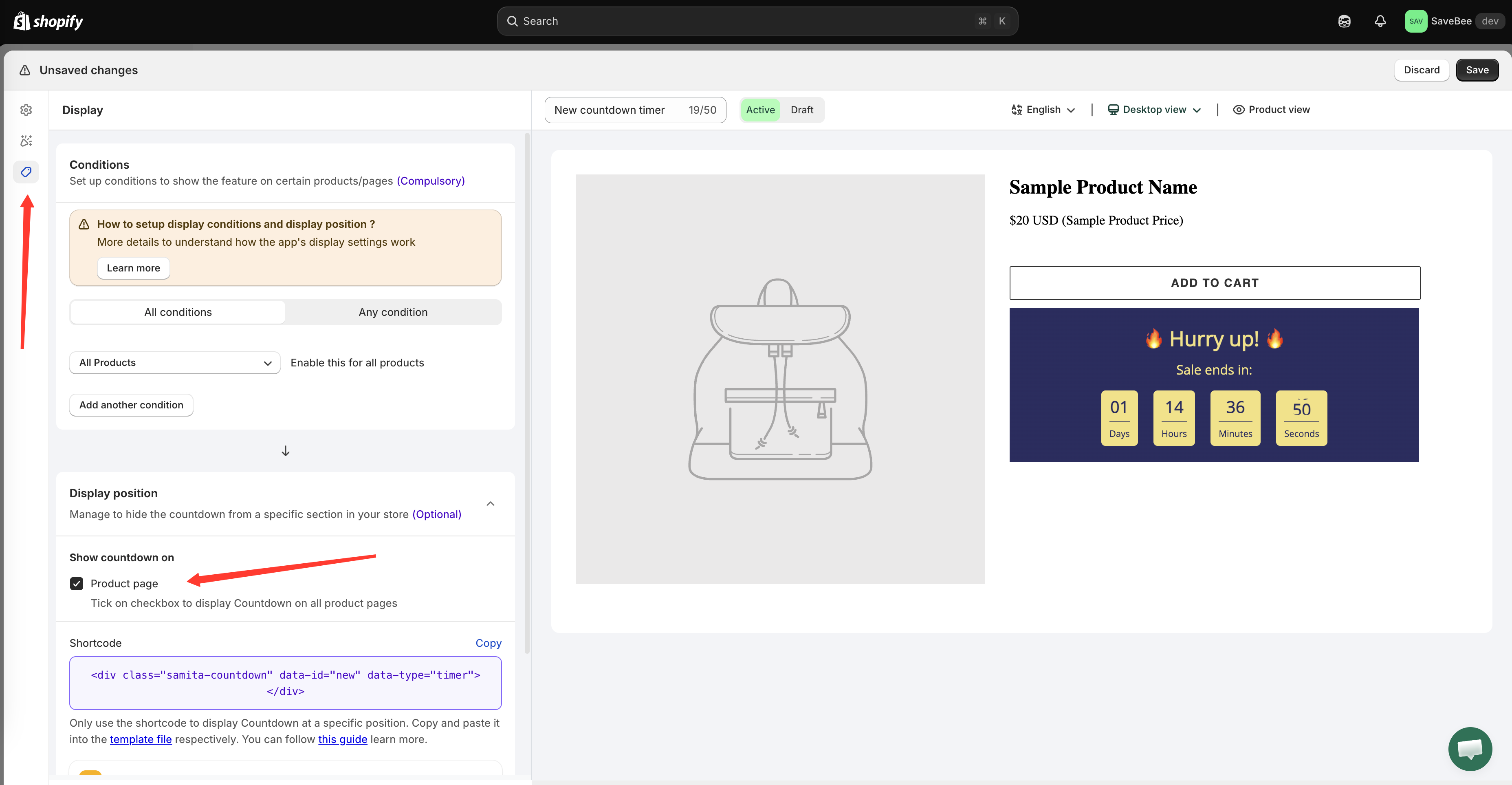
The **Display position** section on the **Display** tab is where a countdown gets somewhere to render. Without it, a countdown can match every condition you've set and still show nothing, because nothing on the page has told it where to go.
Ticking Product page is the whole of automatic placement.
## Show countdown on: Product page
There's one checkbox, **Product page**, described in the app as "Tick on checkbox to display Countdown on all product pages".
Tick it and the countdown appears on your product pages — on every product that also satisfies the countdown's [conditions](/samita-countdown-timer-bar/where-countdowns-appear/conditions.md).
## Where on the product page it lands
The app places the countdown **immediately below the Add to cart area**.
This is deliberate rather than arbitrary. The moment a shopper is looking at the buy button is the moment a deadline, a delivery date, or a stock warning is worth reading — and it's the one region every Shopify theme has in roughly the same place, so the countdown lands sensibly across themes without you configuring anything.
What it means in practice:
* The countdown inherits your theme's product-page layout, so it moves with your content rather than floating over it.
* On themes with a sticky Add to cart bar, the countdown sits with the main buy button, not the sticky one.
* If your theme's Add to cart button is built in a way the app doesn't recognise, nothing renders — that's the main reason automatic placement fails. Use the [shortcode](/samita-countdown-timer-bar/where-countdowns-appear/shortcode.md) instead.
{% hint style="info" %}
Want the countdown somewhere else on the product page — under the title, above the price, at the top of the description? Automatic placement can't do that. The [shortcode](/samita-countdown-timer-bar/where-countdowns-appear/shortcode.md) can.
{% endhint %}
## Everywhere else needs the shortcode
**Product page** is the only automatic placement the app offers. Any other location — your home page, a collection page, a landing page, a top-of-page banner — is done by pasting the countdown's shortcode into a **Samita Countdown** app block. See [Place a countdown with a shortcode](/samita-countdown-timer-bar/where-countdowns-appear/shortcode.md).
Note that "which pages can a countdown appear on" and "where does it get placed" are different questions. The **Page** condition can allow a countdown on your collection pages, but it still needs a shortcode block on that page to have somewhere to render.
## Cart countdowns place themselves
A cart countdown has no position controls. It goes to the top of the cart form on the cart page and in the cart drawer, automatically, whenever the cart has items in it. See [Cart countdown overview](/samita-countdown-timer-bar/cart-countdown/overview.md).
## Checking placement
After saving, open a real product page rather than relying on the builder preview — the preview shows the countdown's design, not your theme's layout.
Check it on a phone as well. Themes reflow product pages heavily on small screens, and a countdown that sits neatly under a desktop Add to cart button can end up somewhere less useful on mobile. If it doesn't work on mobile, [device targeting](/samita-countdown-timer-bar/where-countdowns-appear/device-targeting.md) can restrict it to desktop.
## Next steps
* [Place a countdown with a shortcode](/samita-countdown-timer-bar/where-countdowns-appear/shortcode.md)
* [Display conditions](/samita-countdown-timer-bar/where-countdowns-appear/conditions.md)
* [Device targeting](/samita-countdown-timer-bar/where-countdowns-appear/device-targeting.md)
* [Countdown not showing](/samita-countdown-timer-bar/help/countdown-not-showing.md)
---
# Agent Instructions
This documentation is published with GitBook. GitBook is the documentation platform designed so that both humans and AI agents can read, navigate, and reason over technical content effectively. Learn more at gitbook.com.
## Querying This Documentation
If you need additional information that is not directly available in this page, you can query the documentation by asking a question.
Perform an HTTP GET request on the following URL with the `ask` and `goal` query parameters:
```
GET https://docs.samita.io/samita-countdown-timer-bar/where-countdowns-appear/position.md?ask=&goal=
```
`ask` is the immediate question: it should be specific, self-contained, and written in natural language.
`goal` is what the user is ultimately trying to achieve, the reason they need the answer. Sharing it helps GitBook give you a better, more relevant answer. A goal is most helpful when it describes the outcome the user wants rather than restating the question. For example, with `ask=how do I create an API token`, a goal like `automate deployments from our CI pipeline` lets GitBook tailor the answer to that use case.
The response will contain a direct answer to the question and relevant excerpts and sources from the documentation.
Use this mechanism when the answer is not explicitly present in the current page, you need clarification or additional context, or you want to retrieve related documentation sections.