> For the complete documentation index, see [llms.txt](https://docs.samita.io/llms.txt). Markdown versions of documentation pages are available by appending `.md` to page URLs; this page is available as [Markdown](https://docs.samita.io/samita-wholesale-b2b/add-on-features/create-an-extra-fee.md).
# Extra Fee
Charge an extra fee for products that need special handling, and let customers know about it in the cart.
Extra Fee lets you charge customers for the extra work behind a special order — for example, a product that needs specific ingredients or extra prep time. The app adds the fee automatically and shows customers a notice in the cart.
## Steps to manage
{% stepper %}
{% step %}
### Open Extra fee
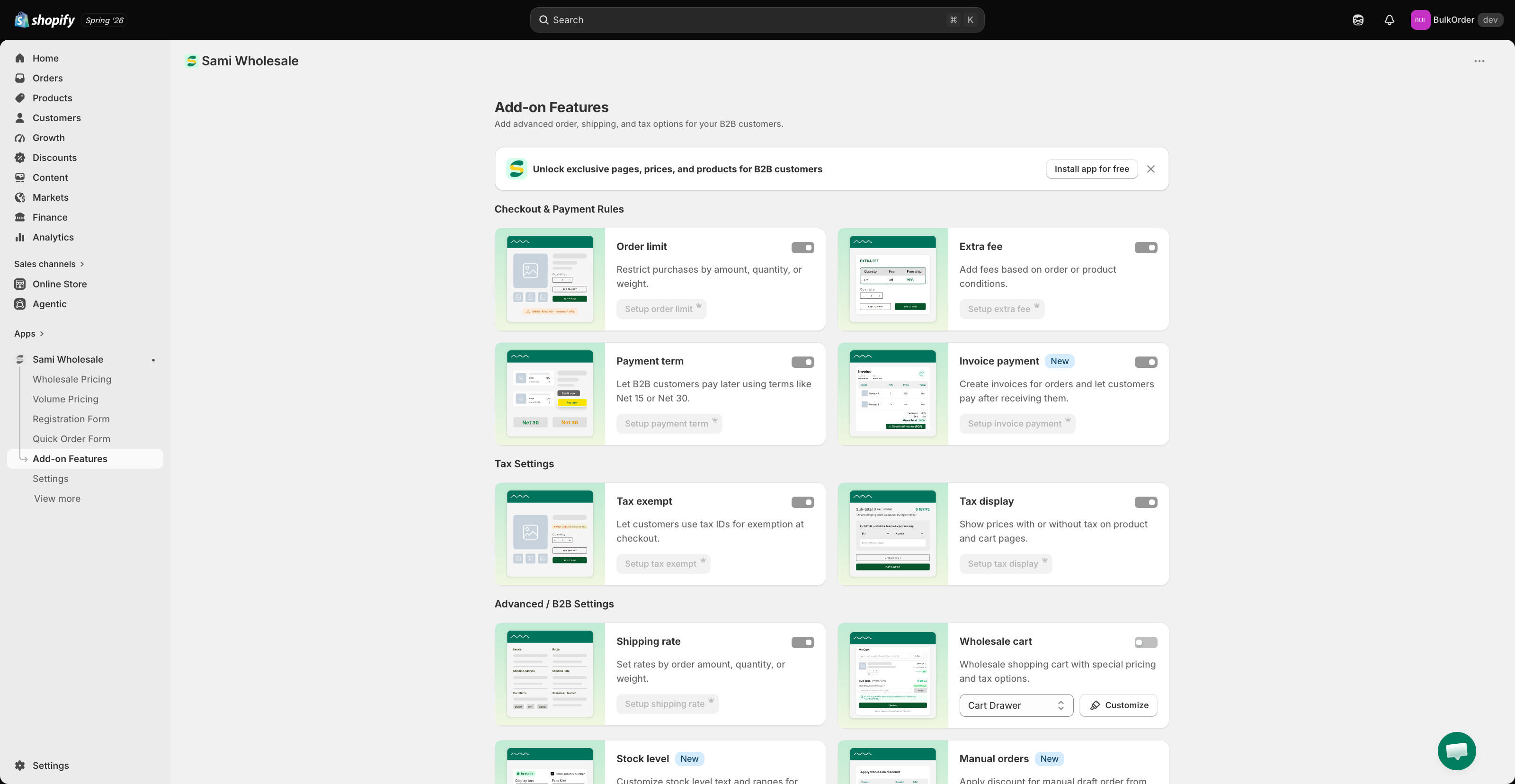
Open the app, go to **Add-on Features**, then click **Extra fee > Setup extra fee**.
{% endstep %}
{% step %}
### Start a new rule
Click **Create new extra fee**.
{% endstep %}
{% step %}
### Name the rule
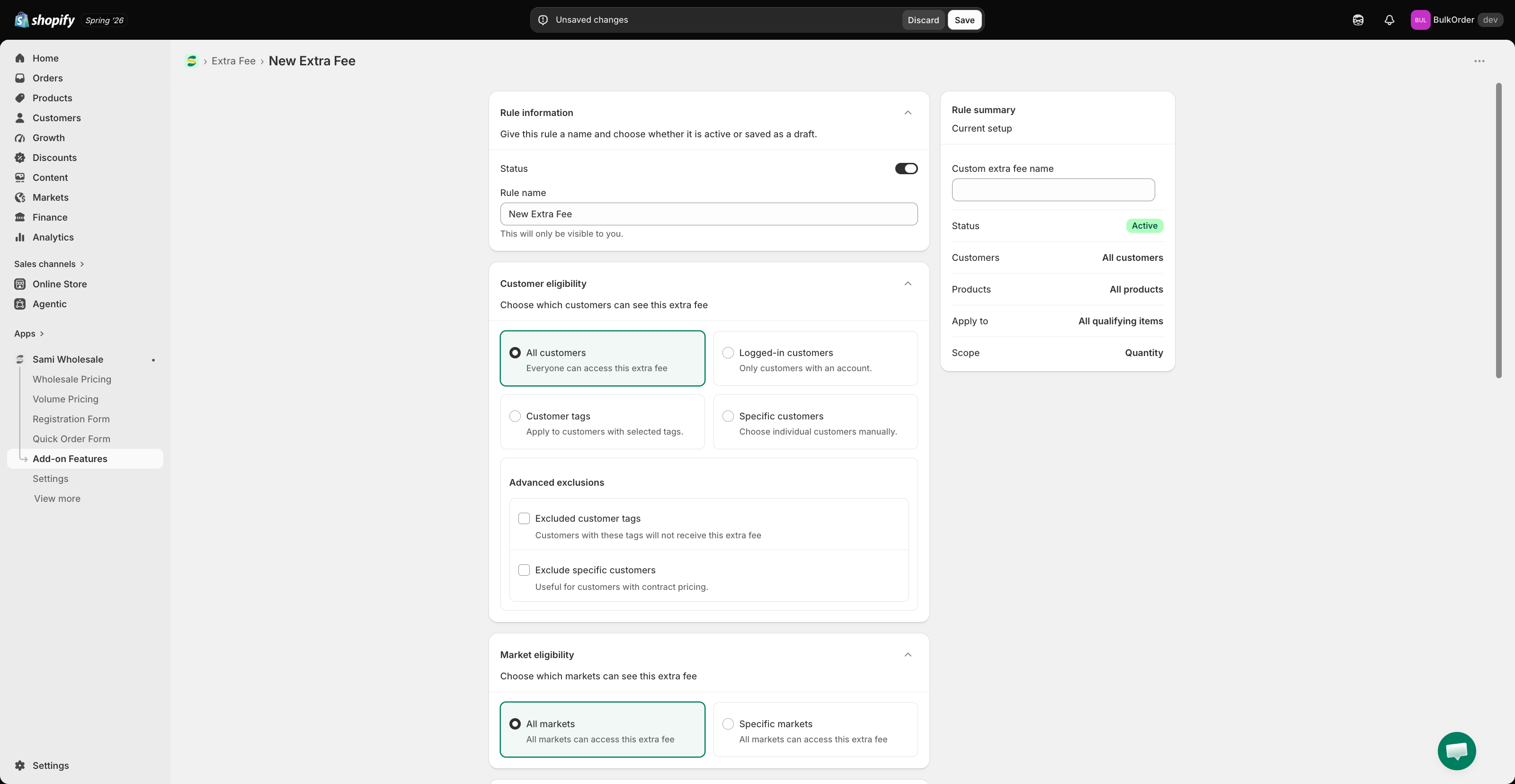
Give the rule a title and set its status to active or draft. In **Rule summary**, set the fee name that shows at checkout.
{% endstep %}
{% step %}
### Choose which customers it applies to
In **Customer eligibility**, choose:
* **All customers** — everyone.
* **Logged-in customers** — only customers logged in to your store.
* **Specific customers** — one or a few chosen customer accounts.
* **Customer tags** — only logged-in customers with the tag you specify.
You can also **exclude** specific customers.
{% endstep %}
{% step %}
### Choose a market
In **Market eligibility**, choose **Specific markets** and tick the ones you want, or choose **All markets**.
{% hint style="info" %}
The app pulls market data directly from **Shopify Markets**. Any market you've created in Shopify will automatically be available here. If a market is missing, make sure it's been created and configured in your Shopify Markets settings first.
{% endhint %}
{% endstep %}
{% step %}
### Choose which products it applies to
In **Product eligibility**, choose **All products**, **Specific products**, **Specific collections**, or **Product tag** — and optionally **exclude** specific products.
{% endstep %}
{% step %}
### Configure the fee
Choose the extra fee type:
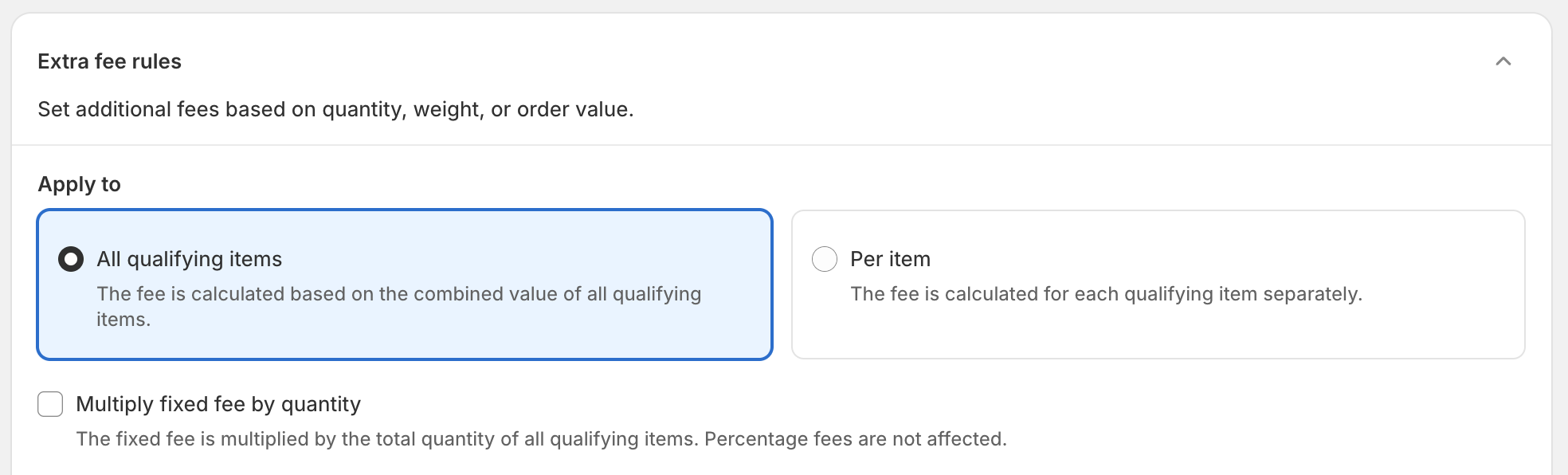
* **All qualifying items** — the fee applies once the combined quantity or value of all eligible products meets your condition.
* **Per item** — the fee applies whenever any individual product's quantity or value meets your condition.
Then choose the scope — quantity, amount, or weight — and set the range (from … to …).
{% endstep %}
{% step %}
### Multiply the fixed fee by quantity (optional)
Right under **Apply to**, tick **Multiply fixed fee by quantity** to charge a **Fixed fee** for every unit of the qualifying items, instead of once:
* With **All qualifying items**, the fee is multiplied by the total quantity of all qualifying items in the cart.
* With **Per item**, the fee is multiplied by the quantity of each qualifying item, so each item gets its own multiplied fee.
For example, with a tier of 1–10 units and a fixed fee of $5, a customer buying 7 units is charged $35. The tier is still picked from the scope you set above (quantity, amount, or weight) — only the fixed amount is multiplied. **Percentage** fees are never multiplied, even with this option on.
On the storefront, the extra fee table shows the fee as "$5.00 / unit" so customers know it's charged per unit. At checkout, the fee appears as a single line with the full amount (for example "Handling fee — $35.00"). To edit or translate the "/ unit" text, go to **Settings > Translations**, choose **Extra Fee**, and edit **Per unit** — see [Edit and translate content for some of the app's features](/samita-wholesale-b2b/setting/edit-and-translate-content-for-some-of-the-apps-features.md).
{% endstep %}
{% step %}
### Charge tax on the fee (optional)
Tick **Charge tax on this fee** to make the fee taxable. Shopify then calculates tax on the fee at checkout based on your store's tax settings, the same way it taxes any other line. Leave it unticked to keep the fee tax-free.
{% endstep %}
{% step %}
### Save
Click **Save**.
{% endstep %}
{% endstepper %}
{% hint style="info" %}
**Important:** make sure the app embed is activated in your theme, or this data won't show on your storefront. See [Activate/Deactivate app in the theme](/samita-wholesale-b2b/mandatory-steps/activate-deactivate-app-in-the-theme.md).
{% endhint %}
> ### **Need support?**
>
> If you do encounter any difficulty while proceeding these steps, don’t show any hesitation to contact us promptly via the email address [support@samita.io](https://help.samita.io/support@samita.io)
---
# Agent Instructions
This documentation is published with GitBook. GitBook is the documentation platform designed so that both humans and AI agents can read, navigate, and reason over technical content effectively. Learn more at gitbook.com.
## Querying This Documentation
If you need additional information that is not directly available in this page, you can query the documentation by asking a question.
Perform an HTTP GET request on the following URL with the `ask` and `goal` query parameters:
```
GET https://docs.samita.io/samita-wholesale-b2b/add-on-features/create-an-extra-fee.md?ask=&goal=
```
`ask` is the immediate question: it should be specific, self-contained, and written in natural language.
`goal` is what the user is ultimately trying to achieve, the reason they need the answer. Sharing it helps GitBook give you a better, more relevant answer. A goal is most helpful when it describes the outcome the user wants rather than restating the question. For example, with `ask=how do I create an API token`, a goal like `automate deployments from our CI pipeline` lets GitBook tailor the answer to that use case.
The response will contain a direct answer to the question and relevant excerpts and sources from the documentation.
Use this mechanism when the answer is not explicitly present in the current page, you need clarification or additional context, or you want to retrieve related documentation sections.
.png?alt=media)
.png?alt=media)
.png?alt=media)
.png?alt=media)
.png?alt=media)