> For the complete documentation index, see [llms.txt](https://docs.samita.io/llms.txt). Markdown versions of documentation pages are available by appending `.md` to page URLs; this page is available as [Markdown](https://docs.samita.io/samita-wholesale-b2b/add-on-features/set-up-tax-display-in-pricing.md).
# Tax Display
Show product prices with or without tax included, overriding Shopify's default tax display if you need to.
Tax Display controls whether your storefront shows prices with tax included or excluded. By default, the app follows your Shopify tax settings — but you can override that here.
When enabled, the app replaces your store's prices with the adjusted version (including or excluding tax, as you've configured). If you also use wholesale pricing, those prices follow the same tax display rule.
## Steps to manage
{% stepper %}
{% step %}
### Open Tax display
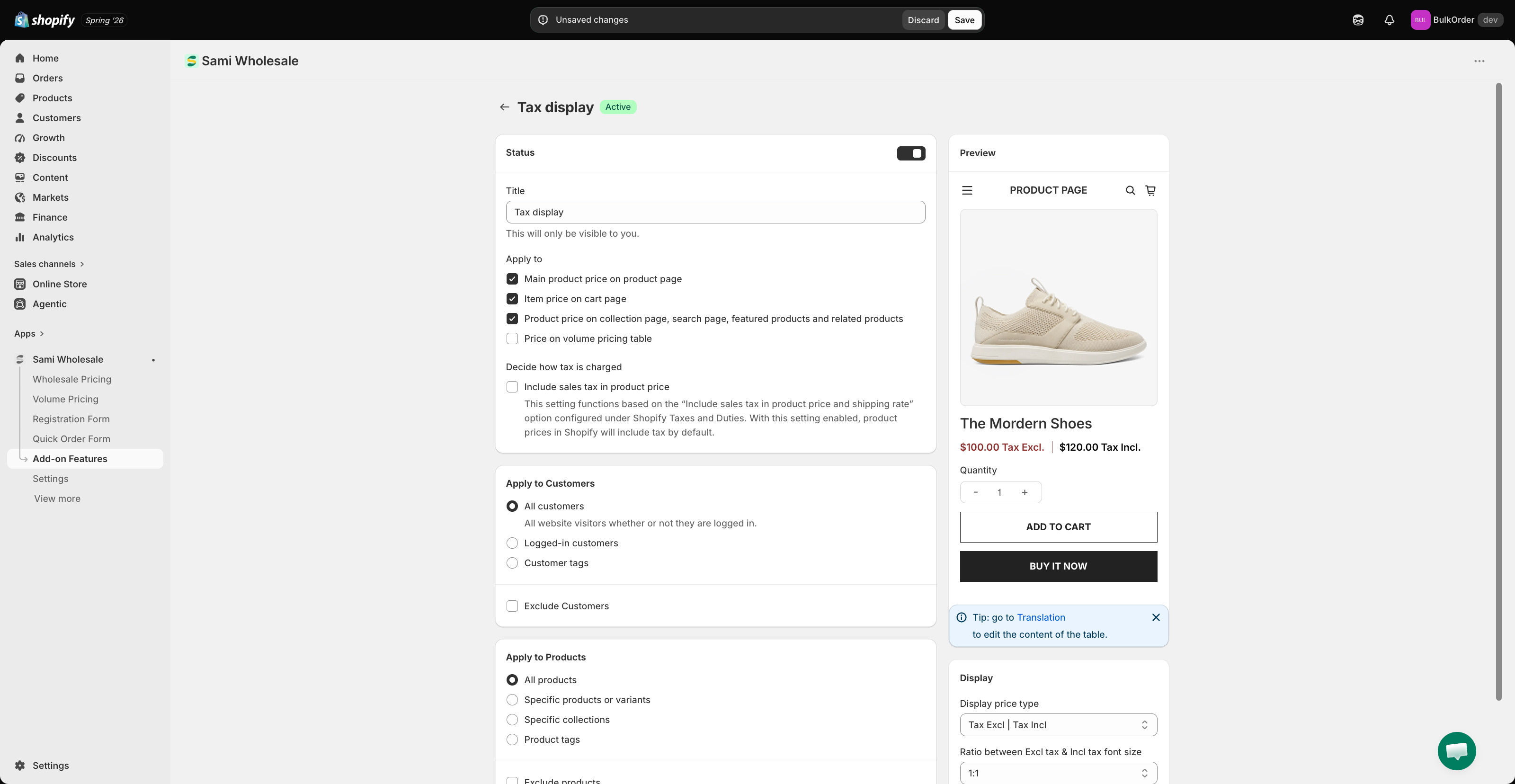
Open the app, go to **Add-on Features**, then click **Tax display > Setup tax display**, and click **Create new tax display**.
{% endstep %}
{% step %}
### Choose where it shows
Name it in **Title**, set its **Status**, then under **Apply to** tick which pages show this tax display: **Main product price on product page**, **Item price on cart page**, **Product price on collection page, search page, featured products and related products**, and/or **Price on volume pricing table**.
{% endstep %}
{% step %}
### Understand how tax is charged
This depends on **Decide how tax is charged** — the **Include sales tax in product price** checkbox — which mirrors Shopify's own **Include sales tax in product price and shipping rate** setting under Shopify Taxes and Duties.
* **When that Shopify option is off (default):** the base price is treated as tax-excluded. Price including tax = base price + tax. *Example: $100 base, 10% tax → $100 excluding tax, $110 including tax.*
* **When that Shopify option is on:** the base price is treated as tax-included. Price excluding tax = base price − tax. *Example: $100 base, 10% tax → $100 including tax, \~$90 excluding tax.*
{% endstep %}
{% step %}
### Choose which customers see it
Under **Apply to Customers**, choose **All customers**, **Logged-in customers**, or **Customer tags**. Tick **Exclude Customers** to hide it from certain customers.
{% endstep %}
{% step %}
### Choose which products it applies to
Under **Apply to Products**, choose **All products**, **Specific products or variants**, **Specific collections**, or **Product tags**.
{% endstep %}
{% step %}
### Choose the display format
Scroll down to **Display**, then choose the **Display price type** — for example **Tax Excl | Tax Incl** to show both — and set the **Ratio between Excl tax & Incl tax font size**. Check the **Preview** panel to see how it looks.
{% endstep %}
{% step %}
### Save
Click **Save**.
{% endstep %}
{% endstepper %}
---
# Agent Instructions
This documentation is published with GitBook. GitBook is the documentation platform designed so that both humans and AI agents can read, navigate, and reason over technical content effectively. Learn more at gitbook.com.
## Querying This Documentation
If you need additional information that is not directly available in this page, you can query the documentation by asking a question.
Perform an HTTP GET request on the following URL with the `ask` and `goal` query parameters:
```
GET https://docs.samita.io/samita-wholesale-b2b/add-on-features/set-up-tax-display-in-pricing.md?ask=&goal=
```
`ask` is the immediate question: it should be specific, self-contained, and written in natural language.
`goal` is what the user is ultimately trying to achieve, the reason they need the answer. Sharing it helps GitBook give you a better, more relevant answer. A goal is most helpful when it describes the outcome the user wants rather than restating the question. For example, with `ask=how do I create an API token`, a goal like `automate deployments from our CI pipeline` lets GitBook tailor the answer to that use case.
The response will contain a direct answer to the question and relevant excerpts and sources from the documentation.
Use this mechanism when the answer is not explicitly present in the current page, you need clarification or additional context, or you want to retrieve related documentation sections.
.png?alt=media)
.png?alt=media)