> For the complete documentation index, see [llms.txt](https://docs.samita.io/llms.txt). Markdown versions of documentation pages are available by appending `.md` to page URLs; this page is available as [Markdown](https://docs.samita.io/samita-wholesale-b2b/overview/app-onboarding-checklist.md).
# App onboarding checklist
What to expect the first time you open Samita Wholesale Pricing, and what the Dashboard shows you afterward.
The first time you open Samita Wholesale Pricing, a short setup wizard walks you through the basics. This page explains each step, and what you'll see on the **Dashboard** afterward.
## First-time setup wizard
{% stepper %}
{% step %}
### Enable app embed
Turn on the app embed so Samita Wholesale Pricing can actually run on your storefront. Until this is on, wholesale prices, forms, and order tools won't appear for customers. Click **Enable App Embed** to jump into your theme editor, then **Save** and return. See [Activate/Deactivate app in the theme](/samita-wholesale-b2b/mandatory-steps/activate-deactivate-app-in-the-theme.md) for the full walkthrough.
{% endstep %}
{% step %}
### Choose a pricing plan
Pick a plan based on how much revenue you expect to run through the app. You can start on the **Free** plan and upgrade any time. See [Pricing Plans & Revenue Tracking](/samita-wholesale-b2b/faqs/pricing-plans-and-revenue-tracking.md).
{% endstep %}
{% step %}
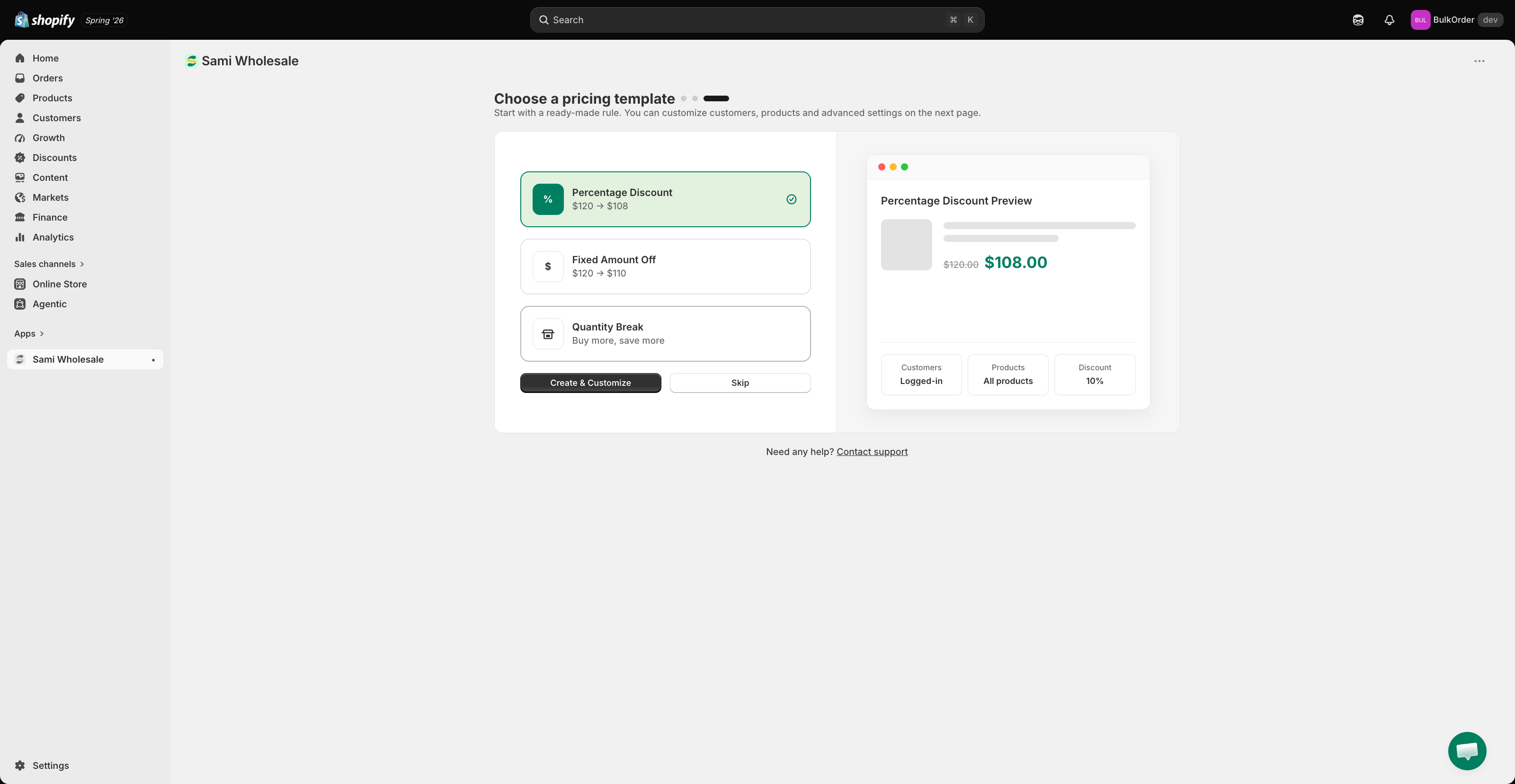
### Choose a pricing template (optional)
Optionally start your first wholesale pricing rule from a ready-made template — **Percentage Discount**, **Fixed Amount Off**, or **Quantity Break** — then customize it on the next screen. You can also click **Skip** and set one up later. See [Create a wholesale pricing](/samita-wholesale-b2b/wholesale-pricing/create-a-wholesale-pricing.md).
{% endstep %}
{% endstepper %}
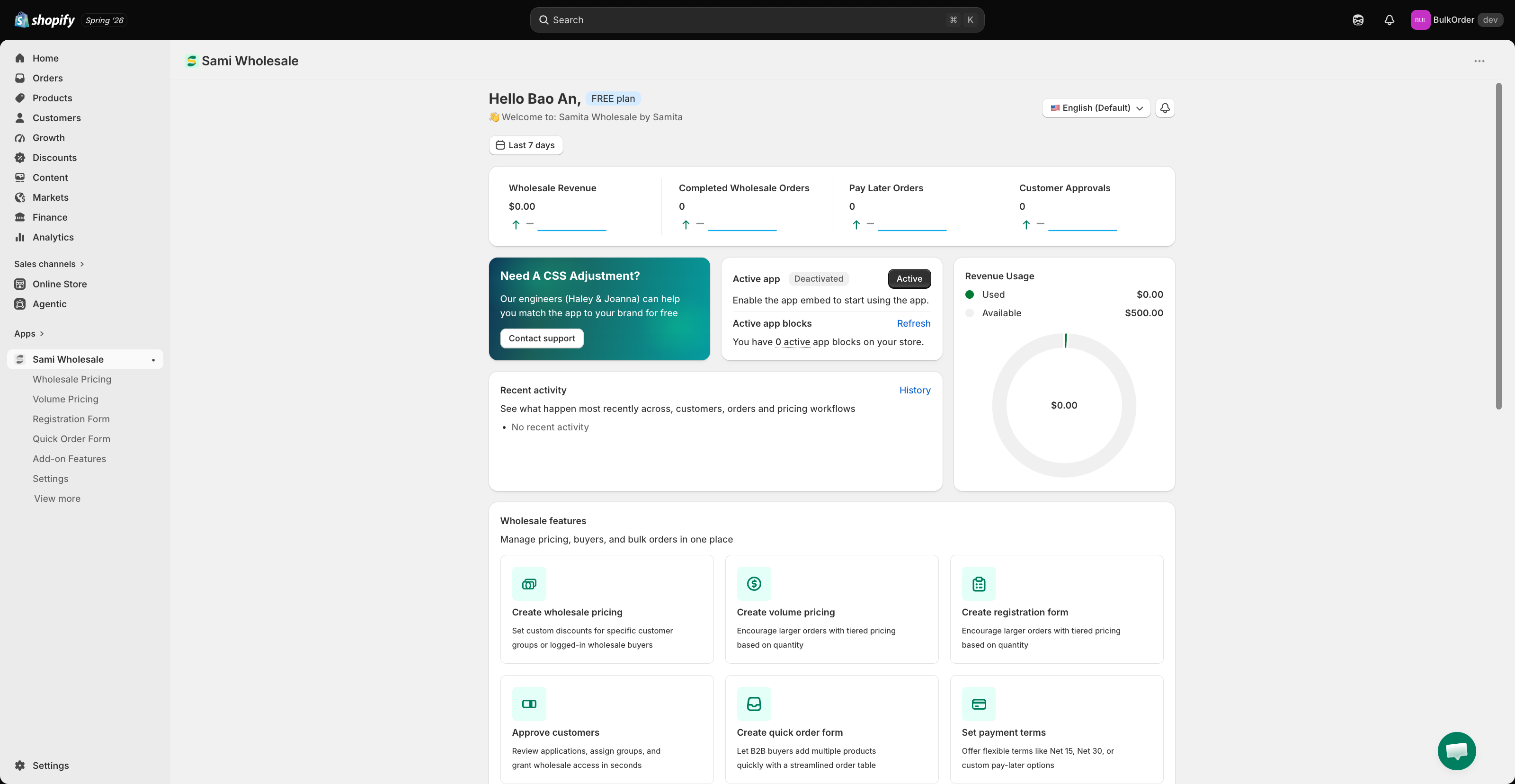
## What you'll see on the Dashboard
* **Performance snapshot** — Wholesale Revenue, Completed Wholesale Orders, Pay Later Orders, and Customer Approvals for the period you choose.
* **Active app / Active app blocks** — whether the app embed is currently on, and how many of the app's storefront blocks are active in your theme. Click **Refresh** after making theme changes to update this.
* **Revenue Usage** — on plans with a revenue cap, a donut chart showing how much of your quota you've used.
* **Recent activity** — a live feed of new customers, approvals, and orders. Click **History** for the full log — see [Recent Activity log](/samita-wholesale-b2b/setting/recent-activity-log.md).
* **Wholesale features** — quick links to get started with each core feature: Create wholesale pricing, Create volume pricing, Create registration form, Approve customers, Create quick order form, and Set payment terms.
> ### **Need support?**
>
> If you do encounter any difficulty while proceeding these steps, don’t show any hesitation to contact us promptly via the email address [support@samita.io](https://help.samita.io/support@samita.io)
---
# Agent Instructions
This documentation is published with GitBook. GitBook is the documentation platform designed so that both humans and AI agents can read, navigate, and reason over technical content effectively. Learn more at gitbook.com.
## Querying This Documentation
If you need additional information that is not directly available in this page, you can query the documentation by asking a question.
Perform an HTTP GET request on the following URL with the `ask` and `goal` query parameters:
```
GET https://docs.samita.io/samita-wholesale-b2b/overview/app-onboarding-checklist.md?ask=&goal=
```
`ask` is the immediate question: it should be specific, self-contained, and written in natural language.
`goal` is what the user is ultimately trying to achieve, the reason they need the answer. Sharing it helps GitBook give you a better, more relevant answer. A goal is most helpful when it describes the outcome the user wants rather than restating the question. For example, with `ask=how do I create an API token`, a goal like `automate deployments from our CI pipeline` lets GitBook tailor the answer to that use case.
The response will contain a direct answer to the question and relevant excerpts and sources from the documentation.
Use this mechanism when the answer is not explicitly present in the current page, you need clarification or additional context, or you want to retrieve related documentation sections.