> For the complete documentation index, see [llms.txt](https://docs.samita.io/llms.txt). Markdown versions of documentation pages are available by appending `.md` to page URLs; this page is available as [Markdown](https://docs.samita.io/samita-wholesale-b2b/registration-form/trigger-shopify-flow-on-registration.md).

# Trigger Shopify Flow on Registration Form submission

Send a Shopify Flow trigger every time a customer is created or updated through your Registration Form, so you can automate what happens next.

Once enabled, every time a customer is **created or updated** through a Registration Form, the app sends an event to **Shopify Flow** — Shopify's free, no-code automation tool. You can then build a workflow in Flow to react to that event however you like: notify your sales team in Slack, tag or segment the customer, create a task, sync the customer to another system, and so on.

{% hint style="info" %}
Before using this feature, make sure your form is already connected to Shopify customer data. See [Integrate Registration Form with Shopify customer data](/samita-wholesale-b2b/registration-form/integrate-registration-form-with-shopify-customer-data.md).
{% endhint %}

## Steps to manage

{% stepper %}
{% step %}

### Open the form's integration settings

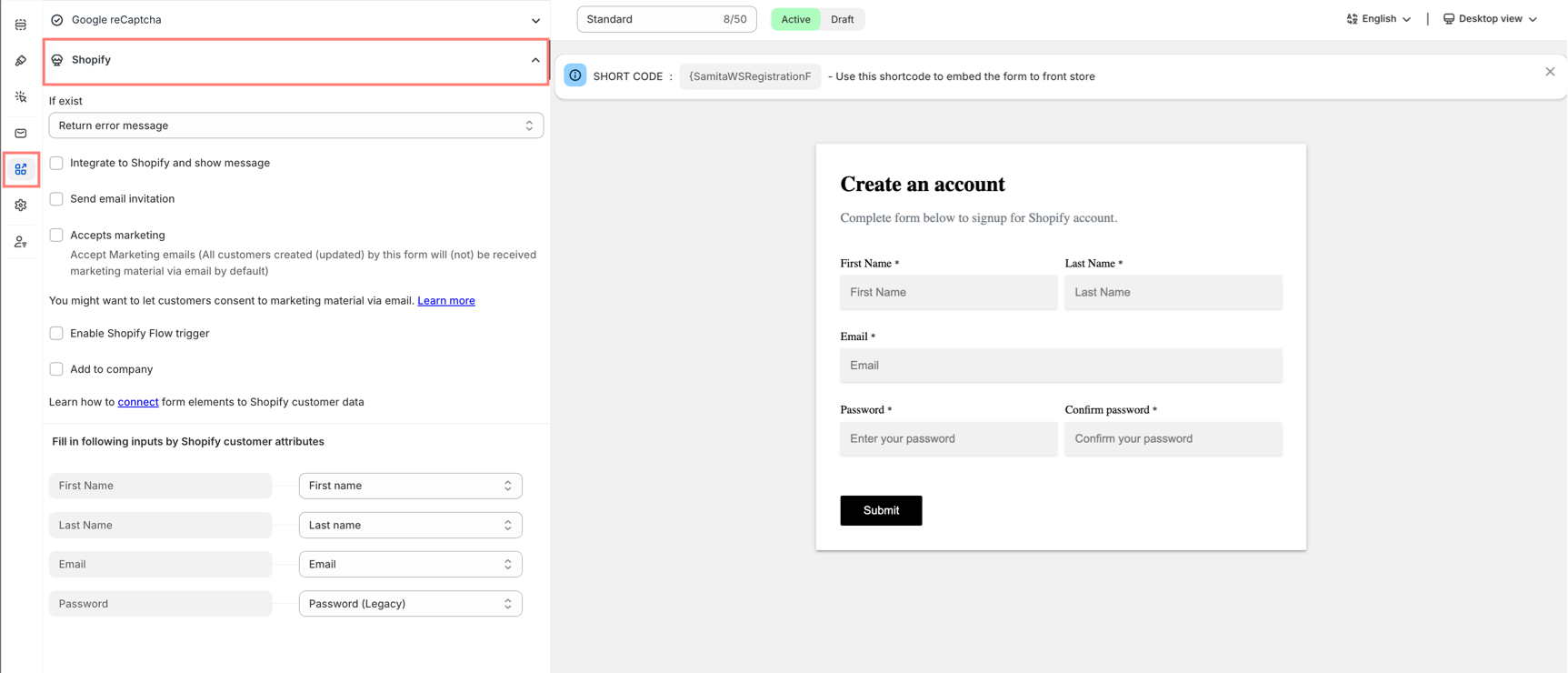
From the app, click **Registration Form**, open the form you want, then click the **Integration** tab and choose **Shopify**.

<figure><img src="https://1875078098-files.gitbook.io/~/files/v0/b/gitbook-x-prod.appspot.com/o/spaces%2FcI28ZFsoFjOa0T0AsCVi%2Fuploads%2Fgit-blob-a72e32e0962869665519e8c2c5b61773b1fd62ee%2Fregistration-form-integration-shopify-overview.png?alt=media" alt=""><figcaption></figcaption></figure>
{% endstep %}

{% step %}

### Enable the Flow trigger

Turn on **Enable Shopify Flow trigger**.

<figure><img src="https://1875078098-files.gitbook.io/~/files/v0/b/gitbook-x-prod.appspot.com/o/spaces%2FcI28ZFsoFjOa0T0AsCVi%2Fuploads%2Fgit-blob-6639b390682b4c3b30e548ff6d54a08e86aeb50b%2Fregistration-form-enable-shopify-flow-trigger.png?alt=media" alt=""><figcaption></figcaption></figure>
{% endstep %}

{% step %}

### Save

Click **Save**.
{% endstep %}
{% endstepper %}

{% hint style="warning" %}
This option is only available on certain pricing plans. If you don't see **Enable Shopify Flow trigger** under **Integration > Shopify**, check **Settings > Pricing plan** or contact support.
{% endhint %}

## Build a workflow in Shopify Flow

{% stepper %}
{% step %}

### Install Shopify Flow

Go to **Shopify Admin > Apps > Flow**. It's free and available on every Shopify plan; install it if you haven't already.
{% endstep %}

{% step %}

### Create a workflow

Click **Create workflow**.
{% endstep %}

{% step %}

### Choose the trigger

In the trigger step, search for **Sami Wholesale** (listed as *"All-in-1 Wholesale B2B: Volume discount, b2b registration, tax"*) and open it. Inside, select the trigger named **Sami B2B Wholesale Pricing** — its description reads *"Triggers when a customer is created or updated via a Wholesale registration form."*

<figure><img src="https://1875078098-files.gitbook.io/~/files/v0/b/gitbook-x-prod.appspot.com/o/spaces%2FcI28ZFsoFjOa0T0AsCVi%2Fuploads%2Fgit-blob-f1b0b48997f1883abef877b33f422268efcc0b5f%2Fshopify-flow-trigger-picker-sami-wholesale.png?alt=media" alt=""><figcaption></figcaption></figure>
{% endstep %}

{% step %}

### Add actions

Add whatever actions you need — Flow ships with hundreds of built-in actions: send a notification, add a tag, call a webhook, branch on a condition, and more.
{% endstep %}

{% step %}

### Turn the workflow on

Click **Turn on**.
{% endstep %}
{% endstepper %}

{% hint style="success" %}
**Result:** from now on, whenever a customer registers or is updated through a form with this option enabled, the workflow runs automatically — usually within about 2 minutes of the submission.
{% endhint %}

## Data available in the workflow

When building your workflow, you can insert the following variables into any step:

<table><thead><tr><th width="220">Variable</th><th>Description</th></tr></thead><tbody><tr><td><strong>Customer</strong></td><td>The Shopify customer that was created or updated — use it directly with any customer-related action (add tag, add to segment, send email, etc.).</td></tr><tr><td><strong>Form > Name</strong></td><td>The name of the Registration Form that was submitted — useful if you have multiple forms and want the workflow to behave differently depending on which one was used.</td></tr><tr><td><strong>Registration customer > Data</strong></td><td>Everything the customer filled in on the form (field label and value), packed into a single JSON string. See below to split it into individual fields.</td></tr></tbody></table>

## Reading individual fields from "Registration customer > Data"

The submitted form data is sent as **one JSON string** (for example: `{"Email": "abc@example.com", "First Name": "John", "Company name": "ABC Co."}`), with every field bundled into a single variable. To split it into individual fields you can use later in the workflow, add a **Run code** step right after the trigger.

**Step 1 — Add the "Run code" action**

In your workflow, click **Add action**, then find and select **Run code**.

**Step 2 — Fill in Input (GraphQL query)**

In the **Input** box, paste:

```graphql
{
  registrationCustomer {
    data
  }
}
```

**Step 3 — Fill in Function (JavaScript)**

In the **Function** box, paste:

```javascript
export default function main({ registrationCustomer }) {
  const formData = JSON.parse(registrationCustomer.data);

  return {
    email: formData['Email'] || '',
    firstName: formData['First Name'] || '',
    companyName: formData['Company name'] || '',
  };
}
```

{% hint style="info" %}
Replace `'Email'`, `'First Name'`, `'Company name'`... with the exact field **label** shown on your form (not the internal element ID).
{% endhint %}

**Step 4 — Fill in Output (return type)**

In the **Output** box, paste a type declaration matching what you returned in Step 3:

```graphql
type Output {
  email: String!
  firstName: String!
  companyName: String!
}
```

**Step 5 — Use the result in later steps**

After saving, this **Run code** step becomes a new variable source for the actions after it — insert `email`, `firstName`, `companyName` (or whatever you named them) into an email body, a Slack message, a condition, etc.

{% hint style="warning" %}
Shopify Flow's **Run code** executes JavaScript in a restricted sandbox (no external API calls, no external libraries, 5-second execution limit) — use it only to reshape data, not to call a webhook directly. To call a webhook, use Flow's built-in **HTTP request** action in a separate step.

**Limitation:** the **Output** of a **Run code** step only supports declaring individual fields (`String`, `Int`, `Float`, `Boolean`, `ID`, etc.) — there is no generic "JSON" return type. You can't pass the whole `registrationCustomer.data` object through freely; you must declare each field you need (Steps 3–4) using the exact label from your form. If you later add a new field to your form and want to use it in the workflow, come back and add it to the **Run code** step too.
{% endhint %}

## Notes

* Requires the **Shopify Flow** app on your store (free, available on every Shopify plan).
* After a customer submits the form, the workflow may take up to a couple of minutes to fire — this is expected, not an error.
* This feature is available depending on your app's pricing plan; if you don't see **Enable Shopify Flow trigger**, check your current plan or contact support.

> ### **Need support?**
>
> If you do encounter any difficulty while proceeding these steps, don’t show any hesitation to contact us promptly via the email address [support@samita.io](https://help.samita.io/support@samita.io)


---

# Agent Instructions
This documentation is published with GitBook. GitBook is the documentation platform designed so that both humans and AI agents can read, navigate, and reason over technical content effectively. Learn more at gitbook.com.

## Querying This Documentation
If you need additional information that is not directly available in this page, you can query the documentation by asking a question.

Perform an HTTP GET request on the following URL with the `ask` and `goal` query parameters:

```
GET https://docs.samita.io/samita-wholesale-b2b/registration-form/trigger-shopify-flow-on-registration.md?ask=<question>&goal=<user_goal>
```

`ask` is the immediate question: it should be specific, self-contained, and written in natural language.
`goal` is what the user is ultimately trying to achieve, the reason they need the answer. Sharing it helps GitBook give you a better, more relevant answer. A goal is most helpful when it describes the outcome the user wants rather than restating the question. For example, with `ask=how do I create an API token`, a goal like `automate deployments from our CI pipeline` lets GitBook tailor the answer to that use case.

The response will contain a direct answer to the question and relevant excerpts and sources from the documentation.

Use this mechanism when the answer is not explicitly present in the current page, you need clarification or additional context, or you want to retrieve related documentation sections.