> For the complete documentation index, see [llms.txt](https://docs.samita.io/llms.txt). Markdown versions of documentation pages are available by appending `.md` to page URLs; this page is available as [Markdown](https://docs.samita.io/samita-wholesale-b2b/volume-pricing/import-products-into-a-volume-pricing-rule.md).
# Import products into a volume pricing rule
Add a batch of products, quantity tiers, and their custom prices straight into a single volume pricing rule you're already editing, by uploading a CSV or XLSX file.
This is a lighter-weight import than [Import multiple products for Volume pricing setup](/samita-wholesale-b2b/volume-pricing/import-multiple-products-for-volume-pricing-setup.md). Use it when you already have a volume pricing rule open — new or existing — and just want to add many products, quantity tiers, and prices to it, without creating extra rules. The rule's audience (which customers it applies to) is whatever you've already configured in the **Customer** tab; the file only needs to carry products, variants, tiers, and prices.
## Step 1: Prepare your file
Create a CSV or XLSX file with one row per product/variant tier, using the columns below. Column order doesn't matter — the file is read by header name — so you only need to include the columns you're actually using.
***Note:** Please split your products into batches of approximately 500 products per rule when importing. If your products have a large number of variants, the rule may fail to upload the data to the metafields successfully.*
Full column reference
| Column | Required? | Notes |
| ------------------ | ----------- | ----------------------------------------------------------------------------------------------------------------------------------------------------------------- |
| **Product ID** | Conditional | The Shopify product ID to price. Required unless you're using SKU instead. See below for how to find it. |
| **Variant ID** | No | Fill in to price one specific variant instead of the whole product. See below for how to find it. |
| **SKU** | Conditional | A variant's SKU. If a row has a SKU, it's looked up in your store and takes priority over Product ID/Variant ID — you don't need to fill those in for that row. |
| **From Quantity** | No | The lower threshold of this tier, e.g. `10` for "buy 10 to 20 units, get 10% off". Use **From Amount** instead if the rule's Type is Amount. |
| **To Quantity** | No | The upper threshold of this tier, e.g. `20` for the same example. Leave blank for an open-ended top tier. Use **To Amount** instead if the rule's Type is Amount. |
| **From Amount** | No | Same as From Quantity, for rules where Type is Amount. |
| **To Amount** | No | Same as To Quantity, for rules where Type is Amount. |
| **Discount Type** | No | `percent`, `fixed` (fixed amount off), or `amount`. Defaults to `percent`. |
| **Discount Value** | Yes | The price for this product/variant at this tier, for the rule's current audience (all/logged/non-logged customers). |
**Multiple tiers for the same product:** add one row per tier, repeating the same Product ID (and Variant ID, if pricing a specific variant) with a different From/To range each time.
**Pricing different customer segments differently:** if the rule's audience is customer tags or specific customers, replace the **Discount Value** column with one column per tag name or customer ID instead, and fill in each segment's price in its own column. If the file's extra columns are tag names or customer IDs that aren't part of the rule yet, they're added to the rule's audience automatically when you confirm the import.
**Finding a product ID:** go to the Products folder in Shopify, open the product, and check the page URL — the product ID is the number at the end of the link.
**Finding a variant ID:** open the product, go to the variant you need, and click into it. The variant ID is the number at the end of that page's URL.
**Sample file:** download [volume\_products\_example.csv](https://github.com/samita-baoan/Samita-Wholesale-B2B/tree/docs-restructure/.gitbook/assets/volume_products_example.csv) or [volume\_products\_example.xlsx](https://github.com/samita-baoan/Samita-Wholesale-B2B/tree/docs-restructure/.gitbook/assets/volume_products_example.xlsx) to see the format in action.
Once your file is ready, save it.
## Step 2: Upload the file to the rule
{% stepper %}
{% step %}
### Set Apply Product to Specific products
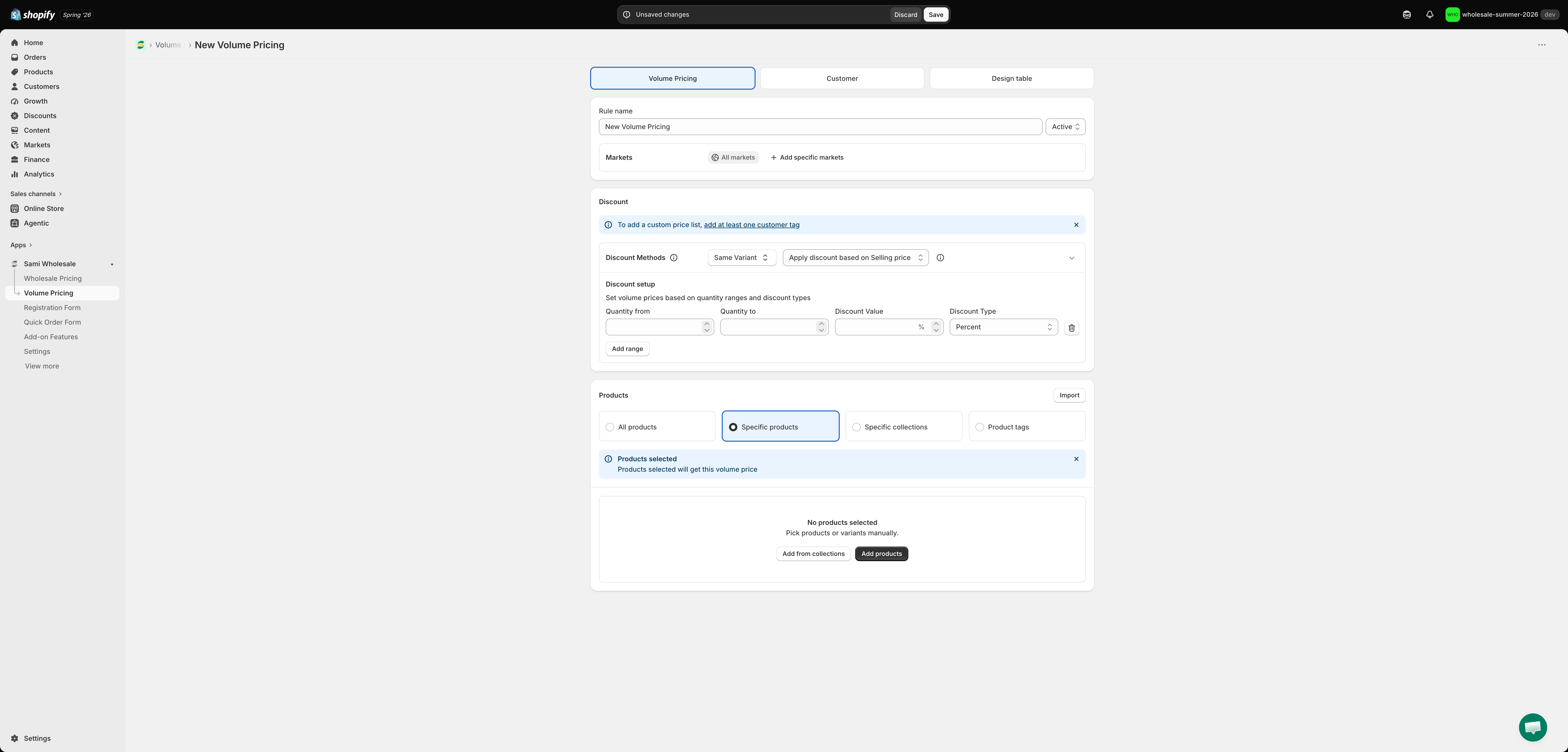
This import only applies to rules where the **Products** section is set to **Specific products** — that's what makes the **Import** button next to **Products** appear.
{% endstep %}
{% step %}
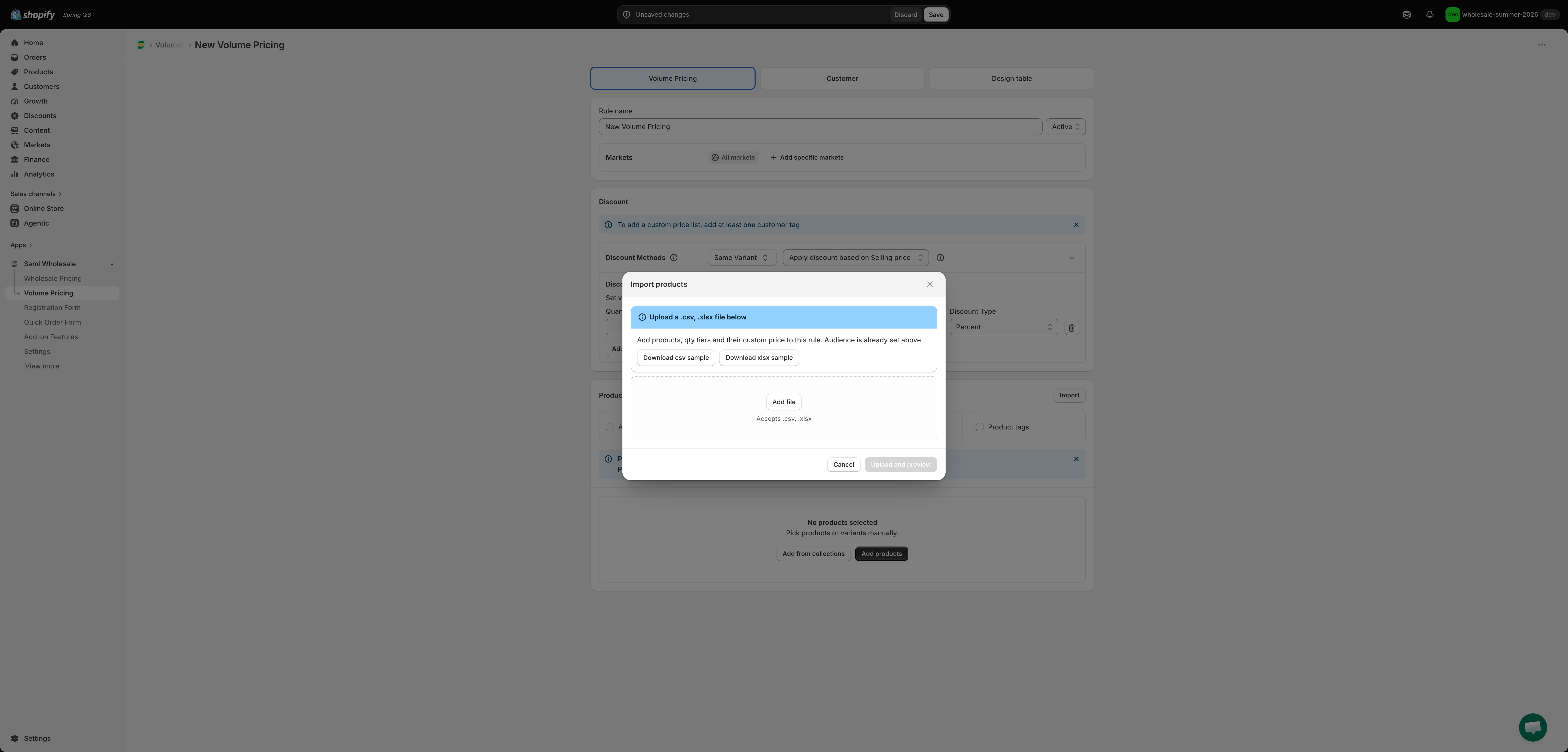
### Click Import and upload your file
You can also download a sample CSV or XLSX file here to see exactly what data each column needs.
{% endstep %}
{% step %}
### Preview and confirm
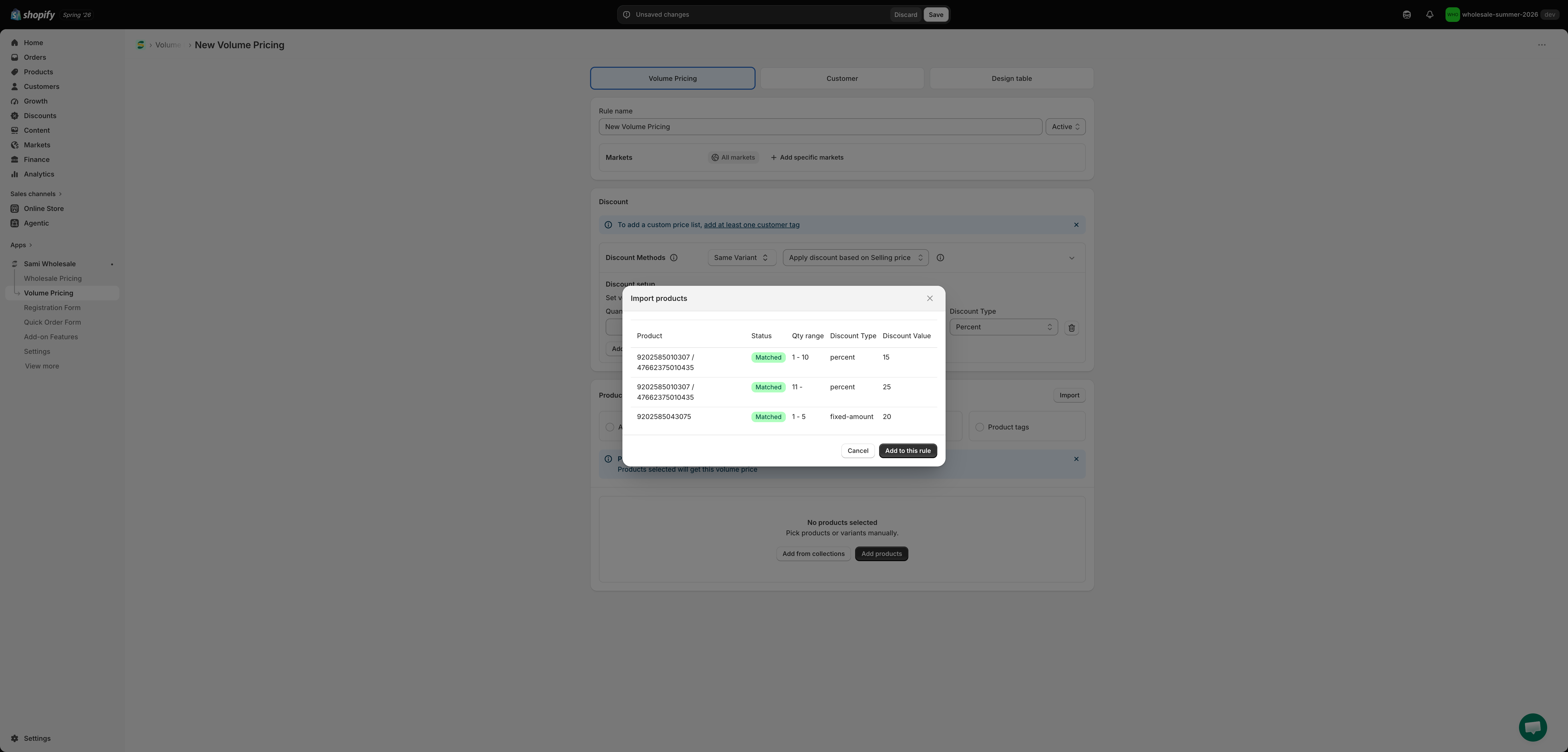
Click **Upload and preview**. Each row shows the quantity range it applies to, and whether it matched a real product/variant in your store — rows marked **Not found** are skipped. Click **Add to this rule** to merge the matched rows into the product table below.
{% endstep %}
{% step %}
### Save the rule
The imported rows are merged into the product table on the page, but nothing is saved yet — click **Save** on the rule to keep them.
{% endstep %}
{% endstepper %}
{% hint style="info" %}
If you run into any trouble during these steps, contact us any time at ****.
{% endhint %}
---
# Agent Instructions
This documentation is published with GitBook. GitBook is the documentation platform designed so that both humans and AI agents can read, navigate, and reason over technical content effectively. Learn more at gitbook.com.
## Querying This Documentation
If you need additional information that is not directly available in this page, you can query the documentation by asking a question.
Perform an HTTP GET request on the following URL with the `ask` and `goal` query parameters:
```
GET https://docs.samita.io/samita-wholesale-b2b/volume-pricing/import-products-into-a-volume-pricing-rule.md?ask=&goal=
```
`ask` is the immediate question: it should be specific, self-contained, and written in natural language.
`goal` is what the user is ultimately trying to achieve, the reason they need the answer. Sharing it helps GitBook give you a better, more relevant answer. A goal is most helpful when it describes the outcome the user wants rather than restating the question. For example, with `ask=how do I create an API token`, a goal like `automate deployments from our CI pipeline` lets GitBook tailor the answer to that use case.
The response will contain a direct answer to the question and relevant excerpts and sources from the documentation.
Use this mechanism when the answer is not explicitly present in the current page, you need clarification or additional context, or you want to retrieve related documentation sections.
.png?alt=media)
.png?alt=media)